Table of Contents
I went looking for something that could help me skim long YouTube videos without losing the plot. That’s where Notabl comes in. The pitch is simple: paste a YouTube link and it turns the video into a summary plus organized notes. So I tested it on a few videos with different styles (tutorial-style, commentary, and one lecture-ish upload) and paid close attention to what it actually outputs—how fast it is, how clean the notes look, and where it tends to miss.
Notabl Review: Does It Really Summarize YouTube Fast?
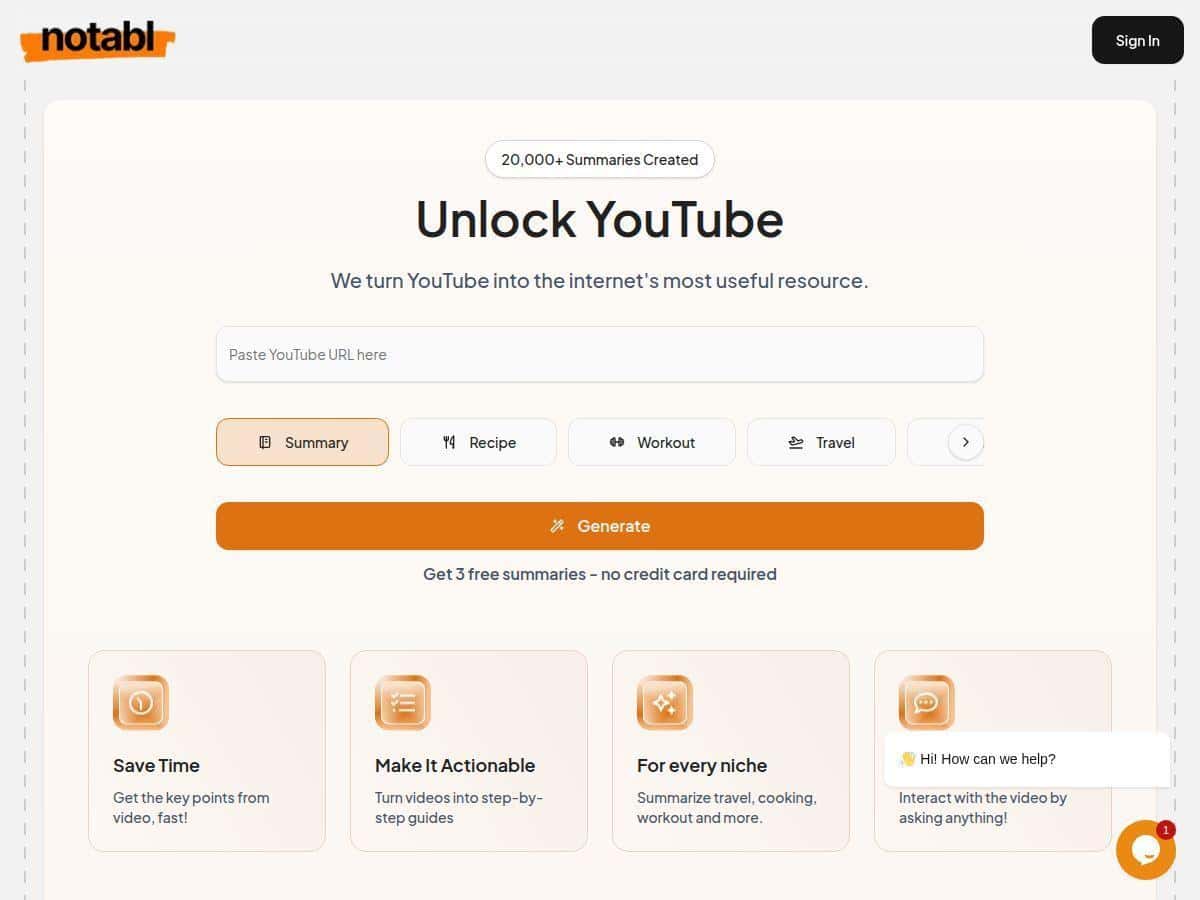
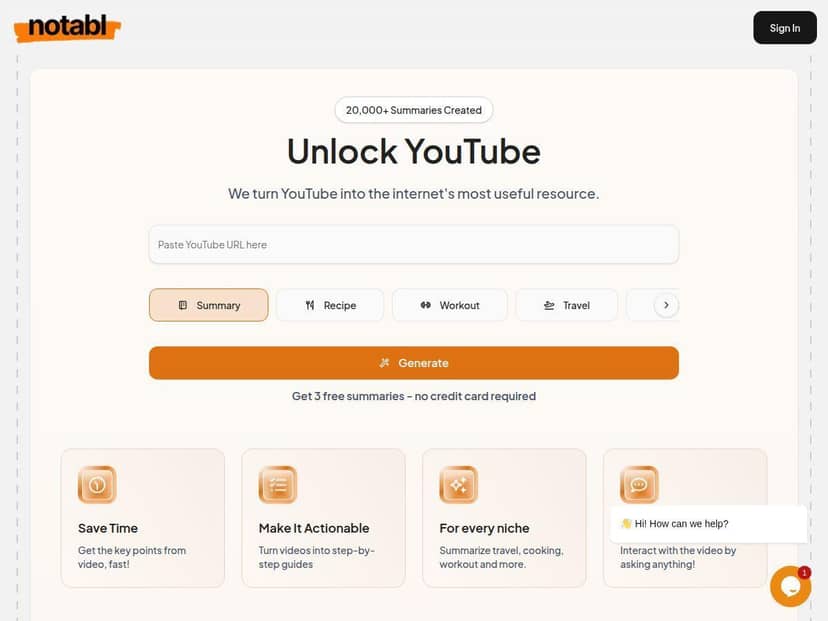
Here’s what I did, step-by-step. I opened Notabl, pasted a YouTube URL, and hit the summarize button. The whole “paste link → get results” flow felt pretty smooth—no fiddly settings, no endless menus. And yes, it really does move quickly. On my end, the first summary showed up in under a minute for typical videos (nothing super long like 3+ hours).
What I summarized (so you know what “test” means):
- Video #1 (tutorial-style): ~12 minutes, mostly direct instruction with on-screen points.
- Video #2 (creator commentary): ~18 minutes, lots of “story” and examples, fewer hard signposts.
- Video #3 (lecture-ish): ~25 minutes, more structured but with a few dense sections and slower pacing.
What the output looked like: Notabl didn’t just spit out a wall of text. It generated a summary that reads like a condensed “main ideas” list, then it produced structured notes in a format that’s easier to scan afterward. The notes were grouped in a way that made it simple to jump back later without rewatching the whole thing.
One thing I noticed right away: Notabl is best when the video already has clear segments. When the creator frequently signals transitions (“now we’ll cover…”, “here’s the key takeaway…”) it nails the structure. But when the video is more casual or the audio is messy, you can feel it in the quality of the notes.
Example of what it got right: On the tutorial-style video, it captured the key steps in order and kept the tone practical. I could skim the notes and still follow what the instructor did.
Example of where it struggled: On the commentary video, there were a couple of moments where it summarized the idea but softened the details. It wasn’t “wrong” exactly—it was more like it averaged things out. If you need verbatim accuracy or you’re studying for something high-stakes, you’ll still want to cross-check the original video.
So, is it worth it? For me, yes—with the right expectations. Notabl is great for fast comprehension and organized review. It’s not a replacement for careful note-taking when every nuance matters.
Key Features: What Notabl Actually Does (and How It Looks)
Notabl’s features are centered around one core workflow: take a YouTube link, generate a summary, then turn that into structured notes you can reuse. Here’s how each feature played out in my testing.
1) Video Summarization (quick main points)
This is the feature you’ll use first. You paste a URL, and Notabl generates a condensed summary. In my tests, the summaries were usually readable immediately—no weird formatting issues, and it didn’t feel like it was throwing random snippets together.
What I liked: the summary focuses on “what matters” rather than trying to cover every second of the video.
What I didn’t love: dense sections can get compressed too much. On the lecture-ish video, one complicated part ended up as a shorter explanation that made sense—but it didn’t include every supporting detail.
2) Structured Outputs (notes you can scan later)
Notabl doesn’t stop at a summary. It can format the content into structured notes—think categories and organized sections instead of one continuous paragraph.
Concrete examples from my use:
- Study notes style: It turned key concepts into grouped bullet points, which made it easier to review the “big ideas” without hunting through timestamps.
- Process / steps: On the tutorial video, the output leaned into ordered steps, so I could follow the sequence the creator used.
- Planning-style notes: On a travel/itinerary-ish video I tried, the notes came out in a way that looked closer to “planning prompts” than raw transcript dumping.
If you’re the type of person who saves notes for later (class, content ideation, meetings), this is where Notabl feels most useful. I don’t just want a summary—I want something I can actually come back to.
3) AI Interaction (ask questions about the video)
One of the more interesting parts is the ability to ask questions and get answers based on the video content. In practice, this is helpful when you remember the general topic but want a specific detail.
Questions I tried:
- “What are the main takeaways from this section?”
- “Can you list the steps mentioned and put them in order?”
- “What’s the creator’s recommendation at the end?”
What I noticed: When the video is clear and well-structured, the answers are more confident and consistent. When the video is more conversational, the responses still help, but they can miss the “extra” detail you might expect from a careful rewatch.
4) Easy Input (paste a YouTube URL)
This part is refreshingly simple. There’s no complicated setup. Paste the link, generate output. That’s it.
Tip I’d actually use: If you’re working from a long playlist, try shorter segments first. You’ll get better results faster and you can build your own “study pack” from multiple videos.
5) Cross-Platform (desktop + mobile)
I used it from a regular desktop browser and then checked the experience on mobile. The workflow still made sense on mobile—pasting the link and reading the results was straightforward. If you’re commuting or doing quick research on your phone, this matters more than people think.
6) Organized Notes (categorize and search)
Notabl’s organization tools are what make it feel more like a workspace than a one-off summarizer. I could see how you’d build a library of notes over time.
What I liked: it’s easier to revisit notes because they’re not just a single summary text blob.
What to watch: if you’re generating lots of outputs, you’ll want to keep your own naming/categorizing habits consistent so you don’t end up with a messy archive.
7) Free Trial / Free Plan (what you can do without paying)
Notabl includes a free option, which is great because you can test the quality before committing. In my review, the free plan allowed up to three summaries. That’s enough to judge whether it “gets” your type of content.
After that, you’ll need a paid plan if you want more summaries and the expanded features.
Pros and Cons: What I’d Tell a Friend
I’m going to be honest here. Notabl is one of those tools that feels amazing when it works—and a little frustrating when the video content isn’t friendly to summarization.
Pros (based on what I saw)
- Fast, practical summaries: For typical tutorial and lecture-style videos, I got usable “main ideas” quickly, usually within about a minute for shorter uploads.
- Notes are actually organized: The structured output makes it easier to review later. I didn’t have to hunt through a transcript-like dump.
- AI Q&A is helpful for follow-ups: Asking targeted questions (steps, recommendations, key takeaways) produced answers that were relevant enough to save time.
- Easy workflow: Paste link, generate, read. No complicated setup.
- Works well across devices: Mobile use felt practical for quick reading and checking.
Cons (where it didn’t impress me as much)
- Dense topics can get compressed: On the longer lecture-style video, some supporting details got trimmed. It’s good for understanding, not for memorizing every nuance.
- Audio/clarity matters: When speech is harder to parse (background noise, heavy accents, or unclear audio), the notes can become more general than you’d want.
- Free plan limits your testing: Three summaries is enough to try it, but if you’re doing serious research you’ll hit the cap fast.
- Informal slang can slip through: For very casual creator talk, it sometimes summarizes the gist but softens the exact phrasing.
- Some “nice-to-have” features require a paid plan: Sharing and advanced formatting aren’t available on the free tier.
Pricing Plans: What It Costs (as of my check)
Important: Pricing can change, so I’m basing this on what was available during my review window. If you’re reading this later, double-check Notabl’s site for the latest numbers.
In my review, Notabl offered:
- Free plan: up to three summaries.
- Paid plans: These unlock more summaries plus features like structured outputs, sharing, and additional tools beyond the free tier.
Notabl doesn’t clearly list every plan price inside the content I reviewed, so I can’t responsibly quote exact monthly figures here without risking misinformation. The best move is to check their pricing page directly using the link on their website and compare what’s included with the plan you’re considering.
Wrap-up: Who Notabl Is Best For (and Who Should Skip It)
After testing Notabl, my verdict is pretty straightforward: it’s a solid tool for turning YouTube into readable study material. If you’re a student, educator, or content creator who needs quick takeaways, it can save you a lot of time—especially when you’re working with tutorial and lecture-style videos.
That said, I wouldn’t use it as your only source if you need precision, quotes, or full coverage of every detail. If the video is dense, unclear, or heavily informal, you’ll still want to rewatch key sections.
If you want a fast way to summarize and organize YouTube content—without spending hours replaying videos—Notabl is worth trying. Start with one or two videos in the style you care about, see how close the notes feel to your expectations, and then decide if the paid tier is worth it for your workflow.