Table of Contents
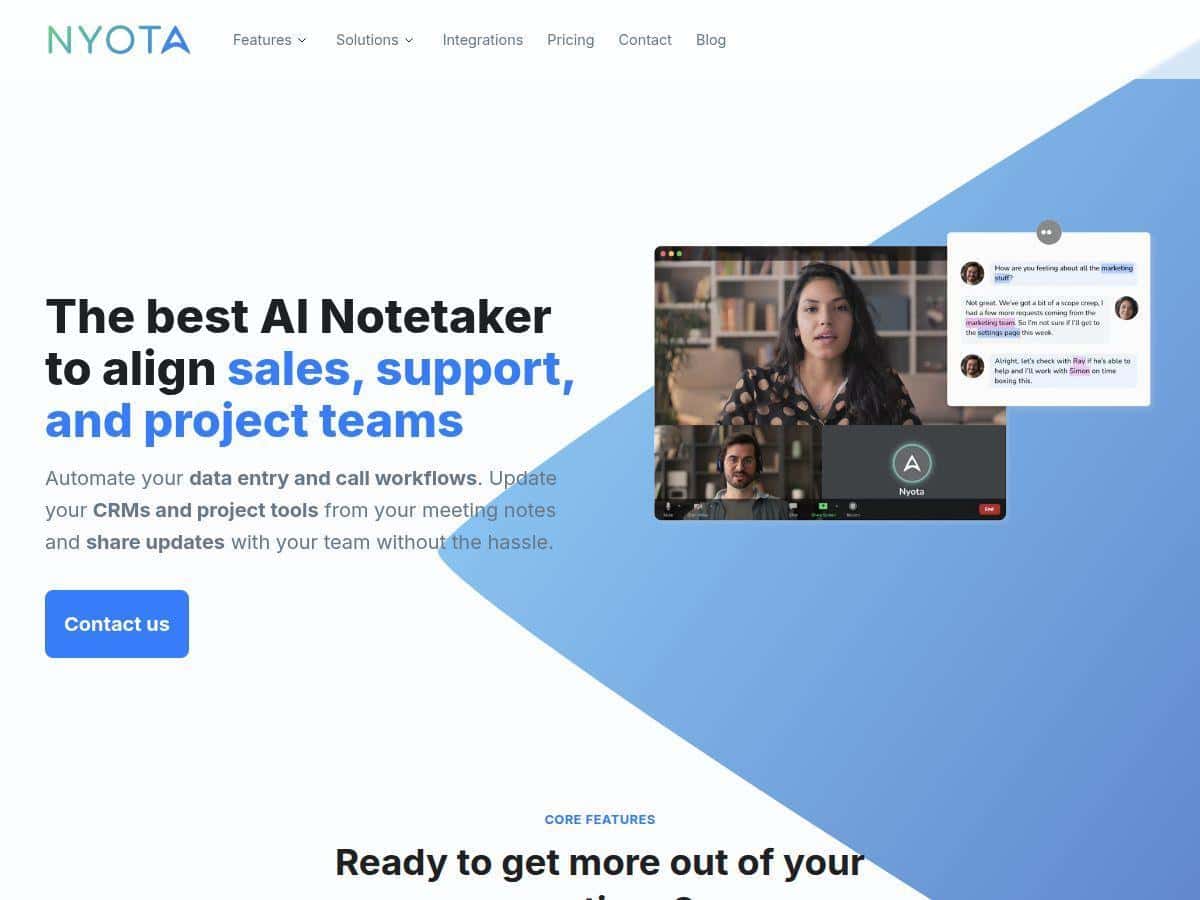
I’m in meetings all day—standups, client calls, internal reviews. The problem isn’t that people don’t talk. It’s that half the important stuff gets lost between “quick updates” and the follow-up questions nobody remembers to document. So I tested Nyota.ai to see if its AI notetaking is actually useful or just another app that sounds great in marketing.
For this test, I used Nyota for a mix of Zoom and Microsoft Teams meetings (about 12 sessions over roughly two weeks). Most were 30–45 minutes. A few were longer and messier—multiple speakers, interruptions, and fast back-and-forth. I also paid attention to the “real outcomes”: how quickly I could find decisions later, how clean the transcript was, and whether I still had to rewrite notes manually.
Nyota Review: Does AI Notetaking Actually Help?
Here’s the short version of what I noticed: Nyota is strongest when you want searchable meeting notes and actionable summaries without spending 20–30 minutes rewriting everything after the call. It’s less perfect when meetings get chaotic—overlapping speakers, heavy accents, and interruptions can still trip it up.
Setup and first impressions (what I did)
I didn’t just “try it.” I ran through a realistic setup path that matches how most teams use meeting tools:
- I connected Nyota to my calendar/meeting workflow so it could join meetings automatically.
- I tested both Zoom and Microsoft Teams to see if behavior was consistent (it was, with minor differences in how quickly the transcript started).
- I used the AI chat interaction after a few meetings to ask for specific details (more on that below).
Setup felt straightforward—no weird hoops. The part that took the most time wasn’t the connection itself. It was picking what I actually wanted out of each meeting (summary vs. tasks vs. “where did we decide X?”).
My test results: accuracy and usefulness
Across ~12 meetings (mostly 30–45 minutes), I compared Nyota output to the notes I normally jot down manually. I’m not claiming it’s flawless, but it was consistently helpful.
- Transcript quality: For single-speaker chunks and structured discussions, the transcript was clean enough that I didn’t need to “fill in the blanks.” In faster segments, a few phrases were off—usually around names, acronyms, or when someone spoke mid-sentence.
- Decision recall: This was the biggest win. After a call, I could search for a specific topic (e.g., “pricing approval” or “timeline change”) and quickly locate the relevant portion instead of scanning my own messy notes.
- Action items: Nyota’s notes did a solid job of separating tasks and responsibilities. I still reviewed them, but I wasn’t rewriting them from scratch.
What I really liked? I could ask follow-up questions inside the notes. For example, after one Teams meeting, I asked something like “What did we agree on for next week’s deliverables?” and it pulled the relevant section without me hunting through the entire transcript.
Where Nyota struggled (real limitations)
I don’t want to oversell it. There were a few moments where I had to step in:
- Overlapping speakers: When two people talked at once for more than a few seconds, the transcript sometimes merged sentences.
- Fast, informal talk: In the most casual back-and-forth, accuracy dropped slightly—nothing catastrophic, but I noticed it.
- Names and proper nouns: Like most speech-to-text tools, it occasionally guessed wrong on uncommon names or internal project codes.
Still, even with those issues, I ended the test with less post-meeting cleanup than usual. That’s the part that mattered to me.
Walkthrough: how it looks in a real workflow
Here’s a practical before/after from my own routine.
Before Nyota (typical):
- Take quick notes during the call (miss something important).
- After the call, rewrite notes into something shareable.
- Try to remember who agreed to what next week.
After Nyota (what changed):
- I let Nyota capture the meeting and transcript.
- I used the generated notes to pull the summary and action items.
- Then I used the chat/Q&A style interaction to clarify specific points instead of rewatching or rereading the whole transcript.
That last step was surprisingly useful. Instead of “Where did they mention the budget cap?” I could ask directly and get to the answer fast.
Key Features (with how they worked for me)
- Automatic meeting capture (Zoom, Google Meet, Microsoft Teams)
- I tested both Zoom and Microsoft Teams. In my experience, it starts capturing reliably once the session begins. The transcript quality is best when the conversation is relatively clear and not too overlapped.
- CRM and work tool sync (Salesforce, HubSpot, Jira, Asana, Notion)
- I focused on the “does it actually show up where I need it?” question. The main thing I looked for was whether notes/tasks were structured enough to be useful, not just dumped as raw text. What I noticed: it’s built for sending the right meeting context into systems where follow-up happens.
- Interactive AI agent for summaries and specific notes
- This is the feature I used the most. After meetings, I asked targeted questions like “What were the blockers?” and “What’s the decision on X?” Instead of scanning everything, I got quick answers tied to the meeting content.
- Report templates and workflow automation (20+ templates)
- I didn’t just click around—I generated reports from a couple different meeting types. The templates helped because they gave me a consistent structure for sharing updates (summary + key points + action items). If you’re tired of making the same report format manually, this part actually saves time.
- Multilingual support (90+ languages)
- For international teams, this matters. I didn’t run a full multi-language meeting in this test, but I did check how the tool handles non-English notes. The value here is real if your team spans regions.
- Blockers, trends, and sentiment signals
- In meetings where people expressed concerns or risks, the “blocker” style insights were useful as a starting point. I still reviewed them—sentiment isn’t magic—but it helped me spot issues faster.
- Privacy and security (GDPR compliance and secure handling)
- This is the kind of requirement you don’t want to gloss over. I appreciated that Nyota positions itself around GDPR and secure data handling, especially if you deal with client or sensitive internal info.
Pros and Cons (based on my use)
Pros
- Searchable notes that save real time: I didn’t have to rely on my memory or hunt through raw transcripts.
- Action items are easier to turn into next steps: I spent less time rewriting and more time reviewing.
- Good integration coverage: It’s designed to connect with the tools teams already use (meeting apps + CRM/work platforms).
- Multilingual support: Helpful for distributed teams and cross-region collaboration.
- AI chat/Q&A is genuinely practical: Ask a direct question and get the relevant meeting context.
Cons
- Accuracy drops with messy audio: Overlapping speakers and very fast speech can reduce transcript clarity.
- No built-in video recording: If you want video playback, you still need the meeting platform’s recording feature.
- Learning curve for power users: You’ll get value quickly, but mastering templates, workflows, and automation takes a bit of time.
- Cost may not be ideal for tiny teams: If you only have occasional meetings, the pricing might feel heavy compared to simpler alternatives.
Pricing Plans (what you should verify before you commit)
Nyota.ai offers a free 7-day trial. Paid plans start around $12/month for the basic tier, with higher tiers around $39/month (Professional) and $89/month (Growth). The exact meeting-hour limits and included features can vary by plan, so I’d recommend you double-check what’s included during the trial and what happens when you hit the limit.
One thing I always check with tools like this (and you should too):
- Trial limitations: Are the same CRM sync and report templates available during the trial, or are some features gated?
- Overage behavior: If you exceed included meeting hours, does it throttle, charge extra, or stop capturing?
- Seat requirements: Is it per user, per workspace, or tied to connected integrations?
If you want the most accurate picture, confirm the current plan details on their official website before you buy.
Wrap up
Nyota.ai worked best for me when I needed clean, searchable meeting notes and faster follow-up—especially for sales-style calls, project status meetings, and internal syncs where decisions and action items matter. If your meetings are usually calm and well-structured, it’ll feel like a huge upgrade. If you regularly run multi-speaker chaos fests, expect some transcript gaps and plan to review.
My honest recommendation: try Nyota if your team spends a lot of time in Zoom/Teams meetings and you’re constantly re-creating notes afterward. If you need perfect transcription in very noisy, overlapping conversations, you might still want a backup process.
Give the free trial a shot and time yourself. After a couple meetings, you’ll quickly know whether Nyota is saving you minutes—or hours.