Table of Contents
What Is Palette?
I first heard about Palette when I was looking for a faster way to turn messy research notes into something my team could actually react to. The promise sounded a little “AI will do the hard part” at first. You know the type—lots of hype, not much substance. So I tested it with a pretty typical early-stage setup: a product idea, a handful of observations, and a short transcript-style chunk (the kind of messy notes you’d normally paste into a doc and then forget to synthesize).
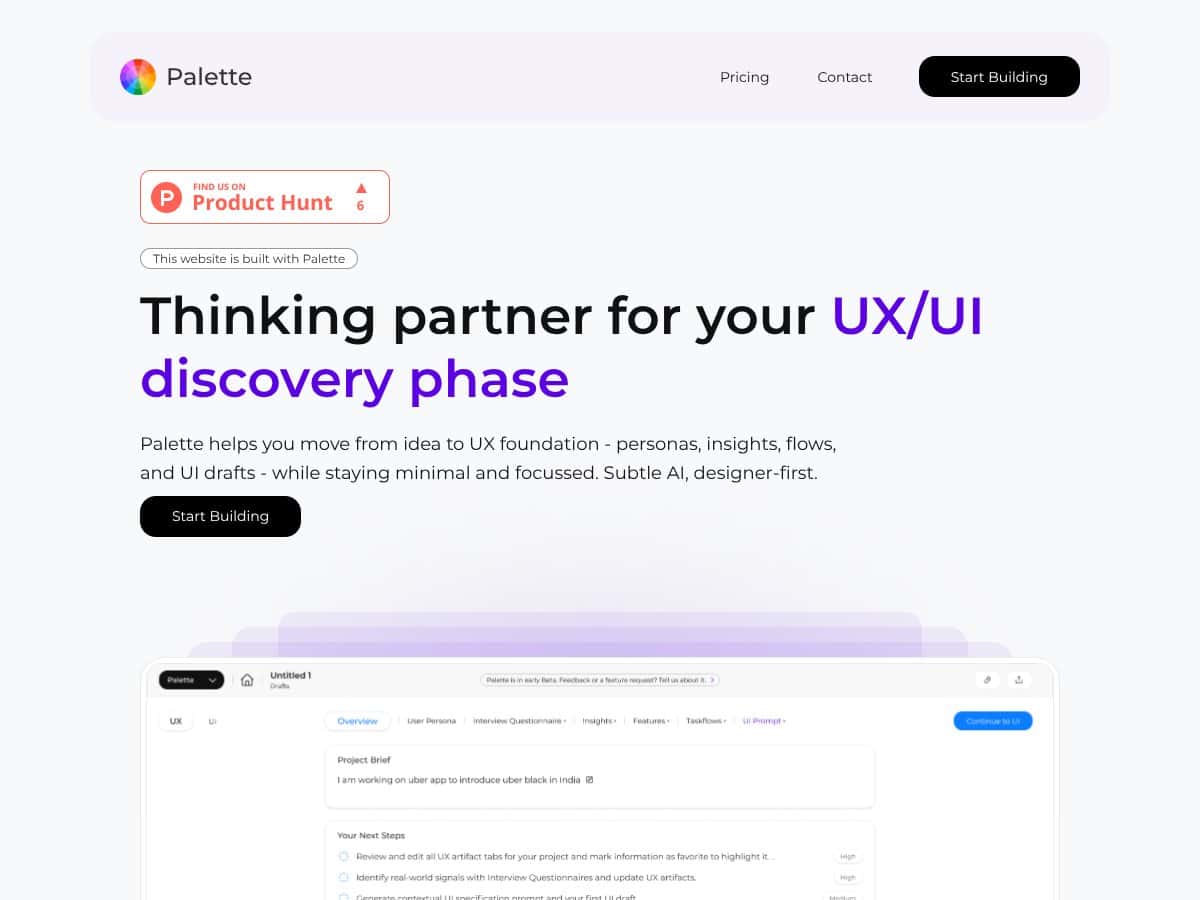
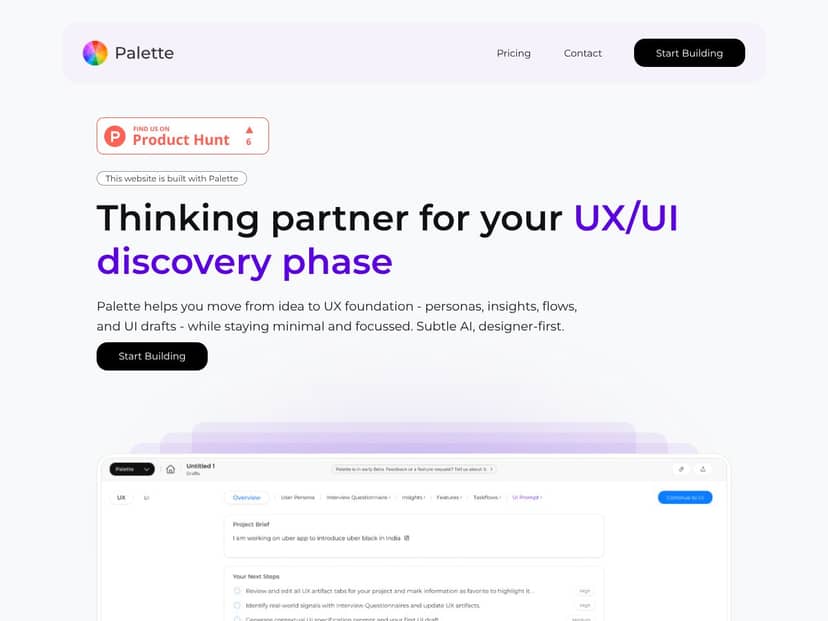
In plain English, Palette is an AI-assisted UX discovery workspace. You feed it raw context—product notes, transcripts, or observations—and it clusters what it finds into usable artifacts like personas, user flows, insights, and (in some cases) UI draft suggestions. After that, you’re not locked in. You can edit the outputs, reorganize the artifacts, and iterate until the structure matches what you’re seeing in your research.
One big thing I noticed: it’s designed to help you move from “we have notes” to “we have a UX map.” That’s the real problem it’s trying to solve. Early UX work is always scattered—sticky notes, meeting transcripts, half-finished wireframes, Slack screenshots. Palette tries to stitch it together so you spend less time hunting for context and more time deciding what to build next.
My testing setup (so you know what I’m basing this on)
Here’s what I actually ran through:
- Account: Beta/paid access (so I could generate multiple artifacts without constantly hitting limits).
- Inputs: 1 product concept summary + ~2 pages of transcript-style text + ~10 bullet observations.
- Artifacts I generated: 3 personas, 2 user flows, and 2 UI draft variations.
- Iterations: I made edits to persona wording and adjusted a couple flow steps to see how well the system “stayed consistent.”
Why does this matter? Because it’s easy to review a tool based on what it shows on a landing page. I wanted to see if the outputs hold up when you’re actually working through real ambiguity.
About the team: the website links “Palette Design” as the product owner, but I didn’t find a lot of founder/team detail that felt easy to verify (no clear public bios, no obvious changelog, and no strong footprint I could point to). I’m not saying that’s automatically bad—small teams often move fast—but it does mean you should treat beta features as beta. In my experience, that’s exactly what happened: some parts felt polished, others felt like they’re still being shaped.
So, what’s the bottom line for “what is Palette?” It’s not trying to replace Figma or Adobe XD. It’s more like a structured assistant for discovery: personas, flows, insights, and early UI direction. If you want pixel-perfect layouts and full design-system rigor, you’ll still need a real design tool. If you want a faster way to get to an initial UX foundation your team can react to? That’s where Palette fits.
Fair warning: because it’s heavily focused on discovery and early artifacts, you may end up doing more manual cleanup than you expect—especially when you start editing AI-generated persona assumptions or reordering flow steps. It’s doable, just not always “one-click perfect.”
Palette Pricing: Is It Worth It?
- Access to basic artifacts
- Generate 1 free file
- Limited project sharing
- Limited UI generation
- Limited chats with User Personas
| Plan | Price | What You Get | My Take |
|---|---|---|---|
| Free | $0 /mo | Great for a quick “does this work for me?” test, but you’ll hit limits fast if you’re trying to iterate. | |
| Beta Plan | $12 credits/mo |
|
Good if you’re actively prototyping UX artifacts and want room to iterate without babysitting limits. |
| Post-Beta Plans | $25 credits/mo (expected) |
|
This is the part I’d watch closely. “Expected” pricing is fine for planning, but you’ll want specifics before committing long-term. |
| Enterprise / Custom | Contact sales | Advanced features, team management, dedicated support | Best for agencies or larger orgs that need governance and deeper collaboration. |
What I noticed about credits and “real usage”
Pricing is tricky with tools like this because your credit burn depends on how many iterations you do—and what kind of artifacts you generate. In my test, I generated multiple personas and flows, then produced two UI draft variations. The workflow felt smooth during generation, but the “cost” of experimentation is definitely real if you start doing lots of rerolls or heavy UI drafting. If you’re the type to explore 10 different directions before you commit, you’ll want to budget for that.
Also, the sales page doesn’t give you a “typical project” credit estimate. So here’s my practical advice: start with a small run. Generate one set of personas and one flow first. Once you like the structure, then do UI drafts. That way you’re not paying for iterations you’ll throw away immediately.
Fair warning: if your team expects frequent back-and-forth, you’ll want to align on a process (who edits what, when you rerun AI, and how you lock decisions). Otherwise, credits can disappear faster than expected.
Overall, I think the pricing lines up with what early-stage AI UX tools charge. It’s just not “set it and forget it” yet, because beta features and limits can change.
The Good and The Bad
Test 1: Persona quality from my transcript-style input
- AI-driven synthesis that actually feels relevant: I expected generic personas (“busy professional,” “tech-savvy teen,” etc.). Instead, the tool produced personas that matched the themes in my input. Not perfect—no AI output is—but the structure was coherent enough that I didn’t feel like I was starting from scratch.
- Useful edit points: When I edited a couple persona descriptions (clarifying goals and pain points), the changes were reflected in the way the rest of the artifacts lined up. That saved me time because I wasn’t rebuilding everything from nothing.
- Persona-to-UX linkage: The personas weren’t floating in isolation. They connected back to the flow steps and insights, which made discussions with my team easier. We weren’t arguing about “vibes”—we were reacting to concrete artifacts.
Test 2: Flow structure from the same input
- User flow generation that gives you a real starting point: Palette produced two flows that mapped to different user intent paths (one more exploratory, one more task-focused). The step-by-step breakdown was detailed enough that I could spot missing states (like failure/edge cases) and fix them.
- Speed: The flow generation was fast enough that I could iterate in the same session. I wasn’t waiting around for “maybe it’ll be better on the second try.”
- Where it struggled: If your transcript is vague or contradictory, the flows can inherit that mess. In one run, it assumed a decision point that wasn’t clearly supported by my text. I had to manually adjust the step logic to keep it realistic.
Test 3: UI draft suggestions (and what I’d actually trust)
- UI drafts that feel grounded in the UX context: I was pleasantly surprised here. The UI drafts weren’t just random screens—they reflected the flow intent and personas I’d generated. I still wouldn’t ship from these alone, but they’re good for early alignment.
- Surprisingly practical for early wireframes: Think “directional layout” more than “final design.” I used them to speed up the first round of UI discussions with stakeholders.
- Limitation: When I changed persona priorities, the UI draft sometimes didn’t fully update in the way I expected. That’s on me for testing quickly, but it’s a real thing: you may need to regenerate or tweak manually to get consistency.
What I Liked
- AI-driven synthesis of UX insights: It clusters signals into personas and flows in a way that’s actually usable for early ideation.
- UI draft generation: The UI suggestions were more relevant than I expected from a beta tool. I used them as “first draft wireframes,” not final UI.
- Exportable frontend code: Being able to export frontend code is genuinely helpful for prototypes. It won’t replace design tooling, but it can speed up dev handoff for quick iterations.
- Interconnected artifacts: Linking personas, flows, and UI direction reduces the “lost context” problem that happens when everything is in separate docs.
- Beta momentum: Priority access and unlimited generations during beta made it easier to experiment without constantly worrying about limits.
What Could Be Better
- Feature transparency still feels incomplete: In beta, it’s not always obvious what’s available at each tier or how the AI behavior changes between runs.
- Pricing clarity post-beta: The expected post-beta structure is there, but I’d still want clearer “typical usage” guidance before committing long-term.
- Best fit is discovery + video/creative workflows: If your work is purely UI design or you don’t deal with research transcripts, Palette might feel like overkill.
- Some features feel gated: Project sharing and advanced UI generation can be limited depending on plan/credits. That’s frustrating if collaboration is your top priority.
- Onboarding isn’t fully polished: I found myself clicking around for guidance instead of getting a clear “here’s the workflow” walkthrough.
Who Is Palette Actually For?
Palette is a strong fit if you’re doing early-stage UX discovery and you want structured outputs fast. In my experience, that usually means UX designers, product managers, and small teams who are constantly turning research into artifacts.
It’s especially useful when you have:
- Personas you need quickly (from transcripts, interviews, or research notes)
- Flows that need a first-pass structure before wireframes
- UI direction you want to discuss with your team (not necessarily final design)
If your team works in creative production—video editors, multimedia folks, teams juggling review cycles—Palette’s workflow can make sense. The tool’s focus on UX discovery and review-style context is a decent match for projects where you’re constantly gathering feedback and iterating.
And if you already use Discord, you’ll probably like the way collaboration is set up. That said, if you need deep enterprise collaboration features, governance, and complex project management, Palette feels more like a focused assistant than a full platform.
Who Should Look Elsewhere
Here’s my honest take: if you’re mainly trying to produce detailed UI designs, high-fidelity prototypes, or you need heavy collaboration tooling, Palette might not be enough on its own. It’s still beta, and some workflows aren’t as mature as you’d want in a production design pipeline.
If your day-to-day is Figma-based (design systems, components, versioning, stakeholder annotations), you’ll likely end up using Palette only as a supplement. It can help you generate structure and direction, but you won’t replace your established design workflow.
Also, if you’re managing a large number of stakeholders with complex review permissions and multiple integration dependencies, you may run into limits. Beta tools often don’t have the “everything is customizable” layer yet.
Lastly—this matters—if you don’t want AI-generated outputs at all, Palette’s automation will feel like a shortcut you don’t control. In that case, you’ll probably be happier sticking to traditional UX research synthesis and then building wireframes in your preferred design tool.
How Palette Stacks Up Against Alternatives
Adobe Color
- Adobe Color is focused on color palette generation, including accessibility checks and extracting palettes from images. It’s great when color is the problem.
- It’s free to use, but you’ll typically need Adobe Creative Cloud for full access to related Adobe workflows (around $20/month as a ballpark).
- Choose Adobe Color if you care about color accessibility and you’re already deep in Adobe.
- Choose Palette when you want UX structure—personas, flows, insights, and early UI direction—not just colors.
Paletton
- Paletton is a straightforward color wheel tool. It’s fast and simple, which is exactly why people like it.
- It’s free, so it’s an easy pick for quick color experiments.
- Pick Paletton if you only need color schemes and you don’t care about UX artifacts or collaboration.
- Stick with Palette if you want a workflow that connects personas, flows, and UI drafts. Paletton doesn’t do that.
Canva’s Color Palette Generator
- Canva’s generator makes color schemes from uploaded images. It’s convenient if you’re already designing inside Canva.
- Free tier exists, and Canva Pro ($12.99/month) adds more features.
- Choose Canva for quick palettes inside a broader design tool.
- Choose Palette if you want a UX discovery workspace with collaboration and structured artifacts beyond colors.
Vizcom’s Palettes Feature
- Vizcom’s “palettes” feature is more about quick AI color suggestions for sketches and concepts. It’s ideation-oriented.
- Pricing details aren’t super transparent, and it seems tied to Vizcom’s broader paid offerings.
- Choose Vizcom if what you need is AI-assisted color ideas for rapid sketching.
- Choose Palette if you want more complete UX toolkit support—personas, flows, and team-friendly structure.
Google’s Mood Palette Generator
- This tool generates color palettes from mood descriptions. It’s fun and exploratory, but not really built for professional UX discovery work.
- Usually free, but customization and control are limited.
- Choose it for inspiration when you’re brainstorming themes.
- Stick with Palette if you need structured UX artifacts, collaboration, and a workflow that supports iteration.
Quick comparison (based on what I actually looked for)
| Criteria | Palette | Color-first tools (Adobe Color / Paletton / Canva) | Sketch/ideation tools (Vizcom) |
|---|---|---|---|
| Artifact types | Personas, flows, insights, UI drafts | Color palettes | Color suggestions / sketch ideation |
| Workflow focus | Discovery → structured UX foundation | Visual styling | Quick creative suggestions |
| Collaboration | Project sharing + review oriented (beta limits apply) | Usually limited to design asset sharing | Varies; often not UX-structured collaboration |
| Credit/usage model | Credits + tier limits (beta changes behavior) | Typically free/low-friction | Pricing varies by plan |
Bottom Line: Should You Try Palette?
I’d rate Palette a solid 7/10 based on my testing. It’s one of the more practical “AI UX discovery” tools I’ve tried because it doesn’t just spit out text—it organizes it into artifacts you can use in real discussions.
It’s especially worth trying if your team is already moving fast on video-heavy or creative workflows and you want a lightweight way to turn transcript-style notes into personas and flows. The collaboration vibe (including Discord integration) is a nice bonus.
That said, it’s still beta. Some parts feel rough, onboarding isn’t fully idiot-proof yet, and the outputs sometimes need manual correction—especially when your input is messy or your team’s requirements change mid-iteration.
Personally, I’d recommend Palette for UX designers and product teams who want a faster path from research to structured UX direction. If your main need is color palettes or you only care about visual design production, you’ll probably get more value from tools like Canva, Paletton, or Adobe Color.
If you’re in a collaborative, fast-paced environment and you’re willing to iterate, Palette is a worthwhile try—especially if you want to reduce the “notes → messy doc → nobody knows what to do next” problem.
Common Questions About Palette
- Is Palette worth the money? If you’re using it for discovery artifacts (personas/flows/UI direction) and you’ll iterate a few times, it can be worth it. The free tier is good for testing, but you’ll likely want paid access if you’re actively generating multiple outputs.
- Is there a free version? Yes. The free tier lets you test core features, but it’s limited (like fewer generations and restricted sharing/UI generation).
- How does it compare to Adobe Color? Adobe Color is about color schemes and accessibility. Palette is about UX discovery—personas, flows, insights, and early UI direction.
- Can I use Palette if I don’t use Discord? Yes. But if your team lives in Discord, you’ll probably get smoother collaboration. Without it, you may rely more on the platform’s built-in sharing.
- Is Palette suitable for non-video projects? It can work outside video too, but it’s strongest when you have transcript-style notes or creative review context. If your inputs are only visual and you want pure design output, it may not fit.
- Can I get a refund? Since it’s beta/free at the time of testing, refunds aren’t typically something you’d expect to deal with. If you’re on a paid plan, check the current policy in your account/checkout flow.