Table of Contents
If you’ve ever tried to help someone “just run a query” and ended up bouncing between SQL syntax, schema setup, and a dozen little gotchas… you already know why tools like QueryLab exist. I tested QueryLab with a couple of common workflows—loading data, asking for results in plain English, and then trying to visualize what I found. The big promise here is speed: you should be able to go from “I have data” to “I have an answer” without building a whole database environment first.

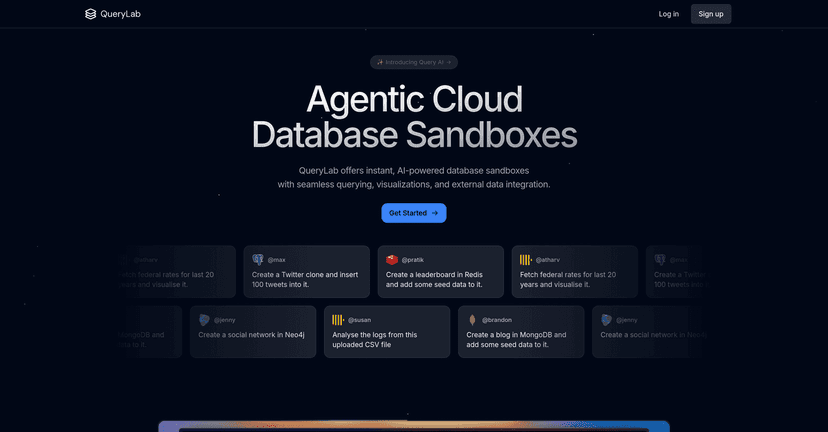
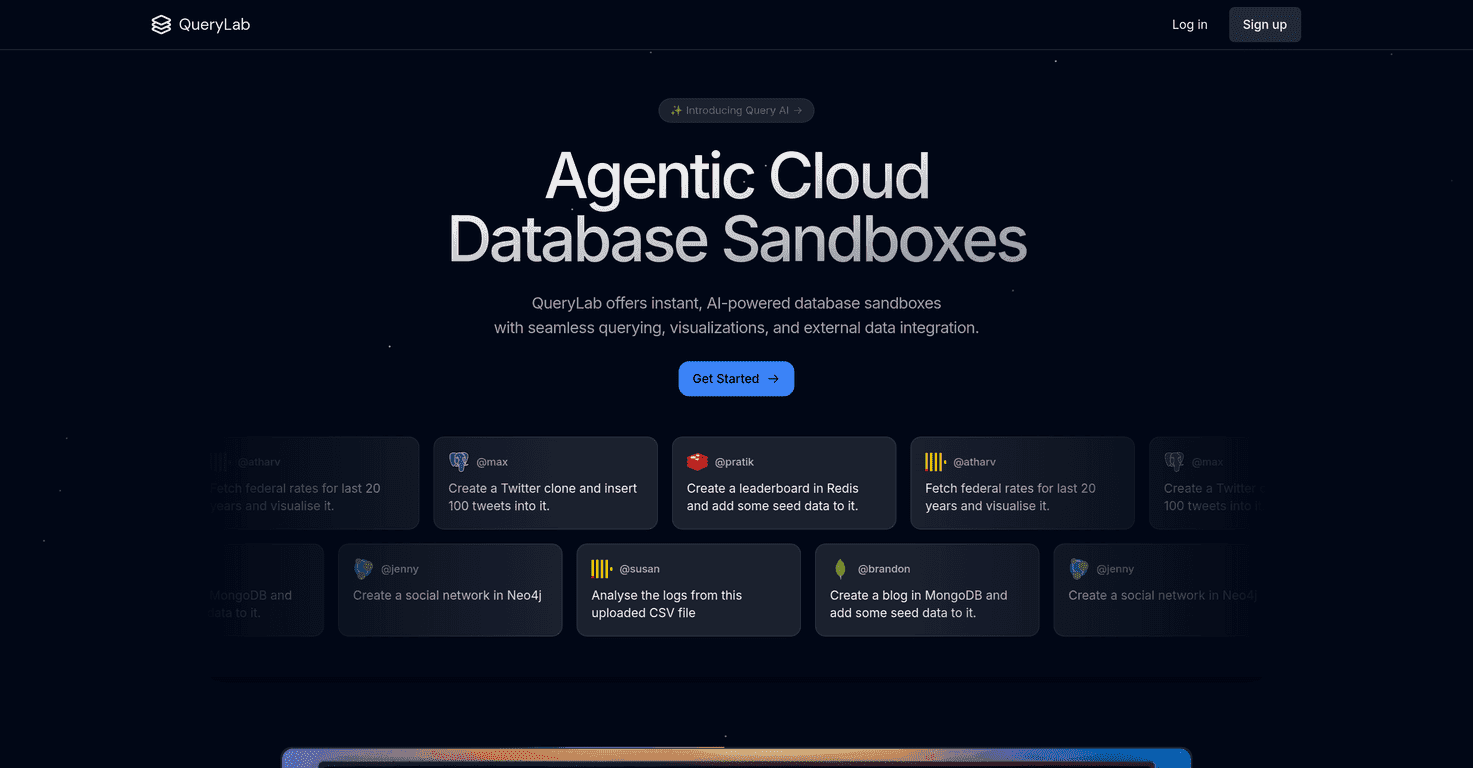
QueryLab is positioned as an AI-powered database sandbox. Instead of starting with a blank SQL editor and guessing at table names, you can spin up database instances, import data (like CSVs), and then use natural-language prompts to generate queries. And once you’ve got results, you can turn them into charts quickly—at least in the way most people actually need for reporting and exploration.
Now, does it replace a real data stack? Not really. But for learning, prototyping, and lightweight analysis, it can be genuinely handy.
QueryLab Review: What It’s Like to Use for Real Data Work
Here’s what I noticed right away: QueryLab is built for momentum. You don’t spend forever setting up infrastructure, and the UI encourages you to move in a straight line—get data in, ask for a result, then visualize it.
For example, when I loaded a dataset (think “CSV with columns like date, category, and value”), the flow didn’t feel like wrestling with configuration. I was able to get to a usable table and start exploring without writing a bunch of boilerplate. That matters if you’re doing quick analysis for a meeting or just trying to understand your data before you go deeper.
The AI querying side is the headline, though. In my experience, it works best when you’re specific about what you want. If you say something vague like “show me sales,” you’ll get something—but it might not be the exact breakdown you expected. If you ask for “monthly revenue by region for the last 90 days,” the output is usually closer to what you had in mind on the first try.
And yes, the charts are a big part of the value. I don’t want to stare at raw rows for 20 minutes. Being able to generate a chart directly from query results makes it easier to sanity-check trends quickly.
Key Features I Actually Used in QueryLab
- Instant database instances (fast setup)
I like tools that let me start immediately. QueryLab’s approach to spinning up database sandboxes means you can test queries without waiting on a full environment build. - AI-powered querying with natural language
This is where the platform feels different. You can type what you want in plain English and convert it into a query. The best results come when you include filters, groupings, and time ranges. - External data integration (APIs and beyond)
Instead of manually copying data around, QueryLab supports integration with external sources. That’s useful when your data already lives behind an API and you just want to analyze it. - Automated CSV import & table creation
This is a practical feature—not a buzzword. Importing a CSV and getting a working table quickly is one of those “small” things that saves a ton of time. It’s especially helpful for ad-hoc exploration. - Dynamic visualization from results
I used the visualization step to confirm patterns after I ran a query. Being able to generate charts quickly helps you catch mistakes faster than scanning tables.
Pros and Cons (Honest Take After Testing)
Pros
- Easy onboarding: The UI is straightforward. I didn’t feel like I needed a full tutorial just to run my first query.
- Quick iteration: Spinning up instances and moving from import → query → chart is fast. That’s ideal for prototyping.
- Helpful for non-experts: If someone knows what question they want answered but not SQL syntax, QueryLab can bridge that gap.
- Visualization saves time: I found it easier to explain results when the output included charts immediately.
- External integrations add flexibility: When your data isn’t already in a CSV, being able to pull from APIs keeps the workflow from breaking down.
Cons
- AI-generated queries aren’t always “perfect”: If you’re an expert and you care about exact SQL behavior (joins, edge-case filters, window functions), you’ll probably want to review and adjust what the AI produces.
- Learning curve for data structure: Beginners might still need to understand schemas, column types, and relationships. The AI can help with syntax, but it can’t magically know your data model.
- Pricing clarity could be better: The pricing section isn’t specific in the info I saw, so it’s hard to judge cost vs. value without checking the site directly.
Pricing Plans: What to Expect (and What to Check)
In the material I reviewed, specific pricing details aren’t listed. QueryLab appears to offer trial periods and possibly a free tier, but I can’t responsibly guess the numbers. If you’re comparing tools, I’d check the QueryLab website directly for the current plan options and limits (things like number of instances, storage, or usage caps).
If you want a quick way to evaluate fit before paying, set up a small test workflow: import one CSV, run 3–5 queries using natural language, and generate a couple of charts. If that feels smooth within the trial, you’ll likely get value fast.
Wrap up
QueryLab is at its best when you want speed, exploration, and clean visuals without spending hours setting up a database environment. The AI querying is genuinely useful—especially for people who can describe the question but don’t want to hand-write SQL every time. That said, if you’re deeply technical, you’ll still want to review the generated queries and tune them for precision.
If your goal is “turn data into something understandable” quickly, I think QueryLab is worth your attention. Happy querying!