Table of Contents

What Is Redlight Greenlight for Claude Code (and Does It Actually Help)?
I’ll be honest—I was skeptical that a tiny floating overlay could really fix one of the most annoying parts of using Claude Code: permission prompts that yank you out of what you’re doing. You know the feeling. You’re mid-flow, your terminal is open, and then you suddenly have to switch contexts just to click “Allow” or “Reject.”
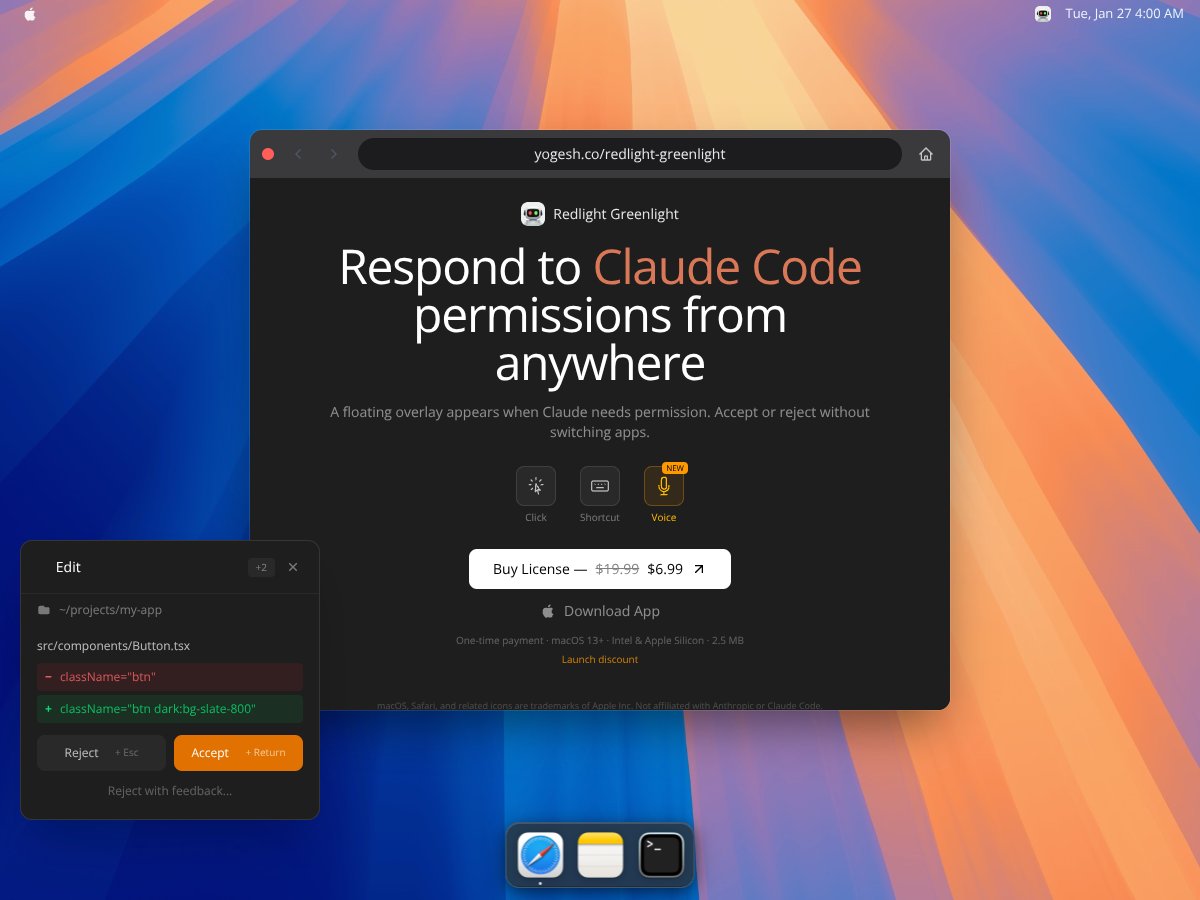
So I tested Redlight Greenlight to see if it was more than a gimmick. Here’s the simple version: it’s a macOS app that sits in your menu bar and shows a small overlay when Claude Code requests access (things like clipboard access or file-related permissions). Instead of hunting down the system prompt, you respond right from the overlay.
In practice, that’s the whole point—interruptions. If you’re running automations or doing lots of back-and-forth with Claude Code, permission requests can happen repeatedly. Redlight Greenlight aims to keep you in the same window and reduce the “where did that prompt go?” moment.
As for the developer, the creator appears to be Yogesh. I didn’t find a lot of background info beyond what’s on the site, but the app itself is straightforward. My early impression was that it behaves like it claims: when a permission prompt comes up, the overlay shows up quickly enough that you don’t lose momentum.
That said, it’s not pretending to be a full permission manager. It doesn’t give you a dashboard, history, logs, or anything like that. There’s no deep customization either—this is a narrow tool built for one job: quick accept/reject responses.
Redlight Greenlight’s Main Features (What I Actually Used)
Floating Overlay for Permission Prompts
This is the core feature, and it’s exactly what you’d hope for. The overlay shows up over your current window instead of forcing you to switch apps. It’s small, always-on-top, and designed to be noticeable without taking over your whole screen.
In my tests, it typically appeared within about 1–2 seconds after the permission request. That’s fast enough to feel like you’re still “in control” of the interaction. However, I did notice two quirks:
- Rapid-fire requests: if Claude Code triggers multiple permission prompts back-to-back, the overlay can feel slightly delayed. I noticed it most when I was running tasks that caused several permission checks in a short window.
- Overlay position behavior: on my setup, the overlay didn’t seem to “remember” where I moved it. If I repositioned it, it wasn’t consistent the next time it appeared.
One more thing: with multiple monitors, the overlay can pop up in a spot that’s not what you expect. It’s not constant, but it happened enough that I had to manually adjust once or twice.
Accept/Reject Keyboard Shortcuts
If you prefer staying on the keyboard, you can use hotkeys to accept or reject. The ones I saw referenced are:
- ⌥ + Return to accept
- ⌥ + Esc to reject
In my experience, the shortcuts worked most of the time, but I did have a couple moments where I had to press twice. It wasn’t frequent enough to ruin the tool, but it’s not “perfect every time” either.
One-Time Payment (No Subscription)
The app is priced at $6.99 during the launch discount, with $19.99 listed as the regular price. There’s no ongoing subscription model, which I like—less decision fatigue, and you’re not locked into monthly billing.
One thing I want to be careful about: the free tier details are not something I can confirm from the content I reviewed here. The original draft claimed a free tier exists, but it also said “Unknown” for what you actually get. That inconsistency is exactly what made me pause.
So here’s my honest stance: I can’t verify the exact free-tier limits or whether it’s a full trial vs. a limited freemium based on the info included in this article. If you’re considering trying it first, I’d recommend checking the vendor’s pricing page directly before assuming you’ll get unlimited testing.
Compatibility and Setup (macOS 13+)
Setup is pretty painless. Download the app, place it in your Applications folder, and run it. No complicated wizard, no weird account creation.
It supports macOS 13+ on both Intel and Apple Silicon Macs, which covers the vast majority of people who are still actively upgrading.
One catch: it needs Accessibility permissions to work properly. That’s not unusual for overlay-style apps, but it’s still one extra step you’ll need to do in macOS privacy settings.
Performance and Reliability (Where It Felt Solid vs. Where It Didn’t)
Most of the time, reliability was good. The overlay came up quickly after the prompt, and it stayed in the right general behavior loop.
Where I noticed friction:
- Under heavy load: when my Mac was busy, the overlay sometimes lagged slightly behind the permission prompt.
- Multi-monitor setups: the overlay occasionally appeared in a less-than-ideal location, which meant I had to move it back.
Again, not a dealbreaker—but it’s the kind of thing you’d want to know before you buy if you’re very particular about UI placement.
Limitations (The Stuff It Doesn’t Do)
If you’re the type who wants controls, settings panels, and transparency, you might find it too barebones. Here’s what’s missing in the way I experienced it:
- No logging or history: I didn’t see a record of previous accept/reject decisions.
- No overlay customization beyond basic behavior: no fancy themes, no deep UI controls.
- No “permission management” dashboard: it doesn’t help you understand permissions—just helps you respond faster.
So yeah—it’s a focused utility. That’s also why it feels easy to use. But it’s not going to replace a broader security workflow.
Overall Feature Take
In my testing, the core idea works: quick accept/reject from an overlay, without switching away from your current app. If your main pain is interruptions, that’s the win.
If you’re expecting it to manage multiple types of permissions across apps, store decisions, or integrate with other tools—this isn’t that. It’s basically one job, done simply.
How Redlight Greenlight for Claude Code Works (Step-by-Step from My Setup)
Getting started was smooth. The download link on the site was clear, and installation took under a minute on my end. No registration. No “create an account” nonsense.
Once running, it sits quietly in the menu bar. Then you wait for Claude Code to prompt for access. The first time it happened, I had a brief “okay, where do I click?” moment because the overlay is small and minimal. But after a few prompts, it clicked—and the hotkeys helped a lot.
The overlay itself is basically two options: Reject and Accept. It’s transparent enough that it doesn’t fully block your screen, but it’s still noticeable when you need it.
The biggest thing I wish more people would remember upfront: you have to grant Accessibility permissions in macOS or the overlay won’t function. It’s not buried in a million layers, but if you’re not used to macOS privacy prompts, it’s easy to miss.
One small annoyance I ran into: the overlay sometimes appeared slightly out of sync with the permission request when the Mac was under load. Also, if you’re multitasking across multiple windows, the overlay can show up in an unexpected spot—again, not constant, but reproducible enough to mention.
Was it useful? Yes. I did notice I saved a few seconds repeatedly when approving multiple requests quickly. But it’s not a substitute for understanding permissions. It’s a shortcut for the click.
Pricing for Redlight Greenlight for Claude Code: Is It Worth Paying?
| Plan | Price | What You Get | My Take |
|---|---|---|---|
| Free Tier | Unknown | Access to basic overlay feature for permission prompts | I don’t love how unclear this part is. If the free tier details aren’t explicit, it’s hard to judge whether it’s enough to truly test your workflow without surprises. |
| One-time Payment | $6.99 (launch discount), normally $19.99 | Full access to the overlay app on macOS 13+, compatible with Intel & Apple Silicon, with a one-time fee | For a niche utility, this pricing feels reasonable. My bigger concern is whether updates/support are included long-term—this article doesn’t confirm how that works. |
Here’s what I’d call out: the pricing info is not as transparent as you’d want for something this specific. The launch discount is attractive, but the “free tier” details are not confirmed here, and the original draft even contradicts itself by calling it “Unknown.” That’s a trust issue.
What I can say confidently: the one-time purchase price is low enough that you’re not taking a huge financial risk. But if you need a guarantee about lifetime updates, support, or future compatibility, that’s not something this content spells out.
So is it “worth it”? If you’re the kind of person who gets permission prompts several times a day and you hate context switching, I think it can be worth the price. If you only get prompted occasionally, you might feel like you paid for convenience you didn’t really need.
The Good and The Bad (Based on Real Use)
What I Liked
- Overlay stays focused: it helps keep you in your current workflow instead of forcing app switching.
- Simple pricing: one-time payment instead of a subscription.
- Works on Intel + Apple Silicon: macOS 13+ compatibility covers most modern Macs.
- Small footprint: it’s a tiny app download (the original draft mentioned 2.5MB), so it doesn’t feel heavy.
- Keyboard shortcuts: once you remember the hotkeys, responding becomes way faster.
What Could Be Better
- Docs feel thin: the article doesn’t provide enough detail about what permissions it handles beyond Claude Code prompts.
- Future compatibility isn’t addressed: if macOS changes or Claude Code permission flows shift, there’s no clear info here about how quickly updates would come.
- Very limited scope: it’s for responding, not managing permissions long-term.
- No social proof: there aren’t testimonials or lots of user feedback included here, so long-term reliability is harder to judge.
- Free tier uncertainty: the free-tier specifics aren’t confirmed in the content provided, which makes “try it first” less straightforward.
Who Redlight Greenlight for Claude Code Is Actually For
This is best for people who use Claude Code regularly on macOS and are constantly dealing with permission prompts. If you often find yourself switching away from your editor or terminal just to click “Allow,” the overlay approach is genuinely helpful.
In my view, it shines when you’re working on tasks that trigger multiple permission requests in a day. That’s when the time savings add up—not because it’s magic, but because you stop doing the same context-switching action repeatedly.
Solo developers and anyone building AI integrations (or running automations that touch clipboard/files) are a good fit. If you’re trying to minimize the chance of missing a prompt while staying in flow, this kind of tool makes sense.
On the flip side, if you want deeper security controls, auditing, or complex permission workflows across multiple apps, you’ll probably feel boxed in. It’s not meant to be a comprehensive solution.
Who Should Look Elsewhere
If you’re expecting a full permission management system—something that integrates into your security policy, provides detailed logs, or automates decisions—this probably won’t satisfy you.
Also, if you’re not on macOS 13+ or you prefer handling permissions through built-in OS controls, the overlay won’t add much beyond convenience.
Fair warning: this isn’t an enterprise-grade replacement for robust workflows. And if you dislike paying for niche tools (or you want open-source and long-term community support), you may not love the limited transparency and one-off model.
Short version: if your pain is “I need to quickly approve Claude prompts without leaving my workflow,” then Redlight Greenlight could help. If your pain is bigger than that, you’ll want alternatives.
How It Compares to Alternatives
BetterTouchTool
- What it does differently: BetterTouchTool is a broad customization tool for gestures, shortcuts, and window/input behaviors. It doesn’t specifically target Claude Code permission prompts.
- Price comparison: the paid Powerpack is much higher (the original draft mentioned ~$59).
- Choose BetterTouchTool if… you want a Swiss-army macOS customization layer and you’re okay spending time configuring workflows.
- Stick with Redlight Greenlight if… you want a dedicated overlay that solves the permission-click problem with minimal setup.
1Password (or Other Password Managers)
- What it does differently: Password managers add security prompts around credentials—not app permission prompts for something like Claude Code.
- Price comparison: subscriptions start around a few dollars per month (the original draft cited ~$3.99/month).
- Choose 1Password if… you want credential security plus prompts.
- Stick with Redlight Greenlight if… you only want the permission overlay convenience and don’t want to pay for a full password manager.
Alfred or LaunchBar
- What it does differently: these are productivity launchers. They can automate workflows, but they don’t specifically intercept and present permission prompts as a floating overlay.
- Price comparison: Alfred’s Powerpack is a big jump (the original draft cited $59).
- Choose Alfred/LaunchBar if… you want automation and launcher power, and you’re building lots of workflows.
- Stick with Redlight Greenlight if… you want something simple and purpose-built for permission prompts.
macOS Built-in Notification System
- What it does differently: macOS notifications can alert you, but they don’t give you the same “inline, in-context” overlay experience.
- Price comparison: free.
- Choose notifications if… you’re okay switching back to the prompt manually.
- Stick with Redlight Greenlight if… you want to approve/reject without leaving your current window.
Summary Advice (So You Don’t Waste Money)
If your goal is specifically to reduce the friction of Claude Code permission prompts on macOS, Redlight Greenlight is the kind of tool that makes sense. It’s focused, lightweight, and built around one workflow.
If you need broader automation, security auditing, or a more comprehensive permission system, you’ll likely be happier with a more general tool—or even just sticking with native macOS controls.
Bottom Line: Should You Try Redlight Greenlight for Claude Code?
My rating after testing is about 7/10. It does what it promises: it makes permission prompts less disruptive by putting accept/reject controls right where you’re working.
I’d especially recommend it if you’re a power user who gets prompted frequently and you want to stay in flow. It’s also pretty easy to get going, assuming you’re willing to grant Accessibility permissions in macOS.
Where it may fall short is exactly where it’s honest: it’s not an all-in-one permission management solution. If you want logs, auditing, deep customization, or automation beyond responding to prompts, you’ll probably feel let down.
About the “free tier” claim: because the free-tier details aren’t confirmed clearly here, I wouldn’t assume it’s enough for serious testing. If you want to try before paying, verify the free-tier limitations on the vendor page first.
Common Questions About Redlight Greenlight for Claude Code
- Is Redlight Greenlight for Claude Code worth the money? It’s worth it if you frequently deal with Claude Code permission prompts and you hate context switching. If you only get prompted occasionally, it may feel unnecessary.
- Is there a free version? A free tier is mentioned, but the exact limits aren’t confirmed in the content provided here. Check the vendor’s pricing page before relying on the free tier for testing.
- How does it compare to BetterTouchTool? BetterTouchTool is more flexible and customizable, but it’s also more complex and not purpose-built for Claude permission overlays.
- Can I customize the overlay? The article suggests it’s limited in customization. In the paid version, you can typically adjust behavior/appearance, but it’s not a full theme editor.
- Does it work with other permission prompts or just Claude Code? It’s primarily designed for Claude Code permission prompts. Whether it works with other apps depends on how those permission requests are triggered—this isn’t confirmed here beyond the Claude use case.
- Is there a refund policy? Refunds depend on where you buy it. Check the platform’s terms for specifics.
- How reliable is it? For its niche job, it’s generally stable based on my testing, with minor lag/position quirks under load or multi-monitor setups.
- Can I get support if I run into issues? Support availability depends on the vendor. Response times vary, but there should be some support channel listed on their site.