Table of Contents
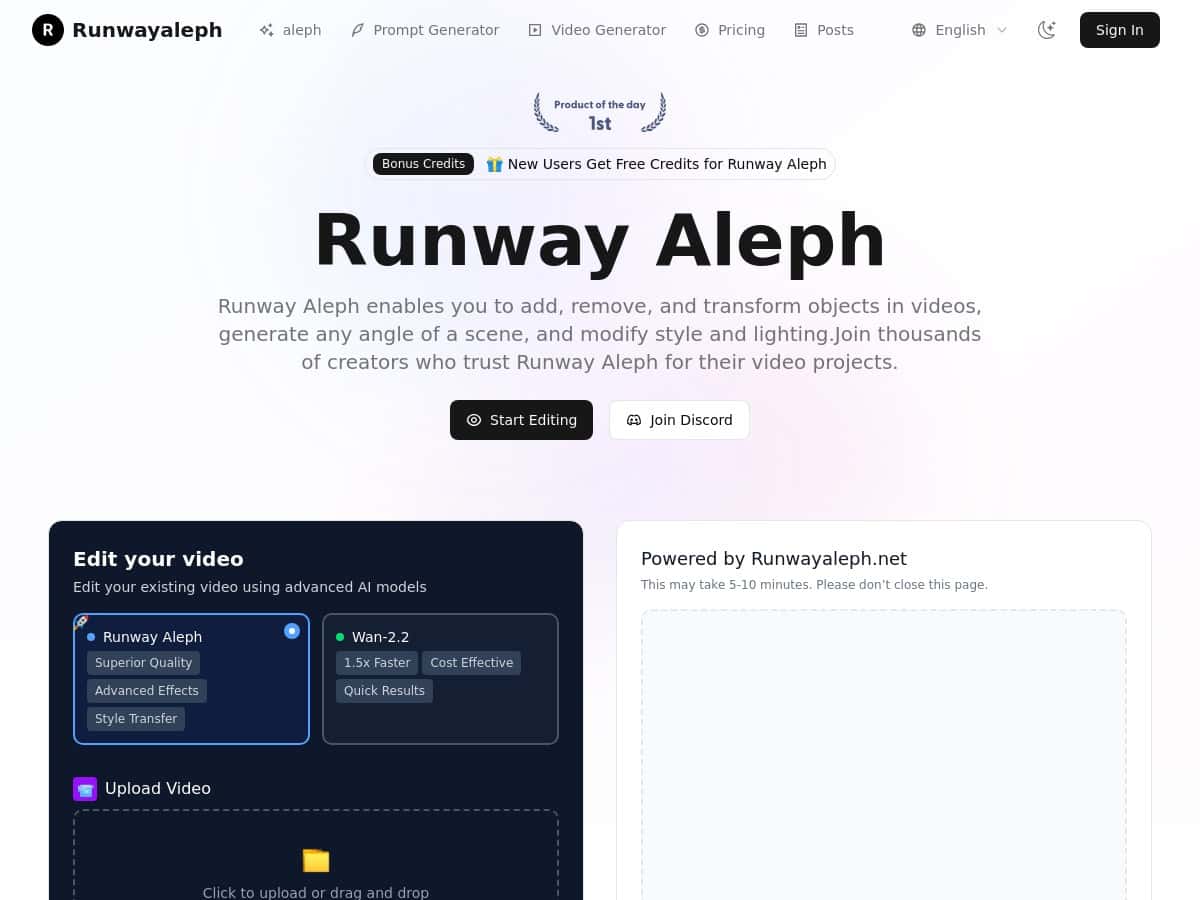
I’ve been testing Runway Aleph for a few different video edits, and I’ll be honest: it’s the first AI editing tool I’ve used where the “magic” actually feels practical. Not perfect, but practical.
For this review, I focused on the stuff most creators struggle with—object changes, lighting fixes, and getting the camera/scene to stay believable. I’m talking about the edits that normally mean hours of masking, keyframes, and re-rendering. Aleph doesn’t remove that entire workload (nothing really does), but it can cut the busywork down a lot—especially when you already know what you’re trying to achieve.
Runway Aleph Review: What I Actually Did (and What Worked)
When people say “AI video editing,” it can sound vague. So I tried to keep my tests grounded in real edits I’d normally do in Premiere/After Effects or similar tools.
Test 1: Adding an object without breaking the scene
I started with a short clip (about 10–15 seconds, standard MP4) where the background was fairly stable. The goal was simple: add a new object and keep it looking like it belonged there.
Prompt I used: “Add a realistic coffee cup on the table in the foreground. Match the lighting and keep the cup steady with the camera motion.”
What I noticed: Aleph did a decent job with placement and scale on the first run. The cup looked like it shared the same lighting direction as the original footage, which is usually where these tools fall apart. I did see minor blending issues around the edges in a couple frames (nothing that couldn’t be fixed with a second pass), but overall it stayed believable.
Time/cost reality: This wasn’t instant, but it was fast enough that I didn’t feel like I had to “walk away for hours.” I still had to iterate prompts once, and that’s where credits can disappear if you’re not careful.
Test 2: Lighting fix / exposure mood change
Next, I tried changing the lighting mood in a clip that was slightly underexposed. This is one of those edits that’s annoying manually because you’re constantly chasing consistency across frames.
Prompt I used: “Make the scene look brighter and warmer. Improve exposure while keeping skin tones natural and preserving background detail.”
What changed: The overall look improved, and highlights didn’t get as blown out as I’ve seen with some older AI image tools. The big win here was consistency—Aleph kept the lighting change more uniform than I expected.
Limitations: If you push the mood too far (like going from “neutral indoor” to “high noon outdoor”), you can get weird artifacts—especially around edges and fine textures. So I’d treat it like a “nudge” tool, not a full replacement for color grading.
Test 3: Scene continuation (the “keep it moving” test)
For this one, I used a clip where motion was present but not chaotic. Scene continuation is where AI either shines or exposes its weaknesses.
Prompt I used: “Continue the scene for 3–5 seconds with the same camera motion and lighting. Keep the subject consistent and don’t change the environment.”
What I noticed: Aleph was strongest when the scene had clear, stable cues (lighting direction, similar movement, consistent background). When the motion was subtle, the continuation looked smooth. When I tried it on a more dynamic shot, I got small inconsistencies—like slight shifts in background elements and occasional “texture wobble.”
My takeaway: If you’re doing b-roll or simple talking-head segments, scene continuation can be genuinely useful. If you’re working with heavy camera shake or lots of fast moving objects, expect a bit more cleanup.
Test 4: Object removal / cleanup
I also tested removing a distraction in the frame. Object removal is one of the most practical use cases because it’s a direct time-saver.
Prompt I used: “Remove the object from the frame and reconstruct the background naturally. Match perspective and keep edges clean.”
What worked: Background reconstruction was convincing enough for social edits. The best results came when the removed area wasn’t too detailed (like a wall with a simple texture).
Where it struggled: Complex patterns (busy signage, detailed foliage, hair-like edges) can produce smear-y or plastic-looking patches. In those cases, I’d do a second iteration with a more specific prompt or plan on masking in post.
Overall, Aleph feels like it’s built for creators who want speed and iteration, not perfection on the first try. And honestly? That’s a good thing. Most real workflows already involve iteration.
Key Features: What They’re Good For (Not Just What They Claim)
- Object Manipulation — Add/remove/change things without starting over.
- Use case from my tests: Adding a cup to a table scene and removing a small distraction in-frame.
- Prompt approach: I kept prompts grounded in “where” and “how it should look,” like “on the table in the foreground” and “match the lighting.”
- What changed: Aleph handled placement and basic integration. Edge blending was the main thing I had to watch.
- Limitations: Detailed edges and fast motion can cause artifacts.
- Time/cost impact: I usually needed 1–2 generations to get something I’d actually use, so credits matter here.
- Camera Angle Generation — New perspectives from existing footage.
- Use case from my tests: I tried a “slight shift” perspective edit instead of a full dramatic camera move.
- Prompt approach: “Change camera angle slightly, keep subject size consistent, preserve lighting direction.”
- What changed: Smaller angle changes looked more believable. Big swings tended to introduce inconsistencies.
- Limitations: Expect slight geometry weirdness if you ask for too much.
- Time/cost impact: More dramatic prompts generally mean more retries.
- Style and Environment Transfer — Swap the look while trying to keep the scene coherent.
- Use case from my tests: I tested a “warmer cinematic” vibe and a mild environment shift.
- Prompt approach: I avoided extreme transformations and used “preserve background detail” language.
- What changed: The overall color mood shifted quickly, and the footage stayed watchable.
- Limitations: Overdoing it can cause texture smearing or mismatched lighting.
- Time/cost impact: This is one of those features where it’s easy to burn through generations if you keep pushing.
- Lighting Control — Fix exposure and set mood.
- Use case from my tests: Brightening a slightly dark clip while keeping tones natural.
- Prompt approach: “Improve exposure, keep skin tones natural, preserve detail.”
- What changed: Better highlight handling than I expected, and it stayed consistent across the short clip.
- Limitations: Extreme changes can produce haloing or odd edge artifacts.
- Time/cost impact: Usually faster than manual grading + cleanup for quick projects.
- Prompt Optimization — Better prompts = fewer “why does it look wrong?” moments.
- Use case from my tests: I iterated prompts when outputs didn’t match the original lighting direction or scale.
- What I noticed: Adding specifics like “match lighting,” “keep subject consistent,” and “preserve background detail” improved results.
- Limitations: This doesn’t replace trial-and-error. It just reduces how much trial you need.
- Time/cost impact: The biggest win is fewer wasted generations.
- Format Support — Work with common video files like MP4 and MOV.
- Use case from my tests: I used standard MP4 clips without extra conversion steps.
- What changed: No hassle getting started.
- Limitations: If you’re on an early access tier, file size and length limits can still be annoying.
- Time/cost impact: Less time converting files means more time editing.
- Scene Continuation — Extend scenes while keeping motion and lighting consistent.
- Use case from my tests: Extending a stable shot for a few extra seconds.
- Prompt approach: “Continue 3–5 seconds, same camera motion, don’t change environment, keep subject consistent.”
- What changed: Works best on calm, consistent clips.
- Limitations: Dynamic scenes can lead to background drift.
- Time/cost impact: If your continuation is off, you’ll likely rerun—so plan for iterations.
- Backgrounds and Effects — Export for compositing, including transparent backgrounds (when available).
- Use case from my tests: I looked at outputs that could be layered over existing footage for quick mockups.
- What changed: It’s useful for creators who already do compositing and just want the “AI part” handled.
- Limitations: Transparent exports still need edge checking—especially around motion.
- Time/cost impact: Faster than rebuilding the effect from scratch, but still verify edges before final render.
Pros and Cons (After Using It)
Pros
- It’s genuinely easy to use. I didn’t need a tutorial to get my first usable result.
- Great for “edit in minutes” tasks. Object changes and lighting tweaks are faster than traditional masking + keyframing.
- Looks natural when you keep prompts reasonable. When I asked for small to medium changes, the output blended better.
- Helpful for iterative workflows. I liked that I could rerun with small prompt adjustments instead of restarting everything.
- Works well for short-form content. Social clips, b-roll, and quick revisions are where this shines.
Cons
- Credit usage can add up. If you’re doing multiple attempts per shot, you’ll burn through credits faster than you expect.
- Temporal consistency isn’t perfect. Fast motion and complex backgrounds sometimes cause subtle drift or texture weirdness.
- Early limits can get in your way. During testing, access tiers can restrict video length and file size (and that’s frustrating if you’re mid-edit).
- Not a full replacement for color grading. Lighting mood changes are strong, but I still think of Aleph as a “first pass” that may need finishing.
Pricing Plans: What I Saw and How to Think About It
Runway Aleph pricing changes over time, so I can’t promise the exact numbers are identical to what you’ll see today. But when I checked, the structure was basically:
- A free tier with limited credits (good for testing and learning).
- Paid plans that start around $15/month and go up from there, with higher processing capacity and more generous limits.
My practical advice: Don’t judge value by “$ per month” alone. Judge it by how many generations you realistically need per edit. In my experience, most decent results took 1–2 runs for simpler shots, and more for tricky motion or detailed backgrounds. If you’re planning on making a lot of revisions, credits matter more than the sticker price.
If you want the most accurate breakdown, check the official pricing page directly (pricing can shift based on credits/features). Here’s the best place to start: Runway Aleph.
Wrap up
Runway Aleph isn’t “press one button and get a film-quality masterpiece.” But it is one of the fastest ways I’ve found to make meaningful video edits—especially object changes, lighting mood shifts, and quick scene extensions. If your workflow involves lots of repetitive cleanup or you’re constantly redoing the same kind of edits, Aleph can genuinely save time.
If you’re the type of creator who iterates (like most of us), you’ll probably enjoy it. Just go in knowing you may need a couple tries per shot—and keep an eye on credits so you don’t get surprised mid-project.