Table of Contents
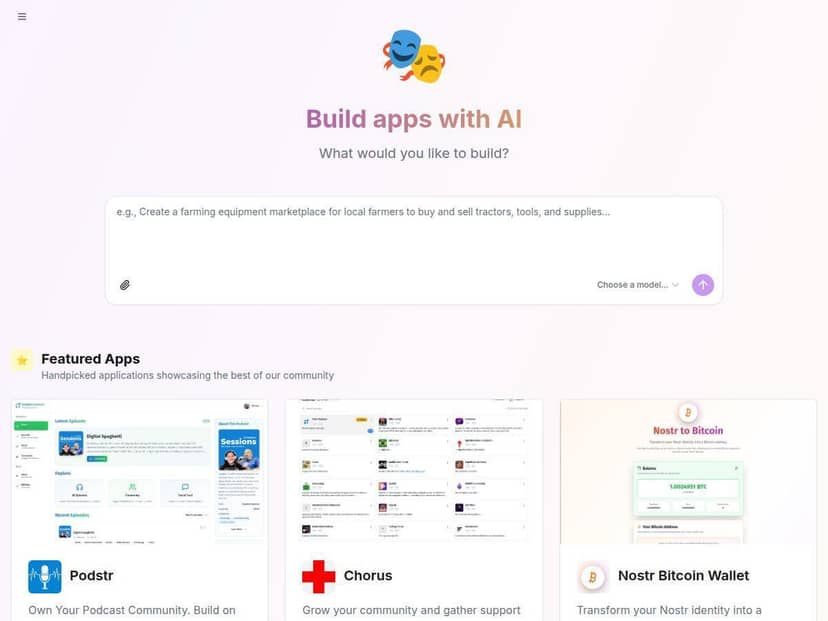
If you’ve been curious about building web apps with AI but don’t want to get locked into some expensive “only our way” platform, Shakespeare is worth a look. It’s an open-source AI development hub that runs in your browser, so there’s no big installer dance. I tested it recently and what surprised me most was how quickly I could go from a plain-language idea to working code—without feeling like I needed to already know every technical detail.
Shakespeare Review (what I actually tested)
I tested Shakespeare on Windows 11 using Chrome 122 (desktop). I didn’t install anything locally—everything happened in the browser. For the test, I wanted something simple but real: a tiny “blog” page with a list of posts and a basic detail view, so I could judge code quality and how usable the workflow felt.
My setup + timing: from opening the app to having the first generated code in the editor took about 6–8 minutes (mostly because I was picking settings and double-checking the provider selection). The prompt-to-code step itself was quick—roughly 20–40 seconds for the first generation on my end. After that, iterations were faster since the project structure was already there.
Exact prompt I used: I typed a straightforward instruction in the prompt box:
“Create a simple blog app: show a list of 5 posts (title + date). When a post is clicked, show the post content on the same page. Use clean HTML/CSS, keep it in a single-page layout, and include a small mock data array. Also add basic error handling for missing post IDs.”
What I got back (concrete outcome): the AI produced a working project structure with separate files for the UI and mock data. In the code editor, I could see it adding a post list component, a post detail view, and a router-like behavior (clicking a post changes the view without needing a full page reload). I also noticed it included a fallback path for an invalid post ID—so instead of a blank screen, it showed a “post not found” style message.
One hiccup I ran into: on my first attempt, the generated code referenced a file name that didn’t match what the editor expected (a simple mismatch). I didn’t have to restart from scratch, though—I just corrected the filename in the editor and asked for a quick fix. That second generation resolved it. So yeah, it’s not always perfect on the first pass, but the feedback loop is usable.
Privacy/control reality check: Shakespeare’s “data stored locally for privacy” claim makes sense in practice because the app is designed to run in your browser and keep project files on your side. What I could verify from my workflow: my project files and edits stayed in the local workspace/editor until I explicitly exported or committed them. That said, if you’re using external AI providers, the prompts and context you send to the model still go to that provider—so “private” depends on how you configure the AI backend.
Overall, my takeaway is pretty simple: Shakespeare feels like it’s built for people who want to experiment quickly, see the code immediately, and keep control of what’s generated. It’s not just a chat box—it’s closer to an AI-assisted coding environment that happens to be browser-based. And honestly, the open-source angle matters here because you can inspect and modify what you’re getting instead of treating it like a black box.
Key Features (how they work in practice)
- AI-powered development through simple prompts
- You describe what you want, and Shakespeare translates it into code changes inside the project. In my test, the prompt didn’t just return “suggestions”—it actually wrote/updated files in the editor. One thing I liked: it was easy to iterate. After I fixed the filename mismatch, I re-prompted with “adjust the import to match the correct file name” and it updated the relevant code instead of starting over.
- Fully open-source platform with modifiable code
- Because it’s open-source, the generated output isn’t trapped behind proprietary UI. What I noticed is that the editor makes it obvious where code lives (components, mock data, and view logic). If you don’t like a structure, you can change it and re-run the preview. That’s a big deal if you care about maintainability.
- Runs entirely in the browser (no downloads needed)
- There’s no local installation step in the workflow I used. The tradeoff is performance—browser-based projects can feel heavier as they grow. For small-to-medium apps, it’s smooth. For larger codebases, you may start noticing slower previews or UI lag.
- Supports multiple AI providers and Git services
- This is one of the main reasons I’m interested in Shakespeare. Instead of being stuck with one model, you can switch providers depending on what you’re trying to do (speed vs. cost vs. quality). In practice, I had to pick/configure the provider before generating code. If you switch providers, expect different “style” in the output—same prompt, different structure.
- Mini example: I started with one provider for the first generation. When I switched to another provider for a refinement prompt, the second response still matched the requirements, but the file organization and naming conventions changed. It wasn’t a problem—just something you should expect.
- Built-in code editor and file explorer
- The editor is where the “real work” happens. I could immediately see which files were created/updated and jump between them. That visibility helps you debug. When the filename mismatch happened, I wasn’t guessing—I could actually see the references and correct them.
- Git integration for version control
- Git integration is there, and it’s useful if you want to track iterations. The learning curve is real, though. If you’re new to Git, you’ll spend time figuring out commits, branches, and authentication. If you already know Git, Shakespeare’s workflow feels like “AI writes code → you review → you commit.”
- What I’d watch out for: auth and repo setup can be the slowest part for beginners, especially if you’re connecting a remote like GitHub and need tokens/permissions.
- Data stored locally for privacy
- In my session, my project workspace and edits stayed in the browser environment until I exported. That’s what “local storage” effectively means for a lot of users: your code isn’t automatically dumped somewhere random. But remember—if you’re sending prompts to external AI services, that content still leaves your machine to whatever provider you configured.
- Terminal with command-line tools
- Having a terminal inside the environment makes it easier to run checks, scripts, or build steps without leaving the app. I didn’t go super deep on tooling in this test, but it’s the kind of feature that turns “generated code” into “actually verified code.”
- Live previews and project export options
- Live preview is where you validate the output quickly. After my first generation, I could see the blog list render and click through to the post detail view. For export, I liked that you can package the project rather than treating it like a temporary session.
- Limitation I noticed: previews are great for quick validation, but for bigger UI changes you’ll still want to test more thoroughly—browser preview won’t catch every edge case.
- Community support for collaboration
- Community is a mixed bag depending on the project’s maturity, but it’s still a win. If you get stuck on setup, chances are someone has already documented the fix—especially around provider selection and Git configuration.
Pros and Cons (my honest take)
Pros
- Real code visibility + control
In my experience, the best part is that you’re looking at the actual files the AI generated. You’re not forced to trust a black-box response. - Open-source means you can inspect and modify
If something doesn’t match your style or architecture, you can change it and iterate. That’s huge if you care about maintainability. - Provider flexibility
Being able to switch AI providers is practical. You can optimize for cost or quality depending on the task. - Fast iteration for small projects
The prompt-to-code loop felt responsive, and I could iterate on bugs without restarting the whole workflow.
Cons
- Git setup can be a blocker for beginners
If you don’t already understand repos, remotes, and auth, the “Git integration” can slow you down more than the AI part. - Not a replacement for professional support
There’s no “ticket → SLA” style safety net. If you hit a weird configuration issue, you’ll likely rely on docs/community rather than direct vendor support. - Browser limitations for complex projects
As projects get larger, browser-based editors and live previews can get sluggish. I didn’t hit a hard wall in my test, but it’s the kind of limitation you should expect. - Privacy depends on your AI provider configuration
Local code storage is one piece of the puzzle. If you’re using an external model, prompts and context still matter. Don’t assume “local” automatically means “no data ever leaves.”
Pricing Plans (what “free” really means)
Shakespeare itself is free in the sense that you’re not paying a subscription fee to use the platform. It’s open-source, so you can download and run it without paying licensing costs.
But here’s the part that trips people up: if you use third-party AI providers (like OpenAI or others), those providers may charge per usage (tokens, requests, etc.). Shakespeare can be free while your AI calls still cost money.
Example scenario (how costs can show up):
- If you generate a blog app and do 3 iterations, you’ll send multiple prompts + context to the model.
- Even if the platform is free, the provider bill can add up depending on model choice and how much context the app includes each time.
- In the UI, you’ll typically see provider selection/configuration—so your “real cost” is tied to which provider you pick, not Shakespeare’s license.
In other words: Shakespeare is a free coding environment, but your AI provider is the thing that determines whether your experiment is truly “$0.”
Wrap up
After using Shakespeare, I’m comfortable calling it a solid open-source AI development hub—especially if you want fast prototyping, code you can actually inspect, and a workflow that doesn’t feel like you’re renting someone else’s brain. It’s not perfect (Git setup and browser performance can be limiting), and privacy is only as strong as your AI provider choices. Still, for building small-to-medium web apps and learning by doing, it’s genuinely practical—and it made me want to iterate instead of just “watch the demo.”