Table of Contents
What Is Sheetsbase (and What I Actually Tested)?
When I first came across Sheetsbase, I’ll be honest—I was skeptical. A Chrome extension that claims it can generate and explain Google Sheets formulas with AI? I’ve tried enough “AI formula” tools to know they sometimes spit out something that looks right… until you paste it into a real sheet and it breaks.
So I installed it and tested it like I would any other formula helper: I used plain-English prompts, tried common functions, and then checked whether the returned formulas were actually usable in Google Sheets.
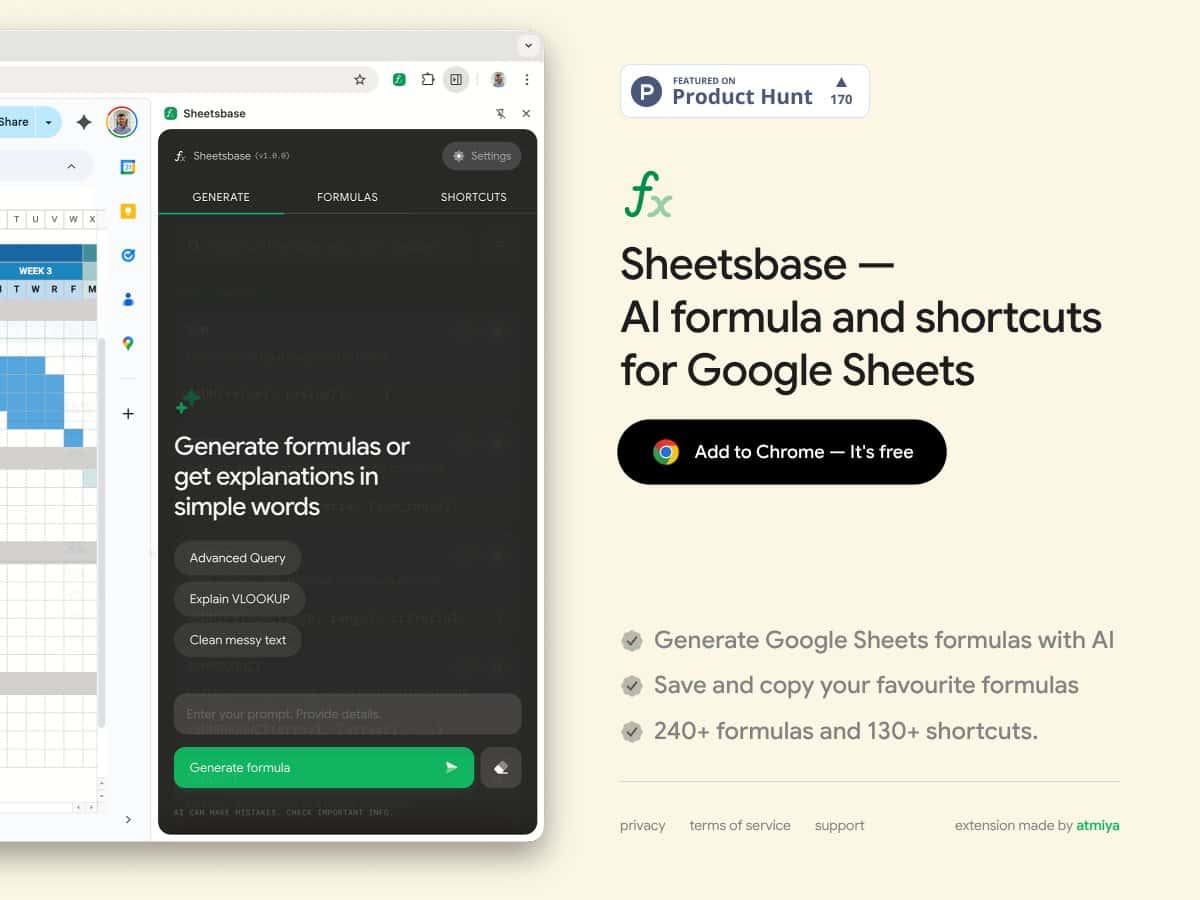
From what Sheetsbase presents on its site, the extension is meant to do two things:
- Generate formulas from natural language (the goal is fewer minutes lost to Googling syntax).
- Explain formulas (or at least provide a readable breakdown) when you’re staring at something you don’t fully understand.
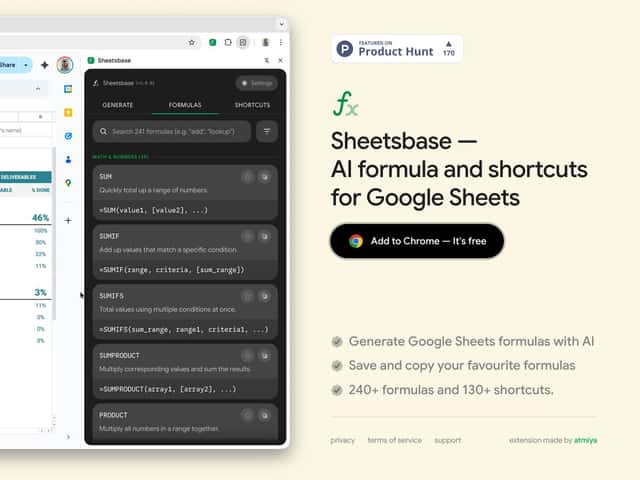
It also includes a shortcut directory—basically a library of common formula patterns and actions you can reference without retyping everything.
One thing I couldn’t confirm from the site: detailed info about the team or company. It looks like it’s made by someone listed as 'atmiya', but I didn’t see the kind of credibility signals I usually look for (company history, support links, or a clear “about” page). That doesn’t automatically mean it’s bad—it just means you should treat it like a tool you verify, not something you blindly trust.
Also, manage expectations. This isn’t a full replacement for learning Google Sheets formulas. It’s more like a helper that can draft formulas and explain what they do when it recognizes the pattern. If you want deep, multi-step spreadsheet automation, you’ll probably need something else.
And just to be clear about what I didn’t see: there’s no obvious “power user” setup, no serious customization, and no deep integrations with other tools. It’s a Chrome extension with a focused job.
The Good, The Bad, and the Stuff I Can Prove
Test #1: VLOOKUP prompt → output quality
I started with a classic because VLOOKUP is where a lot of “AI formula” tools either nail the logic or mess up the arguments.
Prompt I used: “Create a VLOOKUP that finds the price for an item name in column A, using a table where the item names are in column A and the prices are in column B. Exact match.”
What I checked in the generated result: the lookup column, the table range, whether it used FALSE for exact match, and whether it referenced the right input cell for the item name.
What happened: Sheetsbase produced a formula draft that was structurally correct for an exact-match VLOOKUP. The “shape” was right—table range, column index, and the FALSE flag were all present.
One limitation I noticed: like most generators, it didn’t know my sheet’s exact ranges automatically. When I pasted it, I had to adjust the table range and the lookup cell reference to match my actual columns. That’s not a deal-breaker, but it is something to expect.
Test #2: SUMIF with criteria edge case
SUMIF is easy—until your criteria includes weird spacing, formatted numbers, or partial matches. I wanted to see if Sheetsbase would at least guide me toward the right approach.
Prompt I used: “Write a SUMIF to total sales in column C where column B equals 'Approved'. Use exact match.”
What I checked: whether it used the right argument order, whether it referenced the criteria range and sum range correctly, and whether it suggested alternatives if exact match might fail.
What happened: The formula it generated was the right kind of SUMIF setup. However, when I tested it against data with inconsistent formatting (some “Approved” values had trailing spaces), SUMIF returned less than expected.
Fix pattern that actually worked: I had to normalize the criteria using a helper approach (like trimming values or switching to a contains-style approach with SUMIF + wildcard logic). Sheetsbase didn’t “force” the fix, but it did provide a usable starting point.
Test #3: Array formula sanity check
Array formulas are where AI tools sometimes hallucinate syntax. So I tried a prompt that would require a multi-cell output.
Prompt I used: “Create an array formula that returns a new column with the year extracted from dates in column A.”
What I checked: whether it used the right YEAR function, whether it implied an array context correctly, and whether the output would spill as expected.
What happened: The draft was mostly correct in intent. In my sheet, I still had to adjust the range so it pointed at the actual date column. After that, it behaved like I expected.
What I didn’t love: the explanation wasn’t always “sheet-native” for complex cases. It was helpful, but it wasn’t a substitute for understanding how array contexts work in Google Sheets.
What I Liked (with real examples)
- Formula generation that’s usable: In my tests, the returned VLOOKUP/SUMIF drafts were structurally correct enough that I could paste them and make small range tweaks instead of starting from scratch. That’s honestly the best kind of AI help—drafts you can adapt.
- Shortcut directory is genuinely handy: When I was flipping between common actions (like building lookup-style formulas), the shortcuts saved me time compared to re-prompting every time.
- It’s lightweight: As a Chrome extension, it doesn’t feel like installing a heavy app. I didn’t notice any obvious “bloat” behavior—just the extension UI doing its job.
- On-ramp is simple: If you already know what you want (lookup, sum, extract), you can usually get a working draft quickly without reading a manual for an hour.
What Could Be Better (and what I verified was missing)
- Pricing transparency is weak: I couldn’t find clear, specific info on usage limits (how many generations per day/week), what the free tier includes, or what exactly changes when you pay. If you’re trying to budget, you’ll need to test the free tier and watch what gets capped.
- Documentation is thin: I didn’t see a proper docs hub with example prompts, screenshots of the extension UI, or a “here’s how the generator works” explanation. That makes it harder to learn the tool’s boundaries.
- Functionality feels narrow: It’s focused on formula help and shortcuts. If you’re expecting workflow automation, multi-sheet orchestration, or deeper integrations, you’ll likely be disappointed.
- No obvious social proof: I didn’t find a solid stream of user feedback (testimonials/reviews/community). That doesn’t mean it’s unreliable—it just means you can’t quickly gauge real-world consistency.
- Support and update info aren’t clear: I couldn’t easily find a support channel (email/Discord/GitHub) or an update log that tells you how actively it’s maintained. If you’re the type who needs fast troubleshooting, that matters.
Who Is Sheetsbase Actually For?
In my experience, Sheetsbase fits best when you’re doing everyday Google Sheets work and you just want faster formula drafts.
It’s especially useful if you:
- Hit a wall with syntax (VLOOKUP/SUMIF/INDEX-MATCH-style logic).
- Don’t want to spend 20 minutes reading docs just to remember one argument.
- Prefer lightweight tools that sit in Chrome while you work.
Where it’s less ideal: if you’re building advanced spreadsheet systems, doing heavy automation, or relying on complex multi-sheet joins. Sheetsbase isn’t trying to be a full automation platform, and you’ll feel that limitation quickly.
Who Should Look Elsewhere?
If you need step-by-step tutorials, thorough documentation, and a large user community, Sheetsbase might feel a little too “mysterious” right now. I didn’t see enough structured learning content to confidently say it’s great for beginners who want to understand formulas deeply.
Also, if your work involves integrations (APIs, scheduled syncs, or serious pipeline automation), you’re better off looking at tools designed for workflows—not formula drafting.
And if transparency around pricing and feature limits matters to you: you’ll probably want to test before committing. Right now, the information available on the sales side isn’t detailed enough for me to recommend it as a “no-brainer” purchase.
Alternatives worth considering depending on your goal include Sheetgo (workflow automation), Coupler.io (data sync/import), or even leaning on Google Apps Script if you truly need custom automation.
How Sheetsbase Compares to Alternatives
Excel’s built-in formula help
- What it does differently: Excel’s help is integrated into the app. You don’t have to install anything separate, and the suggestions are usually tied directly to how Excel expects formulas to be written.
- Price note: I’m not going to guess exact current pricing here—Microsoft changes plans often. If you already have Microsoft 365, you may effectively “have it already.”
- Choose this if... you live in Excel and want help without switching tools.
- Stick with Sheetsbase if... you primarily use Google Sheets and want AI-style drafts and explanations.
Excel formula translation tools
- What it does differently: Translation tools focus on converting formulas between Excel and Sheets, which is great when you’re migrating or copying logic across platforms.
- Price note: Again, I don’t want to throw out approximate numbers. Check the current plan on Microsoft’s site before assuming cost.
- Choose this if... you need cross-platform translation more than AI explanations.
- Stick with Sheetsbase if... you want AI-generated formulas tailored to Google Sheets.
Sheetgo
- What it does differently: Sheetgo is about automating data movement and connecting spreadsheets. It’s not really a “write me the formula” tool.
- Choose this if... your priority is routing data between sheets, not formula assistance.
- Stick with Sheetsbase if... you just need faster formula drafts and explanations while working in Sheets.
Coupler.io
- What it does differently: Coupler.io focuses on importing/syncing data from other sources into spreadsheets.
- Choose this if... you’re trying to keep Sheets updated from external systems.
- Stick with Sheetsbase if... your bottleneck is formulas, not data ingestion.
G-Tools (Google Sheets add-on)
- What it does differently: Add-ons like G-Tools typically provide templates/suggestions for Sheets-specific tasks. Some include AI elements, but they’re usually aimed at “help inside Sheets,” not full workflow automation.
- Choose this if... you want Sheets-specific templates and quick suggestions.
- Stick with Sheetsbase if... you want AI-generated formula drafts and explanations to match what you’re trying to do right now.
Final Verdict: Should You Try Sheetsbase?
I’d rate Sheetsbase 6.5/10 based on how it performed in my tests. It’s helpful when you need a quick starting point for common Google Sheets formulas. The drafts are often usable, and the shortcut directory is a nice time-saver.
But it’s not perfect. The biggest issues for me are the lack of clear documentation, unclear pricing/limits, and not enough transparency around how support and reliability work.
Try it if: you want faster formula drafting in Google Sheets (lookups, sums, date extraction) and you’re okay doing minor range tweaks.
Skip it if: you need advanced automation, deep integrations, or you require strong documentation/support before trusting a tool with your workflow.
And yes—if there’s a free tier, it’s worth testing. Just don’t assume the free experience mirrors the paid one. Watch for limits and see how often you need to correct the output.
Common Questions About Sheetsbase
- Is Sheetsbase worth the money?
- It depends. If you mainly need quick formula drafts and basic explanations for Google Sheets, it can be worth it. If you need advanced automation, integrations, or detailed documentation/support, it probably won’t meet your expectations.
- Is there a free version?
- Yes, there’s a free tier. The catch is that the public info around limits and what’s included isn’t very specific—so you’ll want to test your typical use cases and see what gets capped.
- How does it compare to Excel’s formula help?
- Excel’s help is built in and tends to be very “in the app.” Sheetsbase is more about AI-generated drafts and explanations for Google Sheets. If you’re a Google Sheets-heavy user, that AI approach can feel more direct.
- Can I use it on mobile?
- Since it’s a Chrome extension, it’s primarily for desktop Chrome. It’s not really designed for mobile browsers.
- Is my data safe?
- I recommend checking the privacy policy directly before you paste sensitive information. In general, extensions can vary in how they handle prompts (local-only vs. sending data to a server). Look specifically for: what data is collected, whether prompts are transmitted, and whether there’s any retention period or analytics tracking.
- Can I get a refund?
- Refunds usually depend on where you purchased it. For Chrome extensions, policies are typically handled through the Chrome Web Store rules, not directly by the extension itself.
- How do I get started?
- Install it from the Chrome Web Store, then use the onboarding prompts (if shown). After that, test it with one formula you already know—paste the output into your sheet and verify it works.