LIFETIME DEAL — LIMITED TIME
Get Lifetime AccessLimited-time — price increases soon ⏳
AI Tools

Sourcetable Review – Revolutionizing Data Management

Updated: April 20, 2026
6 min read
#Ai tool#Data Analysis

Table of Contents

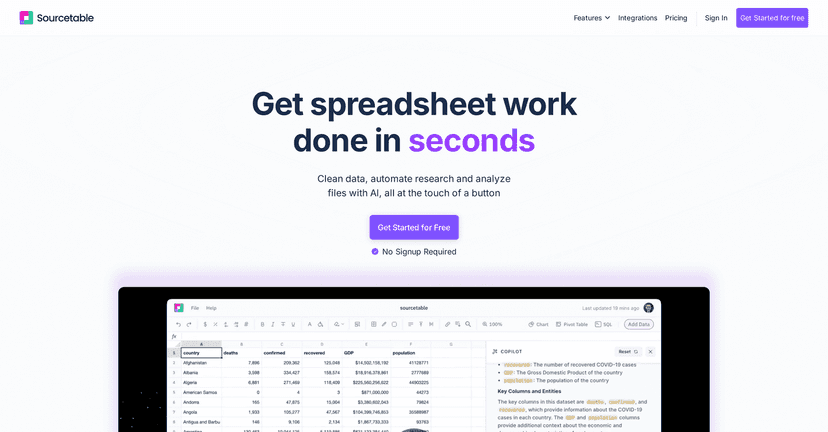
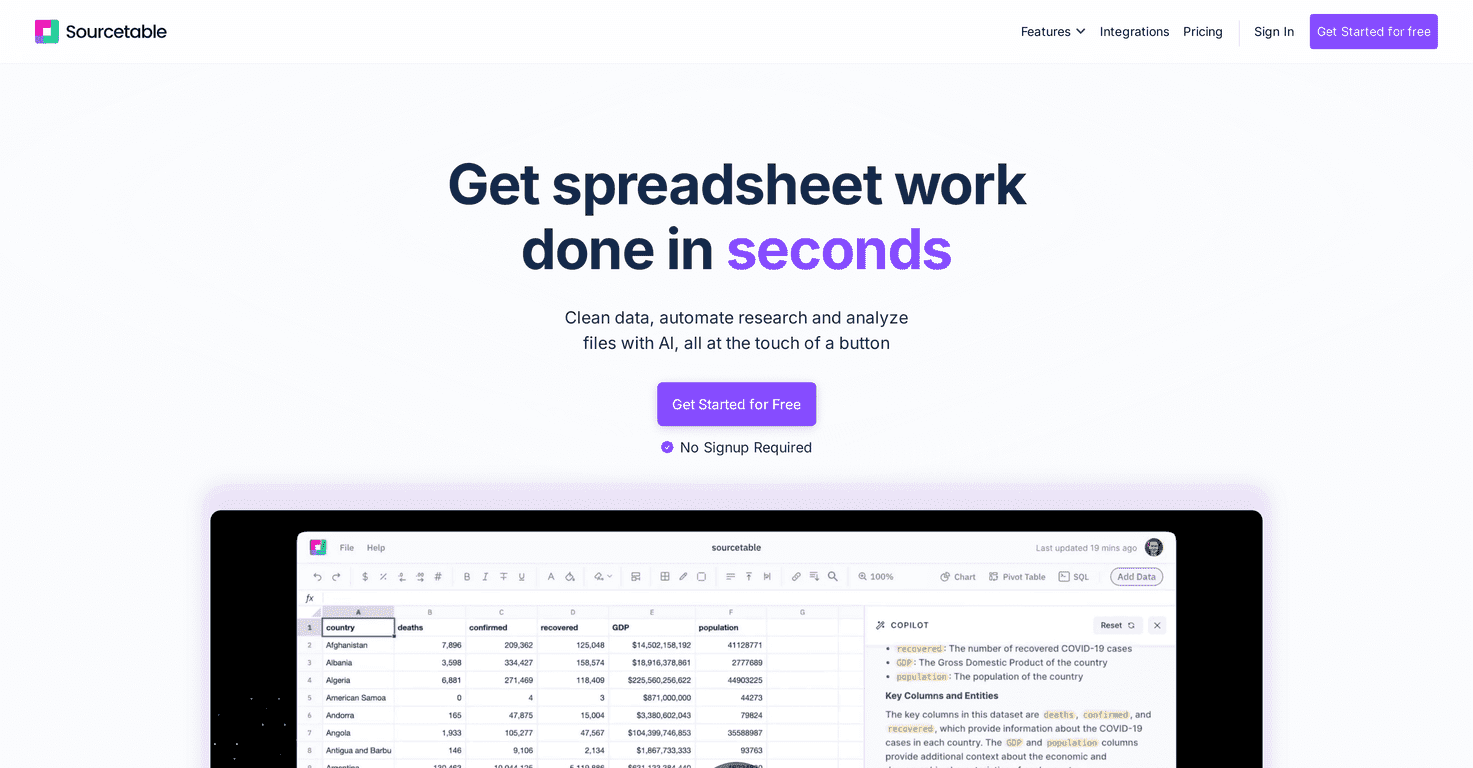
If you’ve ever stared at a spreadsheet thinking, “Why is this so messy?” then you’ll probably feel the same frustration I did. I’ve spent way too many hours fixing inconsistent headers, chasing down broken formulas, and reformatting data just to get to the analysis part. That’s exactly where Sourcetable caught my attention—because it doesn’t just help you “view” data. It tries to help you clean it, understand it, and move faster.

In my experience, the biggest promise here is simple: less time wrestling with tables, more time actually answering questions. Sourcetable positions itself as an AI-enhanced spreadsheet and data analysis tool, and after digging into it, I can see why people like it—especially if you’re doing the same cleanup and reporting tasks over and over.

Sourcetable

Sourcetable Review: What It’s Like to Use for Real Data Cleanup

Here’s the thing: most spreadsheet tools are great until your data isn’t “nice.” When you’ve got mixed date formats, blank rows, duplicate headers, or columns that should be numeric but are stored as text, that’s when work slows down. Sourcetable is built to tackle that friction with AI-assisted actions.

What I noticed right away is how “guided” the experience feels. Instead of hunting for the right formula syntax or manually building a chart from scratch, you can ask for help and the tool tries to do the heavy lifting. For example, if you’re working with a sales export where dates are inconsistent and some values are missing, you don’t want to spend an hour just getting to the point where you can chart trends.

Sourcetable’s AI Spreadsheet Assistant is aimed at exactly that. In practice, it’s the kind of feature that’s most useful when you’re doing repeatable tasks: cleaning datasets, generating summaries, building charts, and writing formulas you’d normally have to look up.

Key Features (and the parts I’d actually use)

  1. AI Spreadsheet Assistant for easier data management
  2. This is the “do it for me” layer. I like it because it’s not limited to one task—once you’re working inside the spreadsheet, you can ask for help with what you’re seeing rather than starting from scratch.
  3. AI Formula Generator for complex formula creation
  4. If you’ve ever built a formula and then had to double-check every parenthesis… yeah, I’ve been there. The formula generator is designed to help with more advanced logic without forcing you to remember the exact syntax. It’s especially handy when you’re combining conditions (like filtering rows based on multiple criteria) or writing calculations that aren’t “one and done.”
  5. AI Chart Generator for visual data representations
  6. This is where things get practical fast. Instead of guessing which chart type fits, you can generate visuals from your dataset. In my experience, it’s a huge time-saver when you’re turning a raw table into something you can share—like a quick trend chart or a category breakdown.
  7. AI Data Analysis for intelligent insights
  8. Not every AI analysis feature produces something you’d trust, but when it works, it’s useful for getting unstuck. I like using this when I already have the question in mind (for example: “What changed week over week?”) and I want the tool to point me to patterns I might miss.
  9. AI Summaries for quick data digestion
  10. When you’re working with a large table, reading everything is impossible. Summaries help you zoom out. I’d use this before building a dashboard—basically to confirm what the dataset is telling you before you spend time on the visuals.
  11. AI Data Cleaning with a single click
  12. This is one of the most appealing parts. Cleaning is usually the slowest step, and AI-driven cleanup can help with common issues like formatting, missing values, and inconsistent fields. Still, I’d treat it like an assistant—not a magic wand. After a cleanup, I always do a quick spot-check on a few rows to make sure it didn’t “fix” something incorrectly.
  13. Integrations with over 100 data sources
  14. If you pull data from multiple places, integrations matter. Sourcetable’s claim of 100+ data sources is a big deal for workflows where you’re not just working with one CSV file. It means you can bring in data without manually exporting and re-importing constantly.

Pros and Cons (honest take)

Pros

  • User-friendly interface—it feels approachable, and for many people it won’t require a long setup or a complicated onboarding flow.
  • Time savings on repetitive tasks—the AI-driven cleanup, summaries, and chart generation are the kind of features that save you from doing the same chores every week.
  • Useful for both beginners and experienced analysts—beginners get help with formulas and structure, while more advanced users can use AI to speed up drafting and iteration.
  • Handles real-world formats—the tool supports different data formats and analysis tasks, which matters when your source data isn’t perfectly standardized.

Cons

  • There can be a learning curve—not everyone will instantly know how to prompt the AI or how to verify the results. I’d expect some trial-and-error at first.
  • Advanced features may cost extra—basic functionality might be accessible, but if you want the full AI experience and deeper workflows, you may need a higher plan.
  • AI still needs review—this is the part people skip. Even when the output looks right, I recommend checking key calculations and a few sample rows, especially after automated cleaning.

Pricing Plans: What to check before you commit

Pricing isn’t spelled out in the text here, so I can’t give you exact numbers. What I’d do instead (and what I tell friends) is check the official Sourcetable pricing page and compare plans based on your actual needs—like how often you’ll be generating charts, using AI analysis, and pulling data from integrations.

If you’re evaluating it for a team, also pay attention to limits (like usage caps or feature restrictions). Those details can matter more than the headline price.

Wrap up

Overall, I like what Sourcetable is trying to do. It’s not just another spreadsheet—it’s an AI-assisted workflow for cleaning data, generating formulas, creating charts, and summarizing results. If you spend your days fixing messy datasets or building the same reporting outputs repeatedly, it can genuinely cut down the busywork.

Just don’t treat AI output as “set it and forget it.” In my experience, the best results come when you use it to speed up the draft, then do a quick sanity check on the numbers. That balance is where Sourcetable feels most useful—and honestly, that’s the sweet spot for most AI tools.

Promote Sourcetable

Stefan

Stefan

Stefan is the founder of Automateed. A content creator at heart, swimming through SAAS waters, and trying to make new AI apps available to fellow entrepreneurs.

Related Posts

Figure 1

Strategic PPC Management in the Age of Automation: Integrating AI-Driven Optimisation with Human Expertise to Maximise Return on Ad Spend

Title: Human Intelligence and AI Working in Tandem for Smarter PPCDescription: A digital illustration of a human head in side profile,

Stefan
AWS adds OpenAI agents—indies should care now

AWS adds OpenAI agents—indies should care now

AWS is rolling out OpenAI model and agent services on AWS. Indie authors using AI workflows for writing, marketing, and production need to reassess tooling.

Jordan Reese
experts publishers featured image

Experts Publishers: Best SEO Strategies & Industry Trends 2026

Discover the top experts publishers in 2026, their best practices, industry trends, and how to leverage expert services for successful book publishing and SEO.

Stefan

Create Your AI Book in 10 Minutes