Table of Contents
Are you tired of typing away for hours on end? If so, you’re not alone! Many people are searching for a smarter way to communicate. That’s where TalkText comes in. This innovative dictation tool promises to help you turn your spoken words into beautiful text. In this TalkText review, we’ll explore how this tool can improve your productivity and make writing a breeze.
TalkText Review
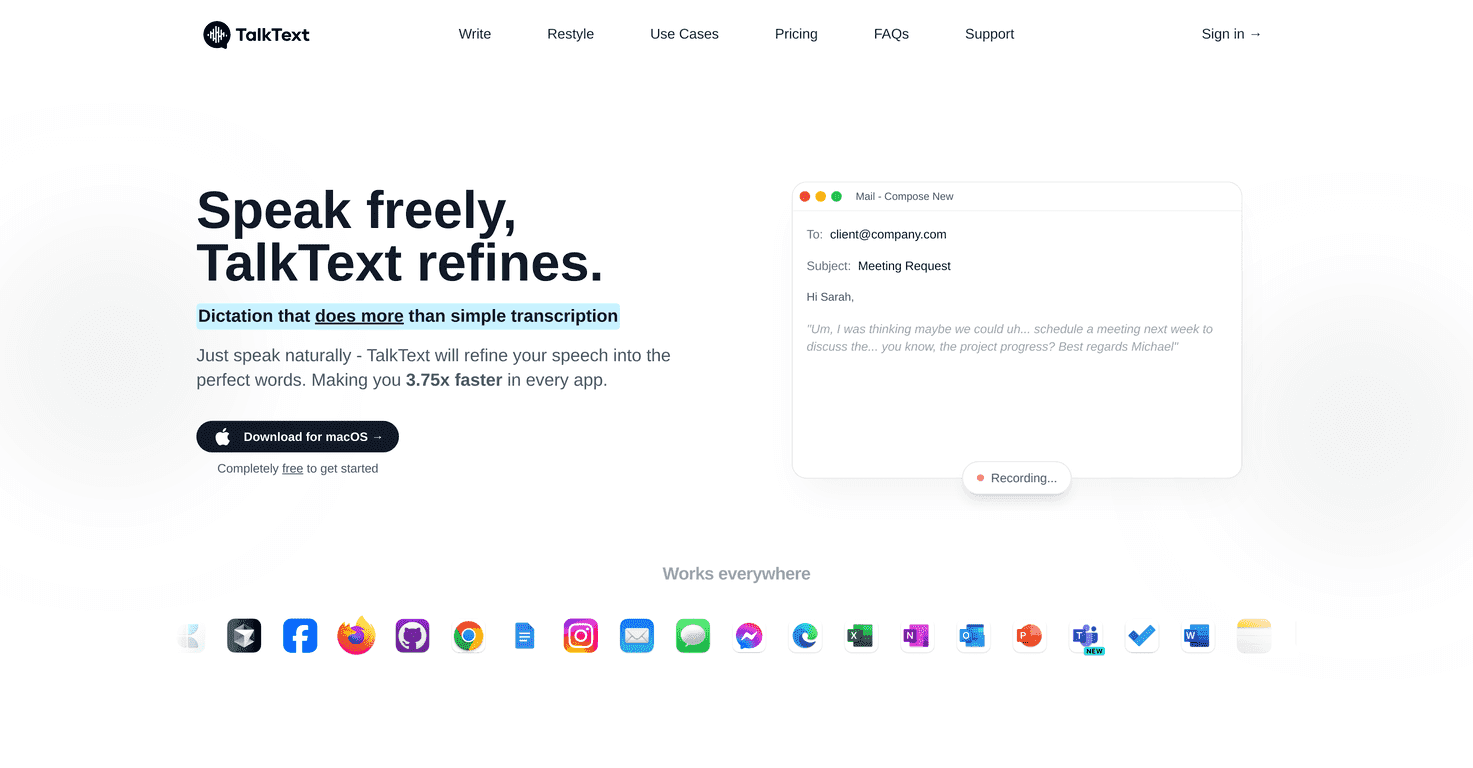
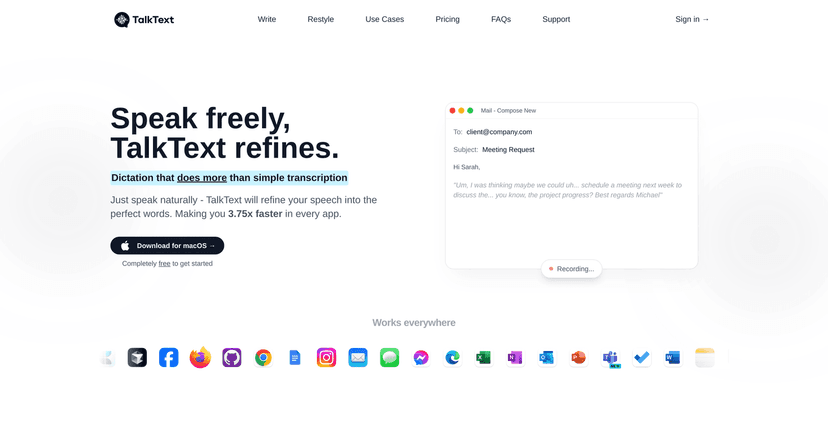
TalkText is an AI-powered dictation tool designed specifically for macOS users, transforming your spoken words into polished text. With its ability to refine speech, it allows you to focus on what you want to say without getting bogged down by typing. Users find themselves 3.75 times faster when using this app compared to traditional typing. It’s like having your own personal writing assistant! The AI not only hears what you say but also improves it by removing filler words and mistakes, helping you communicate more effectively.
TalkText boasts a user-friendly interface and works seamlessly across all applications. Whether you’re composing emails, chatting with friends, or creating content, TalkText has got you covered. Plus, with support for over 30 languages, it’s a great choice if you’re multilingual or communicating with international audiences.
Key Features
- AI-Assisted Dictation: Refines spoken text by removing filler words.
- Restyle Functionality: Lets users select text to be rewritten in various styles.
- Universal Compatibility: Works with all applications and websites.
- Support for Multiple Languages: Offers support for over 30 languages.
- Data Privacy: No audio is stored after processing and user data isn’t used for model training.
Pros and Cons
Pros
- Increases productivity significantly (3.75x faster than typing).
- Free to start with flexible pricing plans.
- Utilizes AI for smart dictation and text restyling.
- User-friendly interface and seamless application integration.
Cons
- Currently only available for macOS users.
- Requires an internet connection for functionality.
- Some advanced features have limitations in the free version.
Pricing Plans
TalkText offers a free plan with a limit of 2,000 words per month. For those who need more, the monthly plan is available for $10, allowing unlimited words. The annual plan, which is the most popular, offers unlimited words at just $6.50 per month (billed annually at $78), saving you four months compared to the monthly plan.
Wrap up
In wrapping up this TalkText review, it’s clear that this AI-powered dictation tool is an excellent choice for anyone looking to improve their productivity and ease of communication. While it has its limitations, like being restricted to macOS and requiring an internet connection, the pros outweigh the cons for many users. Whether you choose the free option or opt for a premium plan, you’re sure to find TalkText to be a valuable addition to your workflow.
Promote TalkText