Table of Contents
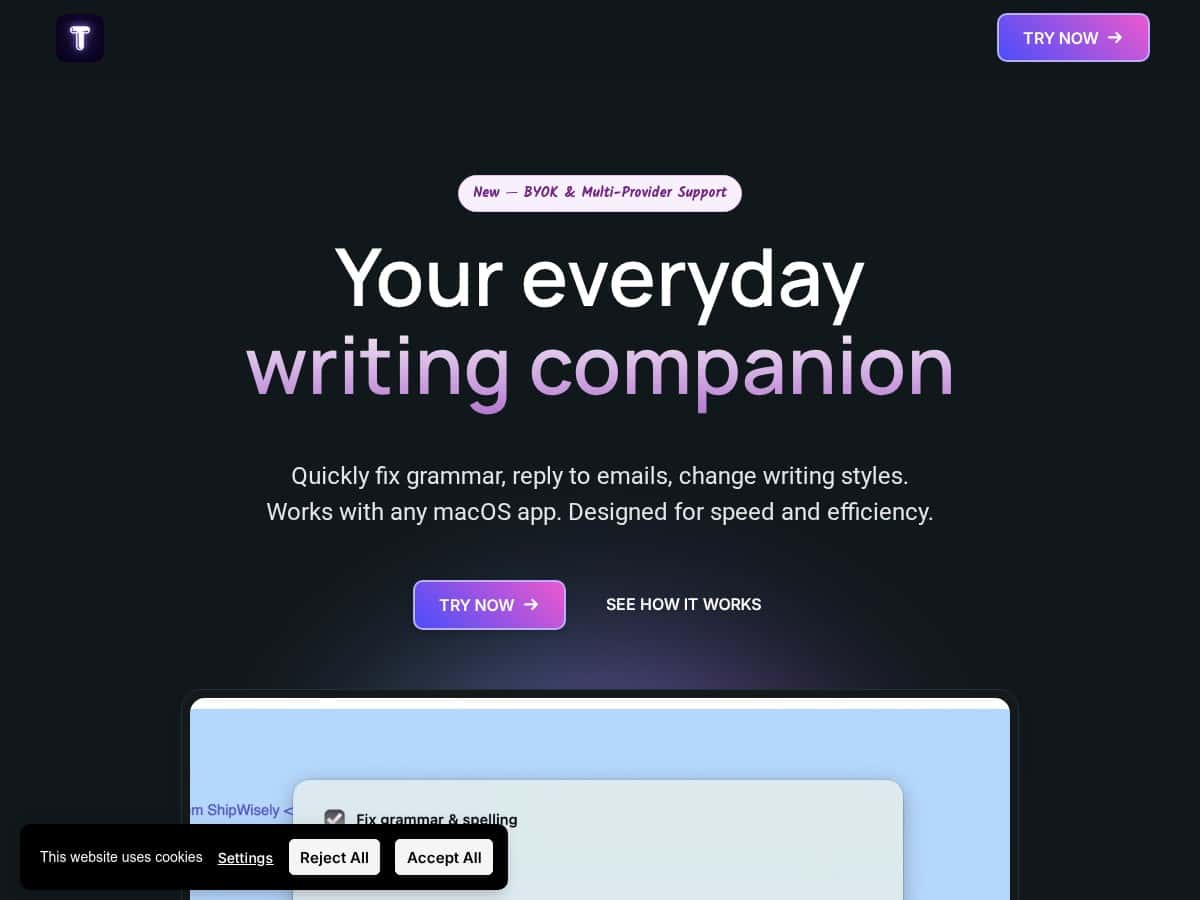
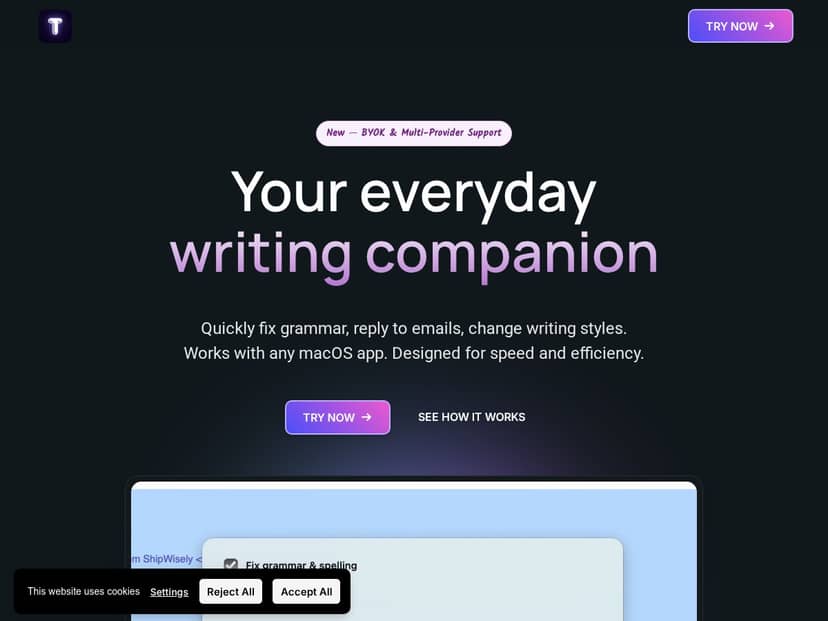
If you write a lot on your Mac—emails, Slack replies, notes, even quick summaries—you already know the annoying part: you draft, then you go back and fix grammar, tighten wording, and try to match the tone. That’s where TextWisely comes in. I tested it specifically to see if it actually helps without turning my workflow into a juggling act.
TextWisely Review: Does it actually speed up writing on Mac?
I’m not interested in “AI magic” that forces you to copy/paste everything into a separate web box. So my test was simple: could I improve real text (emails + messages) without breaking my flow?
Setup and first impression: Once installed, TextWisely didn’t feel like a separate tool I had to remember. What stood out to me was how quickly I could trigger actions on selected text. I tried it in places where I normally write—email drafts and chat-style messages—then used it to clean up wording and adjust tone.
What I did day-to-day: Over a few sessions, I used TextWisely for three main tasks: (1) fix grammar/spelling in messy drafts, (2) rewrite messages to sound more professional without sounding robotic, and (3) summarize long text so I could get to the point faster.
Does the integration feel “seamless”? In my experience, “seamless” really means two things: you select text, you trigger an action, and the result drops back into the same context (instead of sending you off somewhere new). I wasn’t constantly switching apps, which is exactly what I wanted.
Now, the important part: how good was the output? I ran a few quick mini-tests so you can see what changed (and what didn’t).
Key Features (with real mini-tests)
- Grammar Fixing and Spelling Correction
- Test input: “I just wanted to follow up, the doc is ready but i think the timeline is off. Can you take a look when you get a chance?”
- What I noticed: It corrected casing and spelling (like “i” → “I”) and smoothed a couple of awkward phrases without rewriting the whole meaning.
- Result (example): “I just wanted to follow up—the document is ready, but I think the timeline is off. Could you take a look when you get a chance?”
- My take: This is the feature I used the most because it’s low risk. You get cleaner writing fast, and you don’t have to babysit the output.
- Email Response Generation
- Test input (context): “Thanks for sending this over. We need a quick turnaround—can you confirm when we’ll have the final draft?”
- Prompt/goal: “Write a polite, confident reply with a clear timeline and next steps.”
- Result (example): “Thanks for reaching out. We’re finalizing the draft now and expect to send the final version by Thursday afternoon. Once it’s in, we’ll share it for review and confirm any last edits needed.”
- What I noticed: It understood the “confirm timeline + next steps” structure. The tone landed closer to professional and calm, not overly salesy.
- Limitation I hit: If your original message is vague (no date, no deadline, no owner), the rewrite can still be decent—but it can’t invent specifics you didn’t give it. Garbage in, garbage out, unfortunately.
- Text Summarization for Long Articles
- Test input: A long internal note (about 700–900 words) with multiple sections and a few repeated points.
- What I did: I selected a chunk and ran a summary action.
- Result (example): It produced a shorter version that kept the main takeaways and the “why it matters” parts. The biggest win for me wasn’t just shorter text—it was that it helped me spot decisions and action items faster.
- My take: Summaries were useful for skimming and prepping replies. For anything that needs exact quotes or precise numbers, I still double-check the source—summary tools can miss nuance.
- Tone Adjustment for Different Writing Styles
- Test input: “Just checking in. You still haven’t sent the files. This is taking too long.”
- Goal: Make it firm but friendly (not passive-aggressive).
- Result (example): “Hi—quick follow-up. Could you share the files when you have a moment? We’re trying to stay on schedule and would appreciate an update by [time/day].”
- What I noticed: The rewrite softened the edge while keeping pressure. That’s the sweet spot most tools miss.
- Instant Actions via Shortcuts
- This is where TextWisely started to feel genuinely useful. Instead of manually finding a feature every time, I could trigger actions quickly.
- How I used it (step-by-step):
- Open the app where I’m writing (email draft / message).
- Select the text I want to improve.
- Use a shortcut to run the action (grammar fix, tone rewrite, summarize, etc.).
- Review the result and accept it if it matches what I intended.
- Why it matters: If you’re writing multiple drafts a day, shortcuts save more time than you think. I didn’t measure it with a stopwatch for every run, but I did notice fewer “back and forth” moments.
- Multilingual Support in 39 Languages
- I didn’t go deep into every language, but I did test a quick rewrite in a second language to see if it kept meaning and tone. The output was understandable and didn’t feel like a literal word-for-word conversion.
- My take: This is a nice bonus if you draft bilingual messages or translate summaries. Just remember: for legal/technical accuracy, you’ll still want to review.
- Custom Actions and Tones
- I like when tools let you set a “default voice.” TextWisely’s customization helped me avoid repeating the same instructions.
- Example of how I’d use custom tone:
- Set a tone for “client follow-up” (polite, clear deadline, no blame).
- Set a tone for “internal update” (short, action-oriented).
- Use the same action repeatedly instead of rewriting your prompt each time.
- What I noticed: Once I found a tone that worked, it made my drafts feel more consistent across different messages.
- Privacy Options with Local AI Models
- This one matters to me. I don’t want everything I type flying off somewhere by default.
- TextWisely includes privacy options that can use local AI models. In practical terms, that means you can choose a mode that keeps processing closer to your device (and in my experience, that often feels snappier for smaller tasks).
- Limitation: Local modes can be great for speed and privacy, but if you’re asking for highly complex rewrites, you may still want to compare outputs and choose what works best.
Pros and Cons (based on what I tested)
Pros
- Integration feels natural on Mac: select text, trigger an action, and get results back where you’re working.
- Fast responses: grammar and tone tweaks came back quickly enough that it didn’t break my writing rhythm.
- Tone adjustments are actually usable: it can soften harsh messages without losing the point.
- Custom actions/tone help consistency: once you set your voice, you don’t have to re-explain yourself every time.
- Privacy options: local AI modes are a big plus if you’re cautious about what you type.
Cons
- Mac-only: if you’re on Windows, you’ll need to look elsewhere.
- Full feature access isn’t free: you’ll likely hit limits unless you subscribe or buy the one-time option.
- Garbage-in problem still applies: if your draft lacks dates, names, or specifics, the rewrite can’t magically fill them in.
Pricing Plans (and what “unlimited” should mean)
TextWisely lists pricing at $5/month, $48/year (20% discount), or a $29 one-time purchase. Subscriptions are positioned as unlocking all features and “unlimited use.”
Here’s the part I wish was clearer: “unlimited” should specify what’s actually unlimited—message count, word limit per request, and whether local vs cloud modes have different caps. In my testing, I didn’t run into obvious daily throttles for the kinds of tasks I tried (grammar, tone, summarization), but you’ll want to check the fine print for:
- Whether there’s a word limit per summarization or rewrite
- Whether local model mode has different limits than cloud mode
- What “one-time purchase” includes (and whether future upgrades are included)
Quick decision rule:
- If you write daily (emails + follow-ups) and want consistent tone, the subscription is usually the safer bet.
- If you mostly need occasional grammar/tone fixes and don’t want ongoing costs, the $29 one-time option may make more sense.
If you’re comparing alternatives, my suggestion is simple: pick one tool that supports in-app editing/shortcuts on Mac. Otherwise, you’ll spend more time copying/pasting than you’ll save.
Wrap up
After using TextWisely for real writing tasks, I ended up keeping it around because it reduces the “draft → fix → rewrite” loop. The grammar and tone features were the most immediately helpful, and the shortcut-based workflow is what made it feel like part of my Mac routine instead of another app I’d ignore.
If you regularly write emails or messages and you care about tone consistency, TextWisely is worth a close look—just make sure you provide the details you want reflected (deadlines, names, specifics), because it can polish your writing, not invent your facts.