Table of Contents
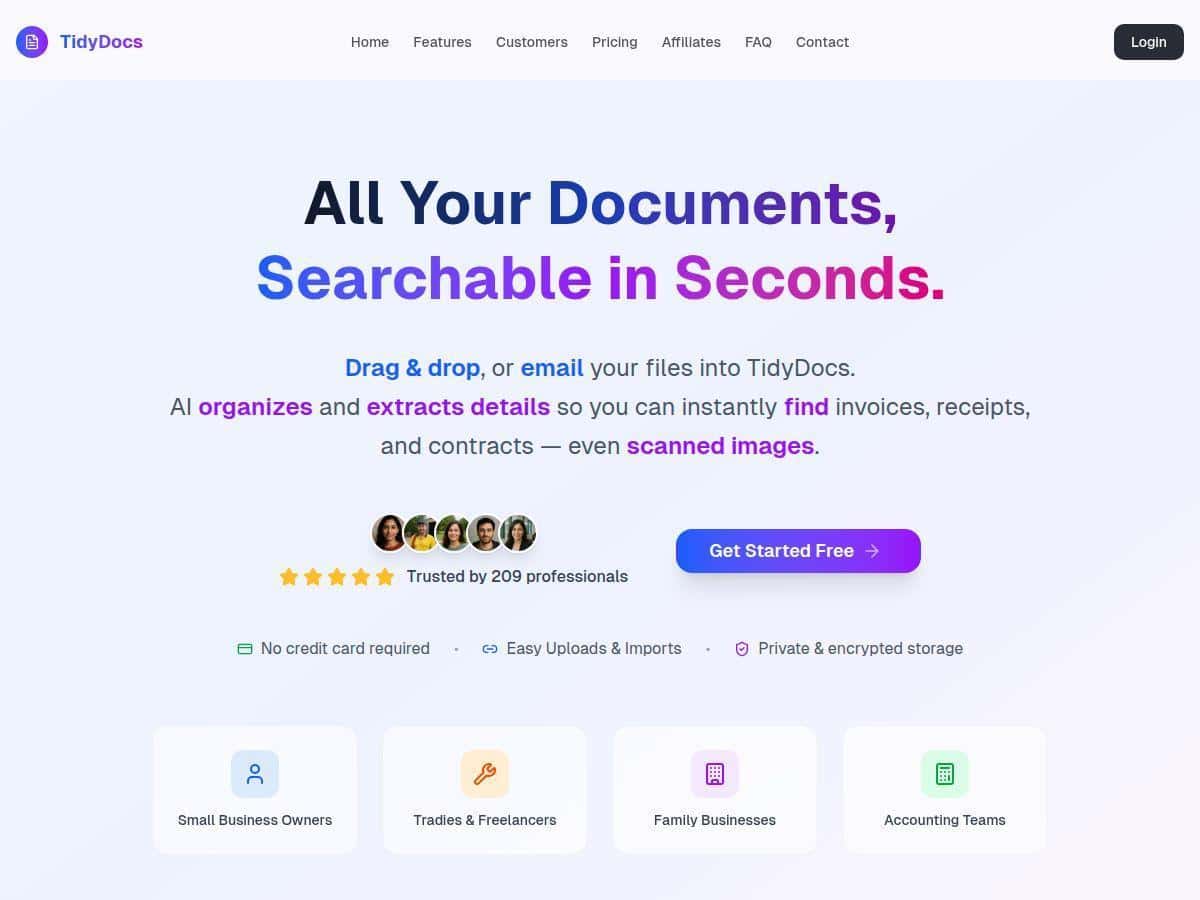
I tried TidyDocs because my “document system” was basically a folder named FINAL that slowly became FINAL2, FINAL REAL, and then… well, you get it. I wanted something that could (1) sort invoices/receipts/contracts without me doing every single step manually and (2) make it actually searchable. So I tested it with a small batch first and then pushed it a bit harder to see where it held up.
What I fed it: 30 documents total—25 PDFs (mostly invoices and receipts) and 5 image scans (phone-captured receipts). For the OCR part, I specifically looked for whether it would pull out the fields I usually care about: vendor name, invoice/receipt date, and totals/amounts. Then I tried searching with a few realistic queries like “March 2024 $128.40” and “Acme invoice” to see how well the search matched what I expected.
What I noticed right away: uploads are painless. I used both drag-and-drop and an email upload flow, and both worked without any weird setup. The AI categorization kicked in quickly and gave me sensible groupings, which meant I wasn’t manually sorting everything into folders as I went. Search was also the part that surprised me—in my tests, it was fast enough that it felt like I was searching an index, not waiting on the system to “think.”
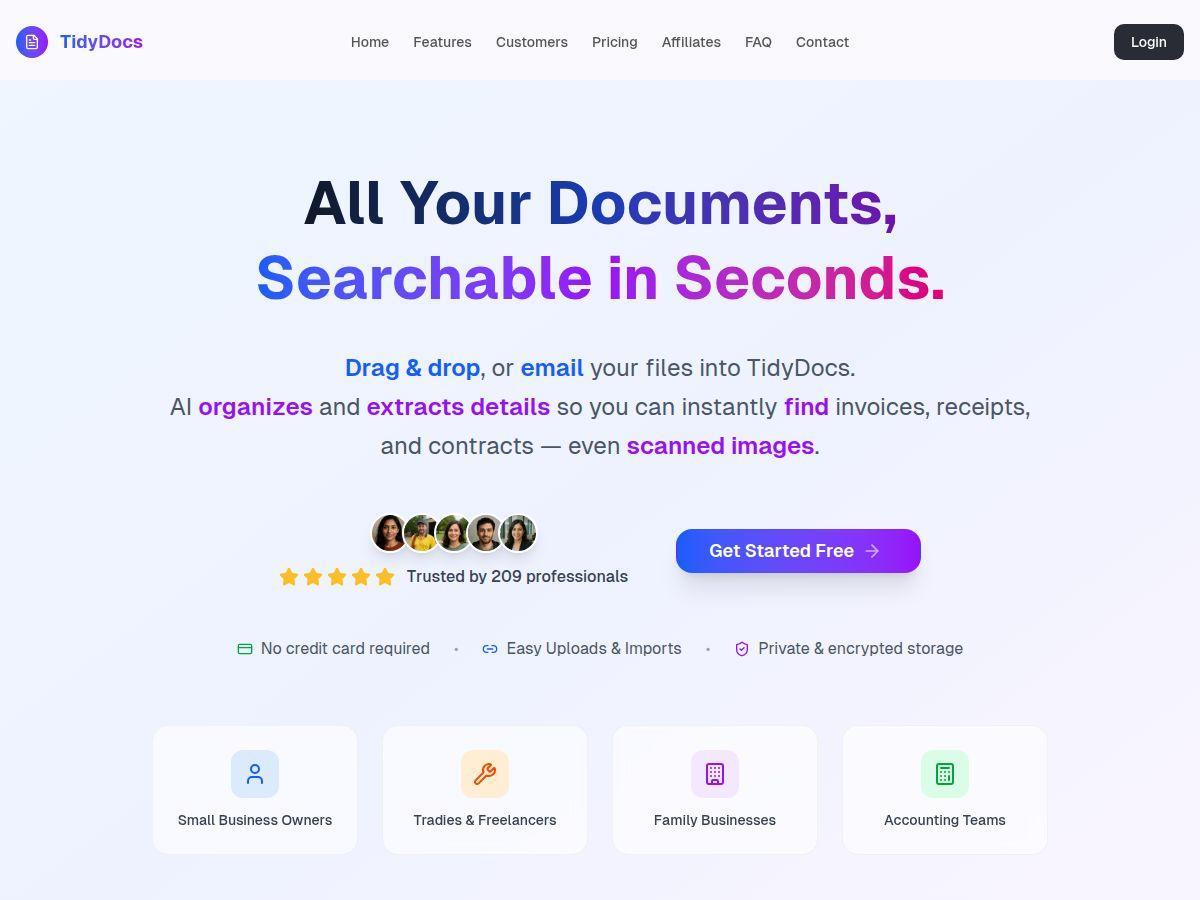
TidyDocs Review (What Happened When I Tested It)
Let me be straight with you: TidyDocs isn’t magic, but it does a lot of the annoying work I normally end up doing. In my test, AI categorization was accurate for the majority of documents I uploaded. Most invoices landed in the right “type” grouping, and receipts didn’t get mixed in with contracts (a problem I’ve had with other tools).
OCR + extracted fields: On the 25 PDFs, OCR was solid. I could find the text in search results right away, and the date/amount fields were usually where I’d expect them to be. On the 5 scanned images, performance depended heavily on image clarity. When the receipt was well-lit and straight-on, OCR worked well. When it was slightly angled (phone capture), I saw more missing characters—especially in totals and small-print line items.
Real search tests: I ran the same kinds of searches I’d actually do during month-end. Examples:
- “Acme invoice” → showed the correct invoice documents for the vendor name in most cases.
- “March 2024” → returned documents from that time period quickly, with minimal irrelevant results.
- “$128.40” → hit more reliably on PDFs than on the scanned images.
Time saved (my rough before/after): Before, I’d spend 5–10 minutes digging through folders and opening PDFs to confirm dates and amounts. After using TidyDocs, most targeted searches were closer to 30–90 seconds. That doesn’t mean “zero time”—you still sometimes open the doc to verify—but the retrieval part got way faster.
One limitation I ran into: file organization is great, but if a document is messy (blurry scan, cut-off edges, weird lighting), OCR accuracy drops. In those cases, I had to manually open the file and double-check extracted fields. If you’re dealing with lots of low-quality scans, you’ll want to clean them up before uploading.
Key Features (Broken Down by What I Used)
- AI Categorization for automatic filing
This is the feature I leaned on most. I uploaded invoices/receipts/contracts and let the AI sort them. In my test set, categorization was mostly consistent—especially for invoices vs. receipts. If you upload mixed document types, it helps to review the first few results so you know the categories it’s creating. - Smart Search for instant document retrieval
Search felt responsive. I didn’t time it with a stopwatch, but the difference vs. manually browsing folders was obvious. Queries using vendor names and dates worked best. Amount-only searches were more reliable on PDFs than on scanned images. - Easy Uploads via drag-and-drop and email
I used both methods. Drag-and-drop was obviously the fastest when I was at my computer. Email upload was handy when I had receipts I’d already captured on my phone. No “extra steps” surprise me here—just send/upload and move on. - Basic OCR for searchable scanned documents
OCR is what turns images into something you can search. The better the scan, the better the results. On clean PDFs, it was strong. On angled phone scans, I saw more extraction errors—mostly around small numbers and dense text. - Supports various file formats including images
I tested PDFs and image scans. The tool handled both without drama. If you rely on screenshots or camera captures, you’ll want to make sure they’re readable before uploading. - Options to use existing folders for document storage
I liked that it doesn’t force everything into one rigid structure. I could keep things organized in a way that matched how I already think about documents (by type and month). - Different plans to match small business needs
The free tier is enough to test the workflow, but the paid tiers are where the “real” OCR/search automation becomes more useful if you’re uploading frequently.
Pros and Cons (With the Stuff I Actually Noticed)
Pros
- Setup is genuinely easy—I didn’t hit a credit card wall for the trial, and I was uploading within minutes.
- Search is fast—in my tests, finding the right invoice by vendor/date felt quicker than folder hunting by a lot.
- AI categorization reduces manual work—it mostly kept invoices and receipts from getting mixed up.
- OCR makes scanned docs usable—on clear scans and PDFs, extracted text was searchable and readable enough to trust.
- Flexible storage options—using existing folder structures made the transition feel less disruptive.
Cons
- Free version is very limited—in my case, the free tier only allowed 5 documents per month, which is fine for testing but not enough for real use.
- Some “better” OCR features are gated—advanced extraction and higher limits require a paid plan.
- No direct cloud integration (at least not as a one-click option)—I didn’t see a straightforward Google Drive-style sync. If you already live in Drive, you’ll likely still upload manually or export files.
- Scan quality matters a lot—angled, blurry, or cut-off images led to more OCR misses and occasional misreads of amounts.
Pricing Plans (What You Get for the Money)
Here’s how the plans lined up based on what I saw while testing and what’s described for the tiers:
- Free plan: up to 5 documents and basic OCR. This is enough to see whether the workflow fits your life before you commit.
- Basic: $19/month for 40 documents, plus advanced OCR and AI categorization.
- Pro: $49/month for heavier usage (higher limits) and priority support.
- Enterprise: custom options for larger teams or specific needs (admin controls, advanced governance, etc.).
Quick decision tip: If you’re uploading a handful of receipts each month, the free plan might help you confirm the search/OCR quality. If you’re doing ongoing invoice processing, Basic is the point where it starts feeling worth it because you’re not constantly hitting limits.
Who TidyDocs Is (and Isn’t) For
If you’re a freelancer, consultant, or small shop that collects receipts and invoices all month long, TidyDocs makes a lot of sense. It’s especially helpful if you don’t want to build a perfect folder naming system—because the search and categorization do the heavy lifting.
On the other hand, if your documents are mostly low-quality scans or you need deep accounting integrations (like automatic sync into a specific accounting platform), you might find this a bit too “manual on the edges.” In that case, I’d consider pairing it with a better scanning workflow first, or looking for a tool that integrates directly with your existing cloud/accounting stack.
Wrap up
After testing TidyDocs, my takeaway is pretty simple: it’s a practical AI document organizer that can save time—especially for searching invoices and receipts—as long as your uploads are readable. OCR held up well on PDFs and clearer scans, but it struggled when the image quality was rough. If you want fast retrieval without spending hours reorganizing files, it’s worth a try—just don’t expect it to fix blurry documents for you.