Table of Contents
I’ve been testing Turbotic for a bit, mainly to see if it’s actually useful for day-to-day business automation—or if it’s just another “AI can do anything” dashboard. My baseline was pretty typical: scattered meeting notes, inconsistent process docs, and a lot of time spent turning conversations into action items and then action items into something the team could follow.
For this review, I ran it for 10 business days and used it on two recurring workflows: (1) turning meetings into summaries + tasks, and (2) generating process documentation drafts from raw notes and existing SOP-style material. I also connected the tool to the sources I already rely on (docs/knowledge inputs and meeting transcripts/notes), then tracked the time it took me to get from “messy input” to “shareable output.” The biggest thing I noticed? Turbotic doesn’t just spit out text—it helps structure it into something you can reuse.
Turbotic Review (What I Tested and What Actually Changed)
Let me be blunt: the only reason I care about automation tools is whether they reduce the boring, repetitive work. In my case, that meant fewer hours spent rewriting notes into something consistent and fewer delays when teams needed “the doc” for a process.
How I tested it:
- Duration: 10 business days
- Inputs: meeting transcripts/notes + existing SOP-style text
- Outputs I checked: meeting summaries, action items, and drafts of process documentation (PDD/SDD style)
- Integrations: I focused on getting the workflow working with the sources I already had (docs/knowledge inputs and meeting notes). If your team has a very specific stack, you’ll want to confirm compatibility before you commit.
What I noticed in practice:
- Meeting agents were the fastest win. I fed Turbotic real meeting notes and got back a structured summary plus action items. The difference wasn’t just “it summarized”—it was that it formatted the output in a way I could paste into our internal updates without doing a full rewrite.
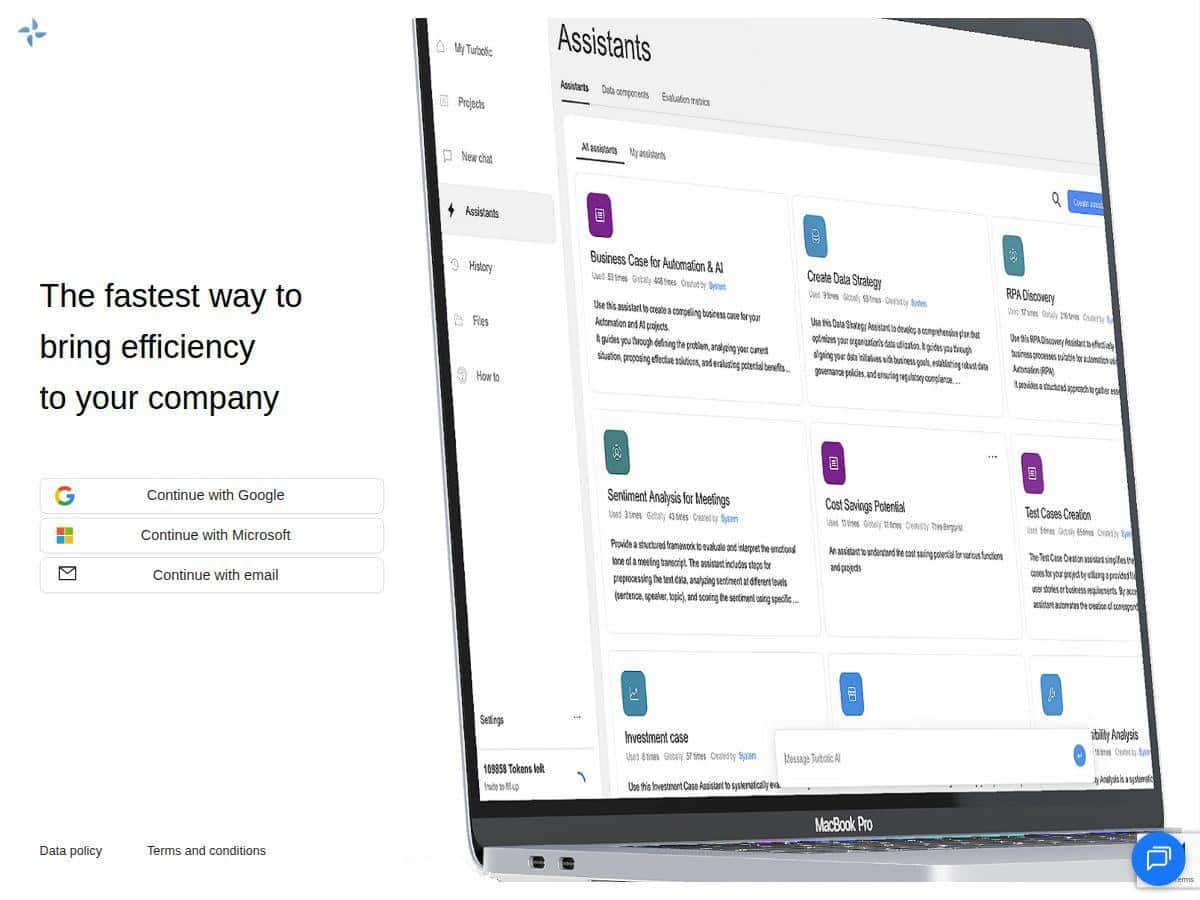
- Process documentation got easier to maintain. When I used it to draft documentation, I didn’t start from blank pages. I started from rough notes and then let the assistant organize it into a more standard structure (the kind you can hand to someone else later).
- It helps collaboration, but you still need ownership. Turbotic can support approval workflows and shared documentation, but someone still has to review and approve. That’s not a deal-breaker—it’s just reality.
After a week, I stopped thinking “is this cool?” and started thinking “can I reuse this template for the next meeting?” That’s the real test, right?
Key Features (With Real Examples From My Workflow)
1) Meeting Agent: summaries + action items
This is the feature I used the most. I’d take messy meeting notes (bullet points, partial decisions, “we should probably…” statements) and run them through the meeting agent. What I got back was a cleaner summary and a list of action items that were easier to assign and track.
Example of what changed: Instead of me rewriting notes into a status update, I could review Turbotic’s draft, adjust a couple of names/dates, and publish. That saved time because the structure was already there.
2) Process documentation automation (PDD/SDD-style)
If you’ve ever written a PDD or SDD, you know the pain: you’re not just describing what happened—you’re documenting decisions, requirements, and how the process works. Turbotic helped turn rough inputs into drafts that looked more like actual documentation than a random AI paragraph.
What I liked: it nudged the content toward a consistent format, so the doc wasn’t a one-off every time.
What I didn’t love: if your source notes are vague, the output will be vague too. Garbage in, garbage out still applies—just with better formatting.
3) Data analysis from multiple enterprise systems
Turbotic positions itself as able to analyze data across systems. In my test, I used it with the sources I could easily provide (existing notes/docs). If you’re planning to connect a specific enterprise tool (like a ticketing platform, CRM, or data warehouse), I’d recommend checking what integrations are supported and doing a quick test before rolling it out.
4) Automation opportunities + roadmaps
One of the more practical parts was the “here’s what we could automate” angle. After feeding it process descriptions, it generated suggestions that were relevant enough to discuss with my team. It didn’t replace our judgment—but it did give us a starting point that wasn’t just “we should automate something.”
5) Collaboration and approval workflows
I used this in a lightweight way: generate a draft, then review it. The collaboration piece matters when multiple people need to see the same doc and sign off. It’s not magic, but it reduces the back-and-forth because you’re working from the same draft.
6) Custom AI assistant building
Custom assistants are where I think Turbotic could shine for teams. In my case, I didn’t go crazy with building a brand-new assistant from scratch, but the idea is solid: tailor outputs to your business needs instead of relying on generic responses.
Pros and Cons (Based on My Real Test)
Pros
- Meeting summaries are genuinely usable. The output structure meant I spent less time rewriting and more time reviewing.
- Process documentation drafts are faster to start. I didn’t have to begin from a blank template every time.
- Collaboration/approval workflows reduce chaos. When people are commenting on the same draft, it’s easier to track changes.
- Customization is a good idea for teams. If you standardize how your org writes docs and runs meetings, you can get more consistent results.
- Scales well for repeatable processes. The more your team repeats the same kind of work, the more automation pays off.
Cons
- No free plan available. That’s a tough sell if you just want to “try it for a weekend.” You’ll likely want a trial period or a direct test with your use case.
- Costs can add up depending on seat count. If you only need it for one person, it’s easier to justify. If you want multiple contributors, pricing can feel heavy.
- Some features may require setup effort. If you’re expecting plug-and-play with every internal system, you might hit friction and need a bit of technical help.
- Outputs still depend on input quality. If your meeting notes are thin, the documentation will be thin too. You’ll still need to review.
Pricing Plans (What I’d Consider Before Buying)
Here’s the pricing structure as described on Turbotic’s site:
- Free plan: The product offers basic features, but in practice this review experience is limited because the free tier is constrained (limited tokens and limited seats are mentioned).
- Professional plan: $10 per seat per month. It includes more tokens, unlimited meeting agents, and collaboration tools.
- Enterprise: Custom pricing with dedicated support, unlimited seats, branding options, and dedicated environments.
How I think about the value: If you’re using the meeting agent daily and generating docs regularly, unlimited meeting agents can be a big deal. But if your team only uses it occasionally, you may want to start smaller (fewer seats) and scale after you’ve proven the workflow internally.
One thing I’d double-check before committing: the “token” limits and what counts as a token in your usage pattern. If your process docs are long or you run lots of iterations per meeting, that’s where costs can climb.
Wrap up
Turbotic is one of those tools that feels less like “AI entertainment” and more like a practical workflow assistant—especially if your work involves meetings, documentation, and repeatable processes. The biggest win for me was getting structured outputs faster: meeting summaries I could publish and doc drafts that didn’t require starting from scratch.
That said, I wouldn’t treat it like a magic button. You’ll still need good inputs, some review time, and a clear plan for where it fits in your team’s process.
If you want to reduce the time between “we talked about it” and “we have a documented decision,” Turbotic is worth a serious look.