Table of Contents
I’ve been working on UI test automation for a while, and if there’s one thing that always slows me down, it’s the same cycle: record a flow, generate a bunch of tests, then spend the next few days fixing selectors and chasing flaky failures. That’s why I gave Uilicious a real try instead of just skimming the feature list.
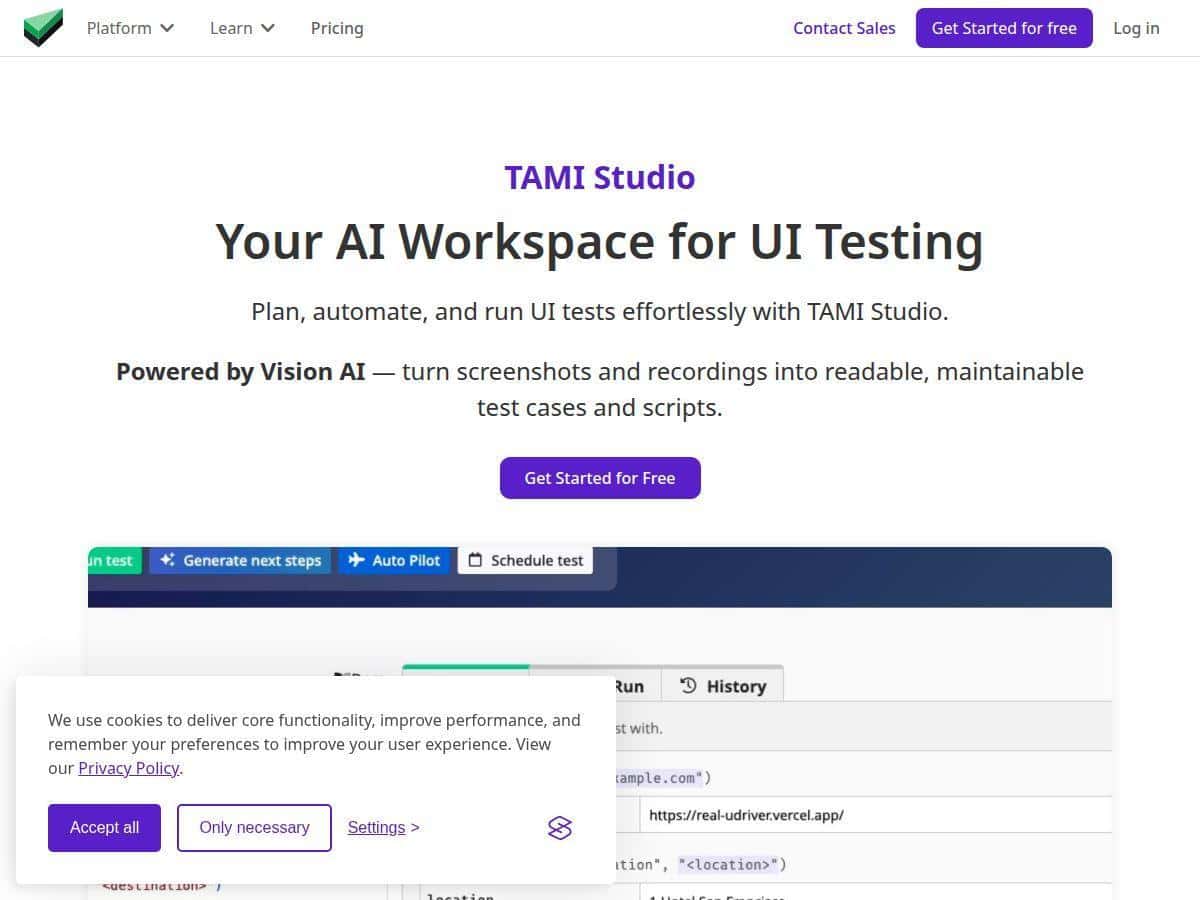
In my case, I tested it on a fairly typical web app UI: login → dashboard → a couple of common CRUD-style screens (list page, details page, and one “save” action). I wanted to see if the AI could actually turn UI interactions into usable test cases, not just generate something that looks good in a demo. What I noticed was pretty straightforward: the workflow is designed to start from screenshots/recordings and then help you get from “here’s what the UI looks like” to “here’s an automated test” with far less manual scripting than I’m used to.
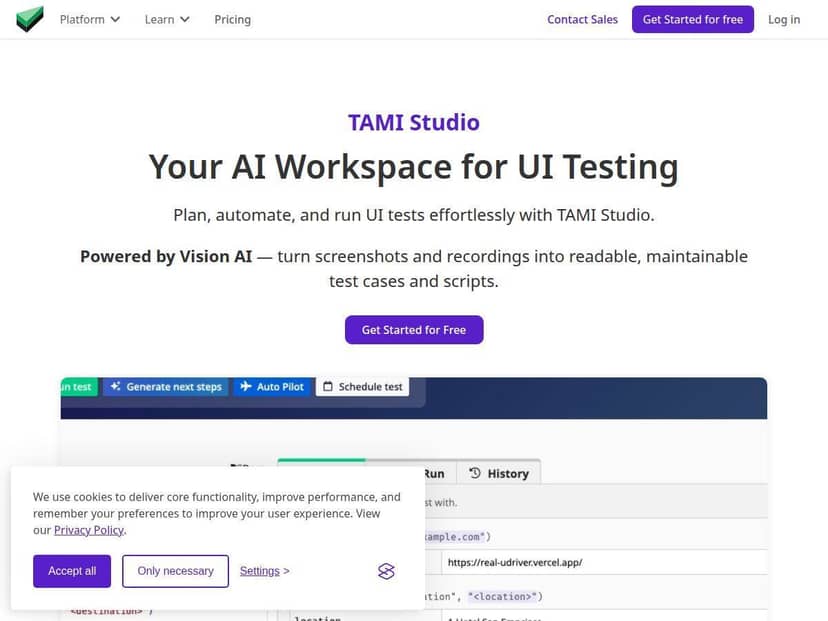
Uilicious Review
Here’s what I did and what I actually got out of it.
My testing setup (so you can compare)
- App type: web UI with standard components (forms, tables, modal dialogs)
- Flows I tried: login, navigate to a list page, open a details view, and trigger one “save/update” action
- Goal: generate automated UI tests without writing everything from scratch
- What I watched for: how accurate the AI-generated steps were, how much editing was needed, and whether failures were actually diagnosable
From the moment I started, the biggest win was how quickly I could move from “I have a UI flow” to “I have test cases.” Uilicious’s AI approach is built around interpreting screenshots and recordings, which means you’re not staring at a blank script editor and guessing what to do next. In my experience, that matters because UI testing usually starts with uncertainty: you know the user journey, but you don’t always know the best selectors, waits, or assertions until you’re deep in debugging.
Example 1: list → details → verify content
I recorded a flow where I opened a list page, clicked the first item, and verified that the details page showed a specific header value. The AI generated a set of steps that matched the UI elements it saw (button/link click, page navigation, and a basic verification). On my first run, the majority of the test steps passed immediately. The part that needed attention wasn’t the navigation—it was the assertion timing (the details header updated after a short fetch). That’s not surprising, but it did mean I still needed a quick tweak to make the check wait for the final UI state.
Example 2: modal dialog interactions
Then I tested a modal dialog flow (open dialog, change a field, save, verify modal closes). This is where UI tests often get annoying. What I noticed with Uilicious is that the AI could identify the modal and buttons, but the “save” action occasionally raced the UI update. In other words, the test would click save and then try to verify too quickly. I had to adjust the validation step so it asserted the post-save UI state rather than assuming the modal closed instantly. Once I made that change, the failures dropped a lot.
How much time did it save?
I can’t pretend it eliminated all work—UI testing is still UI testing—but it reduced the “blank page” time. Instead of writing every step manually, I spent my effort refining generated steps and tightening waits/assertions. In my case, I built out roughly 8–10 test cases from a couple of recorded flows, and I ended up editing about 2–3 of them more heavily (mostly around timing and what to assert). If you’re currently writing from scratch, that’s a noticeable reduction in effort—even if you still need to babysit a few cases.
Parallel cross-browser runs
One thing I genuinely like is running tests in parallel across multiple browsers. I ran the same job in more than one browser session and got feedback fast enough that I didn’t lose half a day to “waiting for the run.” It wasn’t just speed, either. When a UI behaves differently (fonts, spacing, element rendering), getting quick multi-browser results helps you decide whether it’s a real issue or just a selector/timing mismatch.
Debugging and bug report vibes
When something failed, I didn’t feel totally stuck. The fixing and bug report features helped because they included context visuals, not just raw error messages. That’s huge for teams—if your developer can see what the UI looked like when the test failed, you spend less time going back and forth with “what do you mean it didn’t click?”
Bottom line from my testing
Uilicious felt like a practical tool for teams that want AI assistance without requiring deep coding skills to get started. It’s not magic, and you’ll still need to understand your UI enough to adjust assertions and handle timing. But it did make the “first draft” of UI tests a lot faster than what I’m used to.
Key Features
- AI-Powered Test Authoring
- Instead of writing everything manually, Uilicious creates test cases from screenshots and recordings. In my workflow, I recorded a flow, then reviewed the generated steps. What I looked for was whether it captured the right UI elements (buttons/inputs) and whether it produced sensible assertions.
- Failure mode I saw: steps were mostly correct, but timing/“when to assert” sometimes needed adjustment—especially after async updates.
- Test Case Suggestions
- The AI doesn’t just generate one path—it suggests additional scenarios based on what it can see in the UI. I used this after the initial flow generation, and it helped me add coverage like “verify empty state” and “try a different navigation path” without starting from zero.
- How I validated it: I compared the suggested scenarios to real user behavior and then ran them to see if they were stable.
- Where it can miss: if the UI has similar-looking elements (icons in the same row), the suggestion might need a quick review.
- Low-Code Automation (turning cases into scripts)
- Once test cases are created, the platform helps convert them into automated scripts. I didn’t have to become a full-time automation engineer just to get something running. That said, I still had to understand the basics of what the test was doing so I could tweak waits/assertions when needed.
- My quick check: I ran the generated scripts immediately and only edited what was necessary to make them reliable.
- Test Case Management in the Cloud
- Organizing and tracking tests in a shared cloud environment is a big deal for teams. In my experience, it reduced the “where’s the latest version?” problem. I could revisit test cases, see what changed, and keep everything tied to runs.
- Practical tip: name your flows clearly (e.g., “Login → Dashboard → Open Item”) so reviewing failures later doesn’t turn into a scavenger hunt.
- Automated Test Maintenance
- When tests break (new UI layout, changed text, shifted components), Uilicious can detect and suggest fixes. I tested this by intentionally making a small UI change in one of the screens and then re-running. The maintenance suggestions helped point me toward what likely changed.
- What I liked: it didn’t just say “failed”—it helped narrow down the likely cause.
- Bug Report Generation
- Instead of dumping engineers into log files, the bug reporting features gave developers relevant visuals tied to the failure. I found that made it easier to explain issues during triage.
- Real-world benefit: if you’re working in a team, this cuts down on “please provide screenshots” back-and-forth.
- Parallel Cross-Browser Testing
- Running tests in parallel across multiple browsers gave me quicker feedback. That matters because UI bugs often show up differently depending on rendering quirks.
- My takeaway: parallel runs make it easier to decide whether you’ve got a real defect or just a browser-specific timing/selectors issue.
- Job Scheduling and Notifications
- I also liked that you can plan runs and get alerts when failures happen. It’s the difference between “we found out later” and “we found out while it’s still fresh.”
- Tip: start by scheduling nightly runs for your highest-value flows (login + critical paths) before you schedule everything.
Pros and Cons
Pros
- Faster first draft of UI tests: AI-generated steps get you close without starting from a blank editor.
- Beginner-friendly workflow: you can get meaningful results without being an expert in automation frameworks on day one.
- Better collaboration: cloud-based access makes it easier for a team to review and iterate together.
- Parallel runs are genuinely useful: quicker feedback across browsers means less waiting and faster debugging.
- Debugging support feels practical: visuals and bug report context made failures easier to understand.
Cons
- Not “no setup”: you’ll need your app accessible from the environment the platform uses (so your testing needs to work in a cloud context).
- Internet dependency: since it’s cloud-based, you’re relying on a stable connection for smooth runs and iteration.
- There’s still a learning curve: even if you’re not coding, you still need to learn what the AI is doing and how to adjust assertions/waits when the UI updates asynchronously.
- Advanced AI options can be confusing: some settings/features may require a bit of trial and error—especially if you’re not already familiar with how UI testing stability is usually achieved.
Pricing Plans
Specific pricing details aren’t shown in the content I reviewed. If you want the exact tiers and limits (seats, runs, storage, or other usage caps), you’ll need to check the official UI-licious pricing page for the most current info.
What I can say from using it: the value for me came from how quickly I could get usable tests generated and how much faster the feedback loop was with parallel runs. If your team is currently spending days maintaining brittle UI scripts, that kind of time reduction is usually where the ROI shows up—assuming the cloud-access setup fits your environment.
Wrap up
After testing Uilicious, my honest take is simple: it’s a solid option if you want AI-assisted UI test creation without having to start from scratch every time. It helped me generate tests quickly, and the debugging/bug-report context made failures easier to act on. Just don’t expect it to remove all the “UI testing reality” (timing, async updates, and occasional selector/assertion tweaks). If you’re willing to iterate, though, it can seriously cut the time between “we should test this” and “we actually have a working test suite.”