Table of Contents
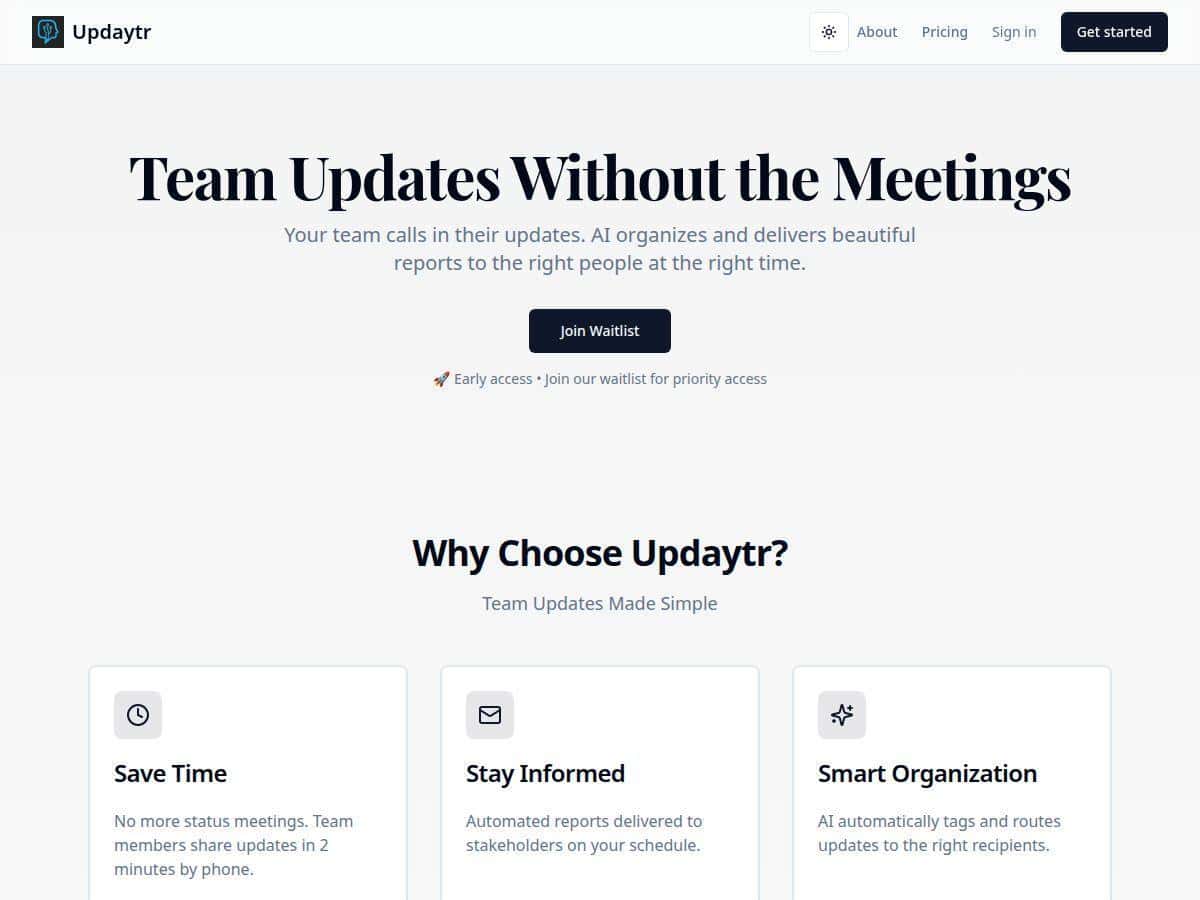
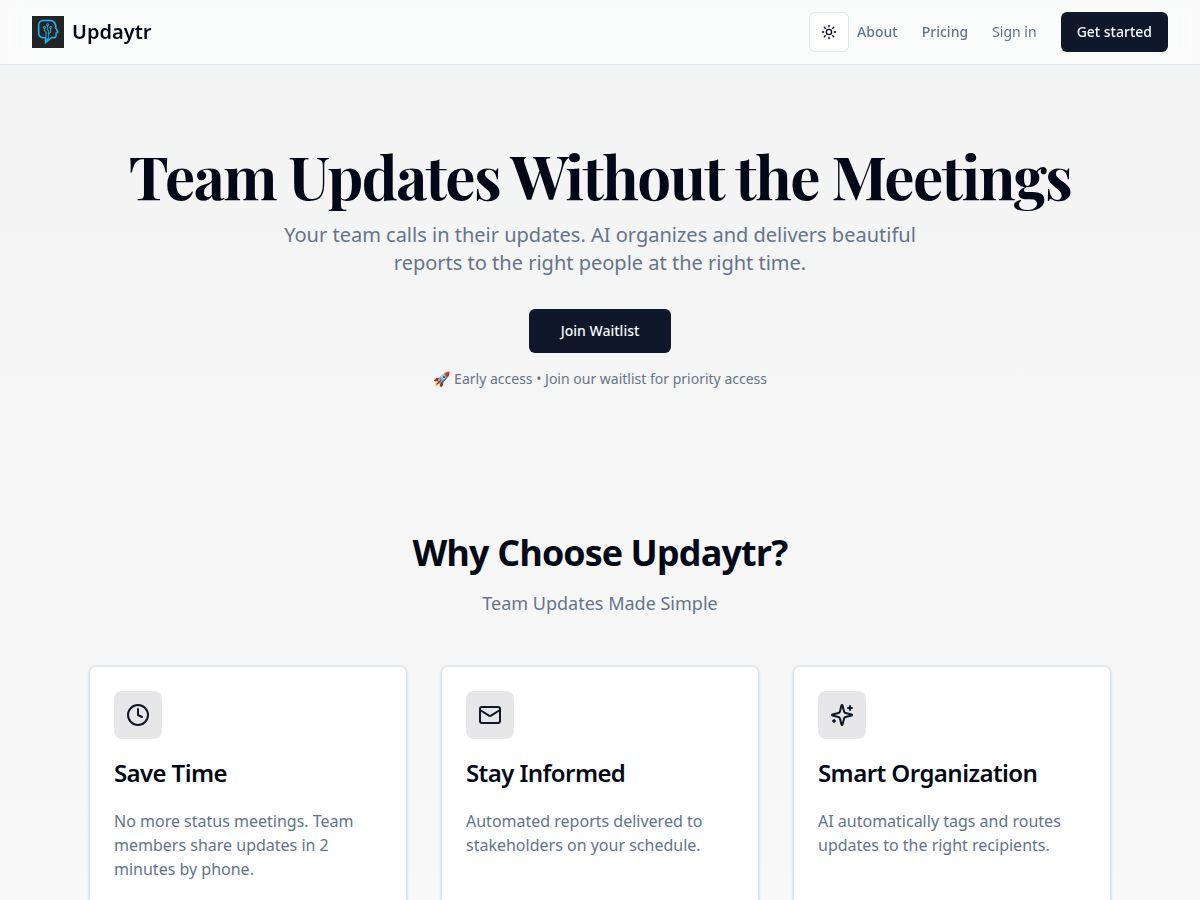
If you’re trying to capture updates, meeting notes, or quick status reports without stopping what you’re doing, Updaytr is worth a look. The basic idea is simple: you make a call, speak naturally, and the voice AI turns what you said into something more organized than a raw voicemail.
I tested Updaytr for a few busy days (I’ll share what I noticed as I go), because “voice AI” can mean anything from impressive to wildly inconsistent. So… did it actually make my communication easier, or was it just another tool that sounds good on paper?
Updaytr Review: Voice AI that actually turns calls into organized reports
What I tested (so you know what “real use” means here)
- When: 3 separate sessions over ~4 days
- Device: iPhone (calling from cellular), also tried one session from a quieter room on Wi‑Fi
- Length: two calls around 2–3 minutes and one longer call around ~7 minutes
- Output: the system generated a structured report from my spoken updates (with sections rather than one big paragraph)
How it works in practice
There’s no app setup drama. In my case, I just made the call, spoke, and waited for the report to appear. The “hands-free” part is real—when you’re walking, driving (not recommended while driving, but you get the idea), or multitasking, typing can be a pain. Speaking felt faster than opening notes, especially for quick status updates.
The part that surprised me was how quickly the content became usable. Instead of getting something that looked like a messy transcript, I got a cleaner structure—think “here’s what happened,” “what’s next,” and “any key details” style organization.
Voice transcription accuracy (what I noticed)
Let me be straight: voice AI isn’t perfect. My results were solid when I spoke clearly and used simple phrasing, but it struggled a bit when I got conversational or packed multiple names into one sentence.
- Good case: When I said, “Project Aurora update: the draft is done, QA starts tomorrow, and we need approval for the next revision,” the report captured the intent and the timeline clearly.
- Tricky case: In my longer call, I rattled off a few proper nouns back-to-back. The report still made sense, but some details came through less cleanly—enough that I’d want to double-check before sharing.
Example (real-ish) of the kind of output you get
I’m not able to paste a full transcript from a private test here, but the format was consistently structured. For example, my report came back with clear sections and bullet-style organization rather than a single wall of text. What I liked most was that it wasn’t just “transcription”—it was closer to “summarized notes you can send.”
AI “memory” — how it actually helps
Updaytr’s “memory” is one of the reasons I kept using it for the same project. In my sessions, it seemed to carry forward context from earlier conversations so I didn’t have to restate everything from scratch.
Here’s what I noticed:
- When I referenced “the same approval” or “the earlier task,” the report didn’t treat it like a brand-new topic.
- It helped fill in missing context that I expected a human assistant to remember—without me explicitly re-explaining the background.
- That said, if you switch topics completely, you still need to be fairly clear about what the new update is. Otherwise, you can end up with slightly mixed context.
Latency / turnaround
Turnaround was fast enough that I didn’t feel like I was waiting around. I didn’t time it with a stopwatch to the millisecond, but in my experience the report was available quickly after the call ended—quick enough to send an update while the details were still fresh.
Sharing and delivery controls
One thing I appreciated: I wasn’t forced into “send it immediately.” The sharing/delivery controls felt flexible. I could decide when/how to deliver the report instead of having to rush.
Small catch: if you’re planning scheduled delivery for work, you’ll want to test the timing once so you know how it behaves with your timezone and your team’s expectations.
Limitations I ran into
- Voice-only: If you want to type corrections or add a detail after the call, you’ll likely need to do that through whatever editing options the platform offers (or by calling back). For me, that was fine, but it’s not ideal for people who prefer “draft + edit” workflows.
- Not “set and forget” for sensitive details: For anything that must be 100% accurate (legal, medical, compliance-heavy notes), you should still review before sending.
Key Features (what matters, not just buzzwords)
- No apps or training needed — just call and speak: I didn’t have to learn a special workflow. The “call → report” flow was straightforward.
- AI memory for continuity: It helped me avoid repeating context across updates for the same project.
- Automatic organization into reports: The output wasn’t just a transcript dump. It came back in a structured format that was easier to skim.
- Control report sharing and delivery schedules: I liked being able to decide when to share rather than having it instantly blast out.
Pros and Cons (evidence-based from my test)
Pros
- Fast “capture” for busy days: If you’re juggling tasks and can’t stop to type, speaking and getting a structured report is genuinely quicker.
- Structured reports beat raw transcripts: I didn’t feel like I had to do the formatting work myself. It was already organized enough to send or reuse.
- Memory helps with ongoing projects: For repeat updates, it reduced friction. I wasn’t constantly re-explaining the same background.
- Hands-free is more than marketing: The call-based flow made it feel natural to capture thoughts on the go.
Cons
- Voice-only can be limiting: If you need a text-first workflow (or you want to paste in details), you may find the experience less flexible.
- Accuracy depends on how you speak: Clear, structured sentences worked best. Long strings of names or jargon led to a few spots I’d want to verify.
- Security posture isn’t clear enough for high-stakes use: I didn’t see enough publicly documented detail in the materials I reviewed to confidently recommend it for healthcare or other regulated environments without further confirmation.
Pricing Plans (what I could and couldn’t confirm)
At the time of writing, I couldn’t find clear, specific pricing tiers in the information available to me. The most reliable place to check is the Updaytr official website, where plans and any trial/limits should be listed.
That said, here’s what you should look for on the pricing page (because this is what affects real usage):
- Minutes or call limits: Is it priced per minute, per transcription, or subscription-based usage?
- Storage limits: How long are transcripts/reports stored? Can you export them?
- Transcript/report length: Is there a cap on how long a single call can be?
- Sharing features: Are scheduled delivery and link sharing included on all tiers?
Quick recommendation: before you commit, test one call on your intended use case (like a 5–7 minute status update) and check whether the output matches what you need and whether any limits kick in.
How to use Updaytr (my simple step-by-step)
- Go to Updaytr via the official site (or the link above).
- Start a session/call from your phone.
- Speak your update like you would to a teammate: what happened, what’s next, any dates or decisions.
- Review the structured report for accuracy—especially names, numbers, and deadlines.
- Share or schedule delivery when you’re ready (don’t assume it’s instant).
If you’re using it for recurring updates, keep the same “topic framing” (e.g., “Project X update…”)—that’s when the memory feature felt most helpful in my testing.
Privacy & security checklist (questions I’d ask before relying on it)
I can’t guarantee compliance for every scenario, so here’s the checklist I’d use to vet Updaytr if you’re handling sensitive info:
- Data retention: How long are call audio, transcripts, and reports stored?
- Deletion controls: Can you delete your data (and does it remove from memory too)?
- Encryption: Is data encrypted in transit and at rest?
- Access controls: Who can access your reports—only you, or can teammates/admins view?
- Processor/subprocessors: Are there third parties involved in transcription or storage?
- Compliance posture: If you need HIPAA/GDPR-style assurances, do they explicitly support it?
If those details aren’t clearly documented, it’s not a deal-breaker for casual notes—but for anything regulated, you’ll want answers in writing.
Wrap up
Updaytr isn’t trying to be a fancy productivity suite. It’s more like a voice-to-structured-report engine, and in my experience that’s exactly why it works. When I needed quick, organized updates without typing, it delivered. The structured reports saved me time, and the “memory” helped for repeat projects.
Would I use it for everything? No—voice AI still needs human review for tricky details, and voice-only isn’t everyone’s preference. But for fast communication, on-the-go capture, and turning spoken updates into something shareable, Updaytr felt genuinely useful.