Table of Contents
If you’re trying to move faster in UX/UI without sacrificing quality, I get the appeal of tools like UX Pilot. I tested it on a pretty common project: a mobile onboarding + dashboard screen for a fictional fitness app. My goal wasn’t to “replace design.” It was to see if it could get me from idea → usable layout quickly, and whether the output actually holds up when you start editing it in Figma (and when you try to export code).
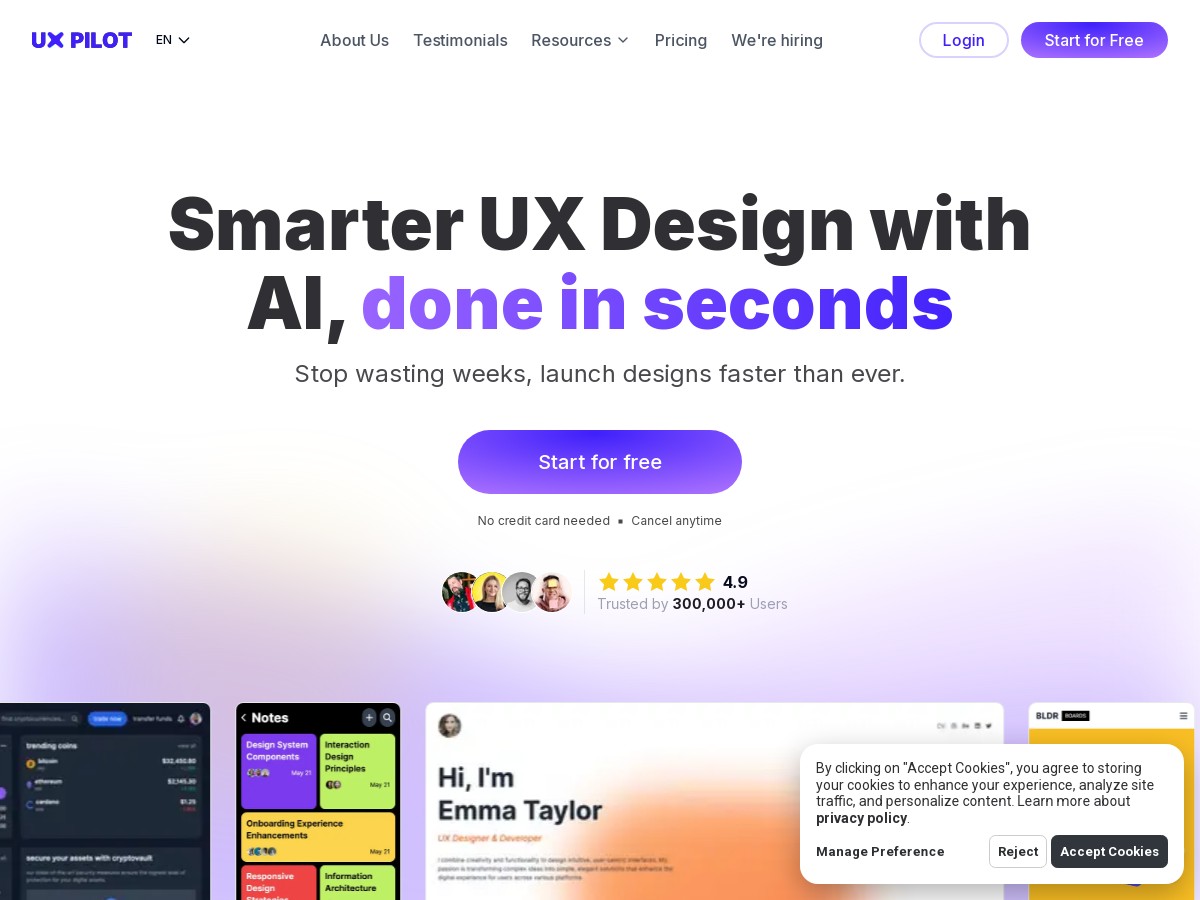
UX Pilot Review: What I Actually Got After Testing It
I tested UX Pilot over a single evening (about 90 minutes total), and I ran it through a realistic workflow: start with a prompt, generate a couple variations, then bring the best one into Figma to see how much “real work” was left. I also tried the HTML/CSS export to check whether the output is just pretty screens—or whether it’s usable for developers.
My test setup (so you can judge the results)
- Platform: mobile UI concept (iPhone-style viewport, portrait)
- Iterations: 3 prompt rounds (each round produced multiple options)
- Time: ~25 minutes for first pass, ~45 minutes for refinement in Figma, ~20 minutes for export/code checks
- Goal: onboarding (3 steps) + dashboard (stats cards + quick actions)
Prompt examples (what I asked it to build)
I used prompts that were specific enough to force layout decisions, not just vague “make a nice app.” Here are the exact directions I gave:
- Prompt 1 (onboarding): “Create a mobile onboarding screen for a fitness app. 3-step carousel with progress dots, a headline, short description, and a primary CTA button. Use a modern, clean UI with high contrast text. Include a secondary ‘Skip’ link.”
- Prompt 2 (dashboard): “Design a mobile dashboard screen. Top greeting, two stats cards (steps + workouts), a small chart placeholder, and a bottom navigation bar (Home, Activity, Profile). Use spacing consistent with iOS/Material style.”
- Prompt 3 (refine): “Adjust the dashboard layout: make the primary CTA more prominent, align cards to a consistent grid, and increase tap target padding for buttons.”
What the outputs looked like (and what I had to fix)
The first thing I noticed: UX Pilot is fast. I’m talking “generate and move on” fast. In my first pass, I got layouts that already had the right structure—header, cards, CTA placement, and navigation—without me drawing boxes for every element.
But here’s the honest part: the AI wasn’t perfect on spacing. In Figma, I ended up doing edits like:
- Card alignment: a couple cards were close, but not truly grid-aligned. I had to nudge widths and re-check spacing tokens.
- Typography hierarchy: headline sizes were generally correct, but line breaks and weights needed tightening so it looked “designed,” not “generated.”
- Tap targets: some buttons looked clickable, but padding was slightly tight once I measured it.
So, did it “replace” my workflow? No. Did it get me to a solid starting point in minutes instead of hours? Yes.
Figma integration: smooth, but not magic
UX Pilot’s pitch includes exporting to Figma, and in my case it worked well enough to be worth it. The main friction wasn’t the concept—it was the practical reality that the Figma integration depends on a plugin. If you’re already in Figma all day, that’s manageable. If you’re switching between tools or teams, that extra step can be annoying.
Once inside Figma, I could tweak spacing, typography, and component layout quickly. That’s the real value: the output wasn’t a dead end. It was editable.
HTML/CSS export: decent for structure, needs developer review
I also exported the generated UI as clean HTML and CSS (the exact format depends on the project/output, but the idea is consistent). The biggest win was that the export preserved a lot of the layout intent—sections, containers, and styling were present.
What I didn’t love: some styling was “good enough” rather than production-polished. For example, I saw:
- inconsistent spacing values between similar components (like different margin/padding numbers instead of shared tokens)
- minor alignment issues that looked fine visually at a glance, but didn’t behave perfectly when I resized containers
- button styling that needed a quick pass to match a consistent design system
In other words: it’s a helpful starting point for developers, not a “ship it as-is” button.
Heatmaps & UX scoring: I tested the “validation” side
UX Pilot claims design validation tools like heatmaps and UX scoring. In my test, the scoring/validation wasn’t something I could treat like a full user study replacement. It felt more like automated heuristics—helpful, but you still need to sanity-check.
What I found useful:
- It flagged obvious layout/attention issues (like CTA prominence and hierarchy problems)
- It encouraged iteration—after I adjusted spacing and CTA size, the results looked more consistent with what I expected
What I’d be cautious about: if you’re building a complex flow (forms, error states, multi-step logic), you can’t rely on automated scoring alone. It won’t replace usability testing, especially for edge cases.
Key Features: How They Worked in Practice
- AI Design Generator from text prompts
- I used prompts for onboarding and dashboard screens, and it produced structured UI layouts quickly. The biggest difference vs. “random mockups” is that it tends to keep the component categories where you’d expect them (nav, cards, CTAs). Still, I had to refine alignment and typography in Figma.
- Wireframe + high-fidelity options
- For my project, I started with higher-level layout direction, then refined. The wireframe-style structure was strong enough that I didn’t feel stuck. The transition to more polished UI elements happened without me rebuilding everything from scratch.
- Natural language controls for modification
- Prompt 3 (“align cards to a consistent grid… increase tap target padding…”) was the most practical. It didn’t perfectly “snap” everything into perfect token math, but it guided the changes toward what I wanted. That’s what I care about—fewer manual iterations.
- Figma integration (edit + export)
- Once I got the best variation into Figma, I could do the work a designer is supposed to do: adjust spacing, set typography styles, and ensure components behave consistently. The plugin dependency is a real-world downside if your team already has a strict toolchain.
- Export of clean HTML and CSS for developers
- The code export gave me a layout foundation that matched the UI intent. Developers would still review and likely refactor spacing into design-system tokens, but it’s useful when you want a starting point and not a blank page.
- Design validation tools like heatmaps and UX scoring
- This is the feature I’d describe as “helpful guardrails.” It nudged me to improve hierarchy and CTA prominence. But it’s not a replacement for user testing, especially for accessibility, content strategy, and error-state UX.
- Real-time collaboration features for teams
- I didn’t do a full multi-user live session in my test, so I can’t pretend it’s flawless. That said, the collaboration concept fits how teams actually work: iterate together, keep feedback in one place, and reduce the back-and-forth between design and dev.
Mini case studies (prompt → output → what I changed)
- Onboarding CTA hierarchy
- Prompt: “3-step carousel… primary CTA button… include ‘Skip’ link.”
Output: CTA and skip were present, with a clean structure.
I changed: I increased CTA prominence and adjusted spacing so the button didn’t feel visually “small” compared to the headline. - Dashboard card alignment
- Prompt: “Two stats cards… chart placeholder… bottom navigation.”
Output: Cards and chart were placed correctly in the layout zones.
I changed: I re-aligned card edges to a consistent grid and standardized padding across both cards. - Tap target sizing
- Prompt: “Increase tap target padding for buttons.”
Output: Buttons were larger, but not perfectly consistent across every element.
I changed: I measured and normalized button padding in Figma so it matched accessibility-friendly tap target expectations.
Pros and Cons: Where UX Pilot Shines (and Where It Doesn’t)
Pros
- Speed: In my test, I went from prompt to workable UI layout in minutes. That’s the real time saver.
- Usable starting points: The generated screens weren’t “toy” mockups—they had real structure I could edit immediately.
- Design-to-dev bridge: HTML/CSS export is helpful for developers who want a foundation to build on.
- Iteration-friendly: The natural language edits made it easier to steer the output without starting over.
- Validation nudges: UX scoring/heatmap-style feedback helped me catch hierarchy issues I might’ve missed early.
Cons
- Performance claims need scrutiny: I didn’t see a transparent way to verify “saving up to 80%” in a measurable, repeatable way. In my experience, it’s closer to “significantly faster for the first draft,” not “80% across the entire project.”
- Spacing/typography still needs human QA: Expect to adjust alignment, consistent spacing values, and text hierarchy in Figma.
- AI output can vary: Sometimes it nails the grid; other times you’ll do more cleanup than you planned.
- Figma plugin dependency: If your workflow is strict, the plugin requirement adds friction.
- Cost can add up: If you generate a lot of variations, ongoing costs may be a concern for individuals or small teams.
Pricing Plans: What I’d Check Before You Commit
UX Pilot advertises a free trial, and the idea is that you can test the basics without immediately entering a credit card. After that, paid plans start around $12/month (based on the info shown in the original review text you provided).
That said, I can’t responsibly list exact plan tiers, credit amounts, or current limits without verifying the live pricing page (pricing can change fast). If you’re deciding today, I recommend you confirm the latest details on their pricing page before you start generating a bunch of designs.
Quick checklist: look for (1) how many generations/credits you get per month, (2) any limits on exports (Figma + code), and (3) whether collaboration features are included on lower tiers.
One last take (based on my test)
UX Pilot is best when you treat it like a draft machine. It helped me get to a solid first version of onboarding and a dashboard layout quickly, and it made iteration easier. But I still had to do the designer part—spacing, typography, and consistency—especially once I measured things in Figma and looked at the exported HTML/CSS.
If your biggest pain is staring at a blank canvas or spending hours on the first 60% of a UI, UX Pilot can absolutely cut that down. Just don’t expect it to hand you a finished, token-perfect, production-ready design without review.