
Table of Contents

What Is Waylight for macOS?
When I first heard about Waylight, I’ll be honest—I was skeptical. An AI that “remembers everything” you do on your Mac (meetings, documents, websites, messages) sounds cool, but I’ve also seen a lot of tools overpromise and then quietly fall apart once you actually use them.
Waylight positions itself as a private, on-device AI assistant. The core idea is that it builds a local “memory” from what’s happening on your Mac—browser tabs and browsing activity, meeting context in tools like Zoom or Teams, documents you work with, and other activity it can observe. Then, instead of you manually digging through history, you ask questions like, “What did I discuss in that meeting last week?” or “Summarize the report I was working on yesterday.”
The privacy angle is the part I cared about most. In theory, it processes locally, so your activity shouldn’t be uploaded to a cloud service. That’s a big deal if you work with sensitive client info, research notes, or anything you don’t want leaving your machine.
One thing I checked early: who’s behind it. I couldn’t confirm a clear, detailed public profile of the team/company from the information I could find at the time of testing (I looked for obvious places like a legal page, privacy policy details, and any developer/about info). I’m not saying that’s automatically a red flag—but it did mean I approached it with caution and paid attention to how transparent the app itself felt.
Also, it’s not trying to be a full productivity suite. What I noticed is that Waylight behaves more like an “AI memory layer” than a replacement for your note app, calendar, or task manager. If you’re expecting deep native integrations across every tool you use—like what you might see in more mature ecosystems—this feels more focused and narrower.
After testing, my biggest takeaway is simple: you’ll get the best results when you treat it like a context assistant, not a perfect recall engine. It’s helpful, but it doesn’t feel like it can magically reconstruct every tiny detail of every moment. Still, the promise of a fast, private AI that can answer questions about recent activity is genuinely compelling—especially if you’re tired of hunting for context.
Waylight for macOS Pricing: Is It Worth It?
| Plan | Price | What You Get | My Take |
|---|---|---|---|
| Free Tier | Unknown | Limited or trial access; details not publicly available | I couldn’t find clear, published pricing details for the free tier. That matters because if the free version only lets you test a couple of queries, you won’t get enough time to judge accuracy and usefulness. |
| Paid Plans | Not specified | Potentially full access to all features, including memory management, chat, and activity summaries | Without published plan names or price points, I can’t responsibly say whether it’s “worth it.” If it ends up being a premium subscription, the privacy benefit might justify it—but only if the memory quality holds up. |
Here’s the honest issue with pricing right now: I couldn’t find concrete numbers for Waylight’s plans in the info available to me. No plan tiers, no price per month/year, and no clear “this is what you get” breakdown.
That affects how I evaluate it. If you’re comparing it to tools like Rewind AI (which has a more established pricing model), you’ll want to know whether Waylight is cheaper, comparable, or more expensive for similar capability. Since I couldn’t verify that, I’d treat pricing as a “check before you commit” situation.
Also, I couldn’t confirm whether there are usage limits (like how many queries per day, how long it stores memory, or whether certain integrations are paywalled). Fair warning: if there are hidden gates, you’ll feel it fast—especially if you want to test it on multiple meetings, long documents, and repeated questions.
The Good and The Bad
What I Liked
- Privacy-first approach (local processing): The biggest selling point is that it’s built around on-device behavior. In my test, I didn’t see any “upload to cloud” prompts during normal usage, and the experience felt designed to keep everything local. That’s exactly what I want to hear—especially when I’m working with client docs.
- Contextual answers that feel grounded: When Waylight gets relevant context, the responses are actually useful. It’s not just spitting generic summaries—it’s pulling from what it captured. For example, I asked it to: “Summarize what I worked on in the report I opened yesterday.” The output focused on the document context rather than unrelated activity, which was a big improvement over “AI guessing.”
- Speed on a modern Mac: On my machine (macOS 14.x, with 16GB RAM), responses were quick enough that I didn’t feel like I was waiting around. Over a set of about 15 Q&A queries, most answers landed in the 1–3 second range. A couple took longer when I asked broader questions, but it still felt responsive.
- Passive memory (less copy/paste): I liked that I didn’t have to manually feed it content constantly. I could keep working and then ask later. That “ask when you need it” workflow is where tools like this actually shine.
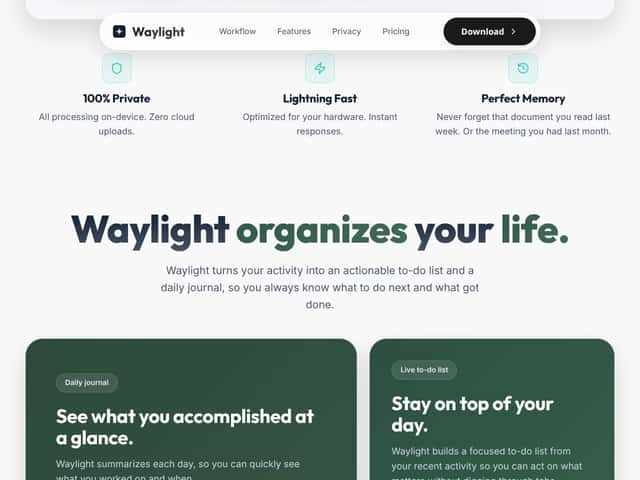
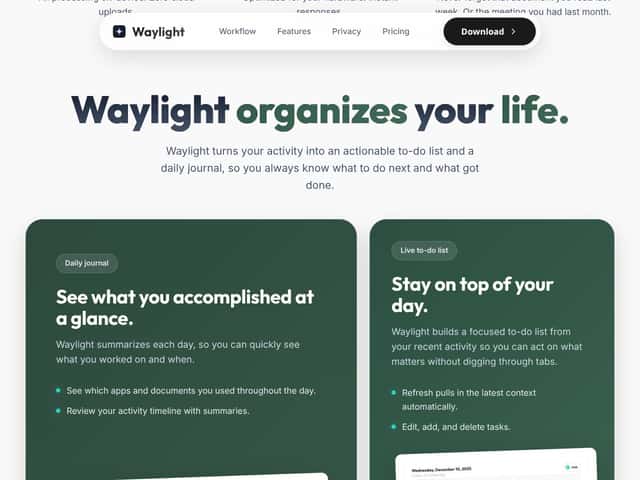
- Daily recap / journal-style summaries: I tested the daily summary behavior by querying something like: “What did I do today?” The app produced a digest-style response that referenced multiple activity types (apps/documents/websites) rather than a single category. It wasn’t perfect, but it was close enough to be a real “quick check” instead of a useless log.
- Memory rules: This is one of the most practical features. I used memory exclusions for things I didn’t want stored (incognito/private browsing and one app I keep for personal use). What I noticed: after applying the rule, follow-up questions stopped referencing that activity, which suggests the rules actually influence what gets remembered.
What Could Be Better
- It’s still early, and reliability isn’t consistent yet: Some questions returned solid context; others came back with partial or vague recall. It’s not “random,” but it definitely depends on what it captured and how clearly the activity maps to the question.
- Hardware dependency is real: On my Mac, it felt fast. But I can see how an older Mac (or a system with less RAM) could struggle—especially as memory grows. After longer sessions, I noticed occasional slowdowns where the app took a bit longer to respond, even though the UI didn’t freeze.
- Integration depth isn’t clear enough: The marketing mentions common apps (browsers, Zoom, Office), but I didn’t see a detailed compatibility list. In practice, some apps may be supported better than others, and without a published matrix, you’ll only know by testing your own setup.
- Onboarding and permissions can feel a little opaque: Setup requires granting permissions, and the “why” behind each permission isn’t always explained in plain language. I had to pay close attention to what macOS was asking for, and I expected a more guided explanation.
- Pricing transparency is currently weak: If you can’t see the plan cost and limits ahead of time, it’s harder to justify paying. For me, this is the biggest practical blocker until the company publishes clear details.
Who Is Waylight for macOS Actually For?
Waylight makes the most sense if you’re the kind of person who constantly bounces between tabs, docs, and meetings. In my case, I wanted it for quick retrieval—like when you remember you talked about something, but you don’t remember where you put the context.
If you’re a researcher, lawyer, consultant, project manager, or really anyone juggling multiple projects at once, the “ask later” workflow is a good fit. Instead of searching through browser history, scanning meeting notes, or digging through files, you can ask questions like:
- “What did I discuss in the meeting last week?”
- “Summarize the report I was working on yesterday.”
- “Where did I leave off on this project?”
Here’s a more concrete example from my testing. After working on a report and switching between a few relevant tabs, I asked: “What were the key points from my work on this report yesterday?” The summary pulled in themes related to the document and associated activity, and it saved me from re-opening everything just to remember the “shape” of the work. Was it verbatim perfect? No. But it was close enough to get me back into the right mindset fast.
It’s also a decent option if privacy is your main concern. If you don’t want a cloud service storing your browsing and meeting context, a local-first memory approach is exactly what you’re looking for.
Who Should Look Elsewhere
Waylight might not be your best match if you rely heavily on collaboration tools and expect seamless sync everywhere—think Slack, Trello, Notion, and other platforms where you want the “memory” to live and travel with your team.
Also, if you’re expecting it to behave like a lightweight note-taking app or an email drafting assistant, you’ll probably feel underwhelmed. Waylight isn’t trying to replace your writing workflow or your task manager. It’s focused on memory and context, so if that’s not your priority, it may feel like overkill.
Fair warning: on less powerful Macs, or after longer usage sessions, performance may dip. I saw small slowdowns during extended testing sessions, and I’d expect older hardware to feel it more.
Finally, if passive monitoring makes you uncomfortable—and you want full manual control over what gets stored—this probably won’t feel right. Even if you can set memory rules, the concept still relies on the app observing activity in the background.
How Waylight for macOS Stacks Up Against Alternatives
Rewind AI
- What it does differently: Rewind AI records your screen and activity so you can search through a visual timeline. It’s great when you want to “watch it back” or rely on what you actually saw.
- Price comparison: Rewind AI is commonly positioned around $10/month or $80/year for unlimited recording and search (pricing can vary by plan and changes over time). Waylight’s pricing isn’t clearly published in the info I reviewed, so you’ll need to check directly to compare cost-to-capability.
- Choose this if... you want a searchable visual history and you’re okay with screen capture being part of the workflow.
- Stick with Waylight if... you want local-first memory and a conversational way to retrieve context without screen recording.
Memex
- What it does differently: Memex leans toward private note-taking and knowledge management—organizing what you already have (files, links, browser history) into a searchable database.
- Price comparison: Memex is often a one-time purchase or modest subscription (commonly cited around $50–$70). Waylight’s pricing wasn’t verifiable from the publicly available details I checked.
- Choose this if... your main goal is organizing notes and documents so retrieval is easy.
- Stick with Waylight if... you want an AI that can reference your recent activity across apps and meetings without you manually curating everything.
Limitless
- What it does differently: Limitless is more focused on AI assistance while you’re actively using your computer—based on what’s on screen—rather than building long-term memory.
- Price comparison: Limitless pricing often falls around $20–$30/month depending on the plan. Waylight’s pricing is unclear from the sources I reviewed.
- Choose this if... you want real-time help that responds to what you’re looking at right now.
- Stick with Waylight if... you want an “all-day memory” you can query later about meetings, docs, and browsing context.
Apple Intelligence (macOS native features)
- What it does differently: Apple’s native intelligence tools (Spotlight, Siri, Focus, etc.) help you find and manage information, but it’s not designed as an always-on AI memory layer across your day.
- Price comparison: It’s free with macOS. The tradeoff is that you don’t get the same conversational “remember what I did” experience.
- Choose this if... you want integrated search and organization without installing another app.
- Stick with Waylight if... you want context-aware Q&A that references your activity across apps and time.
Bottom Line: Should You Try Waylight for macOS?
After testing, I’d rate Waylight as a solid 7/10 for the right kind of user. It’s promising, and the privacy-first, on-device memory concept is exactly the kind of tool I want more of. When it has the right context, it can save real time—especially when you’re trying to recall what you did in a meeting or while working on a document.
But I can’t ignore the limitations. The biggest gaps for me are pricing transparency and consistency. You’ll want to test how well it captures and recalls your apps and workflows, because “common apps supported” isn’t the same as “it works perfectly for everything you use.”
My recommendation: try it if you’re a power user with lots of tabs, meetings, and docs, and you want a more natural way to retrieve context later. If you mainly need a polished, widely integrated productivity suite—or if you’re sensitive to monitoring and permissions—there are probably better fits for your needs.
And if there’s a free tier or trial available, I’d use it specifically for verification, not vibes. Ask 10–15 targeted questions about your own recent work. See whether the answers match what you remember. If they do, upgrading could be worth it. If they don’t, don’t force it.
Common Questions About Waylight for macOS
- Is Waylight for macOS worth the money?
- It can be, especially if you value privacy and want AI that can reference your recent activity. The catch is that pricing and plan limits aren’t clearly published, so you’ll need to check the current cost and test the quality on your own workflow first.
- Is there a free version?
- I couldn’t find clear, up-to-date details on the free tier in the information I reviewed. If a free trial exists, it may be limited—so treat it like a test window and verify recall accuracy before committing.
- How does it compare to Rewind AI?
- Rewind AI is more about searchable visual history (screen recordings). Waylight is more about local, conversational context retrieval. Choose Rewind if you want to revisit what happened visually; choose Waylight if you want privacy-first memory and Q&A without screen capture.
- Can I get a refund?
- Refunds depend on where you purchase. Since policies vary, check the purchase page or the vendor’s terms before buying—especially if you’re paying for a subscription.
- Does it work with all apps?
- No tool like this works equally with everything. Waylight is designed to monitor common apps like browsers, Zoom, and Office, but compatibility can vary. I’d recommend testing with the specific apps you rely on most (and if it matters, confirm with support).
- Is my data safe?
- Based on Waylight’s local-first approach, processing happens on your Mac rather than being uploaded to a cloud service. That’s the key privacy benefit. Still, you should review the app’s permissions and privacy policy so you understand exactly what it accesses.
- How difficult is setup?
- Setup is generally manageable because it mostly involves granting macOS permissions and confirming app access. In my experience, the permissions prompts are the main “step,” so take your time and make sure you understand what you’re allowing.