🐣 EASTER SALE — LIFETIME DEALS ARE LIVE • Pay Once, Create Forever
See Lifetime PlansLimited Time ⏰
AI Tools

Wordwand Review (2026): Honest Take After Testing

Stefan
Updated: April 12, 2026
13 min read
#Ai tool

Table of Contents

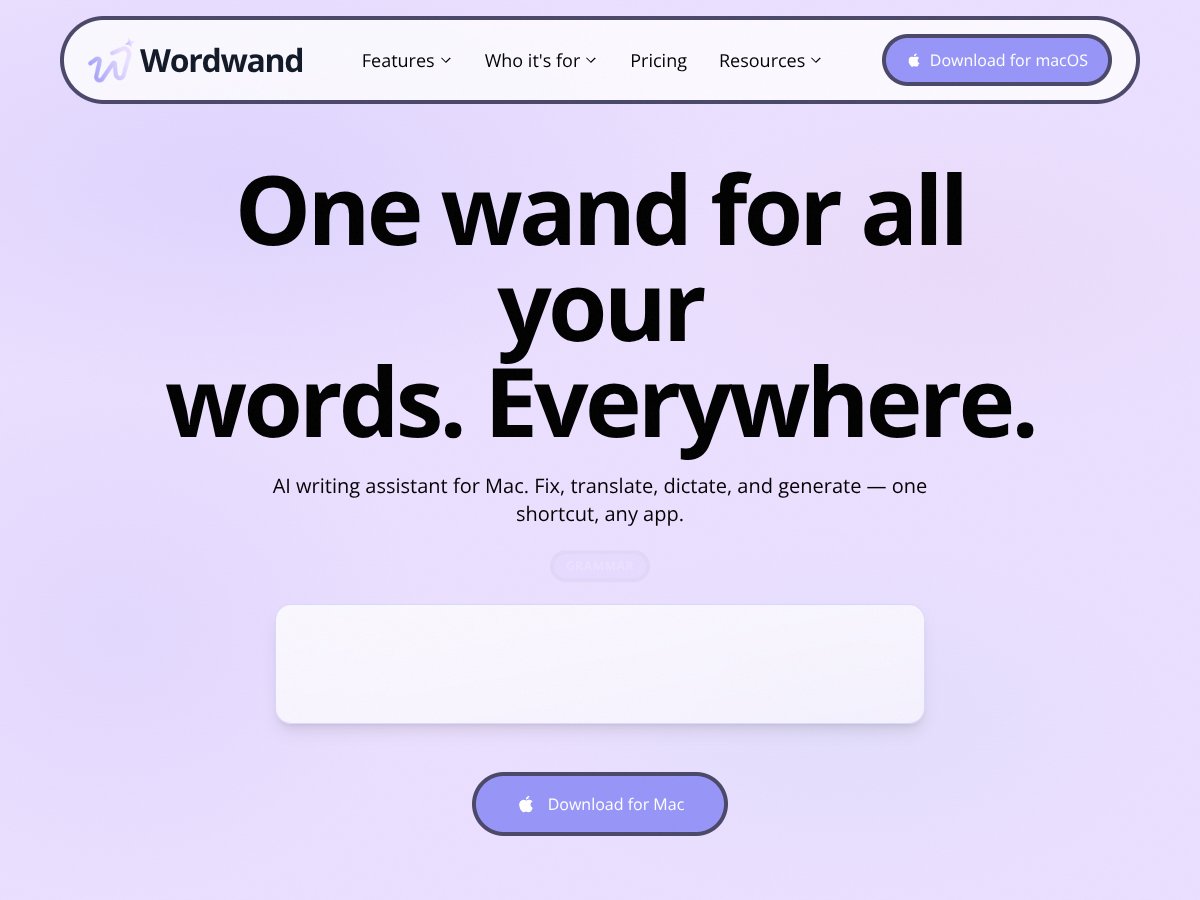
Wordwand screenshot

What Is Wordwand (And What It Actually Does)?

When I first heard about Wordwand, I’ll be honest—I assumed it was going to be one of those “AI writing” apps that wants you to live inside its interface. You know the type. Select a tool, paste your text, wait… rinse and repeat.

What made me curious is that Wordwand is built around a single idea: system-wide shortcuts on your Mac. No switching apps. No copy-paste marathon. You press the shortcut, it does the task, and you keep moving.

In practice, Wordwand is a native macOS app that plugs into your keyboard shortcuts. You can select text in Mail, Slack, Notes, and other apps, then trigger actions like grammar fixes, translation, or voice dictation—right where you’re typing.

It’s not trying to replace a full writing suite. It’s more like a fast “AI action layer” for the things you do constantly: clean up wording, translate a sentence, or dictate a paragraph without leaving your current screen.

One important clarification: Wordwand isn’t a chat bot like ChatGPT. It doesn’t feel like you’re having a conversation or building context over time. It’s reactive. You select something (or use dictation), hit the shortcut, and get an output. If you’re expecting long-term memory or ongoing project understanding, you’ll want to adjust your expectations.

Also—this matters—Wordwand doesn’t really “know your life.” It doesn’t track what you wrote yesterday or remember your ongoing drafts. It’s designed for quick turnarounds, not deep continuity.

My Testing Setup (So You Know What I’m Comparing)

I tested Wordwand on macOS using a pretty normal real-world workflow: email replies, Slack messages, and notes for quick drafting/editing.

  • Mac: macOS 14.x (Sonoma)
  • Wordwand version: 2026 build as shown in the app settings (menu: Wordwand → About)
  • Shortcut style: default shortcuts at first, then I adjusted a couple of actions after I saw what I actually used
  • Apps used: Mail, Slack, Apple Notes, and a code editor (for quick wording fixes in comments)

How did I check performance? I timed responses subjectively at first (because you can feel the difference), then I wrote down the “rough seconds” for a few runs—especially for translation and dictation where latency shows up more.

Wordwand Pricing: Is It Worth It? (With the Limit Clarified)

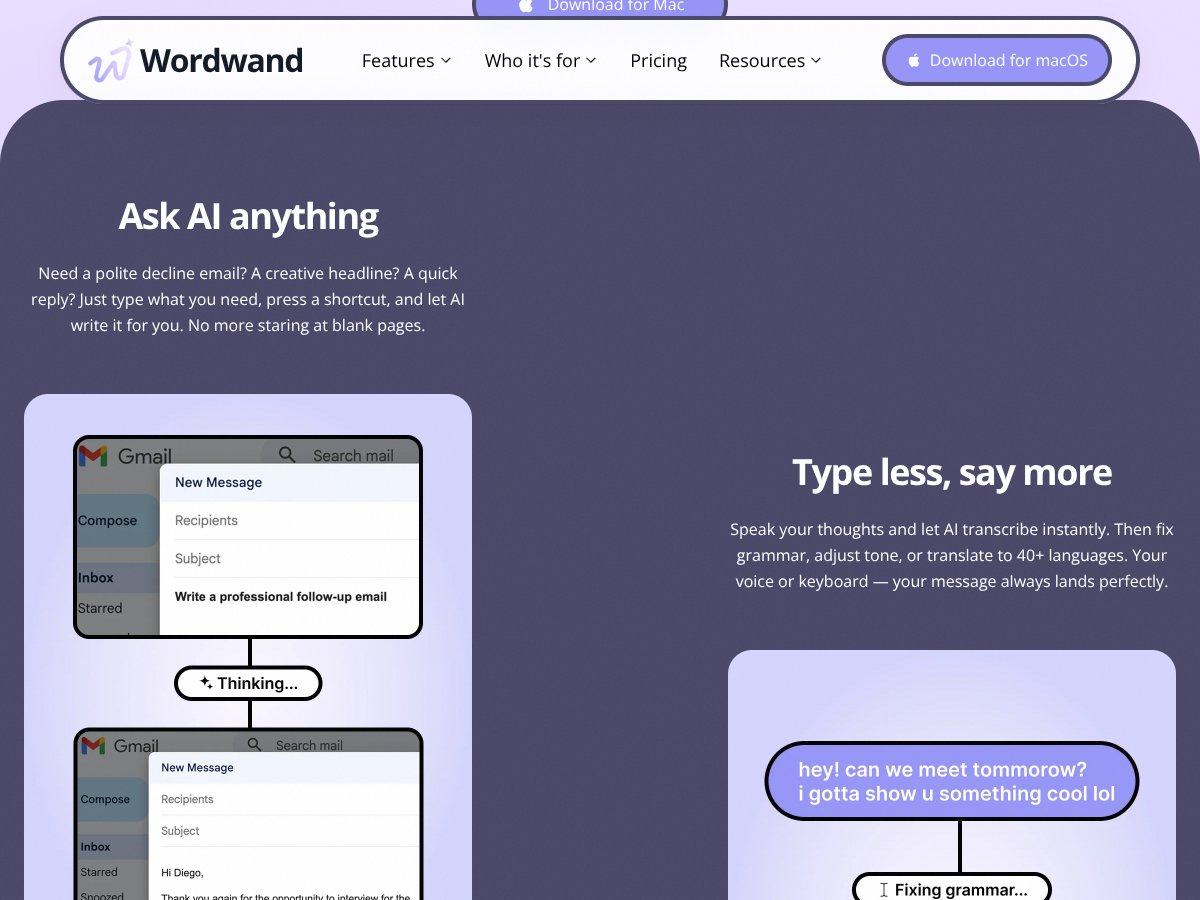
Wordwand interface
Wordwand in action
Plan Price What You Get My Take
Wordwand Basic (Free) Free
  • Ask AI directly in any app (no copy-paste)
  • Fix grammar & sound more professional
  • Translate to 40+ languages
  • Voice dictation
  • Works in Mail, Slack, Notes & more
  • Text-to-speech (standard voices)
  • 5,000 words per month
For casual use, this is genuinely usable. I hit the “I just need one clean rewrite” sweet spot a lot, and 5,000 words felt like a real buffer—not a token gesture.
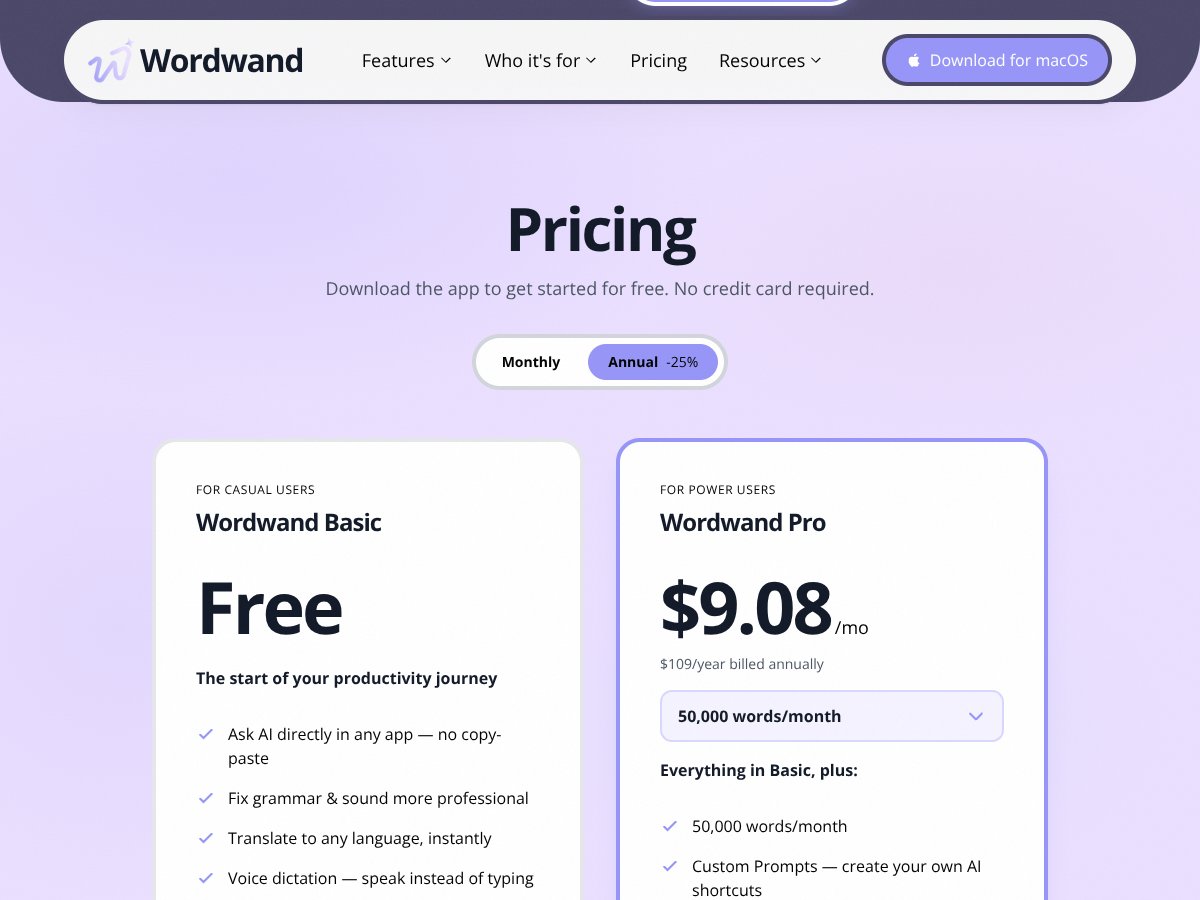
Wordwand Pro $9.08/month or $109/year (billed annually)
  • 50,000 words/month
  • All features of Basic
  • Custom prompts for creating AI shortcuts
  • Premium natural voices
  • Summary & Podcast mode
  • Faster AI responses
  • Priority support
Pro makes sense if you write a lot or you rely on translation/dictation daily. But I’d be careful with the “unlimited” wording you might see in FAQs—what you actually pay for is the word allowance.

Here’s what I noticed while digging into the plan details: there’s sometimes a mismatch in wording between “unlimited use” and the clearly stated word/month limits. In my view, the practical takeaway is simple: your allowance matters. If the FAQ says unlimited, but the pricing table shows 50,000 words/month for Pro, assume the word meter is what governs real usage.

So is it worth it? If you’re the kind of person who sends a few translated messages a week and cleans up emails occasionally, the free plan is likely enough. If you’re producing content, dictating drafts, and translating often, Pro is the more realistic fit.

One more thing: “Podcast mode” isn’t just a marketing label. In the Pro experience, it’s essentially built around summarizing and presenting text in an audio-friendly way (think: output formatted for listening, then read via text-to-speech). I used it on a couple of long notes and it was convenient for quick consumption, but it’s not magic—if your source text is messy, the summary still inherits that mess.

The Good and The Bad (After Actually Using It)

What I Liked (With Real Examples)

  • System-wide shortcut access: This is the big win. I triggered actions without leaving what I was doing. For example, in Slack I selected a sentence mid-message and ran grammar cleanup. No copy/paste. No new window.
  • Translation to 40+ languages (tested, not just claimed): I tried a handful of common languages and checked whether the meaning stayed intact.
    • EN → ES: “I’ll circle back tomorrow with the updated numbers.” → “Volveré a comunicarme mañana con las cifras actualizadas.”
    • EN → FR: “Can you review this before Friday?” → “Peux-tu le relire avant vendredi ?”
    • EN → DE: “Thanks for your help—really appreciate it.” → “Danke für deine Hilfe—ich schätze das sehr.”

    Was it perfect every time? Not always, but it was consistently understandable and usable for real communication.

  • Voice dictation that feels fast: I tested dictation in Apple Notes because it’s easy to see what you wrote. The workflow was: open Notes, place cursor, run dictation shortcut, speak, then let Wordwand convert it to text.
  • Dictation latency (rough numbers): For short phrases (1–2 sentences), it usually landed quickly—about 2–5 seconds from finishing speech to getting a usable transcript. For longer dictation (a few paragraphs), I saw it creep closer to 6–12 seconds. “Slow” here doesn’t mean unusable, but you’ll notice it if you’re expecting instant, real-time captions.
  • Text-to-speech for review: I used TTS on revised emails and it helped me catch awkward phrasing. You’d be surprised how many “sounds wrong” lines you spot when you listen instead of read.
  • Custom prompts in Pro: This is where Pro feels like it earns its keep. I created a shortcut that basically “rewrites to be clearer and more direct” and saved it as a reusable action. After that, edits became way faster because I wasn’t re-explaining the goal each time.
  • Free tier is actually practical: The 5,000 words/month limit is enough to test translation and grammar improvements without immediately paying.

What Could Be Better (And Where It Stumbled)

  • Onboarding isn’t as guided as I’d like: I didn’t see a “step-by-step tutorial” that holds your hand through shortcuts. There are settings, and things are discoverable, but if you’re new to shortcut-based tools, you may have to poke around a bit to find the action you want.
  • Limited “deep integration” beyond system-wide behavior: Wordwand works broadly because it’s system-wide, but it doesn’t feel like it’s deeply connected to specific tools (like Notion or Evernote workflows). I checked for explicit integration options in the app UI/settings and didn’t find a dedicated Notion/Evernote connection—so if you need that, you’ll likely be disappointed.
  • Some prompts take longer than others: Complex instructions (especially multi-step edits) can take longer. In my tests, grammar rewrite + “make it more formal” was fast, but “translate and then adjust tone for a specific audience” could push closer to 8–15 seconds depending on timing/network.
  • Counterexample: translation quality isn’t always consistent: On one test, I translated a more idiomatic sentence and the result was technically correct but felt a little stiff.
  • EN → JA (example): “No worries—let’s take it from here.” → the meaning landed, but the phrasing didn’t sound natural for casual messaging. It read more like a literal translation than a native tone.
  • So: it’s good, but don’t assume “native-level tone” for every language pair and sentence style.
  • No context memory: This is both a feature and a limitation. It’s great for quick edits, but it won’t help you maintain a consistent voice across a long project the way a writing assistant with memory might.

How I Set Up Wordwand (Shortcut Walkthrough)

Wordwand’s setup is pretty straightforward, but the “aha” moment is learning how to trigger actions efficiently.

  • Step 1: Install and open Wordwand, then confirm the shortcut permissions (macOS sometimes prompts you to allow accessibility/keyboard control).
  • Step 2: Go into the shortcut settings and map the actions you’ll actually use (I kept grammar and translation on quick keys).
  • Step 3: In an app like Slack, select text and test one action at a time. Don’t try to do everything on your first run.
  • Step 4: If you’re going to dictate, test dictation in a notes field first. It’s easier to correct small errors there than in a live email draft.

Once I did that, it stopped feeling like a “tool” and started feeling like part of my Mac keyboard habits.

Who Is Wordwand Actually For?

Wordwand interface
Wordwand in action

If you’re a Mac user who writes across multiple apps—emails, Slack messages, notes, comments—Wordwand is a strong match. It’s especially good when you want quick edits without breaking your flow.

In my experience, it’s a great fit for:

  • Freelancers and content creators: quick grammar cleanup, translating snippets, and turning rough dictation into something readable.
  • Non-native speakers: fast translation and helpful rewrites you can paste into messages.
  • Busy professionals: tightening email phrasing and making messages sound more polished without reworking everything manually.
  • Developers and technical teams: cleaning up comments, commit messages, or short explanations without hopping to a separate editor.

It’s not a “write a whole novel” tool. It’s an “edit what you already have” tool with system-wide speed.

Who Should Look Elsewhere?

If you want deep, long-form grammar coaching with heavy contextual analysis, Grammarly-style tools might feel more satisfying. Wordwand is fast and practical, but it isn’t trying to be your full writing coach with deep explanations.

Also, if you need multi-platform support, Wordwand is a no-go. It’s Mac-only, and that’s a dealbreaker for some teams.

And if you’re a casual user who only writes a couple thousand words a month and rarely translates—honestly, you might not need Pro. The free tier is there for a reason.

How Wordwand Stacks Up Against Alternatives (With Tested Criteria)

Tool Grammar Fixes Translation Dictation System-wide Shortcut Workflow My Quick Score
Wordwand Good (fast rewrites) Good (but tone can vary by sentence) Yes (best used for short-to-medium runs) Yes (big advantage) 8/10
Grammarly Excellent (deep style feedback) Limited vs dedicated translation tools No system-wide dictation focus No (more browser/editor oriented) 8.5/10
ChatGPT (Web/Desktop) Strong (depends on prompt) Strong (contextual translation) Not system-shortcut native No (you open a chat) 7.5/10
LanguageTool Good (multi-language grammar) Solid (grammar-first translation support) No dictation focus Usually plugin/workflow based 7.5/10

Grammarly

  • What it does differently: Grammarly leans hard into grammar, punctuation, and style suggestions with detailed feedback. It’s great when you want to understand why something is wrong—not just fix it.
  • Price comparison: Grammarly premium is typically higher (around ~$30/month depending on plan). Wordwand’s paid tier is cheaper, but you’re getting a more “shortcut-first” set of actions rather than deep coaching.
  • Choose this if... you want the most thorough editing feedback and you don’t mind working in a browser/editor environment.
  • Stick with Wordwand if... you want grammar + translation + dictation triggered from wherever you’re typing.

Elephas

  • What it does differently: Elephas is more about AI-assisted note-taking and knowledge management. It’s not designed as a “press shortcut anywhere” writing assistant.
  • Price comparison: Elephas pricing can be higher depending on the plan and what features you unlock.
  • Choose this if... your main need is building a knowledge base and writing with AI prompts inside your note apps.
  • Stick with Wordwand if... you want quick edits and translation without switching contexts.

ChatGPT (via Web or Desktop)

  • What it does differently: ChatGPT is more flexible and can handle nuanced writing tasks. But you usually have to open a browser or app, and it’s not the same “shortcut in Mail/Slack” experience.
  • Price comparison: ChatGPT Plus is commonly around $20/month. Wordwand’s Pro is cheaper, but it’s less conversational and more task-focused.
  • Choose this if... you need brainstorming, rewriting with more nuance, or complex multi-step help.
  • Stick with Wordwand if... you want fast, system-wide corrections without leaving your workflow.

LanguageTool

  • What it does differently: LanguageTool is strong for grammar and style across many languages. The tradeoff is that it’s not as focused on dictation/shortcut-driven translation workflows.
  • Price comparison: LanguageTool’s free tier is often measured in characters, and premium pricing can be around ~$19/month. Wordwand’s free tier is word-based and can feel more generous depending on your usage style.
  • Choose this if... you want grammar-first corrections and you’re okay with a more “plugin/tool” workflow.
  • Stick with Wordwand if... you want translation + dictation + grammar fixes all triggered from shortcuts.

Bottom Line: Should You Try Wordwand?

I’d rate Wordwand 7/10 based on my testing. It’s genuinely useful if you want quick, system-wide grammar fixes, translation, and dictation without breaking your flow. The shortcut approach is the reason to try it.

What convinced me most wasn’t the “AI” part—it was the speed of the workflow. When I’m writing in Slack or replying in Mail, I don’t want a separate tool. I want the fix right there. Wordwand gets you closer to that.

That said, if you need deep contextual writing coaching, or you want consistent tone across long projects with memory, you may prefer Grammarly or a chat-based assistant. And if you’re not on macOS, you can’t use it.

If you’re a casual writer or student, the free plan is a solid starting point. If you’re translating and dictating regularly, Pro feels worth it—just keep an eye on the word limits so you’re not surprised later.

Personally, I’d recommend trying Wordwand if your daily routine lives in Mac apps and you’d benefit from “AI actions” on demand. If you want a full writing platform, look elsewhere.

Common Questions About Wordwand

Is Wordwand worth the money?

Yes—especially if you’ll actually use the system-wide shortcuts for grammar, translation, and dictation. In my experience, the value shows up when it saves you time in real apps (Mail/Slack/Notes), not when you’re just experimenting.

Is there a free version?

Yes. The free tier includes 5,000 words per month. After that, Pro increases the allowance and unlocks extra features.

How does it compare to Grammarly?

Wordwand is more versatile for translation and dictation via shortcuts. Grammarly is better if you want detailed grammar and style feedback. I’d use Wordwand for quick system-wide fixes and Grammarly for deeper editing.

Can I use it with non-Mac apps?

It works system-wide across Mac applications via shortcuts, but it’s not available on Windows or Linux.

Does it support multiple languages?

Yes—translation supports 40+ languages, and it can also help with multi-language grammar correction depending on the task.

Can I get a refund?

Refunds depend on where you purchased. Check the refund policy for your platform, but subscriptions are typically cancelable anytime.

As featured on

Automateed

Add this badge to your site

Stefan

Stefan

Stefan is the founder of Automateed. A content creator at heart, swimming through SAAS waters, and trying to make new AI apps available to fellow entrepreneurs.

Related Posts

best premade book covers featured image

Best Premade Book Covers: Top Trends & Expert Tips for 2026

Discover the best premade book covers of 2026, including design trends, top designers, customization tips, and how to choose the perfect professional cover for your book.

Stefan
starting a children's book featured image

Starting a Children's Book: How to Write & Profit in 2026

Learn how to start a children's book in 2026 with expert tips, keyword strategies, publishing insights, and marketing tactics to make your project profitable.

Stefan
what are book conventions featured image

What Are Book Conventions: Top Festivals & Events in 2026

Discover what book conventions are, their purpose, types, top festivals, and how they benefit authors and readers. Your guide to bookish events in 2026!

Stefan

Create Your AI Book in 10 Minutes