Table of Contents
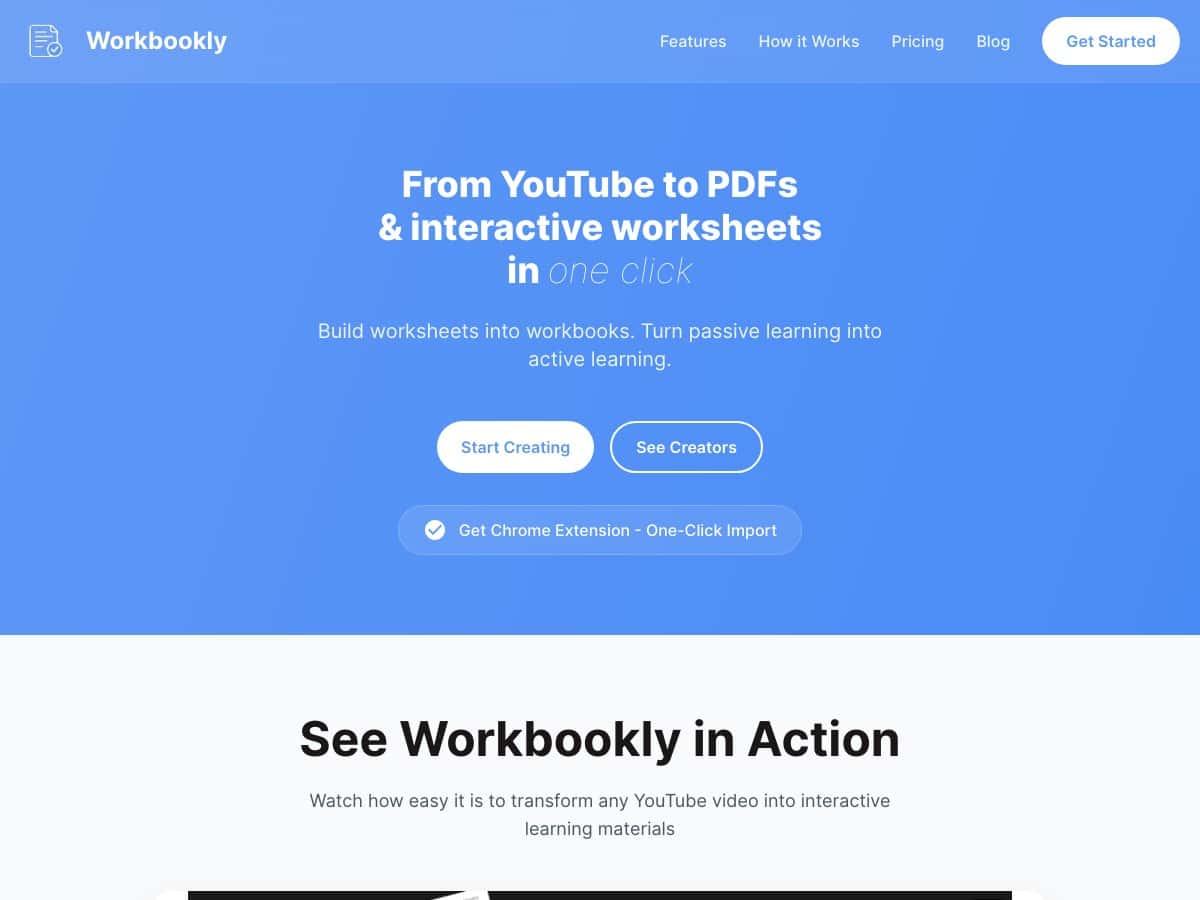
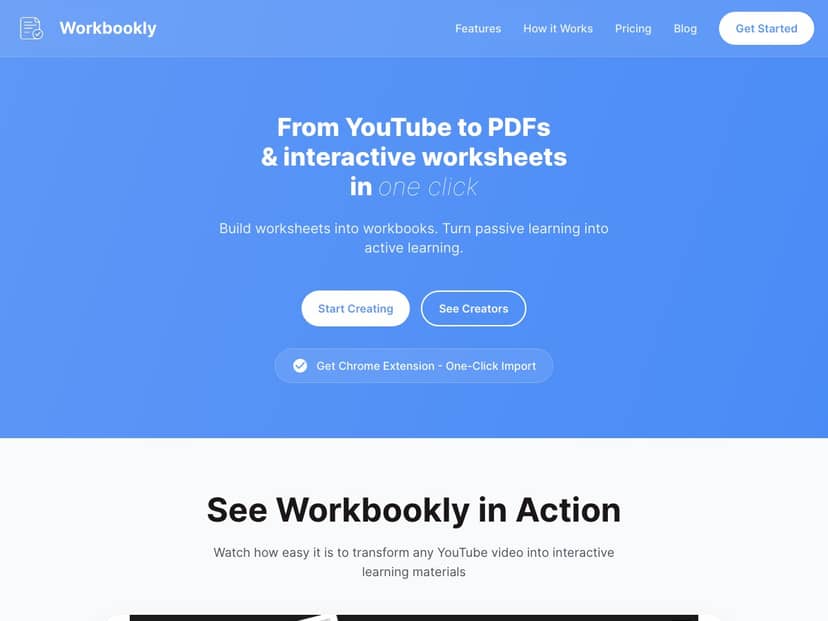
If you’ve ever watched an educational YouTube video and thought, “Cool… but how do I turn this into something students actually do?”—yeah, that’s exactly why I wanted to test Workbookly. The promise is simple: take a YouTube video and generate interactive worksheets (quizzes, fill-in-the-blanks, matching, etc.) without spending hours writing questions from scratch.
I ran a quick “real-world” test to see how painless it is, what the output actually looks like, and where the rough edges show up. Below is what I noticed—good and bad.
Workbookly Review
Let me be upfront: I’m not reviewing this from a press release—I tested the workflow as if I were trying to turn a couple of teacher-friendly videos into student practice materials.
My setup test (what I did, and how long it took)
I used the two ways Workbookly suggests—(1) the Chrome extension and (2) pasting a YouTube URL into the editor. In my experience, the URL paste method is the fastest if you already have the link open. The extension is handy when you’re browsing and don’t want to copy/paste.
For the “videos,” I picked a few educational-style YouTube clips (think: lessons with clear explanations rather than random entertainment). After importing, I let the AI generate worksheet content. The key thing I watched for wasn’t just “did it generate something?”—it was whether the questions felt tied to the video and whether the worksheet layout looked ready to share.
What the AI output looked like (and how usable it felt)
Once the worksheet was generated, I reviewed the question types and the formatting. Here’s what I noticed:
- Question variety: I saw quizzes and exercises that looked like classic classroom formats—fill-in-the-blanks, matching-style questions, and multiple-choice style prompts.
- Clarity: Most questions were readable and didn’t feel like they were generated from thin air. That matters, because students can’t “guess” their way through a worksheet.
- Still needs a quick human check: Even when the questions were mostly correct, I still wanted to skim for wording issues. If you’re using this in a real class, you’ll still do a 2–5 minute review per worksheet before handing it out.
Customization & branding (did it actually look professional?)
One of the reasons I like tools like this is the “make it mine” part. Workbookly lets you customize worksheets and add branding. In my test, that showed up as a more polished layout—something you can reasonably put in front of students without it looking like a random auto-generated page.
I also liked having both options: downloadable PDFs and online practice. That’s useful if you’re mixing in-class paper work with at-home practice.
Best use cases (where I think Workbookly fits best)
Here’s what I’d use Workbookly for:
- Short lesson videos where the main ideas are clearly stated (the worksheet tends to map better to the video content).
- Review days—when you already have videos picked out and you just need practice questions.
- Teacher teams who want consistency: generate once, tweak, and reuse with branding.
Where I’d be more cautious: long, highly conversational videos with lots of side tangents. The worksheet can still generate, but you may spend more time editing to make sure it matches the parts you actually care about.
Key Features
Instead of listing features like a brochure, here’s how they showed up during my test.
1) YouTube import (extension vs URL paste)
- Chrome extension: convenient if you’re already on YouTube and want to push a video into Workbookly without copying links.
- URL paste: straightforward and quick. I didn’t run into any weird steps—just paste, import, and proceed.
In other words: you don’t need to be technical. If you can share a YouTube link, you can use this.
2) AI-driven worksheet generation
The big feature is turning a video into interactive questions. In my test, the output included multiple question styles (quiz-style, fill-in-the-blanks, and matching-style prompts).
What I appreciated most: the questions didn’t feel like generic trivia. They were clearly derived from the lesson content (though, again, I’d still review before using with students).
3) Branded worksheets
Workbookly supports branding, and I could see the difference immediately in how “ready to share” the worksheets looked. If you teach under a district/school name, this matters more than you’d think.
4) PDF downloads + online practice
I like having both formats. PDFs are great for printing or sending as homework. Online practice is better for quick checks or when students can’t print.
One practical tip: if you plan to print, open the PDF preview first and make sure the formatting fits the way you want (some auto-generated layouts can be tight depending on device settings).
5) Extraction of key ideas
There’s an implied step where Workbookly pulls out key concepts from the video to build questions. In practice, that’s what determines whether your worksheet feels aligned to the lesson or random. My test worksheets generally matched the educational content, but the “human review” step is still worth your time.
Pros and Cons
Pros
- Fast workflow: importing YouTube videos and generating worksheets didn’t feel complicated. I could go from link to worksheet without getting stuck.
- Useful question types: the worksheet content wasn’t limited to one format—it mixed things up (which keeps students from zoning out).
- Branded output: worksheets look more professional than a plain auto-quiz.
- Two ways to use it: PDF downloads for offline work and online practice for quick sessions.
Cons
- It’s tied to YouTube: if your content lives somewhere else (Vimeo, your own hosted videos, recorded lectures), Workbookly may not fit your workflow.
- You still need to review: AI-generated questions are good, but not perfect. Plan on a quick skim to catch wording issues or questions that don’t match what you taught.
- New-user learning curve (minor): you’ll want to click around once to understand the worksheet editor and where customization lives. It’s not hard, but it’s not “instant magic” either.
Pricing Plans
When I checked, Workbookly offered a free trial that lets you create worksheets from two videos without needing a credit card.
That’s the part I can confirm from my test. The paid plan details (names, limits, and exact pricing) weren’t clearly spelled out in the material I reviewed, so I don’t want to guess and accidentally mislead you. If you’re deciding whether it’s worth paying for, I’d recommend checking the latest pricing directly on their site or contacting support for the most up-to-date plan info.
How to decide if you should pay
Here’s the quick math I use:
- If you only need 1–2 worksheets a month, the trial (and then a short paid burst) might be enough.
- If you’re generating worksheets weekly or for multiple classes, the time saved from not writing questions manually can add up fast.
- If you rely on specific video sources (not just YouTube), you may hit limitations—so factor that in before committing.
Quick comparison: Workbookly vs doing it manually
I’ll compare it to the “old way,” because that’s the real alternative for most educators.
- Manual creation: you control every word and every learning objective, but it’s slow. You’ll spend time outlining, writing questions, and making sure the worksheet matches the video.
- Workbookly: you start with AI-generated questions and then edit. In my experience, that cuts the heavy lifting dramatically—you’re refining instead of building from scratch.
Just remember: “AI-first” still benefits from a quick teacher pass. Students can tell when something’s off.
Final take from my test
Workbookly is a solid option if you already use YouTube for teaching and you want a quicker way to turn those videos into interactive worksheets. The import flow is simple, the worksheet output is generally usable, and the PDF/online options make it flexible.
Where it falls short is also pretty clear: it’s mainly built around YouTube content, and you shouldn’t expect zero editing. Still, if you’re tired of writing the same kind of questions over and over, this is the kind of tool that can genuinely save time.