Table of Contents
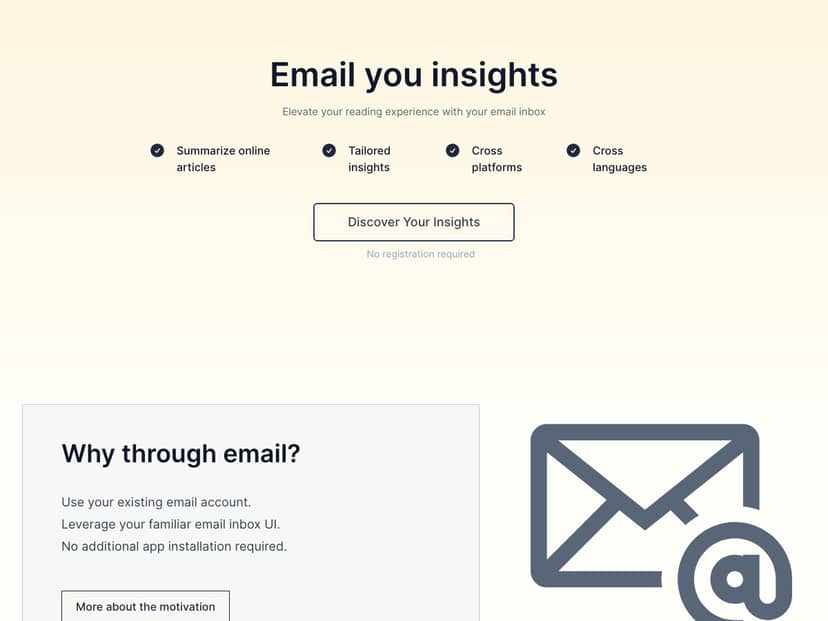
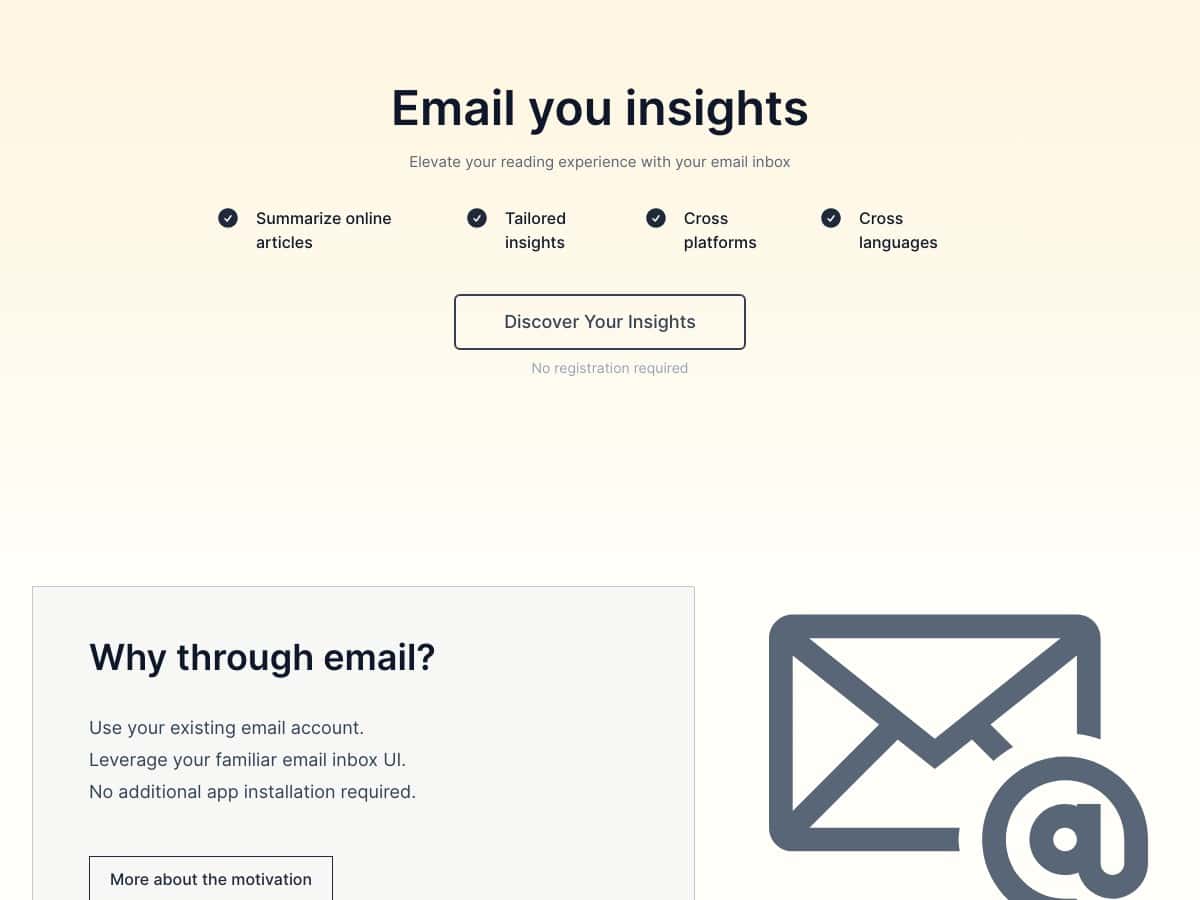
If you’re anything like me, you open an article… then somehow 45 minutes later you’re still “just skimming.” That’s what made Wuko AI interesting: it summarizes content by sending it to Wuko through email. No new app. No copy/paste marathon. Just a summary landing in your inbox.

Wuko AI Review: Email Summaries That Actually Save Time
I tested Wuko AI the way most people would: I grabbed a link, sent it, and waited for the summary to show up in my inbox. The basic workflow is refreshingly simple—Wuko gives you a dedicated email address, you email a URL to that address, and it returns a summary formatted for reading on email.
Setup (what I did)
Once I signed up, I looked for the “send URL to summarize” email address. Then I used it immediately—no browser extensions required at first. After that worked, I tried the Chrome extension too (more on that below).
What the summary looks like
The summary lands as a compact email response, not a wall of text. In my tests, it usually gave me the main points first, then a few extra details that helped me decide whether I actually wanted to read the full article. The best part? I didn’t feel like I was missing context—I could still follow the logic.
My content tests (and what happened)
I didn’t just try one type of page. I wanted to see where it held up and where it struggled.
- Online article (tech/blog style): I sent a standard web article URL. The summary came back quickly and captured the key arguments. When I replied with a question like “What are the main takeaways?” the follow-up answer stayed on-topic and didn’t ramble.
- PDF (report/document): With a PDF, the summary was still usable, but the formatting mattered. If the PDF had dense tables or weird spacing, the summary occasionally skipped over a detail or two. Still, it was enough to understand what the document was about without opening it fully.
- Video (YouTube transcript): I tested a YouTube video by using the transcript content as provided through the workflow. The summary was decent, but the transcript quality made a difference. When the transcript had off-topic filler, the summary included more of it than I’d want.
Interactive Q&A (this is the part I actually used)
Here’s the thing: a summary is nice, but replying with questions is what makes the tool feel “alive.” After I got the initial email summary, I replied asking for clarification (for example, “Can you explain the conclusion in simpler terms?”). The follow-up came back as another email response, and it was focused on the specific section I was aiming at.
Multilingual support (what I noticed)
Wuko AI’s multilingual behavior is one of its standout features. I tested it by sending the same content and then asking the follow-up in different languages. The responses switched languages correctly, and the tone stayed readable. For example, when I asked a follow-up in Spanish, the answer returned in Spanish without turning into awkward machine translation.
Latency + reliability
Timing wasn’t perfect, but in my tests it was fast enough to feel practical—like “check email and the summary is there,” not “wait all day.” Also, I didn’t hit any major failures during my run. That said, since it’s still in beta, I can’t promise it’ll be flawless for every PDF layout or every email provider setup.
Bottom line: Wuko AI is a solid way to skim faster without breaking your routine. It’s especially good for busy reading sessions, research, and students who need to understand documents quickly before diving deeper.
Key Features: How Wuko AI Works in Real Life
- Summarize online articles and PDFs by emailing a URL
- Instead of copying text into a box, you email the link to Wuko’s dedicated address. In my experience, this is the smoothest part of the workflow because it fits right into how you already use email.
- Interactive follow-up questions
- After the summary arrives, you reply with a question. I used this to ask for “main points” and “what matters most,” and the responses stayed tied to the original content (not generic AI fluff).
- Multilingual replies
- Wuko AI detects your preferred language and responds accordingly. I tested follow-ups in a couple of languages and saw the answers switch properly. If you work with international sources, this matters more than you’d think.
- No app installation needed (email-first)
- You can use it from whatever device you’re on—phone, laptop, desktop—because it’s all email-based. That’s a big deal for me. I don’t want another app living on my phone.
- Chrome extension for quicker drafts and sending
- Once I installed the extension, it made the “send this page to Wuko” step faster. Instead of manually grabbing a URL, I could trigger the flow right from the browser. It’s the kind of convenience you notice after you’ve used it a few times.
- Multiple content formats (including videos and PDFs)
- It supports more than just plain webpages. In practice: PDFs work best when the layout is readable, and video summaries depend heavily on the transcript quality.
- Sharing/collaboration via unique email addresses per webpage
- This part is actually pretty clever for teams. Instead of sharing the same link and hoping everyone uses it the same way, Wuko can generate a unique email address tied to a specific page. That makes collaboration more consistent—you’re all working from the same “summary thread.”
- Zapier integration for automation
- If you’re the type who automates everything (I am), Zapier support is a big plus. The practical idea is: when something happens in your workflow (like a new link being logged), you can trigger Wuko to summarize and then route the result somewhere else (like a doc, Slack channel, or task tool). I didn’t build a full Zap chain end-to-end in this test, but the integration is one of those features that can turn “useful” into “part of your system.”
Pros and Cons: What’s Great (and What to Watch)
Pros
- Email-first workflow means you don’t have to install anything or paste text into a tool.
- Follow-up Q&A is genuinely useful—it’s not just a one-and-done summary. Replying for clarification is what helped me decide what to read next.
- Multilingual support works well enough to be practical, not just a gimmick.
- Works across devices since it’s tied to email rather than a specific app.
- Better skimming: I found myself returning to the full article less often because the summary gave me the “should I care?” answer faster.
Cons
- Beta reliability: I didn’t see constant errors, but beta software can still hiccup—especially with tricky PDFs or unusual page formatting.
- PDF layout can affect quality: dense tables and messy formatting sometimes lead to missed details in the summary.
- Video summaries depend on transcripts: if the transcript includes filler or errors, the summary reflects that.
- Pricing isn’t fully clear yet: I couldn’t confirm exact paid tiers from the information available to me during this review.
Pricing Plans (As of My Test)
When I tried Wuko AI, it was in beta and available for free, which makes sense given they’re still collecting feedback. I didn’t see finalized pricing tiers during my review, so I can’t responsibly quote a specific monthly cost or feature limits.
What I did check was whether there were any clearly published paid plans or tier names. As of this test, it looks like premium plans may come later, but the exact structure wasn’t confirmed in a way I could verify.
Wrap up
Wuko AI is one of those tools that fits naturally into how I already read and research. The email-based approach is the big win for me—no app clutter, no copy/paste, just summaries where I already check messages. If you frequently read articles, skim PDFs, or need quick context before committing to a full read, it’s worth your attention. Just go in knowing that PDF/video quality still depends on the source formatting, and beta software can be a little unpredictable.