60-second summary
Quick answer
Open Covers & Images, choose Templates, From Book or From Scratch, describe a concrete visual direction, generate, inspect the result and save the version you want attached to the book.
Before you start
What you need
- Use an account with Cover Creator access.
- For Templates or From Book, have a saved ebook; for From Scratch, prepare a title, author name, and image prompt.
Procedure
Complete the task step by step
- 01
Open Covers & Images
Choose Cover Creator in Creative Studio. This is a premium feature for paid subscribers.
Current app screenOpen full size: Automateed Creative Studio AI Cover Creator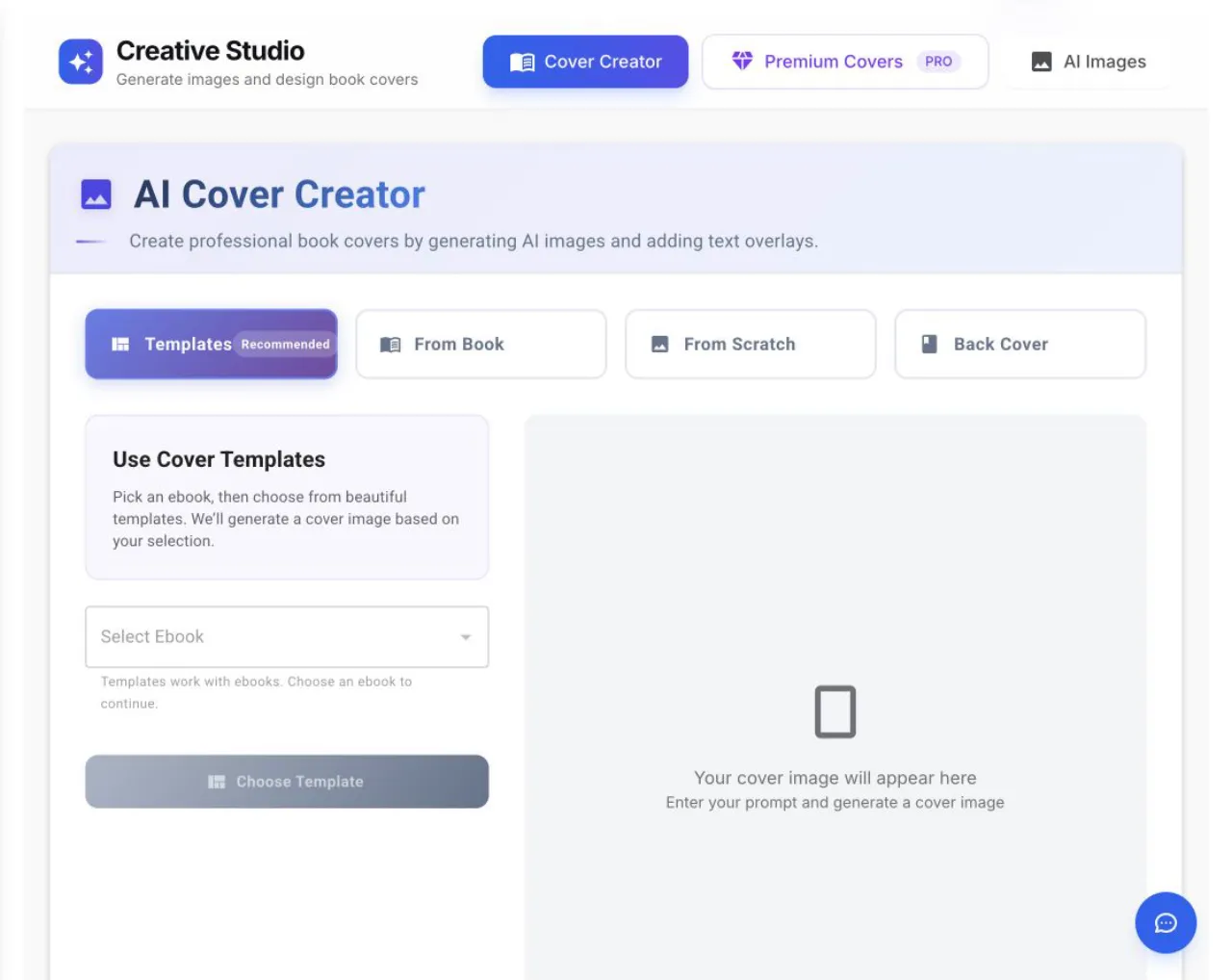
Cover Creator supports template, book-based and from-scratch starting points. - 02
Choose how to start
Use From Book to select a saved ebook, or From Scratch when you are not starting from a saved book.
- 03
Continue from the selected mode
For a saved ebook, choose it under Select Ebook and click Choose Template.
- 04
Describe and generate
Specify genre, audience, mood, composition and important symbols, then generate the cover.
- 05
Inspect and save
Check title spelling, author name, thumbnail readability and genre fit, then confirm the result on the correct book.
Success check
Confirm that it worked
- A cover preview is generated for the intended book.
- Choosing “Use as Book Cover” or “Set as Book Cover” saves it and the correct book displays the new cover.
Important notes
- Templates work with ebooks and require “Select Ebook” before “Choose Template”.
- AI image generation uses a 9:16 portrait request and the UI reports one image credit used; always proof title and author text before saving.
Troubleshooting
If it still does not work
Choose Template or Generate Cover Image is disabled
Select an ebook first in Templates, or supply the required prompt and, in From Scratch, both book title and author name.