60-second summary
Quick answer
Use a short speaking plan, name each section aloud and spell unusual names. The transcript preview is informational: Voice to Book does not pause for editing, so correct remaining transcription issues in the generated book.
Before you start
What you need
- Write a short speaking outline with the audience, outcome, proposed sections and examples.
- List unusual names and specialist terms so you can spell or explain them while speaking.
- Use a quiet room and confirm that Microphone ready appears before the full recording.
Procedure
Complete the task step by step
- 01
Write a short speaking plan
List the audience, outcome, chapter ideas and examples before you press the microphone.
Current app screenOpen full size: Automateed Voice to Book recorder and preparation prompt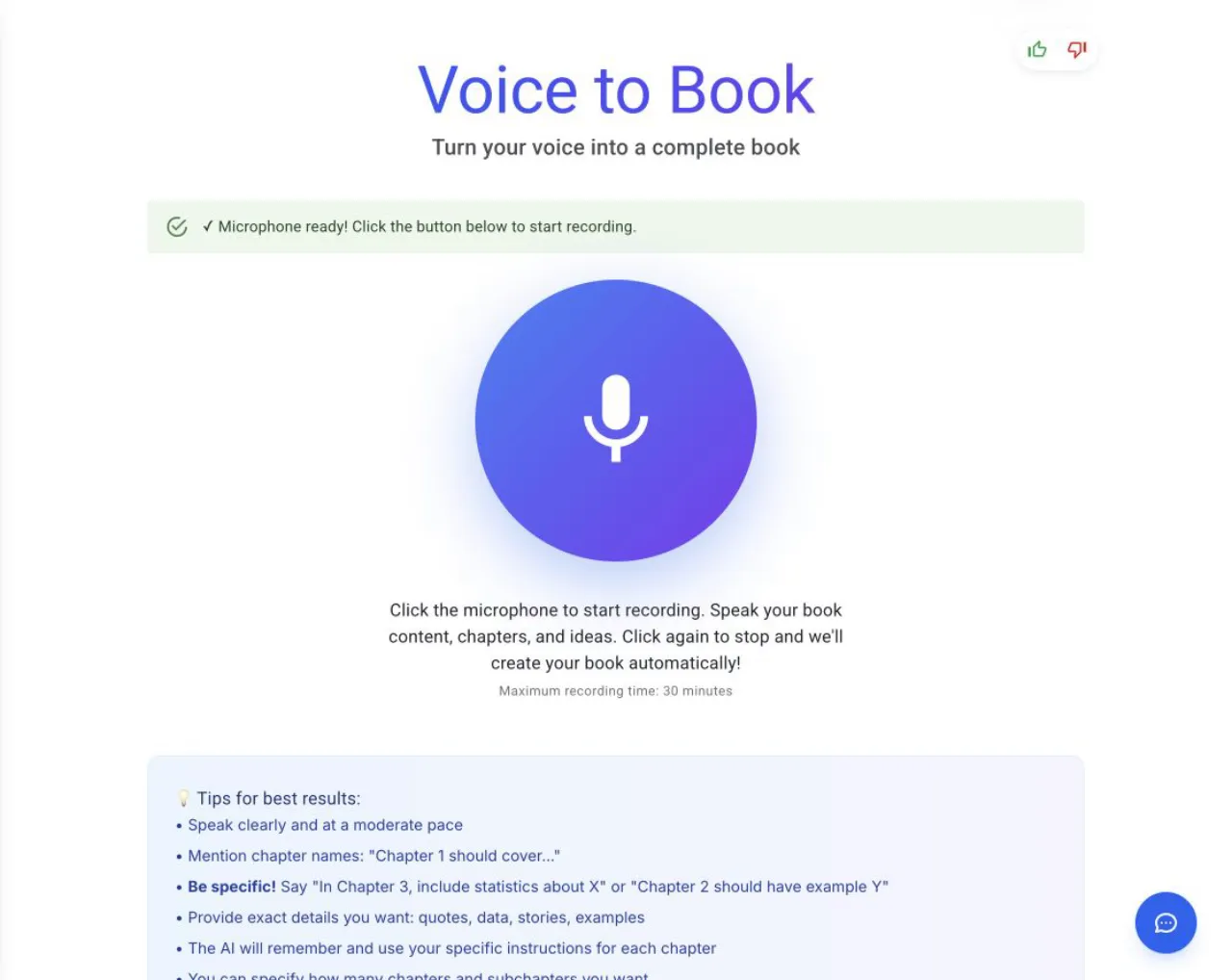
A structured recording produces a cleaner transcript and a more useful outline. - 02
Name sections aloud
Say when you are moving to a new chapter, example, objection or action step.
- 03
Keep original examples
Personal stories and natural phrasing are the main value of dictation.
- 04
Spell difficult terms aloud
Clarify people, products, places and specialist terminology during the recording.
- 05
Review the generated book
Voice to Book does not pause for transcript editing: stopping the recording automatically starts transcription, outline creation and book generation. Edit the resulting book afterward.
Success check
Confirm that it worked
- The processing transcript reflects the intended names and main sections closely enough to support the generated outline.
- Any remaining transcription or structure errors are corrected in the resulting book after generation.
Important notes
- The transcript preview is informational and appears after recording has stopped; it is not an editable checkpoint.
- Named section transitions help the outline generator distinguish chapters, examples and action steps.
- Editing the generated book is safer than repeating a long recording solely to correct a few words.
Troubleshooting
If it still does not work
A name is transcribed incorrectly
Correct it in the generated book because there is no pre-generation transcript editor.
Several spoken sections run together
Edit the resulting headings, and explicitly say new chapter or next section in future recordings.
An important passage is missing
Check the generated book first, then add the missing passage in its editor.