60-second summary
Quick answer
Open Voice to Book, allow microphone access, state the audience and result first, record in clear sections for up to the current session limit, then stop and follow transcription and generation progress.
Before you start
What you need
- Use a non-Free Automateed plan or an administrator account.
- Connect a working microphone and allow browser access when recording starts.
- Plan for one ebook credit up to 50 subchapters or two credits above 50, as shown in the recorder.
Procedure
Complete the task step by step
- 01
Open Voice to Book
Use a non-Free plan, allow microphone access and confirm the page shows Microphone ready.
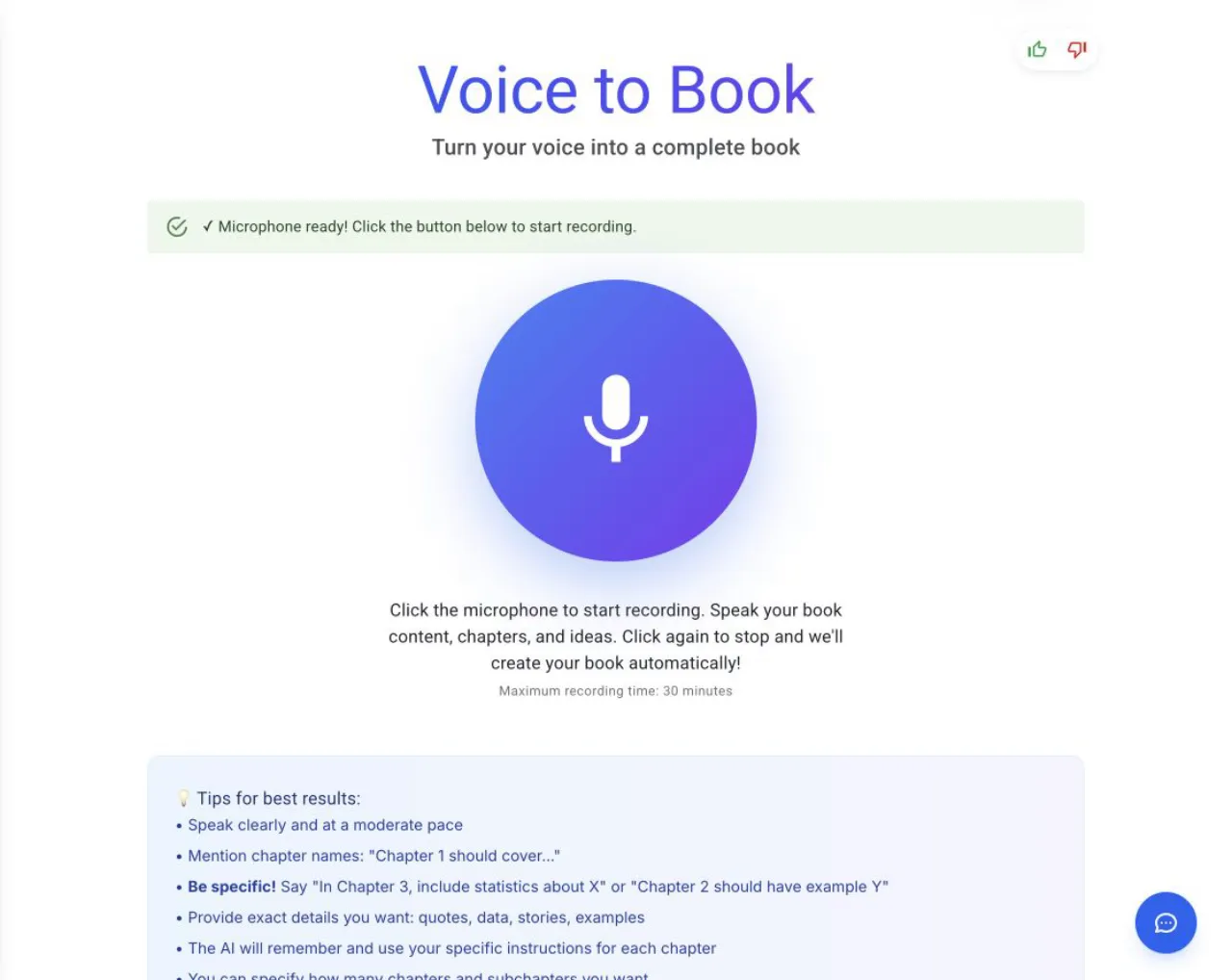
The recorder shows the session limit and does not begin until you press Start Recording and grant browser permission. - 02
Check the credit rule
The current recorder uses one ebook credit for up to 50 subchapters and two credits above 50.
- 03
State the audience and outcome first
Begin with who the book is for and what it should help them achieve.
- 04
Start recording
Click the microphone, review the confirmation and choose Yes, Start Recording.
- 05
Speak in sections
Pause between ideas and name new chapters or examples explicitly. Recording is limited to 30 minutes.
- 06
Stop recording
Click the microphone control again. Automateed transcribes the recording, creates an outline and queues the book automatically.
- 07
Follow progress
The processing screen moves through transcription, outline creation and book generation before opening the waiting room.
Success check
Confirm that it worked
- Stopping the recording starts Transcribing your voice, Generating book outline and Creating your book without another approval step.
- The browser redirects to /created/ebook?bookId=... after the book is queued.
Important notes
- A recording can run for at most 30 minutes.
- The transcript appears during processing, but Voice to Book does not pause for transcript editing before outline and book generation.
- The current generation request creates the resulting project with English selected, chapter images enabled and the Classic template.
Troubleshooting
If it still does not work
A Free account shows Premium Feature
Use Upgrade to Premium before attempting another recording.
Recording never starts
Follow the exact microphone error, correct the browser or operating-system setting, then refresh Voice to Book.
Processing fails after the recording stops
Read the returned error before making a new recording; the flow does not provide a transcript-approval retry step.