60-second summary
Quick answer
Allow microphone access for ai.automateed.com in the browser, select the correct input device, close apps holding the microphone and reload Voice to Book.
Before you start
What you need
- Use a current Chrome, Firefox or Safari release with a connected microphone.
- Know which microphone is selected as the operating system's default input.
- Close meeting, recording or calling apps that may already be using the device.
Procedure
Complete the task step by step
- 01
Check browser permission
Open site settings and allow microphone access for ai.automateed.com.
Current app screenOpen full size: Automateed Voice to Book Start Recording control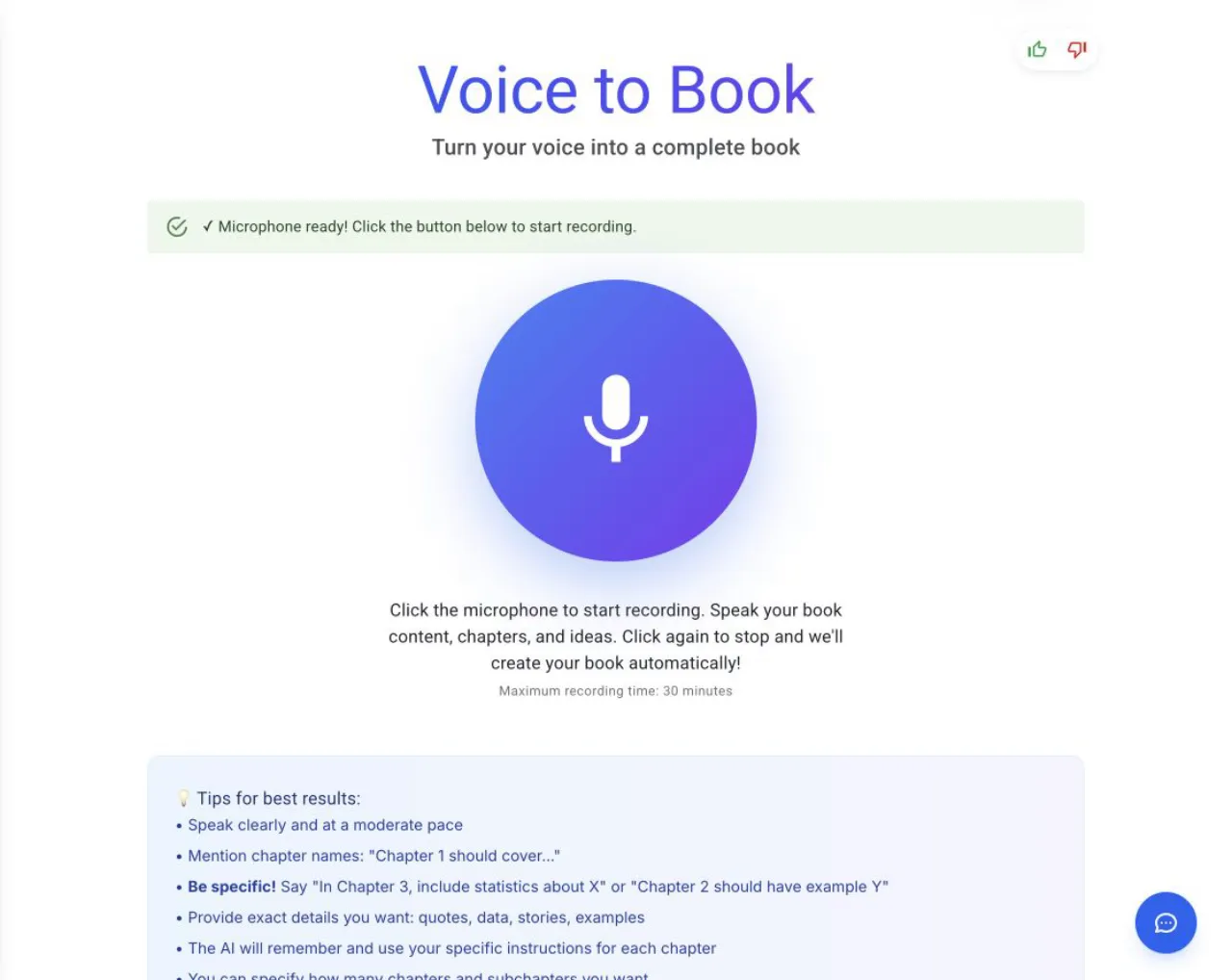
The browser asks for microphone permission when recording starts; Automateed cannot override a blocked browser permission. - 02
Select the correct input
Choose the intended microphone in operating-system sound settings.
- 03
Close competing apps
Another recording or meeting app may hold the microphone.
- 04
Reload the page
Refresh Voice to Book after changing permissions and test a short recording.
Success check
Confirm that it worked
- Voice to Book shows Microphone ready.
- After Yes, Start Recording, the timer advances and the recording control changes to its active state.
Important notes
- Voice to Book requests the browser's default audio input and does not provide an in-app microphone selector.
- Change the device in operating-system or browser settings, then refresh Voice to Book.
- Automateed cannot override a browser-level denied permission.
Troubleshooting
If it still does not work
No microphone detected
Connect a microphone and try again.
Microphone access denied
Allow microphone access for ai.automateed.com in browser site settings and refresh the page.
Microphone is already in use
Close the other application holding the microphone and retry.
The microphone does not support the requested settings
Select a different default microphone in operating-system settings.