60-second summary
Quick answer
Use Book Title / Topic for the central subject, then open Advanced Settings and put reader context in Target Audience, tone in Writing Style and relevant experience in About Author. Use Create Custom Outline for detailed structure.
Before you start
What you need
- Decide the intended reader, result, tone, and author context before opening the creation form.
- Open “Advanced Settings” beneath “Book Title / Topic”.
Procedure
Complete the task step by step
- 01
State the central subject
Use Book Title / Topic for a clear subject or promise and stay within its 100-character limit.
Current app screenOpen full size: Current Advanced Settings fields for audience, writing style and author context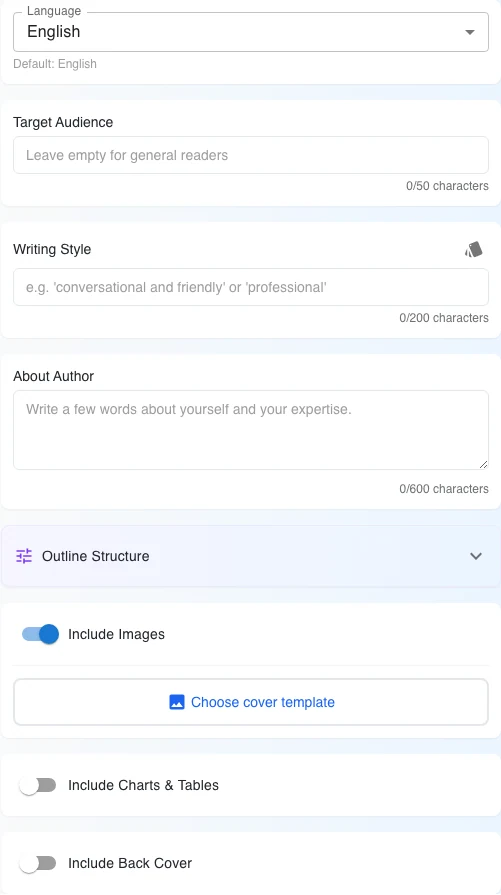
Keep each instruction in its named field: reader in Target Audience, voice in Writing Style and relevant background in About Author. - 02
Name the exact reader
Open Advanced Settings and describe the reader in Target Audience, which accepts up to 50 characters.
- 03
Direct the voice
Use Writing Style, up to 200 characters, for tone, point of view and vocabulary.
- 04
Add author context
Use About Author, up to 600 characters, for relevant experience, methods and perspective.
- 05
Request a useful structure
Use Create Custom Outline for detailed structural requirements; the custom direction must contain at least 50 characters.
Success check
Confirm that it worked
- Book Title / Topic states the central subject clearly, while Target Audience, Writing Style, and About Author contain the supporting context.
- The generated outline gives each chapter a distinct reader task instead of repeating the same promise.
Important notes
- The current limits are 100 characters for Book Title / Topic, 50 for Target Audience, 200 for Writing Style, and 600 for About Author.
- For detailed structural requirements, use “Create Custom Outline”; it requires at least 50 characters.
Troubleshooting
If it still does not work
Create Outline does not start
Enter a Book Title / Topic first. The form can report “Please enter a title first” or another required-title error when that field is empty.