Table of Contents
A product video should help a shopper recognize what they will receive. If an animated bottle changes shape or a book cover acquires a different title, an attractive clip has failed that job.
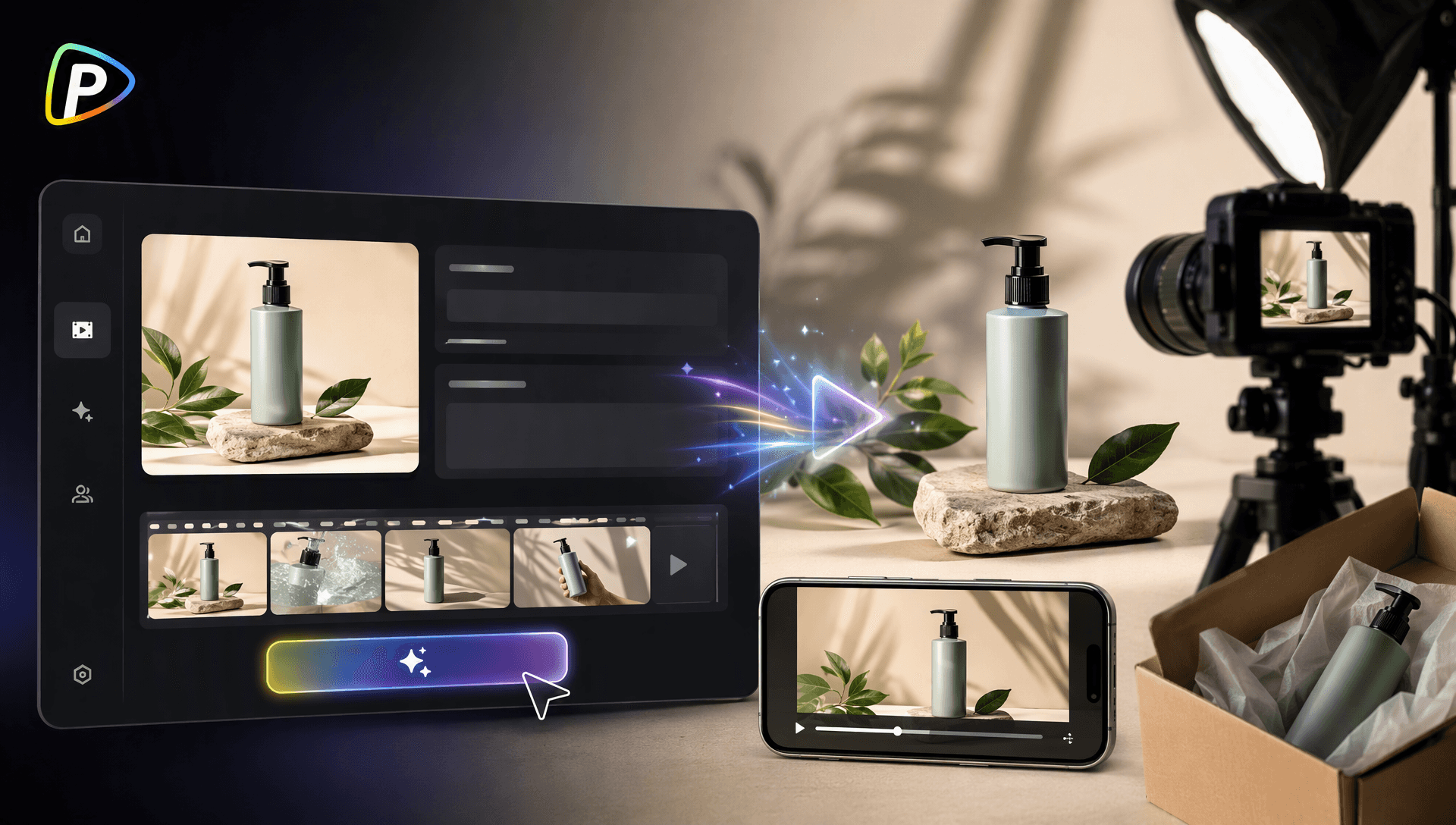
The Pollo AI video generator supports text-to-video and image-to-video workflows. For an existing product, start with its actual photograph or artwork. Use generation for a controlled shot, then compare the result with the source before adding it to a store page.
This guide keeps that process practical: prepare a brief, generate one manageable scene, reject inaccurate results, and assemble a finished edit. A worked shot plan for a book or workbook store shows where real product footage belongs.
Prepare the product and video idea
Choose one job for the clip. A product-page video might show the cover and an interior spread of a workbook. A social post might introduce the same workbook with a short question and a sample exercise. Both need accurate product assets; their pacing can differ.
Write a brief before opening the generator. Here is an illustrative example:
| Decision | Example for a workbook listing |
|---|---|
| Purpose | Show the cover and enough of one exercise for a shopper to understand the workbook's format. |
| Source assets | The final cover image and an exported page from the actual product. Use a real photograph if the physical binding or paper is part of the offer. |
| Movement | A restrained background animation or slow camera move. Keep readable cover and page artwork on separate layers in the editor. |
| Details that must stay accurate | Title, author, artwork, page contents and the advertised format. A PDF download must not appear to include a shipped hardcover. |
| Finished deliverable | One short store video and a separately composed vertical version, each ending with the correct destination or call to action. |
For another product, replace the book details with the features a buyer uses to identify it: cap style, label, color, controls or included accessories. Do not ask a model to invent an unseen side of a product when that view matters to the purchase.
How to create a product video with the Pollo AI video generator
1. Open the AI video generator
Choose the workflow that matches the material you have. The public generator's workflow menu offers text and image inputs; its controls also let you select a model and output settings.
- Image-to-video: use an existing product image as the visual reference. This is a starting point for animating an approved photograph, not a guarantee that every detail will survive.
- Text-to-video: describe a scene when you do not need the output to reproduce a particular SKU. It can also supply an atmospheric background behind an unchanged product layer.
For a text-heavy cover or label, the second approach is often easier to review: generate the background, then place the original artwork over it in a video editor. Keep the product layer fixed while the background moves.
2. Upload a clear product image
Use a sharp image with the whole intended product visible. Check the cap, handle, corners, title or logo before upload. A cropped-out feature cannot serve as a reliable reference.
Allow room around the product for the chosen frame. If you need a vertical edit, compose a vertical source instead of assuming a later crop will retain the label and call to action. Keep an untouched copy of the original so you can compare it with generated frames.
For books, avoid generating a page turn to demonstrate actual contents. Record the real pages or assemble exported page images in the editor. Generated page text can look plausible while showing material the buyer will never receive.
3. Select a video model
Pollo lists several video models. Availability and controls depend on the selected workflow, model and account. Start with a model that supports the image input, duration and frame shape you need; do not choose solely from a promotional example.
When comparing options, keep the input image and prompt the same. Record the model, settings, credit estimate and the reason you accepted or rejected each output. Change one variable for the next attempt so you can judge whether it helped.
Also distinguish a model selector from a comparison article. Pollo's page about the GoEnhance AI video generator compares services. It does not establish that GoEnhance is a model you can select inside Pollo. Use the actual generator menu to confirm the available options.
4. Write a prompt that explains the scene
"Promote a reusable water bottle" names a goal but leaves the scene undecided. A more controlled starting prompt is:
Use the uploaded bottle photo as the reference. The bottle remains upright on the desk. Make one slow, small camera push toward the bottle's front. Keep the cap, silhouette, label placement and visible color unchanged. Do not rotate the bottle to reveal a new side. Add no hands, accessories, text or pouring action.
Those instructions describe what you want. Review the result against them; the prompt cannot guarantee product fidelity.
For a book cover that must remain readable, try a separate background prompt:
A quiet desk background with soft afternoon light moving slowly across the wall. Leave the center clear for a book cover that will be added in editing. Locked camera. No books, people, signs, letters or other foreground objects.
Place the original cover artwork above that background in your editor. Add the title or sales caption as editable text. This keeps important wording under your control instead of relying on the video model to draw it correctly.
5. Choose the video settings
In the public interface inspected on September 7, 2026, the Pollo 2.5 settings panel included duration, resolution, aspect ratio and output quantity. These controls are model-specific; check them again after switching models.
For the first attempt, choose one output and a short available duration that is long enough to judge the intended movement. Select the frame shape for the actual placement. A wide store-page video and a vertical social post need different compositions, even if they use the same assets.
Read the credit estimate before generating. Pollo's pricing documentation says cost depends on the tool or model and settings such as duration, resolution and output quantity. Reserve part of your available budget for corrections instead of spending it all on a large first batch.
Before using the result in commercial promotion, check the permission for your chosen plan and model, as well as the rights to the uploaded images and any added music. Pollo's public pages give inconsistent guidance about free-plan commercial use, so do not treat the word "free" as permission for a store advertisement.
6. Review the result and generate again if needed
Watch the entire clip and pause on the first frame, the last frame and moments where movement reveals a detail. Compare those frames with the original product image. A clean opening frame does not establish that the middle of the shot is accurate.
| Problem | What to check | Next edit |
|---|---|---|
| Changed product | A different cap, button, handle, color or proportion. | Reject the shot. Reduce movement, try a clearer reference, or keep the product as an unchanged layer. |
| Altered text | Wrong letters in a title, author name, label or logo. | Replace the generated product surface with the original artwork where the edit permits it. Otherwise reject the shot. |
| Invented performance | A bottle shown as leakproof, a lamp with a feature it lacks, or an accessory that is not included. | Remove the scene. Use real footage and verified product information for a demonstration. |
| Weak framing | A cover or label cut off by the crop, captions or interface overlays. | Recompose for the placement and preview it at the size a viewer will actually see. |
If the same detail fails repeatedly, stop asking generation to solve that part of the shot. Real footage, a still image with a simple editor animation, or a fixed cover layer may do the job with less uncertainty.
Adapt the video for different store channels
Here is a suggested 15-second edit for the workbook brief above. It combines actual product assets with an optional generated background. The timings are an editing plan, not a tested formula for sales.
| Time | Picture | What the shopper learns |
|---|---|---|
| 0 to 3 seconds | Original cover artwork, clearly readable. | The product's title and identity. |
| 3 to 8 seconds | An actual exercise page, held still long enough to inspect. | What the workbook asks the reader to do. |
| 8 to 12 seconds | Cover over a restrained background, or another real product view. | The same product in context, without fabricated pages or features. |
| 12 to 15 seconds | Original cover and a short, accurate call to action. | Where to see the sample or find the product details. |
Download the editable shot plan (CSV) and the generation review log (CSV). The log separates observed defects from changes to try next, so an unsuccessful attempt still informs the edit.
For a product page, keep the product information easy to inspect. For a social edit, recompose the frame and check that captions and platform controls do not cover important details. Preview both versions with sound off. If spoken words carry necessary information, add readable captions.
Save a clean master before adding prices, discount dates, music or platform-specific overlays. Those details can change independently of the footage. Check the final caption and destination against the current store listing.
Before publishing the product video
Compare the final export with the source images one last time, including the frames after any transition. Confirm the product format, visible text, included items and call to action. Keep the original assets, prompt, model settings and review notes with the export so another editor can understand how it was made.