Table of Contents
If you’ve ever had to remake a slide deck from screenshots or a messy PDF, you already know the pain. Copying text box by text box, rebuilding layouts, aligning images… it adds up fast. I tried PPT GPTSci (Edit in PPT) specifically because I wanted a quicker way to turn images into editable PowerPoint slides, without spending my whole afternoon formatting.
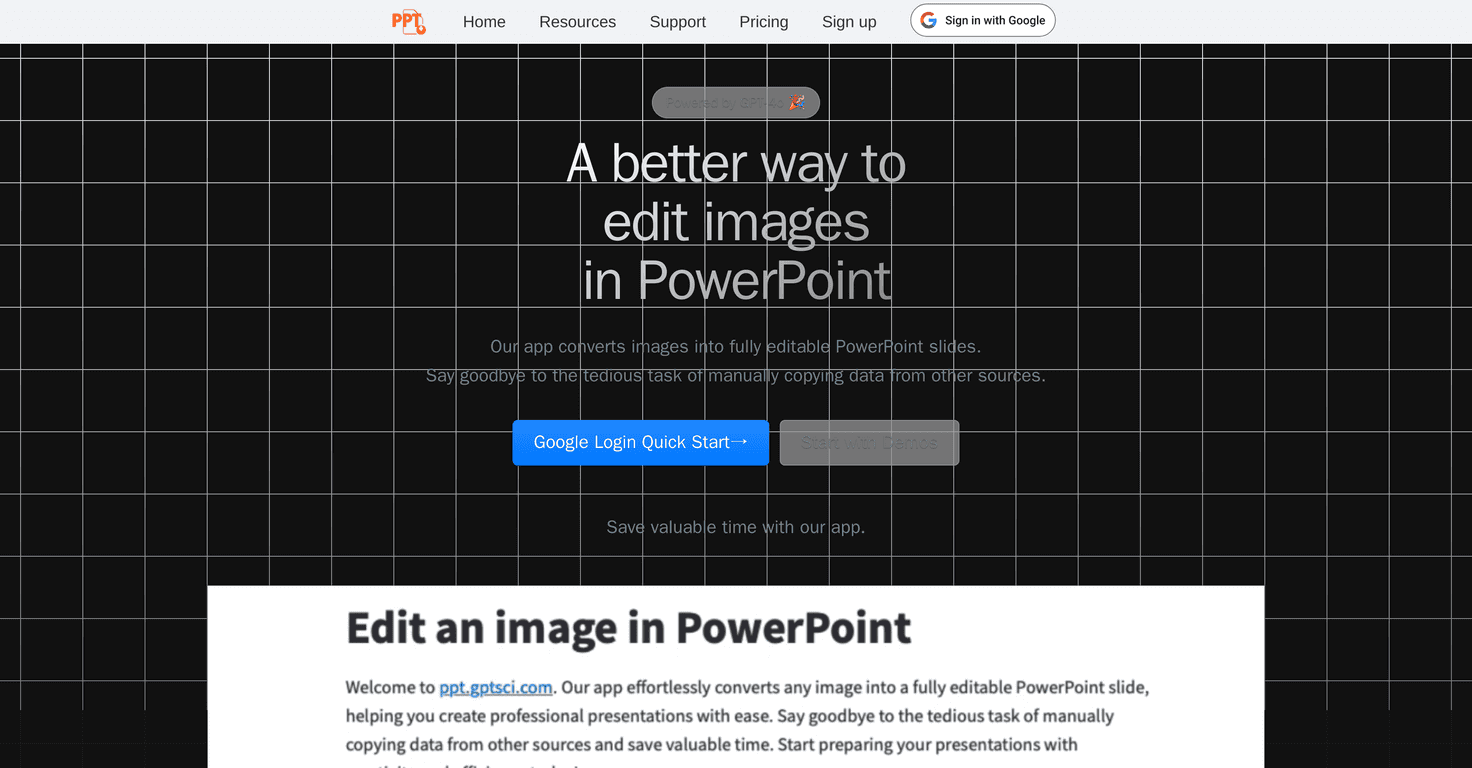
In short: you upload an image, and the tool generates a PowerPoint you can actually edit. It’s powered by GPT-4o, and the main promise here is simple—less manual data entry, faster slide creation, and cleaner results than doing everything by hand.
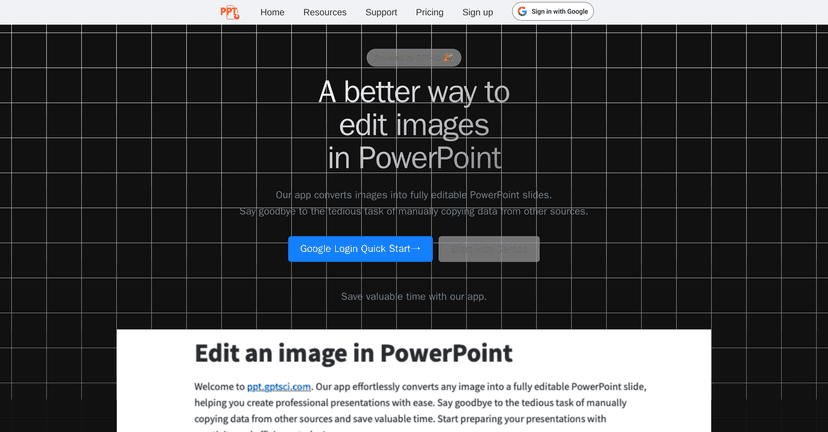
What I liked right away is that the workflow feels pretty straightforward. There’s no “learn for a week” vibe. You’re basically converting an image into slides, then tweaking the output. And yes, I can see why this would be useful for students, consultants, marketers, trainers—anyone who regularly needs slides on a deadline.
One more thing: the output is designed to stay high-resolution and editable. That matters more than people think. A lot of tools can generate something that looks like a slide, but then you can’t really edit it without everything falling apart. Here, you do get something you can work with.
That said, the free experience isn’t unlimited. You get free monthly conversions, but if you’re a heavy user, you’ll probably hit the cap sooner than you want. Also, you’ll need to register to access the free credits. Not a huge deal, but it’s still a barrier if you were hoping to test instantly.
Overall, this is one of those tools that feels made for real-world slide production—speed first, editing second, and quality that’s good enough to use (with a little cleanup) instead of starting from scratch.
PPT GPTSci Review
PPT GPTSci Review is all about Edit in PPT, a tool that turns images into editable PowerPoint slides. I’m not even exaggerating when I say the biggest time-saver is avoiding manual copy/paste and rebuilding layouts from scratch. If you’ve got a screenshot of a diagram, a photo of a whiteboard, or slides exported as images, this is the kind of workflow that can shave off hours.
Powered by GPT-4o, it’s designed to convert what it sees in your image into slide content. And the result isn’t just a static picture inside a slide—you get slides you can edit, which is the difference between “nice demo” and “actually usable.”
In my experience, the best outcomes happen when the source image is clear. Think readable text, decent contrast, and not-too-crazy angles. If the image is blurry or the text is tiny, you’ll still get something, but you may need to clean up a few things (like spacing or text accuracy). That’s normal for OCR-style conversions.
Here’s what I noticed most when working with the output:
- Text usually comes through editable, but you may need to adjust font sizes or line breaks.
- Layout is decent for a generated deck, though complex designs might not match 1:1.
- Images maintain clarity better than you’d expect from an AI conversion tool.
Another practical detail: it offers free monthly conversions, which is great because you can test it on a real slide need instead of guessing. Just keep in mind that you’ll need to register to unlock those free credits.
So who is this for? If you frequently build decks from references (docs, images, exported slides) and you want a fast starting point, it fits. If you’re making highly branded slides with very specific typography and strict layout rules, you’ll probably still do some manual polishing—but you’re starting from a base instead of rebuilding everything.
Key Features
- Free Credits: Get 5 monthly free conversions after registration.
- User-Friendly Interface: Upload an image and convert it into editable PowerPoint slides without complicated setup.
- High Quality Output: The generated slides are built to keep text and visuals clear, so you’re not stuck with blurry, non-editable placeholders.
One thing I appreciated is that the tool doesn’t try to overwhelm you with settings. You can get going quickly, then refine your result once you see how it interpreted the image.
Pros and Cons
Pros
- Saves real time by reducing manual copying and rebuilding slides from images.
- Free credits are actually useful (5 conversions per month) if you want to test it on a real task.
- Beginner-friendly—you don’t need to be technical to get decent results.
- Editable slides rather than “image-only” outputs.
Cons
- Free conversions are limited, so heavy users will likely need paid options sooner.
- Registration is required to access the free credits, which can be annoying if you just want a quick try.
- Quality depends on the input image—low-res or hard-to-read images may need extra cleanup.
Pricing Plans
Pricing details beyond the free credits aren’t clearly spelled out in the info I reviewed. What I can say is that the service clearly nudges you toward signing up and then using additional conversions as you go. If you’re using this for anything beyond occasional slide creation, it’s worth checking the site for current paid plans before you commit—because conversion limits are usually where costs show up.
If you want a quick sanity check: do one deck you’d normally build manually, see how much editing you have to do, then decide if the time saved is worth paying for more conversions.
Wrap up
For anyone who’s tired of rebuilding slides from images, Edit in PPT (PPT GPTSci) is a solid option. I like that it starts with a fast conversion process, gives you editable PowerPoint output, and doesn’t require a ton of technical know-how.
The main tradeoff is the free monthly conversions. If you’re only doing this occasionally, the free credits can be enough to decide. If you’re churning out decks regularly, you’ll probably want to look at paid options pretty quickly.
If you’ve got a presentation coming up and you’re working from screenshots, exported slides, or images, I’d give it a try—you might be surprised how much time you save once you’re not recreating everything by hand.
Promote PPT GPTSci