Table of Contents
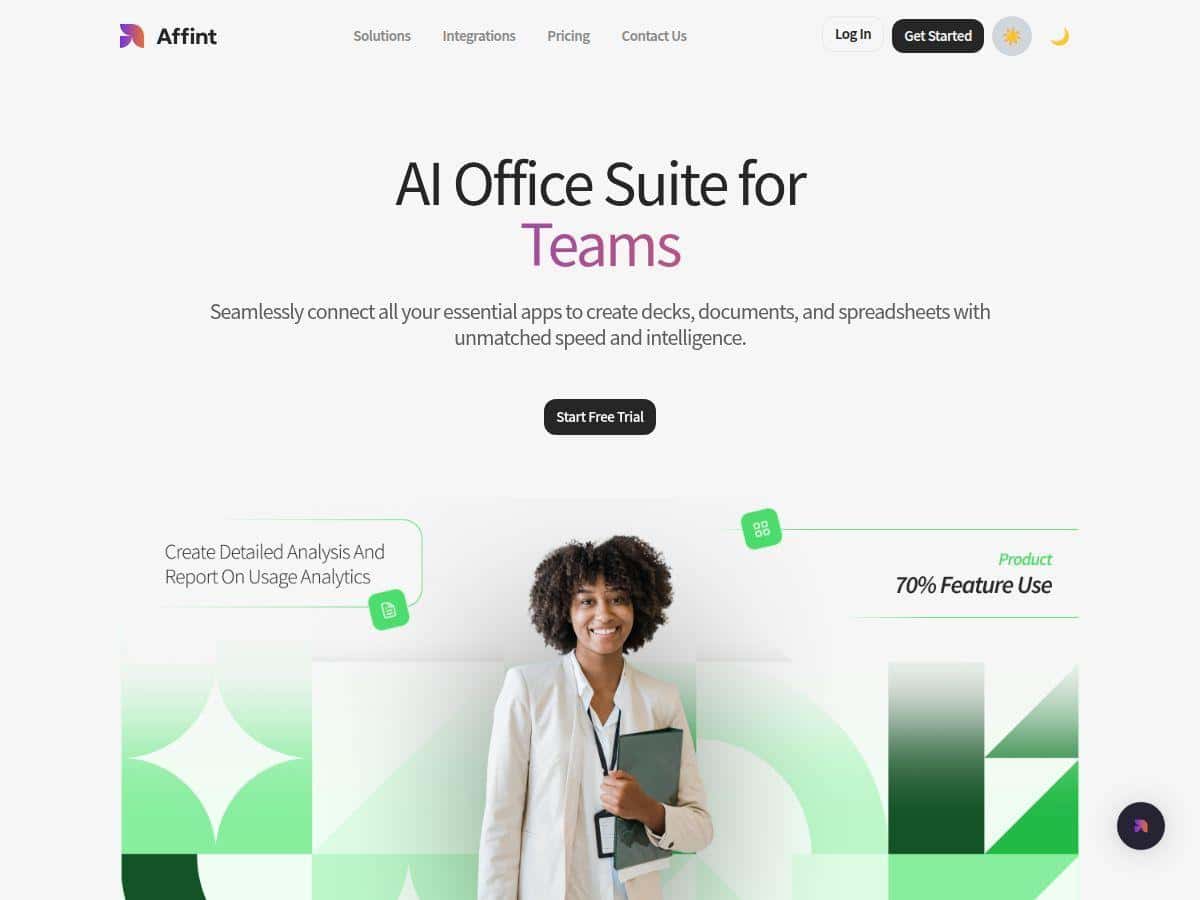
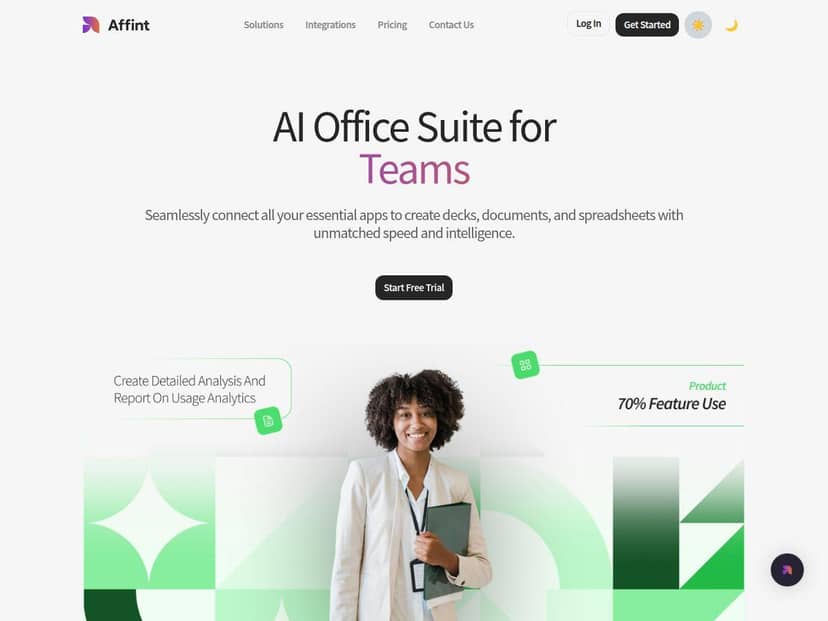
If you’re trying to cut down the time you spend building decks, weekly reports, or simple documents, I get it. Nobody wants to stare at formatting for hours. I tested Affint to see if it genuinely helps—or if it’s just another “AI does everything” pitch.
Affint Review
Here’s the real question: does Affint actually save time when you’re producing slides and reports, or do you end up doing the same work twice?
My test setup (so you can compare): I used a small “messy input” dataset and asked Affint to turn it into a presentation-style summary. Specifically, I started with a spreadsheet-style CSV (think: rows of items, categories, dates, and a couple of numeric columns). The goal wasn’t to make something fancy—it was to see how quickly I could get from raw data to a usable draft.
What I noticed right away: Affint didn’t just “summarize.” It organized the information into a structure that looked like it was meant for slides and reports. I could see sections forming quickly, and the output felt like a draft I could actually edit rather than a random blob of text.
Time saved (rough but honest): In my case, what usually takes me at least 1–2 hours (cleaning the data, deciding on the slide order, and rewriting headings) dropped to something closer to 20–35 minutes for the first pass. That’s not because I stopped thinking—it’s because Affint handled the boring “first draft” part.
Before vs. after (what changed): Before, I had scattered entries with inconsistent naming. After, Affint grouped items into clearer categories and generated a slide/report outline that I could follow. I still had to tighten wording and double-check a couple of labels, but I wasn’t starting from a blank page.
Where it stumbled: AI tools are always a little unpredictable. In my run, I saw occasional issues like:
- Category names that were close but not identical to my original labels (minor rewording that required a quick fix).
- One numeric field that got placed into the wrong section (not the value itself—more like the context it was attached to).
- Formatting choices that looked good for a draft but weren’t “brand-perfect” (I had to adjust headings and spacing).
So… is it perfect? No. But if your biggest bottleneck is converting messy information into a presentable structure, Affint is absolutely the kind of tool that helps.
Who I think it’s for: teams that regularly produce internal decks, weekly status reports, or “here’s what happened” summaries. If you’re doing the same document type over and over, it’s especially useful because you can reuse structure and templates (more on that below).
Key Features
Let’s get specific. I’m not interested in vague claims like “it organizes data.” Here’s what matters when you’re evaluating an AI office/document suite: what you can input, what you get out, and how much editing you have to do afterward.
-
AI-assisted document creation (slides + reports + docs)
In my testing, Affint generated slide-style sections and report-style summaries from the input data. The output wasn’t just text—it came with a layout that made it easier to turn into something you could present. -
Data-to-structure workflow
Instead of dumping everything into one page, it created an outline and grouped related items. That grouping is the time-saver. You don’t have to decide the structure from scratch. -
Template-style output (where it helps most)
I noticed the drafts followed a “common business document” pattern—headings, section breaks, and summary blocks. Even when I changed details later, that structure was a huge head start. -
Export and sharing workflow (what to look for)
Before you commit, check whether Affint exports to the formats you need (for example, PPTX, PDF, or DOCX). In real work, that’s usually the deciding factor—because you don’t want to recreate the formatting after export. -
Collaboration
For teams, the useful part isn’t just “sharing.” It’s things like comments, revision history, and permissions. In my experience, AI drafts are best when multiple people can quickly review and correct details instead of one person doing everything alone. -
Adaptation to different content types
I tried the workflow for a “report-like” output first, then prompted it in a way that leaned more toward a “presentation” structure. The tool was flexible enough that I didn’t feel locked into one output style.
Quick practical tip: If you want the best results, clean up your column headers and keep your categories consistent before uploading. AI does better when the source labels aren’t constantly changing.
Pros and Cons
Here’s my straight take—what you’ll probably love, and what will annoy you if you expect perfection.
Pros
- Real time savings on the first draft
In my test, I went from “messy data” to a usable deck/report outline in under 30–40 minutes. That’s the sweet spot. - Drafts that are editable
The output doesn’t feel like it’s locked. I could adjust headings, reorder sections, and fix a few details quickly. - Helpful structure for presentations
It doesn’t just summarize—it organizes. That makes it easier to turn into a story your audience can follow. - Good for collaboration
When multiple reviewers need to correct details, AI drafts help because the team can focus on edits instead of building from scratch.
Cons
- Small inaccuracies can happen
I saw minor label/category mismatches and one context placement issue for a numeric value. If your documents need zero errors (legal, finance, compliance), you’ll still need review. - You’ll likely do some cleanup
Brand formatting, spacing, and final wording usually require a pass. Plan on editing, not “publish immediately.” - Learning curve for best results
The tool is easy to use, but getting consistently strong outputs takes a bit of trial—especially learning how to prompt for the structure you want. - Cost can matter for small teams
If pricing is per-seat or per-usage, it may not be ideal for tiny teams that only generate a few documents per month.
Pricing Plans
I want to be transparent here: the original content I started from didn’t include actual pricing tiers, which makes it hard to judge value. I’m not going to pretend numbers that I can’t verify.
What I recommend you do before you buy:
- Check whether Affint pricing is per user/seat or usage-based.
- Look for limits on file size, number of exports, and how many documents you can generate per month.
- Confirm what’s included in each tier: templates, collaboration features, export formats, and any “team” extras.
If you want the most accurate pricing breakdown, use the Affint official site and compare tiers side-by-side. (If you can share the tier details you see there—like Basic/Pro/Team costs and what’s included—I can help you evaluate which one fits your workflow.)
Wrap up
So, does Affint save time? Yes—when you treat it like a first-draft generator. It’s strongest at turning messy information into a structured slide/report outline fast. But don’t expect it to be error-free or brand-perfect out of the box. You’ll still review and tweak, especially if accuracy matters.
If you’re a team that produces regular updates, status reports, or internal decks, Affint is worth trying. Just make sure you verify pricing, export formats, and collaboration features first—because those are the things that determine whether it’s actually worth paying for in day-to-day work.