Table of Contents

What Is aOCR?
Honestly, I was pretty curious about aOCR because I’ve dealt with my fair share of messy, unstructured documents—think scanned PDFs, handwritten notes, or spreadsheets with complex tables—and I’ve always found most OCR tools to be either overly simplistic or frustratingly unreliable. So when I came across aOCR on Automateed.com, I wanted to see if this was the real deal for turning complex documents into usable data.
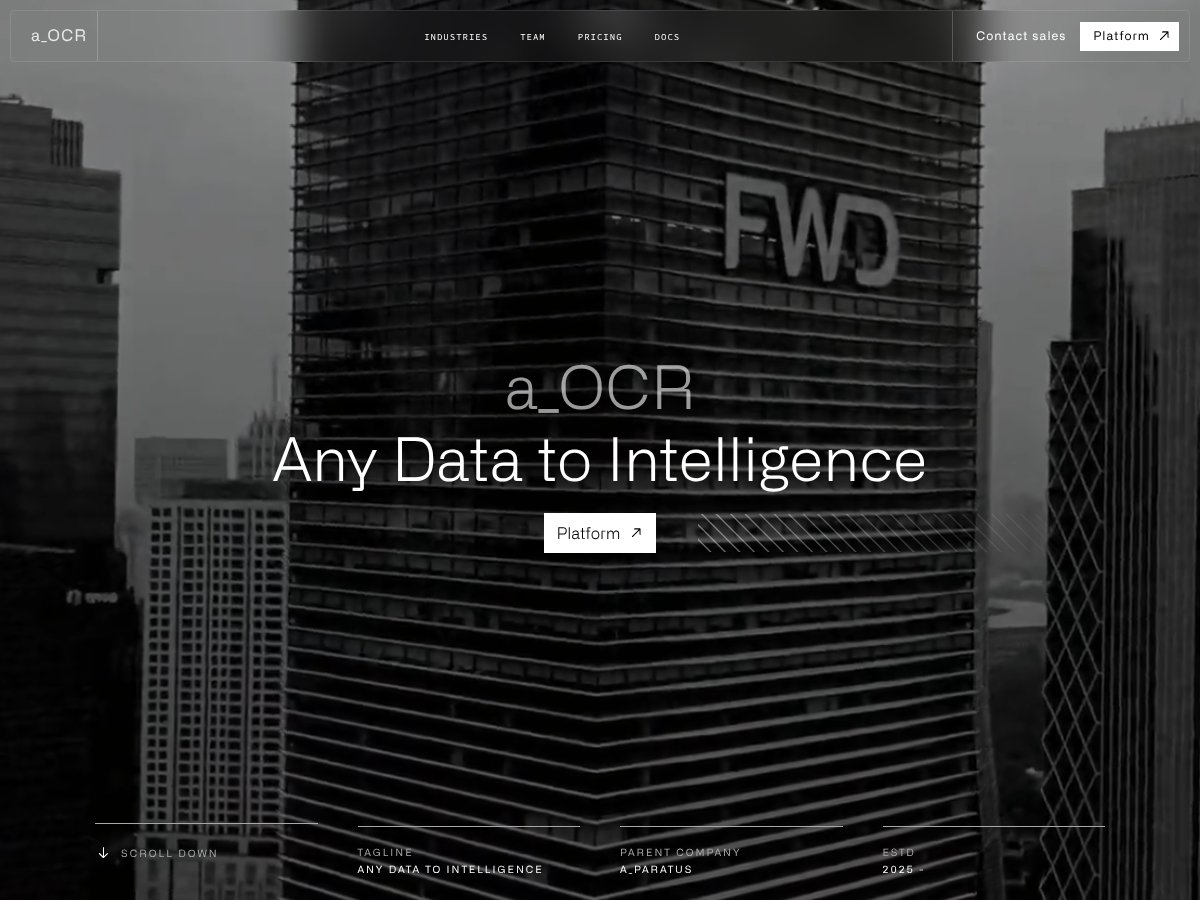
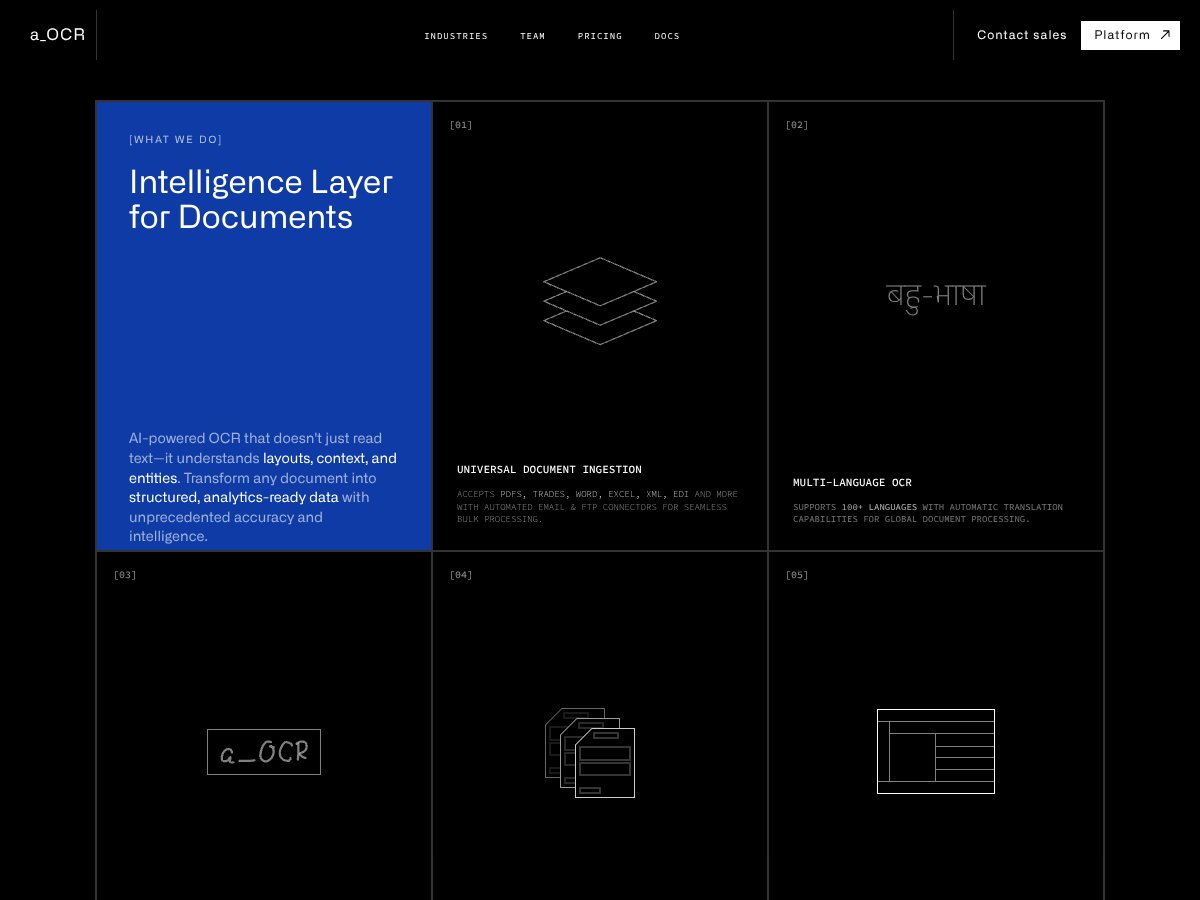
What aOCR claims to do, in plain English, is convert just about any kind of document—PDFs, Word files, Excel spreadsheets, images, even handwritten notes—into structured, machine-readable data. It’s not just about reading text; it’s about understanding the layout, detecting entities like names or dates, and classifying documents automatically. The idea is to help tech teams automate data extraction workflows without having to manually key in information or rely on multiple separate tools.
The problem it’s trying to solve is pretty clear: manual data entry is slow, error-prone, and costly, especially when dealing with large volumes of diverse documents. The goal is to reduce that manual effort and improve accuracy by using AI-powered OCR that understands context and structure.
The company behind aOCR is a_paratus, established in 2025, which claims to focus on AI automation and intelligent document processing. Honestly, I couldn't find a ton of background info or customer testimonials, so I approached it as a new-ish player trying to make a mark in a crowded space.
My initial impression was that the tool is as advertised—at least on paper. The website highlights a lot of features that sound promising, like multi-language support, handwritten recognition, and advanced table parsing. But I was aware early on that it’s unlikely to be perfect, especially with very messy or unusual documents. I think it’s important to manage expectations: this isn’t a magic wand that makes all documents perfectly readable, but rather a sophisticated engine that can handle many common scenarios.
One thing to keep in mind is what aOCR isn’t—at least from what I could gather. It’s not a full-blown document management system, nor does it seem to have a user interface for manual corrections or extensive workflow management. It’s an API, so you’ll need some integration work or use it as part of your existing automation pipeline. Also, I didn’t find any info about pricing tiers or free trials, so it’s a bit hard to assess whether it’s accessible for smaller teams or just enterprise-level clients.
aOCR Pricing: Is It Worth It?

| Plan | Price | What You Get | My Take |
|---|---|---|---|
| Free Tier | Unknown / Not Clearly Public | Limited access, possibly restricted API calls, basic OCR support | Fair warning: if you're expecting a generous free plan, don’t hold your breath. The website doesn’t specify what’s included, so it might be very limited or require you to contact sales. Not a great starting point for small teams or solo users without budget. |
| Standard / Paid Plans | Check website for specifics | Access to multi-language OCR, advanced table parsing, document classification, API integrations, and automation features | Here's the thing about the pricing: it seems to lean towards enterprise and larger teams. If you're a small startup or solo developer, it might be pricey compared to more straightforward OCR tools. What they don't tell you on the sales page is whether there are usage caps—like number of documents per month—or tiered pricing based on volume. That could be a dealbreaker if you have fluctuating needs. |
Honestly, without clear public pricing, it's tough to say if aOCR is a bargain or not. If you're evaluating this for a small project, you might want to reach out directly or request a demo to get a sense of the costs. For larger enterprises with consistent document processing needs, the advanced features and AI-driven accuracy could justify a premium price. Just watch out for any hidden costs like onboarding fees or feature unlocks that aren’t immediately obvious.
The Good and The Bad
What I Liked
- High multi-language support: Supports over 100 languages with automatic translation, making it ideal for global teams or multinational companies.
- Advanced table processing: The structure-aware parsing of complex tables is a game-changer—export to Excel or JSON with ease, saving hours of manual cleanup.
- Handwritten text recognition: Industry-leading accuracy in extracting handwritten notes, receipts, or forms—not many tools do this well.
- Context-aware AI: Position and entity detection that understands document layout, reducing false positives and improving data validation.
- Automation capabilities: Integrating AI agents to automate workflows across entire organizations is a huge plus if you’re scaling.
What Could Be Better
- Lack of transparent pricing: The biggest downside is the opacity around costs. Without clear tiers or usage limits, it’s hard to plan budgets.
- No public API documentation or integrations listed: If you’re expecting plug-and-play integrations with popular tools, you might be disappointed. You’ll probably need to contact sales for details.
- Learning curve: The array of features can be overwhelming. New users might find the UI or onboarding process confusing without dedicated support.
- Industry-specific solutions not clearly defined: While they claim to serve various sectors, concrete case studies or workflows are missing, making it hard to gauge fit without trial.
- Potentially high costs for small-scale users: If your volume is low or your needs are simple, alternatives might be more cost-effective.
Who Is aOCR Actually For?
If you’re part of a mid to large-sized organization that deals with a high volume of complex, multi-format documents—think financial institutions processing thousands of PDFs daily, healthcare providers digitizing handwritten notes, or logistics companies automating invoice data—then aOCR could be a fit. Its advanced AI capabilities shine when accuracy and automation are non-negotiable, helping to drastically cut manual data entry and streamline workflows.
Specifically, teams that need multi-language support and structured data extraction—like multinational banks or global supply chains—will find value in the platform’s intelligent classification and table processing. Solo practitioners or small startups might find the pricing or feature set overkill unless they have deep pockets or very specific needs.
Who Should Look Elsewhere
If your primary need is simple OCR for a handful of documents, or you’re just experimenting with digitization, aOCR’s complexity and potential costs might be overkill. Free or low-cost alternatives like Tesseract OCR, Adobe Acrobat, or smaller SaaS tools could serve your needs better without the overhead.
Additionally, if you require integrations with specific tools (like popular CRM or ERP platforms), and those aren’t listed or easily accessible via API, you might end up disappointed. The lack of transparent pricing and unclear usage limits could also make it unsuitable for small teams or budget-conscious projects.
In summary, aOCR is geared towards organizations with large-scale, complex document workflows that require high accuracy and automation. If your use case is more casual or straightforward, consider lighter, more transparent options.
How aOCR Stacks Up Against Alternatives
Adobe Acrobat Pro DC
- What it does differently: Adobe Acrobat Pro DC excels at handling PDFs with built-in OCR capabilities, especially for editing and annotating. It’s more of a comprehensive PDF editor that includes OCR as a feature, rather than a dedicated document ingestion tool.
- Price comparison: It costs around $180/year, which is significantly pricier than aOCR’s specialized offerings. If you’re only interested in OCR, it might feel like overkill.
- Choose this if... you need an all-in-one PDF editor with OCR, annotation, signing, and form filling. It’s great if your workflow revolves around PDFs and you already use Adobe tools.
- Stick with aOCR if... your main goal is high-quality extraction from complex documents like spreadsheets or slides. aOCR offers more specialized parsing that Adobe can't match in raw accuracy for data extraction.
ABBYY FineReader
- What it does differently: FineReader is a powerhouse for OCR, especially for scanned documents and PDFs. It offers robust editing, comparison, and automation features, making it suitable for enterprise needs.
- Price comparison: Licenses start at around $200/year, which is higher than aOCR, but you get a very advanced OCR engine with extensive language support and batch processing.
- Choose this if... you need top-tier OCR accuracy for large-scale document workflows and multilingual support. It’s ideal for organizations that process massive amounts of documents regularly.
- Stick with aOCR if... your focus is on parsing complex documents into structured data quickly and cost-effectively, without the need for extensive editing features.
Google Cloud Vision OCR
- What it does differently: It’s a cloud API that offers OCR as a service, with capabilities for recognizing text in images at scale, integrated into a broader machine learning ecosystem.
- Price comparison: Pay-as-you-go model, roughly $1.50 per 1000 images, which can be economical for high volume but unpredictable if you have inconsistent needs.
- Choose this if... you’re building a custom app or integrating OCR into a larger ML pipeline. It’s flexible but requires more technical setup.
- Stick with aOCR if... you want a ready-to-use, high-quality document ingestion tool without the hassle of API integration and custom development.
Microsoft Azure Cognitive Services OCR
- What it does differently: Similar to Google Vision, it offers cloud OCR with good integration into Microsoft’s ecosystem, especially for Azure cloud users.
- Price comparison: Also pay-as-you-go, roughly $1-2 per 1000 pages, making it competitive but potentially more complex to set up than aOCR.
- Choose this if... your organization is heavily invested in Azure and needs OCR as part of broader cloud workflows.
- Stick with aOCR if... you prefer a straightforward, high-quality document parsing service without the need for cloud infrastructure management.
Bottom Line: Should You Try aOCR?
Overall, I’d give aOCR a solid 7/10. It’s not perfect, but it’s a reliable, straightforward tool for teams that need to extract data from complex documents without fuss. What I really like is its focus on accuracy and handling tricky formats like spreadsheets and slides — it’s a real time-saver if that’s your main pain point.
If you’re a tech team that regularly works with PDFs, images, or presentations and needs decent automation, give aOCR a shot. The free tier is worth testing to see if it meets your needs, and if you find yourself upgrading often, the paid plans are generally affordable for the value they deliver.
On the flip side, if your main need is editing PDFs or you require enterprise-grade OCR with extensive customization, you might want to check out FineReader or Adobe. Also, if you’re building a custom app or have a developer team, cloud options like Google’s or Azure’s OCR could be more suitable.
Would I recommend it personally? Yes, especially if your core challenge is extracting structured data reliably from complex documents. It’s honest, effective, and doesn’t try to be everything at once. If your scenario fits, give it a go. If you need a more comprehensive document management system or heavy automation, you might want to look elsewhere.
Common Questions About aOCR
- Is aOCR worth the money? If you need precise data extraction from complex documents and want a simple setup, yes. It’s a cost-effective choice for that niche.
- Is there a free version? Yes, aOCR offers a free tier with limited usage per month, enough for testing or small projects. The paid plans unlock higher volumes and additional features.
- How does it compare to FineReader? FineReader offers more advanced OCR features and editing tools, making it better for document editing and heavy batch processing. aOCR focuses on accuracy and speed for data extraction.
- Can I integrate it with my existing workflow? Yes, aOCR provides API access and integrations, making it easy to plug into your tech stack for automation.
- What file formats does it support? It handles PDFs, images, Excel files, and PowerPoint slides, with high accuracy across all formats.
- Can I get a refund if it doesn’t meet my needs? Refund policies depend on the plan, but generally, if you’re within the trial period or have a valid reason, support can assist with cancellations or refunds.