60-second summary
Quick answer
Seller Dashboard combines published-product earnings, revenue, sales, views, orders and payouts. Pending royalties become available only after the displayed review or hold period.
Before you start
What you need
- Have at least one published product or completed seller order associated with the account.
- Check the displayed Stripe connection or platform-payout state before interpreting available and pending balances.
Procedure
Complete the task step by step
- 01
Open Overview
Review total orders and revenue context.
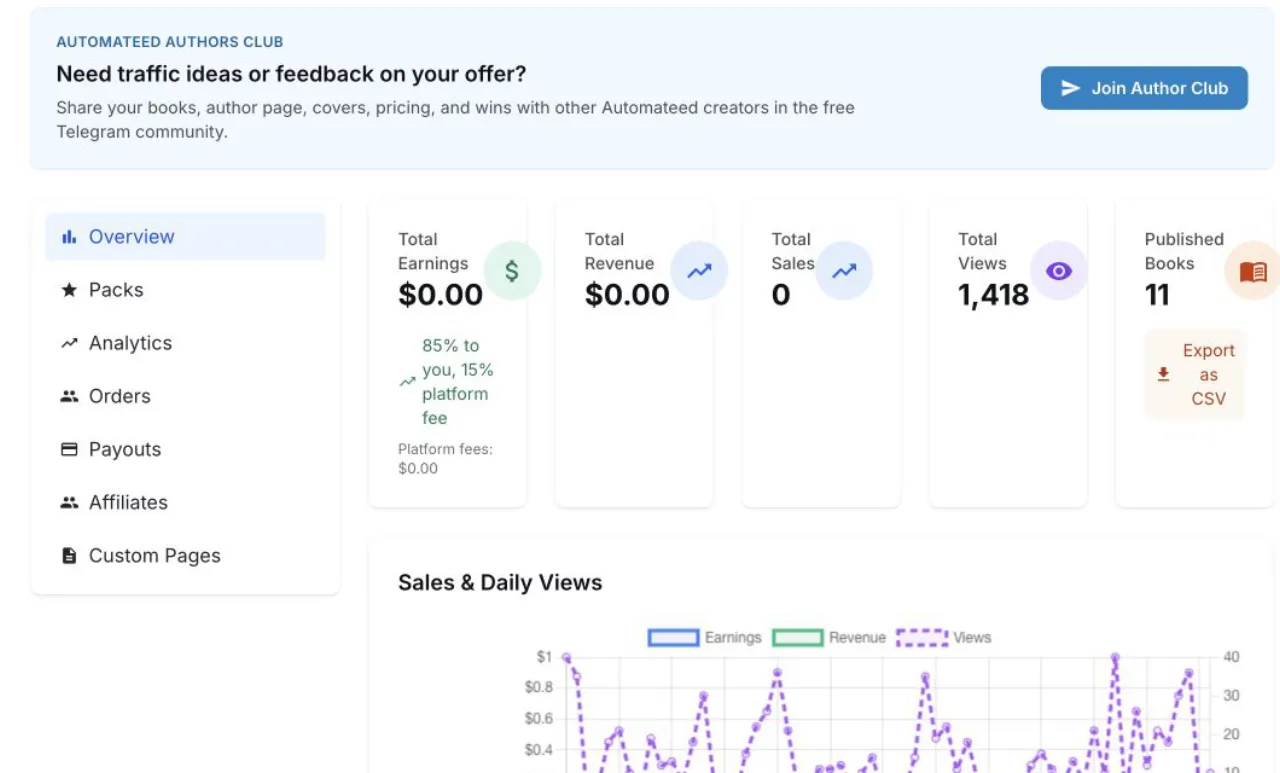
Use Overview for totals, Orders for buyers and Payouts for pending, available and paid amounts. - 02
Check Orders
Use order records to inspect order status, amount and Your Profit; the table does not confirm product delivery.
- 03
Check Payouts
Pending royalties are still inside the review or hold period; available royalties can be included in a payout.
- 04
Review the next availability date
The dashboard shows when eligible pending royalties are expected to become available.
Success check
Confirm that it worked
- Orders shows the order status, amount and Your Profit for the selected sale.
- Payouts separates Available Balance, Pending Balance and Recent Payouts, with an availability date only where the current payout mode displays one.
Important notes
- Orders shows payment and order status; investigate any reported file-delivery issue separately.
- Seller royalties and payouts are separate from the affiliate Request payout workflow.
Troubleshooting
If it still does not work
Seller Dashboard is unavailable or only partial data loads
Use the displayed retry action once, then reload the dashboard before comparing order and payout totals.
Payout information is blocked by setup status
Use Complete Stripe Setup or the displayed payout-connection action and return to the Payouts tab after setup is confirmed.