60-second summary
Quick answer
Generated audio stays attached to the source-book ID rather than becoming a separate Library book. Read its Processing, Completed or Failed status; a finished chapter-wise audiobook downloads as one merged MP3.
Before you start
What you need
- Know the exact ebook or novel used to start narration.
- Open that source project with the same account that created the audiobook.
Procedure
Complete the task step by step
- 01
Open Library
Find the source ebook or novel.
- 02
Open its detail page
Audiobook status and actions remain connected to the book.
- 03
Read the attached status
Use Processing, Completed or Failed on that source-book card; audiobooks do not appear as separate Library books.
Current app screenOpen full size: Completed audiobook panel attached to its source book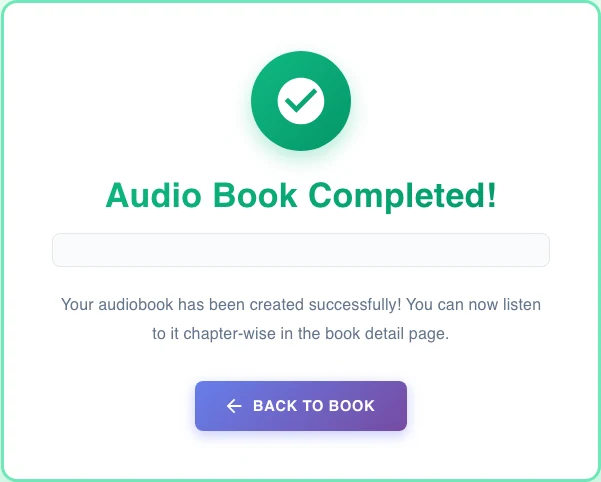
A completed audiobook remains attached to the source book and exposes its result from this status panel. - 04
Use the available result
A completed chapter-wise audiobook downloads as one merged MP3; older single-file audio can expose an inline player.
Success check
Confirm that it worked
- The source-book audio section shows Processing, Completed or Failed.
- A completed chapter-wise audiobook downloads as one merged MP3.
Important notes
- Audiobooks are attached to their source-book ID and do not appear as separate Library books.
- Available controls differ between the older single-file format and the current chapter-wise status format.
- Voice, language and completion date appear when those values exist in the saved audiobook properties.
Troubleshooting
If it still does not work
The completed book has no audio controls
Confirm that narration was actually started for this exact book ID.
The audio section still says Processing
Use Check Status or Refresh Status and do not create a second job.
The merged MP3 download fails
Retry from the completed source-book card; large merged-file requests can take longer.