60-second summary
Quick answer
In Web address, upload a JPEG, PNG, WebP or SVG logo and a JPEG, PNG, WebP or ICO browser icon, each under 5 MB. Successful uploads apply immediately; there is no separate save or republish step.
Before you start
What you need
- Open the intended existing Publisher Site and its Web address tab.
- Use a logo no larger than 5 MB in JPEG, PNG, WebP or SVG format.
- Use a browser-tab icon no larger than 5 MB in JPEG, PNG, WebP or ICO format; a simple square image works best.
Procedure
Complete the task step by step
- 01
Prepare the logo
Use a JPEG, PNG, WebP or SVG logo no larger than 5 MB.
Current app screenOpen full size: Automateed Publisher Site logo, author photo and browser tab icon controls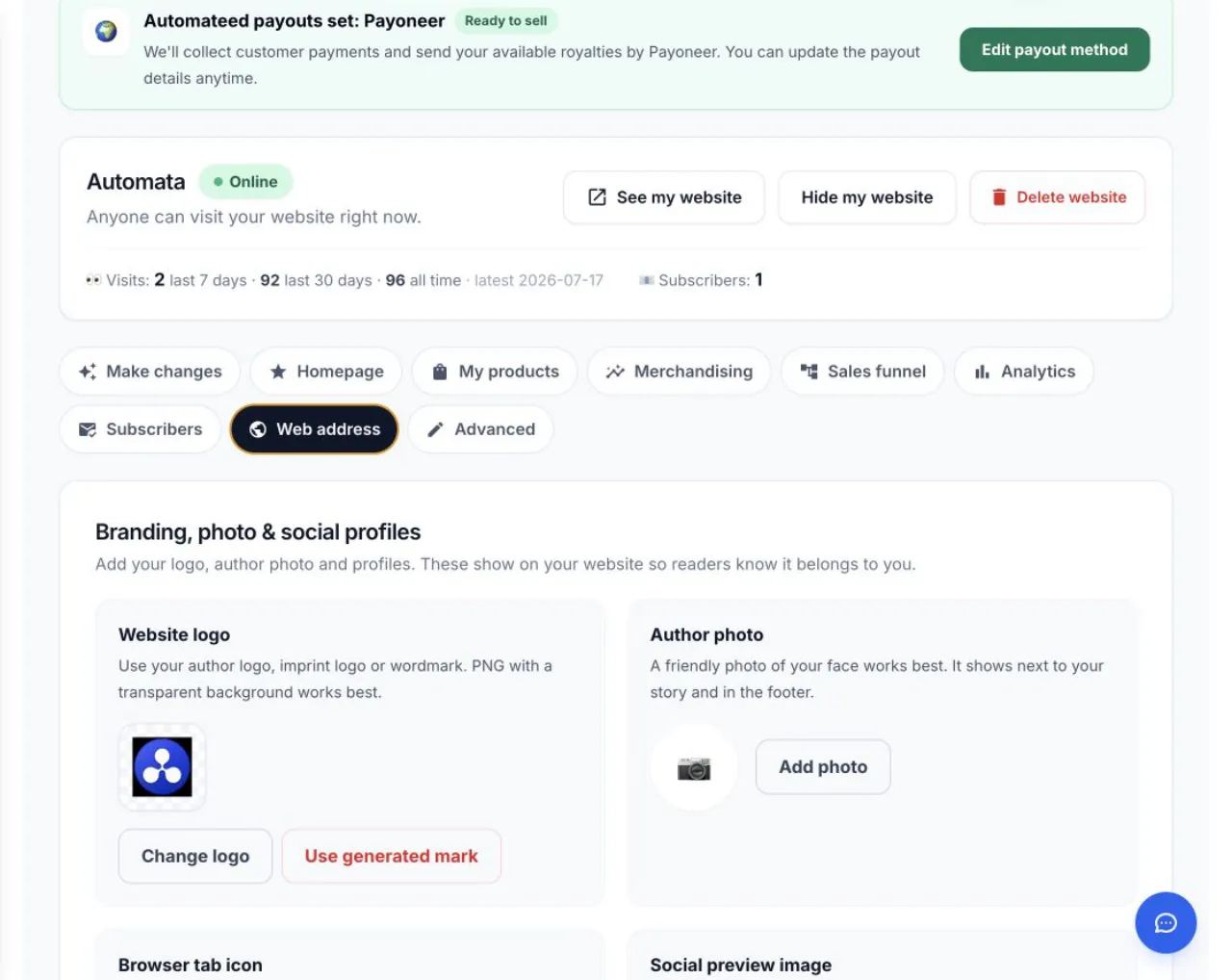
Website logo and Browser tab icon are separate uploads; the favicon should be square. - 02
Prepare the browser icon
Use a simple square JPEG, PNG, WebP or ICO favicon no larger than 5 MB.
- 03
Open Web address
Choose the intended Publisher Site and find Website logo and Browser tab icon.
- 04
Upload each file
Wait for “Your logo is on the website now.” or “Your browser-tab icon is saved.”; no separate republish step is required.
- 05
Check without stale cache
Open a private window or wait briefly if the old image is still cached.
Success check
Confirm that it worked
- Logo upload shows Your logo is on the website now.
- Favicon upload shows Your browser-tab icon is saved.
- The selected-site preview reflects the new branding without a separate republish step.
Important notes
- Website logo and Browser tab icon are separate controls inside Web address.
- A successful asset upload applies to the selected site immediately without a separate Save or republish step.
- Removing a custom logo returns the site to its generated author mark.
- Favicons can remain in browser cache after the site has already updated.
Troubleshooting
If it still does not work
The branding file is rejected
Use one of the formats accepted by that specific control and keep the file below 5 MB.
The old browser-tab icon remains
Open a private window or clear the site's favicon cache.
The wrong website received the asset
Select the intended site from the My Website selector before opening Web address.
Related guides
Go deeper