60-second summary
Quick answer
In Web address, save the root domain or subdomain and copy the displayed setup exactly. Subdomains use a CNAME to publisher.automateed.com; root domains use the shown www CNAME plus HTTPS forwarding, with no A or AAAA record.
Before you start
What you need
- Own the domain and have access to its registrar or DNS settings.
- Create the Publisher Site before adding its custom address.
- Choose whether to use the root domain or a subdomain such as books.example.com.
Procedure
Complete the task step by step
- 01
Open Web address
Choose the intended Publisher Site, open Web address and enter the domain under Use your own address (optional).
Current app screenOpen full size: Automateed free site address and sanitized custom domain connection panel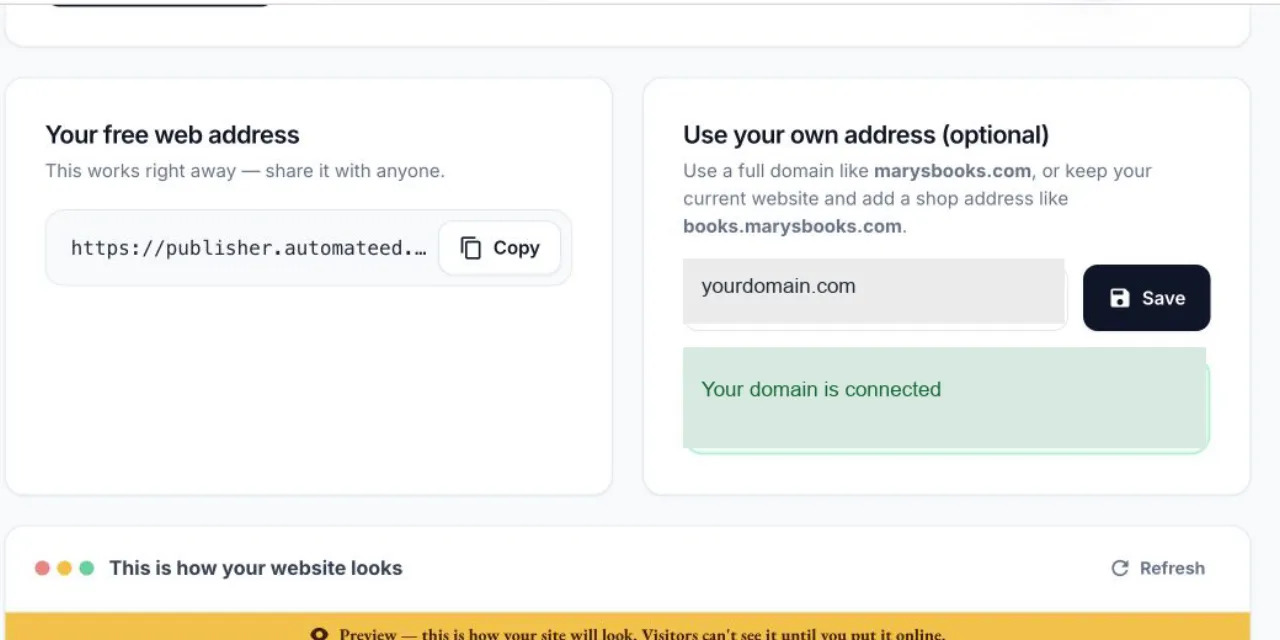
The custom domain field, Save and Check now controls are on the Web address tab. The example domain is redacted. - 02
Save the domain
Click Save so Automateed can display the exact DNS record for that address.
- 03
Copy the required DNS values
Use the exact Type, Name / Host and Value shown by Automateed. Apex domains can also require the forwarding step displayed on the page.
- 04
Add the exact DNS setup
For a subdomain, use the displayed CNAME to publisher.automateed.com. For a root domain, add the displayed www CNAME and forward the root to its HTTPS www address; do not add A or AAAA records.
- 05
Check the connection
Return to Web address and click Check now. DNS changes can take up to 24 hours to become visible.
- 06
Verify the complete journey
Open the homepage, a book page, checkout and confirmation flow on the custom domain.
Success check
Confirm that it worked
- Web address shows that the custom domain is connected and its domain status is active.
- The primary hostname serves the Publisher Site over HTTPS.
Important notes
- For a subdomain, add the displayed CNAME pointing to publisher.automateed.com.
- For a root domain, add the www CNAME and forward the root domain to the displayed HTTPS www address.
- The current root-domain instruction explicitly says not to add A or AAAA records.
- DNS can take up to 24 hours; do not remove unrelated MX or email records.
Troubleshooting
If it still does not work
No DNS records are found
Wait for propagation and press Check now again; DNS changes can take up to 24 hours.
The domain exists but points somewhere else
Compare Type, Name / Host and Value with the exact table shown in Web address.
DNS is right but the domain is not live
Hosting and the security certificate are still being prepared; check again after a few minutes.
The domain is already attached elsewhere
Remove it from the other Automateed site or hosting project before retrying.
The connected hostname still shows no public site
Domain verification does not publish a draft; click Put my website online.
Related guides
Go deeper