60-second summary
Quick answer
Open Outline Structure to choose 3–25 chapters and 2–4 subchapters each. The preview shows total sections and estimated pages; up to 50 sections uses one book credit and a larger structure uses two.
Before you start
What you need
- Use the standard Non-fiction ebook creation form and expand Outline Structure.
- Check the available book-credit balance before selecting a large custom structure.
Procedure
Complete the task step by step
- 01
Define the outcome first
A narrow outcome often creates a stronger short guide than a broad promise stretched across many chapters.
- 02
Open Outline Structure
In the standard Non-fiction ebook form, choose 3–25 chapters and 2–4 subchapters per chapter.
- 03
Read the outline preview
Check Total Chapters, Subchapters each, Total Sections and Estimated Pages before creating the outline.
Current app screenOpen full size: Current outline totals and estimated page range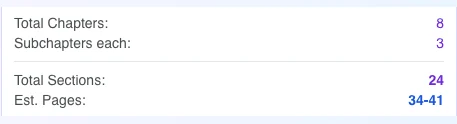
Use Total Chapters, Subchapters each, Total Sections and Estimated Pages to verify scope before creating the outline. - 04
Check project capacity
Up to 50 total sections uses one book credit; more than 50 uses two credits and is unavailable to free users.
Success check
Confirm that it worked
- Outline Preview shows the intended Total Chapters, Subchapters each, Total Sections, and Estimated Pages.
- The create-outline button remains enabled for the selected section count and available credit balance.
Important notes
- The current controls allow 3–25 chapters and 2–4 subchapters per chapter.
- Up to 50 total sections requires one credit; more than 50 requires two, and free users cannot exceed 50. Estimated Pages is only an estimate.
Troubleshooting
If it still does not work
The button changes to “Insufficient Credits”
Lower the chapter or subchapter count until the displayed requirement fits the balance, or add credits before continuing.