60-second summary
Quick answer
Open Price & publish, choose Free or Paid, set price and currency, complete the readiness checklist and use Put it on sale. Paid courses require the current video and identity requirements shown by the app.
Before you start
What you need
- Complete the visible readiness items: course name, description, at least three lessons, lesson content, price or free access, and author name.
- For a paid course, add at least one lesson with a supported YouTube, Vimeo or Loom video link before submitting it for sale.
Procedure
Complete the task step by step
- 01
Run a completeness review
Remove empty modules, draft placeholders and duplicated lessons.
Current app screenOpen full size: Automateed Course Maker Price and publish tab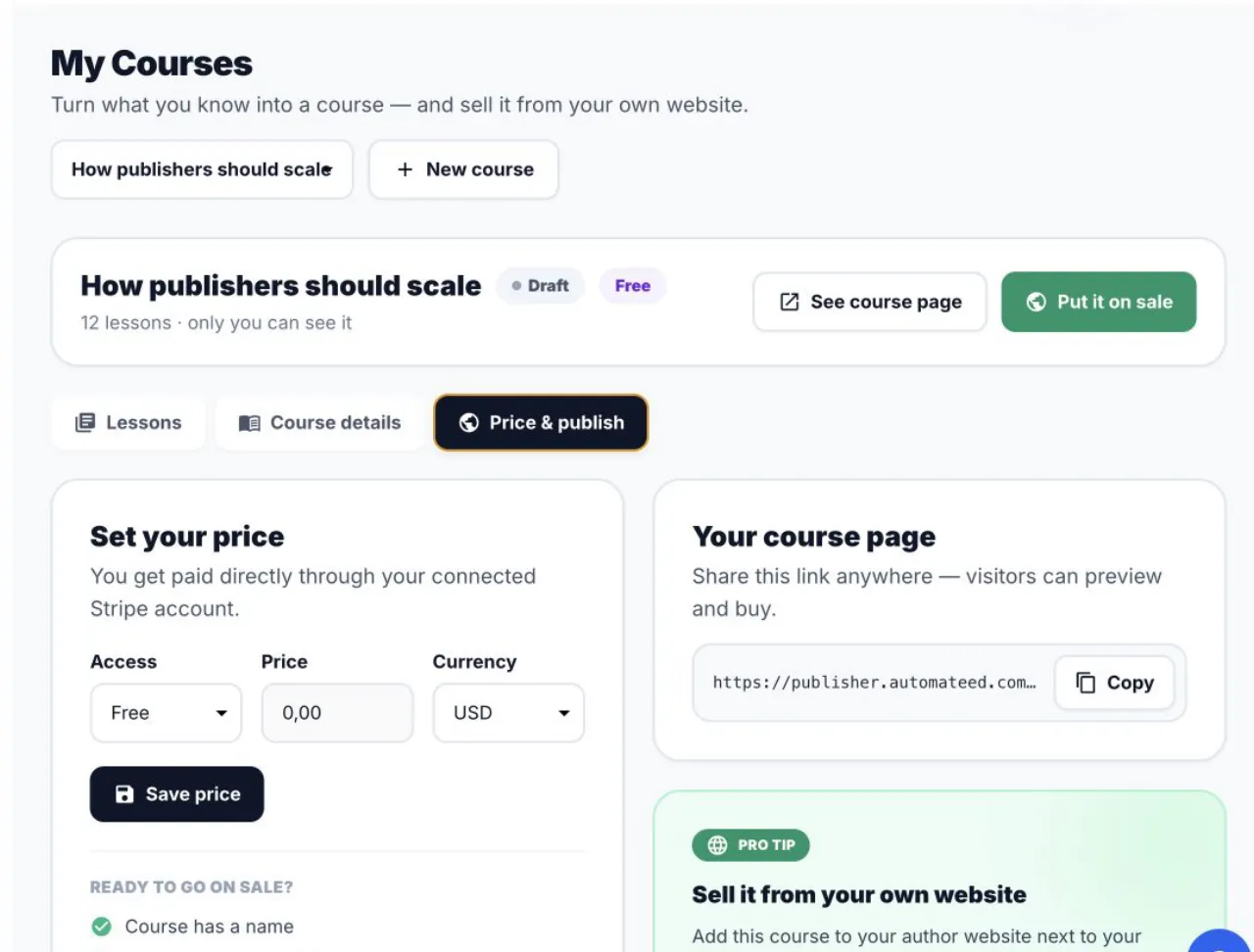
Set access, price and currency here, then use the readiness checklist before Put it on sale. - 02
Set title, description and cover
The public offer must explain the learner result accurately.
- 03
Complete author identity
Your Publisher Profile needs an author name before the course can publish.
- 04
Set access and price
Choose free or paid access. A paid course requires at least three lessons, lesson content, a price, an author name and at least one lesson with a supported YouTube, Vimeo or Loom video link.
- 05
Publish or submit for review
Use the available action; the resulting status is On sale or In review. Complete payout setup separately before accepting paid sales.
- 06
Check the public course
Open lessons, author links and checkout after publishing.
Success check
Confirm that it worked
- After submission, the course is shown as either On sale or In review.
- After requested changes, Re-submit for review creates a new review attempt without creating a duplicate course.
Important notes
- The checklist requires an author name. An author photo and course cover are recommended for presentation.
- Complete payout setup separately before accepting paid sales.
Troubleshooting
If it still does not work
Put my course on sale is blocked
Read the unfinished readiness checklist entries and complete each missing course, lesson, pricing, video or author-name requirement.
The course remains In review
Address the displayed review reasons in the existing course, then use Re-submit for review instead of creating a new listing.