60-second summary
Quick answer
DOCX export requires a paid plan. Choose it from Preview & Download, open the file in a desktop Word-compatible editor and check headings, images and the page-number footer; the current DOCX excludes the saved cover and PDF template.
Before you start
What you need
- Use a paid Automateed plan and open the signed-in account’s completed book in Preview & Download.
- Select the desired font before choosing DOCX from Download.
Procedure
Complete the task step by step
- 01
Confirm paid-plan access
DOCX export currently requires a paid Automateed plan and a completed book owned by the signed-in account.
Current app screenOpen full size: Automateed Download menu with DOCX export option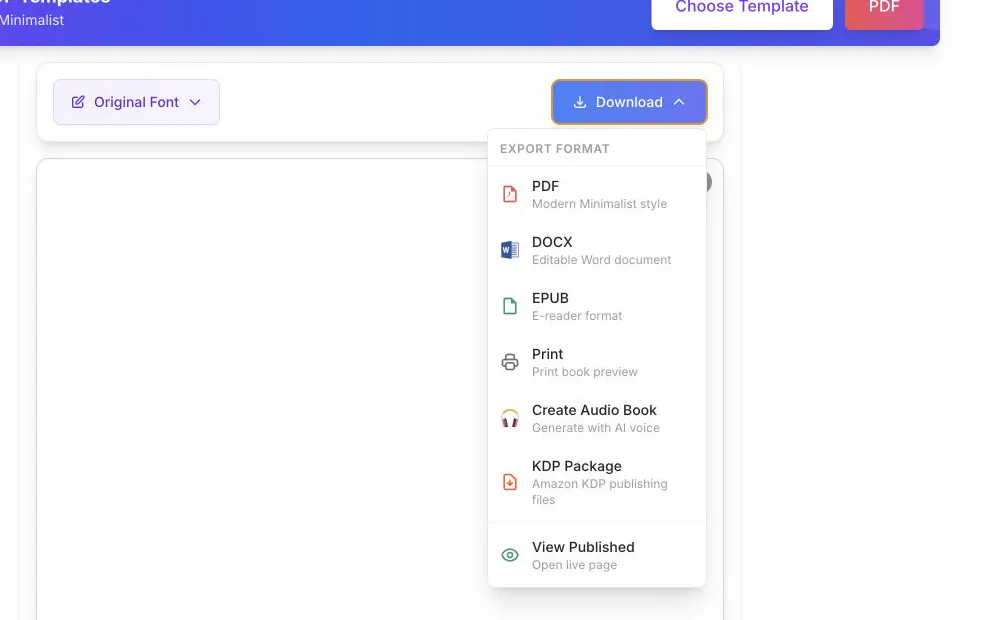
Choose DOCX from this menu and inspect it separately from the browser preview because it uses the selected font but not the PDF template or saved cover. - 02
Open the completed project
Use Library and Preview & Download.
- 03
Select DOCX
Choose the Word export from the Download menu when available.
- 04
Open it in Word or a compatible editor
A phone preview app may not display headers, page numbers and fonts exactly like desktop Word.
- 05
Review the Word structure
Check the title, table-of-contents entries, chapter headings, images and page-number footer; the current DOCX does not include the saved cover or PDF template.
Success check
Confirm that it worked
- A .docx file named from the book title opens in Word or a compatible desktop editor.
- The document contains the title, table-of-contents entries, chapter and subchapter headings, chapter images, and a page-number footer.
Important notes
- The current DOCX export does not include the saved book cover.
- The PDF template is not applied to DOCX; only the selected font is passed. Mobile document viewers can omit or approximate fonts, headers, and footers.
Troubleshooting
If it still does not work
DOCX is unavailable or shows an image placeholder
DOCX export requires a paid plan. If the file contains an image-loading placeholder, verify that the chapter image loads in Automateed, then save and export the book again.