60-second summary
Quick answer
Open Preview & Download, confirm the template and font, choose PDF from Download, wait for generation and open the saved file in a real PDF reader.
Before you start
What you need
- Use a completed book whose latest chapter changes have been saved.
- Open Preview & Download and choose the final template and font before selecting PDF.
Procedure
Complete the task step by step
- 01
Open Preview & Download
Find the completed project in Library and open its formatted preview.
Current app screenOpen full size: Automateed Download menu with PDF export option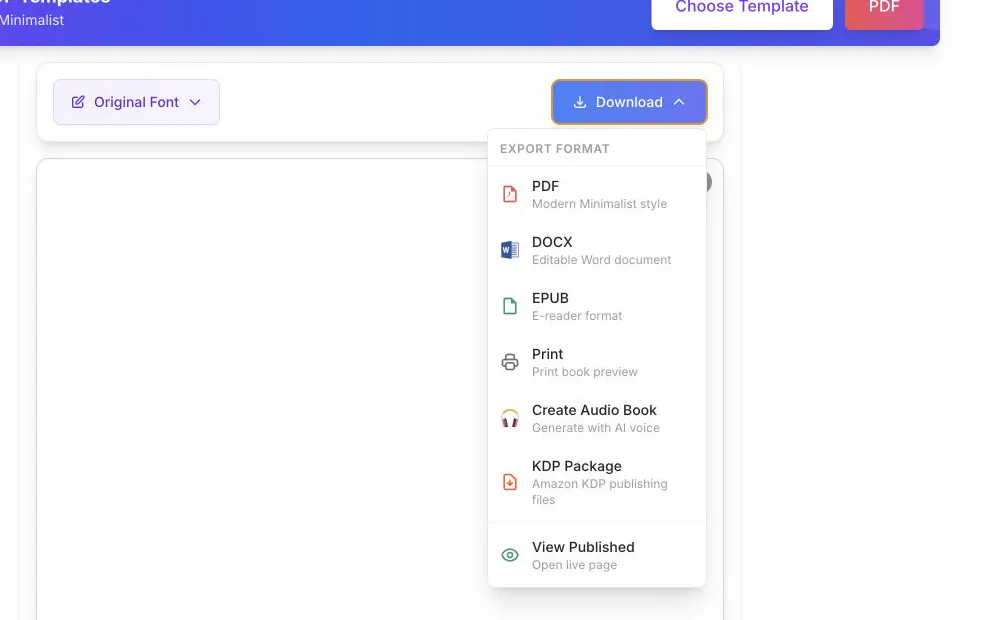
Open Download and choose PDF. The same menu also contains DOCX, EPUB, Print, audiobook and KDP package actions. - 02
Choose the final template
Confirm layout and font before creating the file.
- 03
Open Download
Select PDF from the available export menu.
- 04
Wait for generation
Large books and image-rich projects can take longer to package.
- 05
Open the saved file
Verify cover, page numbers, images, links and final page count.
Success check
Confirm that it worked
- The response produces a non-empty .pdf file that opens in a PDF reader.
- The new PDF reflects the latest saved chapters, selected template and font, cover, table of contents, and page numbering.
Important notes
- The generated filename includes the book name and template name.
- PDF is fixed-layout; free-plan exports can have branding or template restrictions even when PDF download remains available.
Troubleshooting
If it still does not work
The PDF opens an older edition
Confirm the new chapter save succeeded, reopen Preview & Download, generate a fresh PDF, and open that new file rather than the previous local download.