60-second summary
Quick answer
EPUB export requires a paid plan. Finish text edits, choose EPUB in Preview & Download, then check navigation, chapter order, headings and images in a reflowable ebook reader.
Before you start
What you need
- Use a paid Automateed plan and open a completed book owned by the signed-in account.
- Finish chapter-order and text edits before generating the EPUB.
Procedure
Complete the task step by step
- 01
Confirm paid-plan access
EPUB export currently requires a paid Automateed plan and a completed book owned by the signed-in account.
Current app screenOpen full size: Automateed Download menu with EPUB export option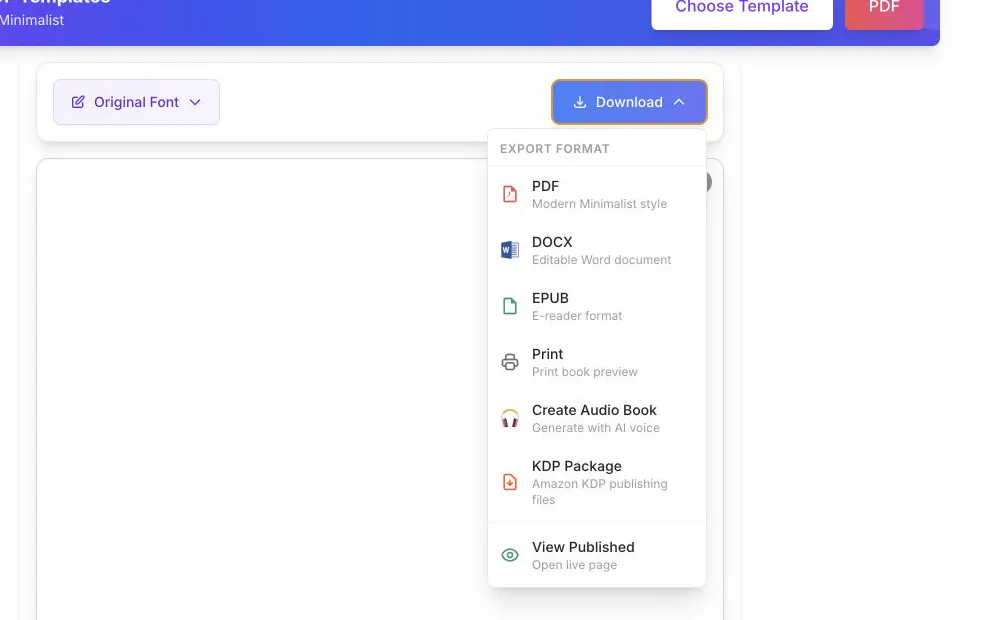
Choose EPUB from the visible Download menu, then proof the resulting file in an EPUB reader. - 02
Finish content edits first
EPUB should be generated after chapter text and order are final.
- 03
Choose EPUB from Download
Use the export menu on the preview/download page.
- 04
Inspect the file in an EPUB reader
Check navigation, headings, images and paragraph flow on more than one screen size.
- 05
Validate marketplace requirements
Each distributor can impose additional metadata and file rules.
Success check
Confirm that it worked
- A .epub file named from the book title downloads and opens in an EPUB reader.
- Navigation, chapter order, headings, and images remain usable across different reader window sizes.
Important notes
- EPUB is reflowable, so page breaks and image positions will not match the PDF.
- The export includes a cover when available, title and author information, navigation, chapters, and images; the selected font is also passed to the endpoint.
Troubleshooting
If it still does not work
EPUB is unavailable or returns a subscription-required error
EPUB export currently requires a paid Automateed plan; upgrade or use an export available to the current plan.