60-second summary
Quick answer
Open the Non-fiction ebook flow, enter a Book Title / Topic and use Advanced Settings for audience and style. Keep a free custom outline at 50 sections or fewer, then follow its Library card while generation continues in the background.
Before you start
What you need
- Use a verified Automateed account and open the Non-fiction ebook creation flow.
- Prepare a Book Title / Topic of no more than 100 characters and keep a free-plan custom outline at 50 total sections or fewer.
Procedure
Complete the task step by step
- 01
Choose the Non-fiction ebook workflow
Open Create, select Non-fiction ebook and enter a Book Title / Topic of no more than 100 characters.
Current app screenOpen full size: Current Automateed creation form with source choices and title field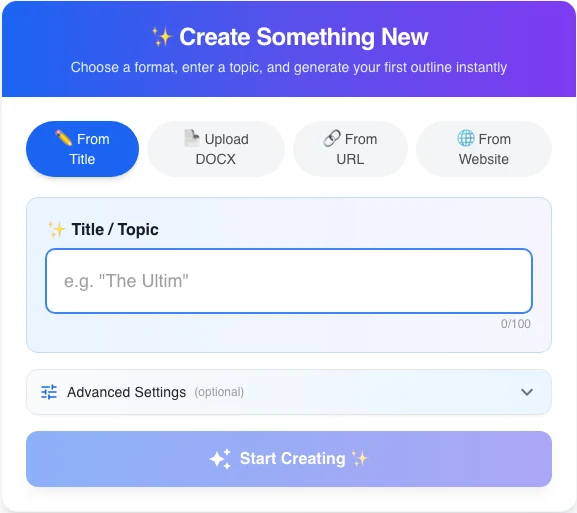
Choose how to start, then enter a focused title or topic. Advanced Settings contains audience, style, author, language and outline controls. - 02
Describe the reader and outcome
Use Target Audience, Writing Style and About Author in Advanced Settings instead of relying on a generic subject alone.
- 03
Keep the free outline within its limit
Use Outline Structure to keep the custom outline at 50 total sections or fewer on a free account.
- 04
Generate the outline and book
Approve the outline, start generation and continue other work while the Library card processes in the background.
- 05
Open it from Library
Use Library to follow progress and open the completed preview.
Success check
Confirm that it worked
- The outline is created and the book receives a Library card.
- The Library card moves through “Queued” or “Creating” and eventually reaches “Ready”, after which the project can be opened.
Important notes
- Generation continues in the background; the Library explicitly says you can keep working elsewhere.
- For a custom structure, up to 50 total sections uses one book credit; more than 50 uses two credits and is blocked for a free user.
Troubleshooting
If it still does not work
The create button says “Insufficient Credits” or the free-plan outline is rejected
Reduce Number of Chapters or Subchapters per Chapter until Total Sections is 50 or fewer, or add the required book credit.