60-second summary
Quick answer
The dashboard is the main product map. Use Create Book to start a project, Library to reopen existing work, and the named cards for Book Editor, Publisher Sites, Market Research, courses and other tools.
Before you start
What you need
- Sign in and open the main dashboard at /dashboard.
- Have at least one project if you want to compare the Library with the creation cards.
Procedure
Complete the task step by step
- 01
Start from the main cards
Create Book starts a project and Library reopens existing work. The remaining cards lead to Book Editor, Publisher Sites, Course Maker, Market Research and other focused tools.
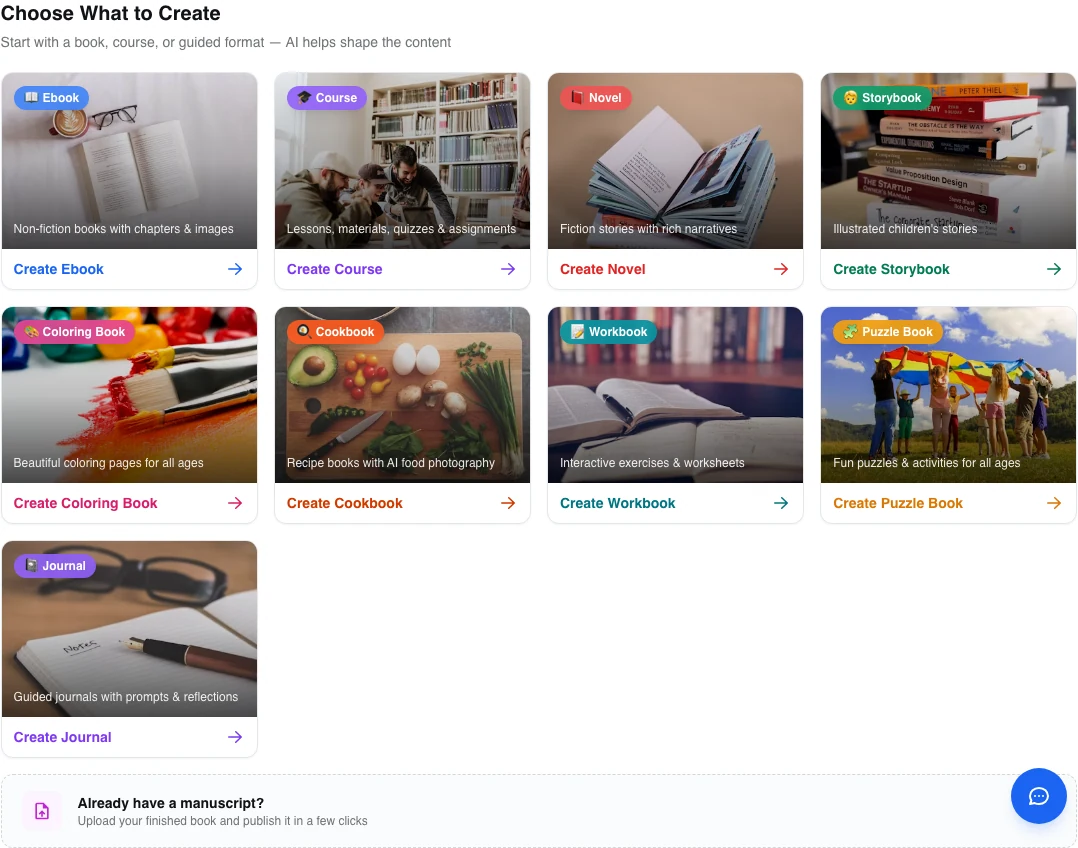
Start from the named dashboard card that matches the task. Create Book starts a new project; Library reopens saved work. - 02
Choose the correct creation format
The dashboard exposes book-format cards such as eBook, Novel, Story, Cookbook and Workbook; each opens its own starting workflow.
- 03
Use the sidebar for product areas
The sidebar groups creation, library, editing, publishing and account destinations so you can return without using an old bookmarked route.
- 04
Use the profile and subscription areas
Account settings, author identity, Subscription Info, credits and support are separate from the project Library.
Success check
Confirm that it worked
- You can use Library to return to existing books and Create Book to start a project.
- You can identify the separate cards and sidebar destinations for Book Editor, Publisher Sites, courses, research and account controls.
Important notes
- The dashboard is a product map; each creation format and production tool opens its own task-specific screen.
- Subscription Info, account settings and author identity are separate from Library projects.
Troubleshooting
If it still does not work
A tool is not visible in the first dashboard row
Use the sidebar or scroll the dashboard. The first row shows common creation formats, while other product areas have separate cards and navigation items.