60-second summary
Quick answer
Open the source book, return to Publish Your Book, change the current price, save the publishing changes and verify the amount on the public product page.
Before you start
What you need
- Open an already published source book.
- Choose a replacement ebook price of zero or more.
- Keep audiobook and paperback prices unchanged unless those offers also need updating.
Procedure
Complete the task step by step
- 01
Open the source book
Find the published title in Library and open its detail page.
- 02
Click Publish Your Book
For an already published title, this opens the existing publishing form and stored product details.
- 03
Change Price
Enter the new amount in the Price field and check the other saved publishing details.
Current app screenOpen full size: Current Price field in the Automateed publishing form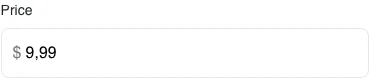
Change the stored Price, save publishing changes and verify the public checkout amount. - 04
Save publishing changes
Click Save Publishing Changes. This updates the public offer; it does not regenerate the manuscript.
- 05
Save and verify publicly
Open the public product page in a fresh tab and confirm the checkout amount.
Success check
Confirm that it worked
- Save Publishing Changes completes and the public ebook price reflects the new amount.
- The manuscript and generated book files remain unchanged.
Important notes
- Price 0 makes the ebook free.
- Audiobook Price and paperback retail price are separate product settings.
- The correct button for an existing publication is Save Publishing Changes rather than Publish Book.
Troubleshooting
If it still does not work
The old price remains on the public page
Reopen publishing, confirm the Price field, save again and reload the public page without stale browser cache.
The new price cannot be saved
Do not leave Price blank and do not enter a negative value.
Paid checkout remains locked after the price update
A price change does not bypass the content-review requirement for paid Automateed checkout.