60-second summary
Quick answer
Complete the book, cover and Publisher Profile, choose a payout route, then enter Book Title, Book Description and Price in Publish Your Book. The product page is created immediately; content approval specifically gates paid Automateed checkout.
Before you start
What you need
- Complete the source book and add or generate its cover.
- Save a Publisher Profile and choose Use my own Stripe or Let Automateed pay me.
- Prepare a Book Title, Book Description and Price of zero or more.
Procedure
Complete the task step by step
- 01
Complete the project
Check content, cover and downloadable files before publishing.
- 02
Open Publish Your Book
Use the Publish Your Book action on the book detail page.
- 03
Complete product details
Add Book Title, Book Description and a non-negative Price; author or imprint identity comes from the saved Publisher Profile.
Current app screenOpen full size: Automateed payout choices for published products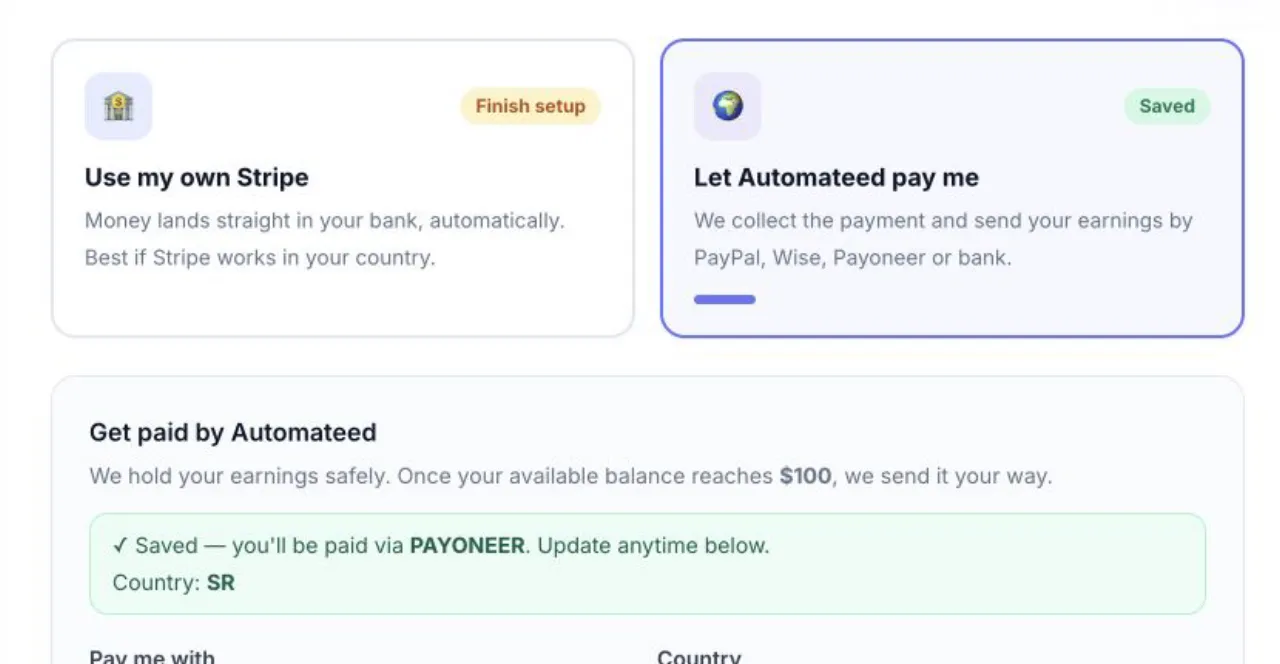
Publishing requires a saved payout route: your own Stripe account or worldwide Automateed payouts. - 04
Choose a payout route
Use your connected Stripe account where supported or select Automateed payouts.
- 05
Publish and review
The product record is created immediately. Content review runs after submission, and paid checkout remains locked until approval.
Success check
Confirm that it worked
- Publish Book creates the product record and returns the published book information.
- The title has a public product page while background content review runs.
- Paid Automateed checkout unlocks after the product review is approved.
Important notes
- Cover, title, description and price are validated by the current publishing form.
- Enter 0 in Price for a free book.
- Categories are optional; cover, title, description and price are required.
- Author or imprint information belongs in Publisher Profile rather than a separate author field in this form.
Troubleshooting
If it still does not work
The publishing page asks for a Publisher Profile
Create and save the profile before reopening the publishing form.
Cover validation fails
Upload or generate a cover on the source book and reopen publishing.
The product is public but paid checkout is unavailable
Check content-review status because paid Automateed checkout requires approval.