60-second summary
Quick answer
Open the formatted preview and use the font menu. Check a long body page and a heading page before downloading because a font that fits the cover can still make interior pages too dense.
Before you start
What you need
- Open Preview & Download for the completed book.
- Choose either Original Font or one of the listed export fonts before creating a new file.
Procedure
Complete the task step by step
- 01
Open the formatted preview
Go to Preview & Download for the project.
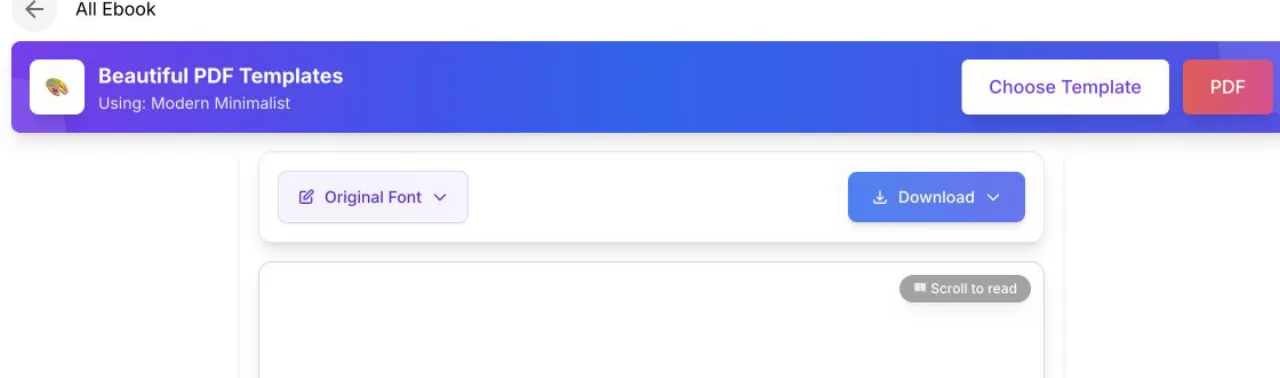
The font control sits beside Download in the current preview screen. - 02
Open the font control
Choose a supported font or return to the original font.
- 03
Check long pages
A wider or larger font can create new page breaks and overflow.
- 04
Generate a new export
Wait for the preview to reload, then create a new PDF, DOCX or EPUB; font choice resets to Original Font after a page reload.
Success check
Confirm that it worked
- The font button displays the selected font and the formatted preview reloads.
- A newly generated PDF, DOCX, or EPUB request includes that font choice.
Important notes
- Available choices include Raleway, Georgia, Playfair Display, Merriweather, Lato, Open Sans, Montserrat, Roboto, Poppins, Source Sans Pro, Crimson Text, Nunito, Bitter, and Inter.
- Font choice is page-local state and resets to Original Font after a reload.
Troubleshooting
If it still does not work
The downloaded file still uses the previous font
Reselect the font, wait for the preview to reload, generate a new file, and open that new download instead of an older local copy.