60-second summary
Quick answer
Open Preview & Download, select Choose Template and generate the PDF while the desired layout is active. Template choice is page-local, has no Save control and returns to its default after reload.
Before you start
What you need
- Open the completed ebook’s Preview & Download page.
- Use a paid-access account when selecting an alternative studio template; free exports use the base Elegant template.
Procedure
Complete the task step by step
- 01
Open Preview & Download
Use the book detail action to enter the formatted preview.
Current app screenOpen full size: Automateed PDF preview with Choose Template control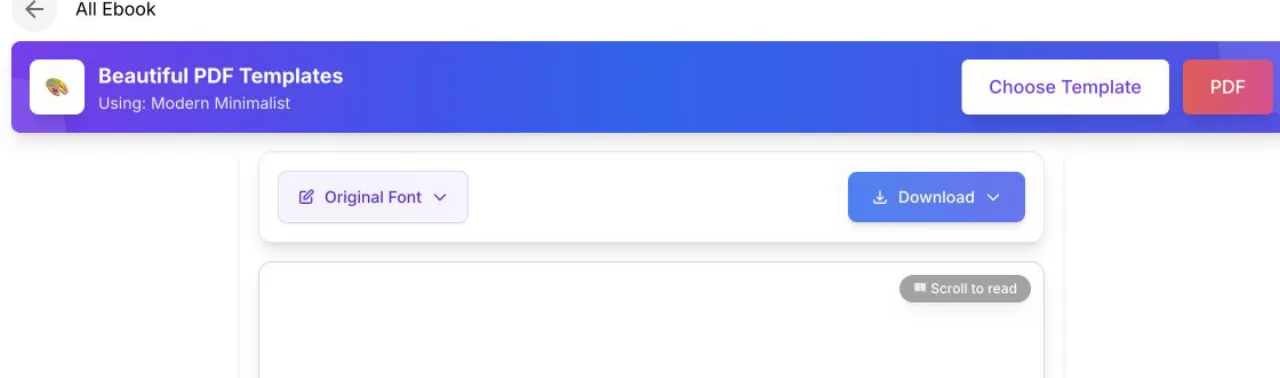
Choose Template changes the formatted export; the current selection is shown in the blue template bar. - 02
Open Choose Template
Review the available professional layout styles.
- 03
Match the book type
Use restrained layouts for business and instruction; choose more expressive styles only when the genre supports them.
- 04
Preview multiple pages
Check chapter openings, image pages, lists and long paragraphs before downloading.
- 05
Generate from the current selection
Create the PDF while the desired template is selected; this page has no Save control and the selection resets after reload.
Success check
Confirm that it worked
- The blue template bar changes to “Using: [template name]” and the preview reloads in that style.
- A newly generated PDF uses the template selected for that download request.
Important notes
- Template choice is local page state. There is no Save control and the selection resets when the page is reloaded.
- The page can initially preview Modern Minimalist, but a free export uses the Elegant template; confirm the generated PDF rather than relying only on the initial preview.
Troubleshooting
If it still does not work
The template returns to its default after reload
This is current behavior, not an unsaved-error state. Reselect the desired template immediately before generating the PDF.