Table of Contents
If you’ve ever tried to turn a messy PDF invoice, bank statement, or exported report into something you can actually work with in Excel, you already know the pain. Copy/paste breaks, columns shift, and half the time you’re rebuilding the table by hand. I tested Lido specifically to see if it could handle both scanned PDFs and “normal” text-based ones without turning the output into a jumbled mess.
Lido Review: Can It Really Turn PDFs Into Clean Excel?
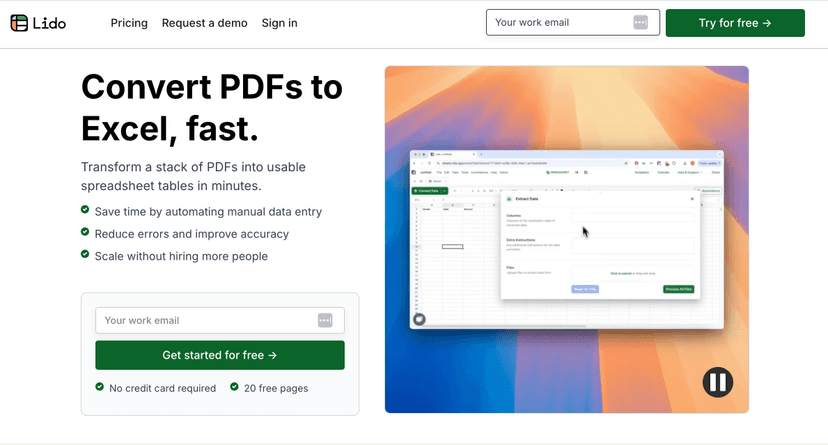
Lido is built for one job: converting PDFs into organized spreadsheet data. In my experience, that “organized” part matters more than people think. A lot of tools will extract text, sure—but then you still spend time fixing headers, splitting merged cells, and aligning columns.
What I liked right away is how quickly I could get from upload to a usable table. It’s not one of those platforms where you need a whole checklist of settings before anything works. I threw in a mix of PDFs: one that was basically a scanned document and another that was text-based with clear table structure. The output wasn’t perfect in every edge case (more on that later), but it was close enough that I didn’t feel stuck rebuilding everything manually.
Here’s what stood out in the results:
- Tables actually come through as tables (not just a blob of text). When the PDF had consistent rows/columns, the spreadsheet looked like it belonged in Excel.
- Scanned PDFs are handled in a practical way. If your scan is crisp, you’ll usually get better structure.
- Cleanup feels automatic. Lido’s AI-driven approach helps reduce the “why is this column shifted?” moments.
One more thing: if you work with invoices, purchase orders, or any reporting PDFs that get emailed around weekly, this is the kind of tool that can save you from repeating the same manual extraction task over and over. And honestly, that’s the whole point.
Key Features I Used (and What They Do)
- Convert PDFs into structured spreadsheet formats quickly
I could upload a PDF and get results without waiting through a long, complicated setup. - Extract data from scanned and searchable PDFs
It can handle both types, which is important when your “source” files come from different teams. - Custom data extraction rules
This is useful when your PDFs have repeating fields (like “Invoice Number,” “Total,” “Tax”) and you want Lido to focus on what matters. - Extract key data points into structured tables
Instead of hunting through rows, the table output is organized around the data you’re after. - Draw boxes around tables to extract tabular data
This feature is a lifesaver when the page has multiple sections. You can target the table area instead of hoping the tool guesses correctly. - AI used to clean and organize data automatically
In my tests, it reduced messy formatting and helped keep columns readable. - Seamless export options to Excel, Google Sheets, or CSV
Exporting is where the workflow becomes real. I checked Excel and CSV, and both were straightforward to use.
Pros and Cons (Realistic Take)
Pros
- High accuracy when tables are consistent. If your PDF layout isn’t chaotic, Lido performs really well.
- User-friendly interface with extraction settings that don’t feel overwhelming.
- AI cleanup helps. I noticed less manual sorting compared to tools that only do raw extraction.
- Free trial available with 20 free pages. I used those pages to test table accuracy before committing.
- Security includes AES-256 encryption. If you’re handling business documents, this is a reassuring baseline.
Cons
- Not available on mobile devices. You’ll want to use a desktop browser for best results.
- Pricing is page-based, so if you process a lot of PDFs, you’ll want to do the math. Page count restrictions can matter depending on your volume.
- Complex layouts can still need guidance. For example, if a PDF has nested tables, unusual spacing, or lots of merged cells, you may need to spend a few minutes adjusting extraction (like using the table box feature).
Pricing Plans: What You Pay for (and How to Choose)
Lido’s plans are straightforward and based on page volume. Here’s what the pricing looks like:
- Starter Plan – $24/month for 100 pages
- Standard Plan – $95/month for 1,000 pages
- Pro Plan – $297/month for 5,000 pages with priority support
- Custom Enterprise Plan – tailored page counts and 24/7 support
All plans include a month-to-month commitment and a 30-day money-back guarantee.
My suggestion? If you’re only converting occasional PDFs, Starter makes sense. But if you’re doing this weekly for multiple departments, Standard or Pro will likely feel more comfortable fast. The trial (20 pages) is also a good reality check—run one of your most “annoying” PDFs through it, not your simplest one.
Wrap up
Overall, I think Lido is a solid option if you need reliable PDF-to-Excel (or Google Sheets/CSV) conversions. It’s especially strong when your documents have clear table structure, and it does a good job reducing the cleanup work that usually comes with manual extraction.
If you’re dealing with invoices, statements, or recurring reports and you’re tired of copy/paste roulette, it’s worth trying. Use the free trial to test your real files—then you’ll know quickly whether it matches your workflow.
Promote Lido