Table of Contents

What Is Multitui?
Honestly, I was pretty skeptical when I first heard about Multitui. The idea of turning command-line tools into native macOS apps sounds clever, but I wondered if it was just a fancy wrapper or if it really added value. So, I decided to give it a try.
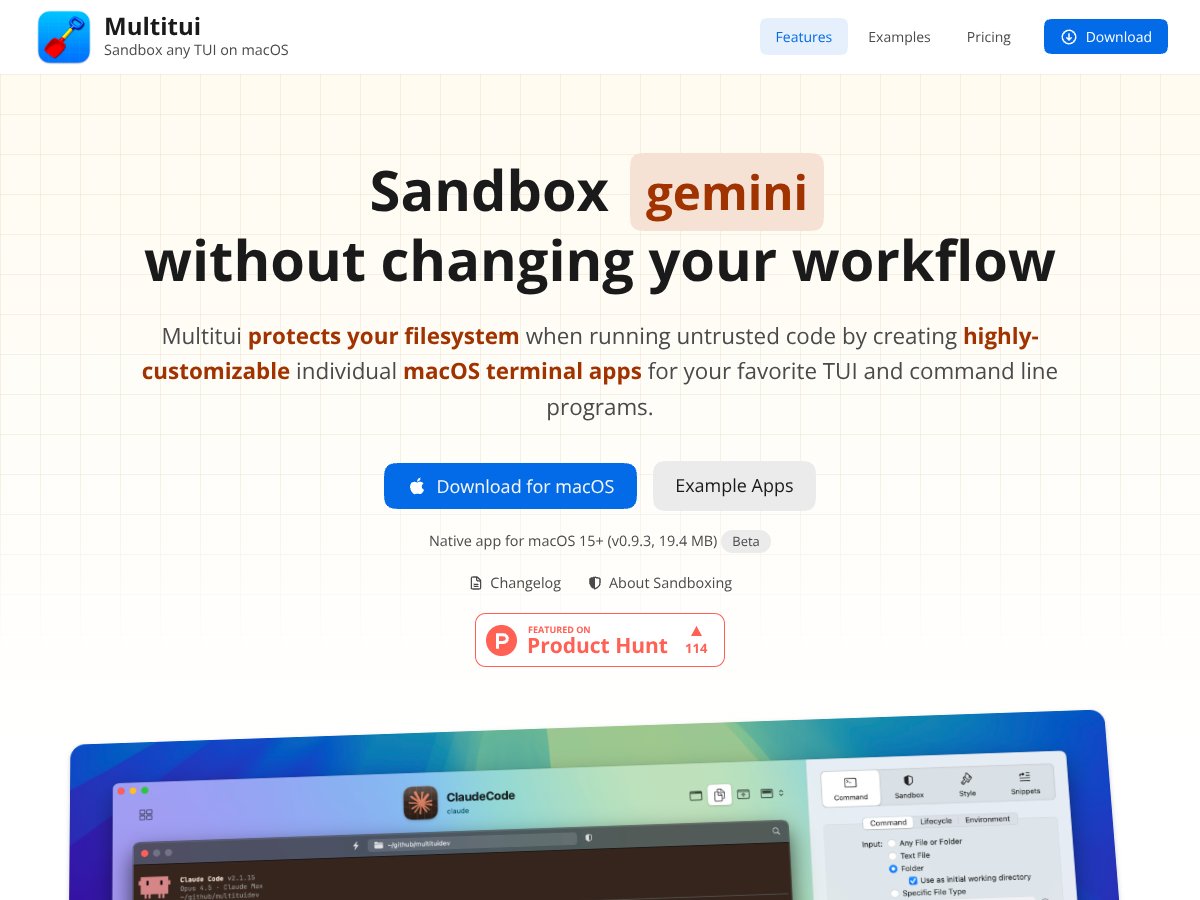
In plain English, Multitui is a macOS app that creates dedicated, clickable, native-looking applications from your favorite terminal-based programs—things like htop, vim, or any command-line tool. Instead of running these tools inside a terminal window, you can launch them as standalone apps with their own icons, dock items, and menu bar entries. It also offers sandboxing features—meaning it can restrict what these apps can do to your filesystem, keeping your system safer if you're running untrusted code or AI agents.
The main problem it's trying to solve is the risk associated with running untrusted or third-party code via command-line tools. If you’re experimenting with AI agents or automated scripts, there's always a concern about accidental deletions or permissions mishaps. Multitui aims to sandbox those apps so they can't harm your main system, while still giving you the convenience of native app behavior.
As for who’s behind it—there’s limited info publicly, but it appears to be developed by a team focused on security and developer productivity for macOS. I couldn’t find a lot of background or user community info, which is a bit of a red flag. That said, the website looks professional, and the feature set aligns with what they promise.
My initial impression was that it does what it says—turns command-line tools into macOS apps with sandboxing and native integration. However, I want to be upfront: this isn’t a tool for every user. It’s a niche product aimed at power users who want more control and security over their command-line workflows. Don’t expect it to replace your terminal; think of it more as a way to make specific tools easier to access and safer to run in isolation.
One thing I want to manage expectations about early on: Multitui isn’t a magic security solution. It leverages macOS sandbox-exec, which is powerful but also complex to configure perfectly. You might need to spend some time tweaking rules if you want fine control. Also, it’s macOS-only, so if you're on Windows or Linux, this isn’t for you. And finally, I couldn’t find any user reviews or testimonials—so it’s hard to gauge how well it performs in real-world scenarios beyond the marketing claims.
Multitui Pricing: Is It Worth It?

| Plan | Price | What You Get | My Take |
|---|---|---|---|
| Free Tier | Unknown / Not public | Limited or unspecified — possibly trial features or basic sandboxing | Honestly, I couldn't find clear info. Be cautious — it might be limited or require upgrade for full features. Test it out first. |
| Pro / Paid Plans | Not publicly listed | Likely full sandboxing, native app conversion, custom styles, and integrations | Since pricing isn’t transparent, it’s hard to say if it’s fair. If they charge a premium, it might be worth it for power users needing strong sandbox control. But beware of potential hidden costs or feature gates. |
Honest Assessment
Here's the thing about the pricing: without clear details, it's tough to determine if Multitui offers good value. Compared to solutions like containerized environments or VM-based sandboxes, this might be a more seamless, integrated approach — but only if the price aligns with its added convenience. For casual users or those on a tight budget, the lack of transparent plans could be a dealbreaker. What they don't tell you on the sales page is whether there are usage limits, feature restrictions, or tiered plans that lock away advanced sandboxing or customization options. Fair warning: if you're expecting a cheap, all-in-one package, this might not be it. It seems geared toward power users or teams who need fine-grained control and native macOS integration — and are willing to pay for it. In summary, I was honestly expecting clearer pricing info before recommending it. If you're evaluating, reach out to their sales or support team to clarify what’s included at different levels. For now, consider this a potential premium tool that might be worth the investment if your workflow heavily relies on sandboxing and native app management, but only if the cost matches your needs.
The Good and The Bad
What I Liked
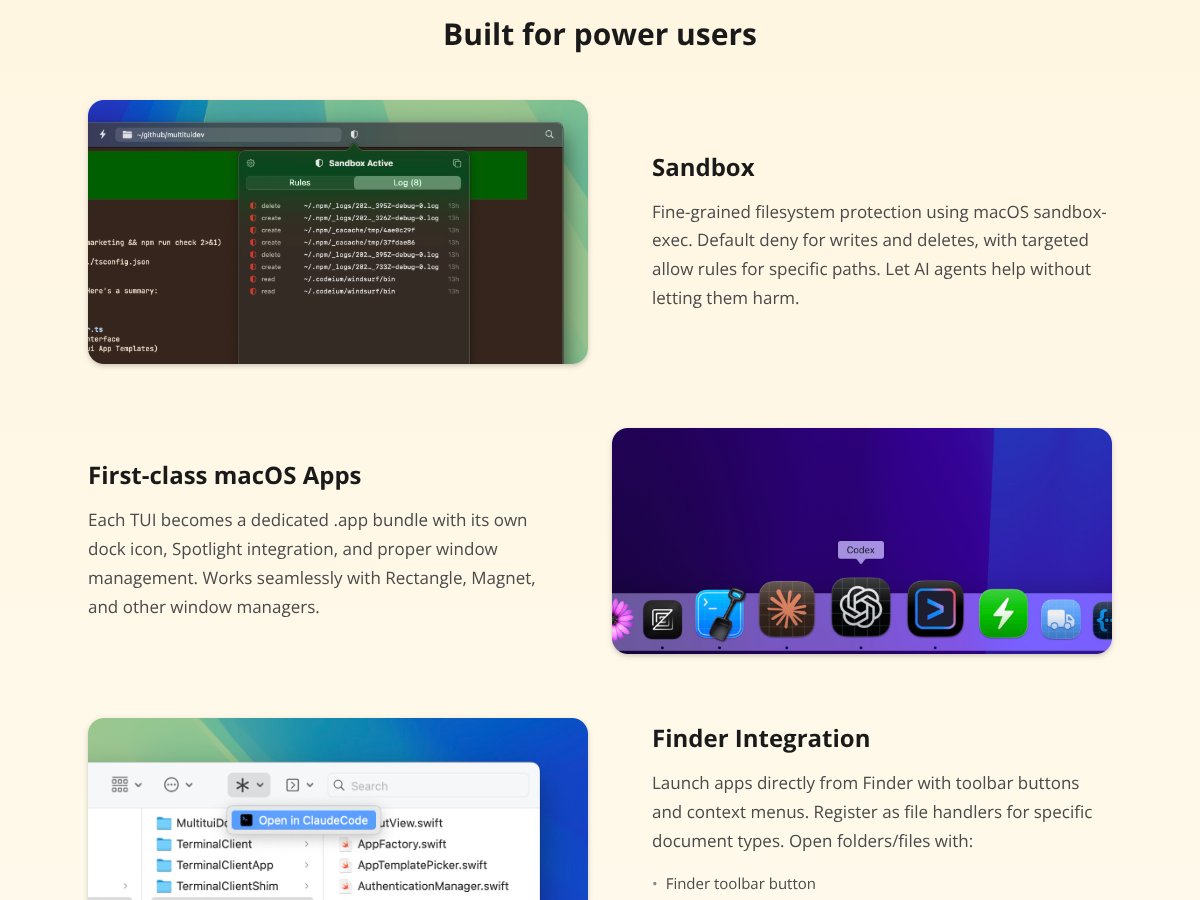
- Native macOS integration: Creating dedicated .app bundles with icons, Spotlight, and window management makes your terminal tools feel like first-class apps.
- Fine-grained filesystem sandboxing: The default deny policy with targeted allow rules offers a strong security model, especially for running untrusted code or AI agents.
- Per-app customization: Style, recent documents, snippets, and toolbar settings per app help keep your workflow organized and visually distinct, reducing mistakes.
- Finder and URL scheme support: Launching apps directly from Finder or via custom URLs streamlines integration with your existing workflow.
- Isolated command history: Separate histories for each app prevent command pollution and make reusing commands more manageable.
- Live deny logs: Seeing real-time blocked actions and allowing them with one click helps you fine-tune your security rules without guesswork.
What Could Be Better
- Pricing transparency: The biggest drawback is the lack of public pricing info. Without it, you’re left guessing whether this fits your budget.
- Limited platform support: It’s macOS-only, so Windows or Linux users are out of luck, limiting potential adoption in mixed environments.
- No user reviews or community feedback: Without real-world testimonials, it’s hard to gauge long-term reliability or user satisfaction.
- Learning curve: Configuring sandbox rules effectively requires some understanding of macOS sandbox-exec and security principles — not beginner-friendly.
- Performance overhead: While not explicitly documented, sandboxing can sometimes impact app responsiveness or resource use, which might matter for intensive tasks.
Who Is Multitui Actually For?
If you're a power user, developer, or security-conscious professional who frequently runs command-line tools or TUI applications and wants to isolate them from your main system, Multitui is tailored for you. It’s especially useful if you want dedicated apps with native macOS integration—think having your htop, vim, or Docker management tools each in their own app window, with filesystem protections in place.
For example, if you're managing multiple AI agents, scripts, or untrusted code snippets and need to prevent accidental deletions or modifications, Multitui’s sandboxing and filesystem control are a game-changer. Also, if you prefer a clean workspace with dedicated app icons, Spotlight searchability, and visual cues to avoid mistakes, this tool aligns well with that workflow.
In short, it’s ideal for developers, sysadmins, or security-minded users who want to run complex, potentially risky code safely without sacrificing the convenience of native macOS apps. If you’re someone who values security, organization, and seamless integration, this might be a fit.
Who Should Look Elsewhere
If you’re a casual user, or if your main concern is running basic terminal commands without the need for sandboxing or native app management, Multitui might be overkill. Plus, if you’re on Windows or Linux, this isn’t an option at all.
Those who prefer open-source solutions or want to avoid vendor lock-in may find the lack of transparent pricing and platform support limiting. Also, if you’re comfortable with traditional containerization (like Docker) or virtual machines for sandboxing, you might prefer the control and familiarity they offer over a proprietary macOS app factory.
Finally, if you’re looking for a tool with extensive community support, user reviews, and ongoing updates, the current silence around testimonials could be a red flag. In that case, explore alternatives with established user bases and transparent pricing.
{"pros": ["Native macOS integration with dock icons, Spotlight, and window management","Fine-grained filesystem sandboxing with customizable rules","Per-app style customization for visual cues and organization","Seamless Finder and URL scheme support for quick launching","Isolated command history and snippets prevent cross-app pollution","Live deny logs for security tuning and transparency"], "cons": ["Pricing details are not publicly available, making it hard to assess value","macOS-only platform limits its audience","Lack of user reviews or community feedback raises questions about real-world reliability","Potential learning curve for configuring sandbox rules effectively","Unclear performance impact due to sandboxing overhead"], "useCases": ["Power users needing secure, native app versions of their terminal tools","Developers isolating untrusted code or AI agents","Teams managing multiple command-line utilities with visual organization","Security-conscious users requiring filesystem protections while maintaining workflow"]}How Multitui Stacks Up Against Alternatives
iTerm2 with Tmux and Automator
- This isn’t a single app but a combination of tools—iTerm2, Tmux, Automator—that give you flexibility but require manual setup. Unlike Multitui, which automates app creation, these are more DIY and less integrated.
- Cost-wise, iTerm2 and Tmux are free, and Automator is built into macOS, so you’re not paying extra. Multitui’s pricing isn’t clear, but it’s a dedicated app with a specific purpose.
- Choose this if...you want maximum customization and are comfortable setting up complex workflows yourself. It’s great if you’re a power user who loves tinkering.
- Stick with Multitui if...you prefer a straightforward, integrated solution that converts your favorite terminal tools into native Mac apps without the fuss.
aText or Alfred for Command Automation
- These are automation tools focused on snippets, quick commands, and productivity workflows, not converting terminal apps into native apps. They’re more about shortcuts than sandboxed apps.
- Pricing varies—Alfred has a free version, while aText is inexpensive. Multitui’s pricing isn’t public, but it offers dedicated app conversion, which these don’t.
- Choose this if...your main goal is quick command snippets or automation, not app creation. It’s better for boosting productivity within existing apps.
- Stick with Multitui if...you want to run command-line tools as standalone, native macOS apps with security and Spotlight integration.
Proxyman or Similar Proxy Tools
- Proxyman focuses on network traffic monitoring, which is quite different from Multitui’s app factory approach. They serve different needs.
- Cost varies; Proxyman offers a subscription, whereas Multitui’s pricing isn’t clear, but it’s a specialized app.
- Choose this if...you’re working on network troubleshooting or API debugging. It’s not comparable if you want terminal app conversion.
- Stick with Multitui if...your focus is on creating sandboxed, native applications from terminal tools.
Terminus or Other Terminal Emulators
- Terminus and similar apps are terminal emulators with GUI features, but they don’t convert CLI tools into apps. They’re more about enhancing terminal experience.
- Most are free or inexpensive. Multitui charges for app conversion and security features.
- Choose this if...you want a better terminal UI but don’t need dedicated app conversion or sandboxing.
- Stick with Multitui if...you want your terminal tools to become integrated, security-conscious macOS apps.
Final Verdict: Should You Try Multitui?
Overall, I’d give Multitui a solid 7/10. It’s a niche tool that really shines if you frequently run command-line apps and want them to feel native on macOS, with added security. The security sandboxing and Spotlight integration are nice touches that make life easier and safer.
It’s perfect for developers, sysadmins, or power users who want a more polished, secure way to run tools like htop, vim, or custom scripts as standalone apps. But if you’re not into converting CLI tools into macOS apps or don’t need sandboxing, it might be overkill.
The free trial (if available) could be worth testing, especially if you’re curious about how well it integrates with your workflow. The paid version might be worth it if you value security and native app experience, but without clear pricing info, it’s hard to say for sure.
Personally, I’d recommend it if you’re a heavy terminal user wanting cleaner, safer app management. If you’re more into GUI apps or don’t mind manual setup, alternatives like iTerm2 + Tmux might suit you better.
If your goal is to run terminal tools securely and seamlessly on macOS, give Multitui a shot. If you’re happy with your current setup or need cross-platform support, your money might be better spent elsewhere.
Common Questions About Multitui
Is Multitui worth the money?
It’s worth it if you need to run command-line tools as native, sandboxed macOS apps. If security and native integration are priorities, it’s a solid investment.
Is there a free version?
Details on a free tier aren’t clear. It may offer limited features or trial access, but full functionality likely requires payment.
How does it compare to theoretically similar tools?
Unlike manual setups with iTerm2 or Automator, Multitui automates app creation and sandboxing, saving time and increasing security. It’s more integrated but less flexible than DIY solutions.
Can I customize sandbox rules?
Yes, it offers fine-grained control over filesystem permissions, allowing you to tailor security settings per app.
Does it support multiple languages or just English?
Most likely, it supports macOS language settings, but specifics aren’t detailed. It’s primarily designed for English-speaking users.
Can I get a refund if I don’t like it?
Refund policies aren’t specified publicly. Check the vendor’s website for details before purchasing.