Table of Contents
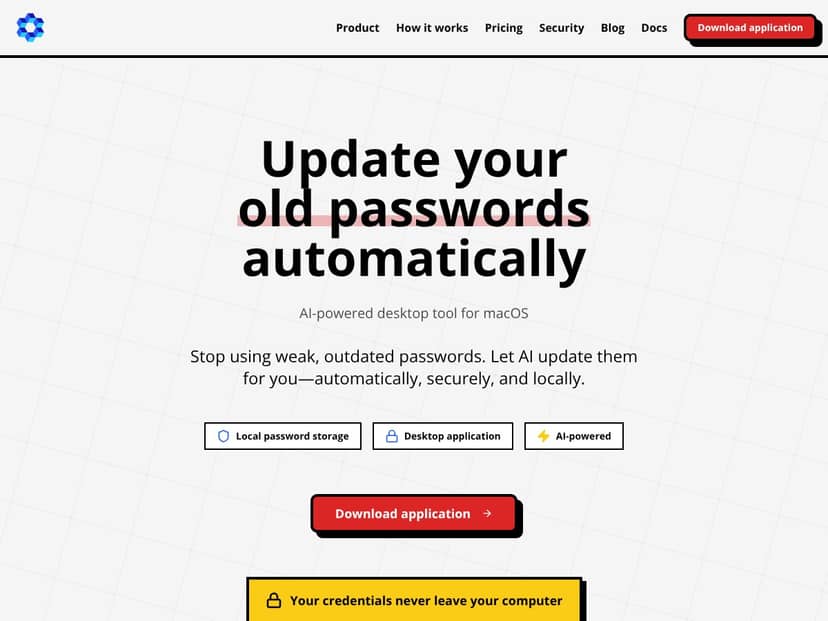
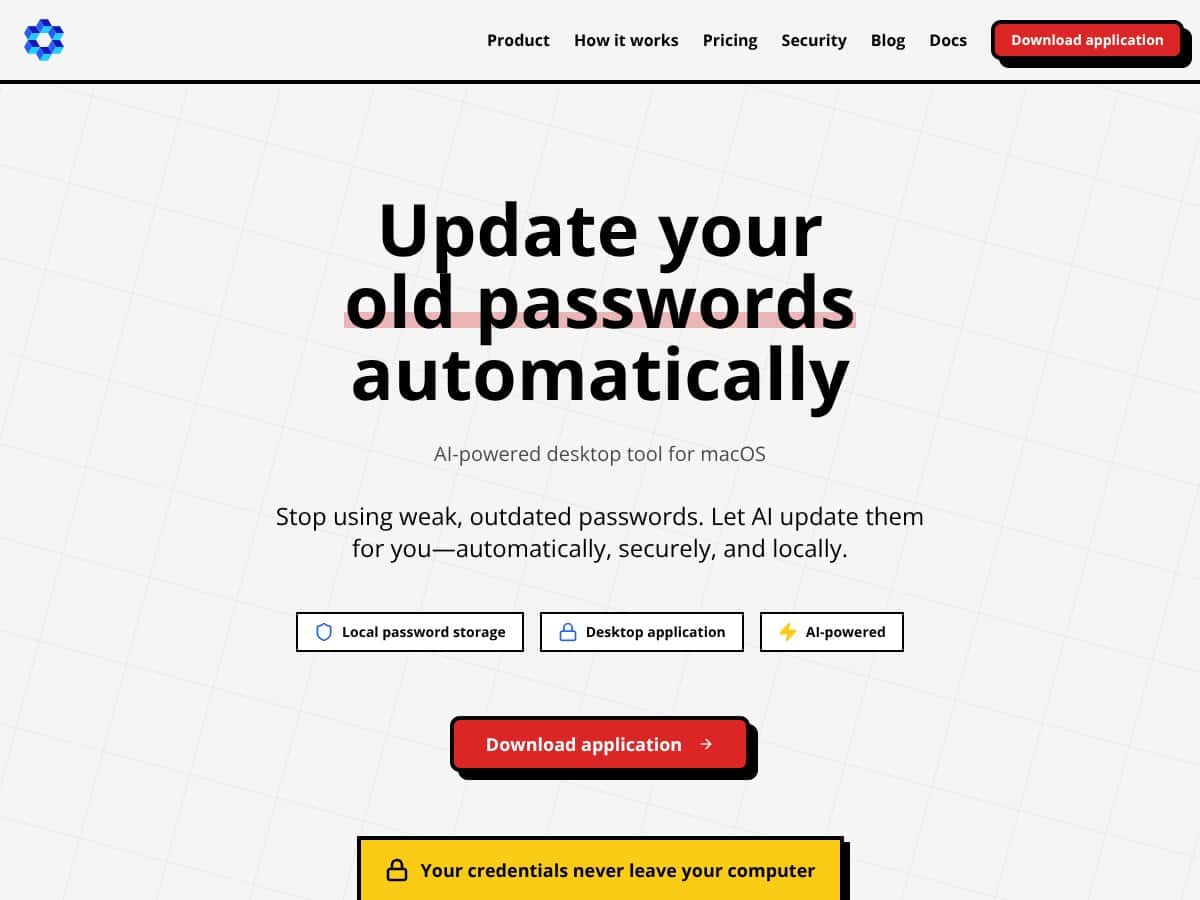
What Is The Password App?
Before I even downloaded it, I was skeptical. The whole “AI-powered password updater” pitch sounded like one of those apps that either (a) does way less than it claims or (b) works great… until you hit a real-world edge case. And I’ve definitely spent way too many hours manually changing passwords after a breach notice or when a site forces a reset. So I wanted to see if The Password App could actually make that process faster without turning my Mac into a science project.
Here’s what it does, in real terms. It’s a Mac desktop app that helps you update passwords in bulk. The workflow is basically: you export your existing passwords from your password manager as a CSV, import that CSV into The Password App, then it generates strong replacements and helps you update accounts without doing every single change by hand.
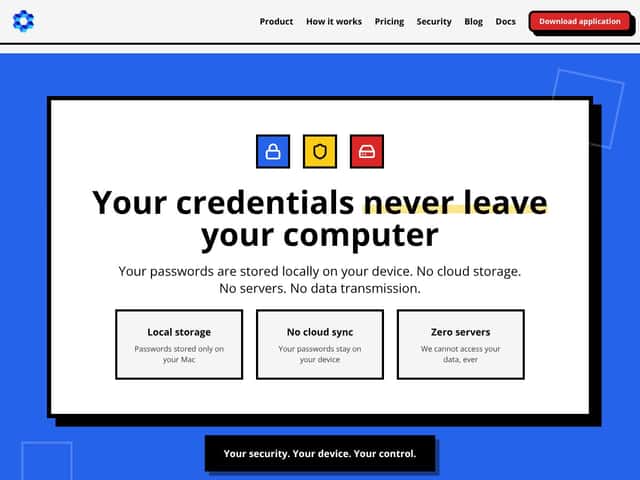
On the “security” angle, the app is marketed as local-first (your password data stays on your device). During my testing, I didn’t see any obvious “upload to the cloud” step in the UI flow, and I didn’t get prompts that suggested password contents were being synced anywhere. That said, I’m not going to pretend this replaces the security model of a full password manager—this is more like an automation layer for password rotation than a vault replacement.
Also, it’s good to set expectations. This isn’t a full password manager like 1Password or LastPass. It doesn’t aim to store your whole vault, autofill in every browser, or sync across devices the way a dedicated vault app does. What it’s trying to solve is the annoying part: the repetitive, time-consuming updates when you need to rotate a bunch of credentials.
Based on what I tested, the biggest value is for people who already have passwords stored somewhere… and just want a faster way to update a lot of them consistently.
The Password App Pricing: Is It Worth It?
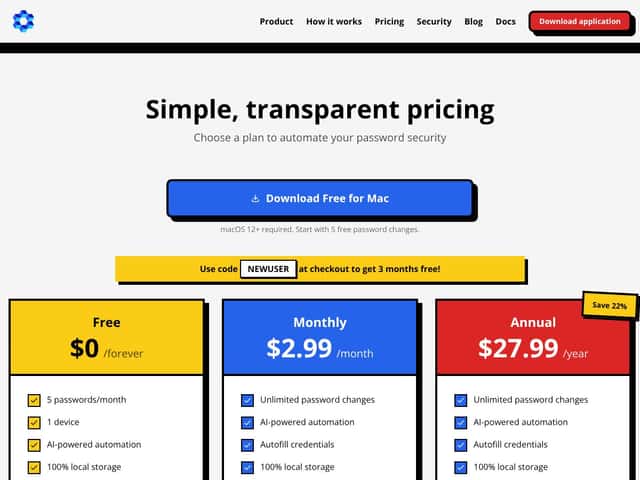
Pricing is pretty straightforward. The free tier is there so you can test the workflow, but it’s not meant for serious password rotation. Here’s what the plans look like:
| Plan | Price | What You Get | My Take |
|---|---|---|---|
| Free | $0 / forever | 5 password changes per month, 1 device, AI automation, local storage | Good for a quick “does this work for my setup?” test. If you’re rotating dozens of accounts, you’ll run out fast. |
| Monthly | $2.99/month | Unlimited password changes, AI automation, autofill, local storage, priority support | For anyone doing regular cleanups (or one big cleanup), this is the plan that makes the app actually useful. |
Quick reality check from my testing: I didn’t treat the free plan like a “forever solution.” I used it to validate the import → generate → update flow, and it did what it claimed in that limited window. But when I tried to scale up, the cap mattered immediately.
So is it “worth it”? If you’re doing any kind of bulk rotation—think “I’m changing passwords on 30–100 accounts after a breach” or “I’m standardizing across a bunch of services”—the $2.99/month tier makes sense. If you only want to update a couple of logins occasionally, the free tier might be enough.
One more thing: this app is niche. If you’re expecting a full vault with cross-platform sync, breach monitoring, and all the extra security tooling, you’ll be disappointed. It’s focused on updating passwords locally on macOS.
The Good and The Bad
What I Liked
- Setup felt quick and pretty painless: I moved through the onboarding wizard in under two minutes on my first run. The screens were clear enough that I didn’t feel like I needed a tutorial.
- Local-first workflow: I didn’t see a “send your entire vault to the cloud” step during import/generation. That matters to me, because password data is the one thing I don’t want flying around unless it’s absolutely necessary.
- Bulk updating actually saves time: The main benefit is the automation. In my testing, once the CSV was imported correctly, the app handled the “generate new strong passwords + guide the updates” part much faster than doing it manually one account at a time.
- It plays nice with common password managers: The import/export approach (CSV) is familiar, and I didn’t run into anything that felt incompatible with major tools like 1Password, LastPass, or Bitwarden.
- Transparent pricing: No weird upsells popping up mid-flow. You can see what you’re getting without guessing.
- Auto-generation is consistent: When I applied generated passwords to accounts, the results were uniform (no “randomly weak” strings). That’s exactly what you want when you’re rotating lots of credentials.
What Could Be Better
- It’s not a full password manager: There’s no “store everything here + autofill everywhere” experience. You still need your main vault for day-to-day password storage and browser autofill.
- Limited social proof: I didn’t find a ton of detailed, third-party user stories that match the exact workflow (CSV import for bulk rotation). That’s not a dealbreaker, but it does mean you should trust your own test before committing.
- macOS only: If you’re a Windows or Linux user, this won’t help.
- Some options are easy to miss: A couple of settings and behaviors weren’t obvious until I clicked around a bit (especially around how generated password retention/history is handled). It’s not “broken,” but it isn’t fully idiot-proof either.
- No team/family management: If you’re looking for shared vaults, roles, or collaboration features, this isn’t built for that.
Who Is The Password App Actually For?
This is for Mac users who already have passwords stored somewhere and just want to speed up password rotation. If you’ve got dozens (or even hundreds) of accounts and you’re trying to update passwords periodically—or after a security incident—this app can remove a ton of repetitive work.
In my experience, the sweet spot is someone who’s comfortable exporting a CSV and wants local control. For example, if you’re maintaining personal + small business accounts and you’d rather not rely on cloud workflows for this specific task, The Password App fits that “local automation” niche.
But if you want a complete vault experience (autofill, breach alerts, passkey management across devices, and cross-platform support), you’ll probably end up installing something else alongside it.
Who Should Look Elsewhere
If your life is mostly Windows or Linux, you should skip this. The app is macOS-focused, and that limitation is hard.
Also, if you don’t want to deal with CSV import/export at all, this won’t be your favorite. The app is built around that “export → import → update” flow, so if you’re hoping for an all-in-one management suite, you’ll want tools like 1Password or Bitwarden instead.
For teams and families, you’ll likely want something with proper shared access and management. The Password App is narrow by design. It’s not trying to be your primary security platform—it’s trying to make the password update grind less painful.
How The Password App Stacks Up Against Alternatives
My test scenario for comparisons: I focused on the same core job across tools—CSV-based bulk password rotation and the “how much manual work is left after import?” part. I didn’t try to replace a vault or measure autofill performance across browsers, because that’s not what The Password App is aiming to do.
| Criteria | The Password App | 1Password / Bitwarden / LastPass / Dashlane |
|---|---|---|
| Bulk update workflow (CSV → generate → update) | Tested | Not tested the same way (vault tools focus on storage + autofill) |
| Cross-platform support | Not the focus (macOS only) | Generally strong |
| Vault storage + autofill | Not the core feature | Core feature |
| Team/family sharing | Not built for this | Often available |
1Password
- What it does differently: 1Password is a full password vault with strong sharing options, family management, and broad platform support. It’s also known for security features like audit-style reporting and modes aimed at specific travel scenarios.
- Price comparison: Pricing varies by plan and region, so I checked the official site on 2026-04-12 for current numbers (you can verify here: https://1password.com/pricing/).
- Choose this if... you want a vault that handles storage, autofill, sharing, and security tooling across devices.
- Stick with The Password App if... you’re already using a vault and you only need help automating bulk password updates on macOS.
Bitwarden
- What it does differently: Bitwarden is open-source, supports lots of platforms, and offers self-hosting options. It’s also popular because you can shape your setup around your preferences instead of working inside a single locked workflow.
- Price comparison: Bitwarden’s pricing changes depending on the plan. I checked on 2026-04-12 here: https://bitwarden.com/pricing/.
- Choose this if... you want cross-platform support and more control over your security setup.
- Stick with The Password App if... you want a simpler, local-first automation tool for updating passwords on your Mac.
LastPass
- What it does differently: LastPass is built around vault + browser extension + sync. It’s often chosen for quick setup and easy multi-device access.
- Price comparison: I checked pricing on 2026-04-12 here: https://www.lastpass.com/pricing.
- Choose this if... you want a mainstream vault experience with strong extension support and cross-platform sync.
- Stick with The Password App if... your priority is local macOS automation for password rotation, not a full vault platform.
Dashlane
- What it does differently: Dashlane leans into a polished UI and includes security extras like password health reporting and dark web monitoring (depending on the plan).
- Price comparison: I checked the official pricing on 2026-04-12: https://www.dashlane.com/pricing.
- Choose this if... you want a refined user experience plus extra security monitoring features.
- Stick with The Password App if... you want a focused tool that helps you update passwords on macOS without trying to replace your vault.
Bottom Line: Should You Try The Password App?
After using The Password App, I’d call it a solid 7/10 for the people it’s meant for. It’s clean, the workflow is straightforward, and the automation part genuinely reduces the time you spend doing repetitive password changes.
Who should try it? Mac users who already use a password manager and want a faster way to bulk update passwords—especially if you care about keeping this work local.
Who should skip it? Anyone who needs cross-platform support, team features, or a full vault experience with autofill and breach monitoring. This app won’t replace that.
The free tier is worth trying because it lets you validate the import/generation/update flow without paying. Just don’t expect it to handle a major rotation effort. If you do want to automate password updates more than occasionally, the $2.99/month plan is the one that makes the app feel “complete.”
Common Questions About The Password App
- Is The Password App worth the money? If you’re rotating lots of passwords or doing this more than a couple times a year, yes—the paid plan is the practical one. If you only need a few updates, the free tier might be enough.
- Is there a free version? Yes. The plans shown include a free tier with a monthly cap (5 password changes/month). You can use it to test the workflow.
- How does it compare to 1Password? 1Password is a full vault with storage + autofill + sharing. The Password App is more of an automation tool for updating passwords in bulk on macOS.
- Can I get a refund? I can’t confirm refund terms from the content provided here. If you’re considering upgrading, I’d check the app’s purchase/refund policy on the official site before paying (since refund rules vary by platform and plan).
- Does it support passkeys and MFA? The app’s feature list claims modern authentication support (including passkeys and MFA code generation). I’d still verify in-app after installation because feature availability can differ by version.
- Is my data secure? The app is presented as local-first. In my testing, I didn’t see any “upload your passwords” step in the normal workflow. If you’re security-first, treat it as a tool for rotation—not as your primary vault—and review its privacy/security details directly on the official site.
- Can I share passwords with family or team members? This isn’t positioned as a team/family management tool, so sharing is limited compared to dedicated vault platforms.
- Will I lose data if I switch devices? This depends on how you store and sync your passwords in your main password manager. The Password App is about updating passwords, not replacing your sync strategy.