Table of Contents
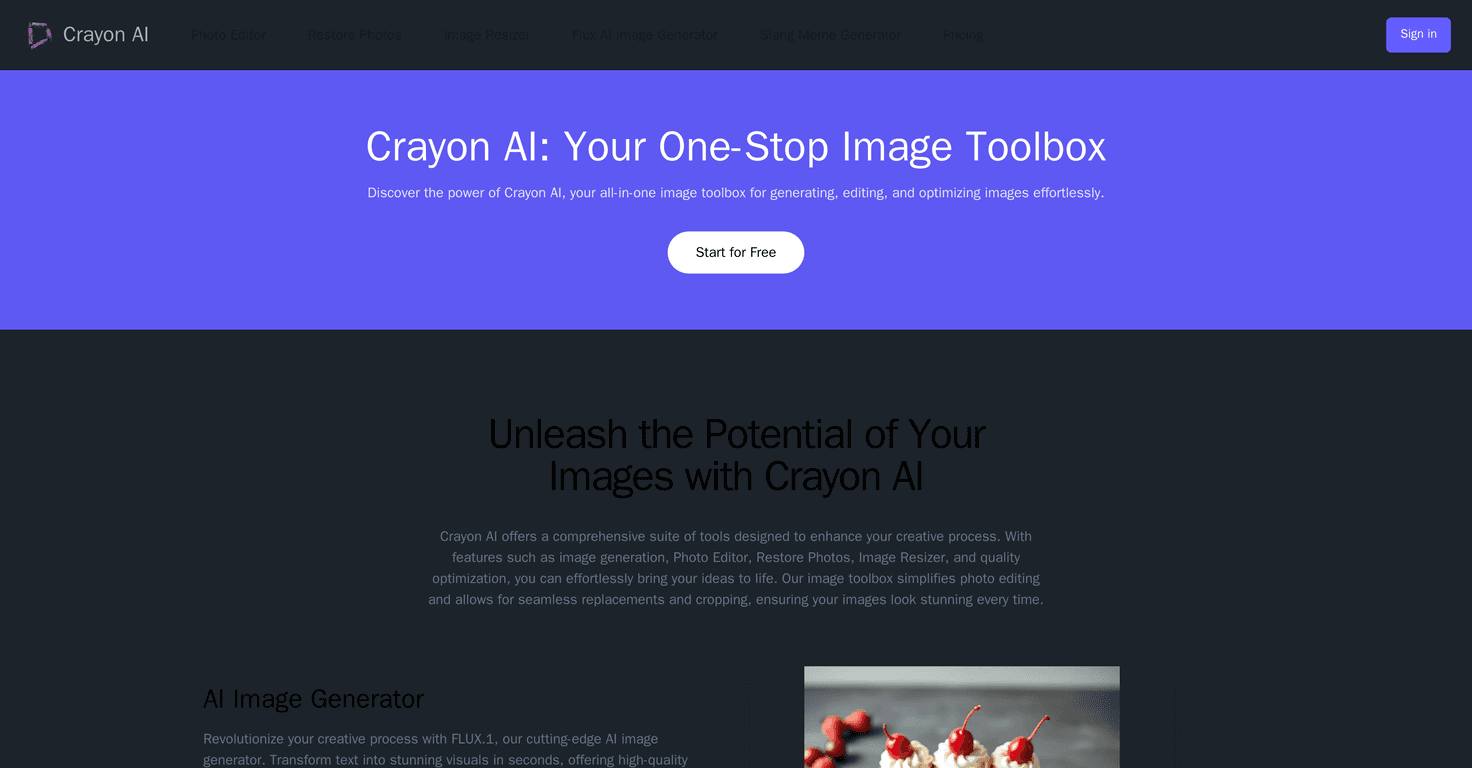
In the world of image editing, efficiency and creativity are key. Crayon AI offers an innovative solution to enhance your image generation and editing experience. This powerful toolset promises to simplify the creative process while providing users with robust features. Join me as I dive into my Crayon AI review to explore what this all-in-one image toolbox has to offer.
Crayon AI Review
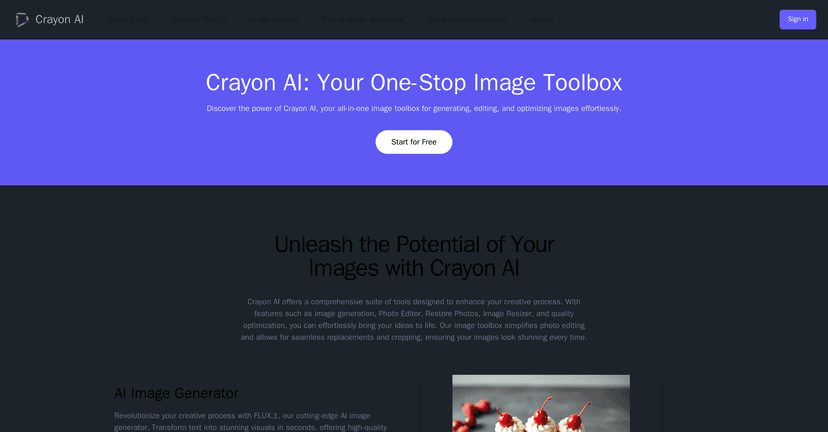
Crayon AI is designed to cater to everyone from casual users to professionals needing high-quality visuals quickly. The standout feature is its AI Image Generator (FLUX), which transforms simple text prompts into vibrant images with stunning results. Whether you’re creating visuals for a project or just exploring your artistic side, this tool has you covered.
Another great feature is the Remove Background Tool; it makes removing unwanted backgrounds a breeze, turning standard images into professional-looking pictures. Plus, the AI Photo Editor allows for simple adjustments like cropping or resizing, giving you control without overwhelming you with choices.
For those funny moments, the Meme Generator adds a fun twist, allowing you to easily create memes with various templates. And if you have old photos in need of some restoration, Crayon AI’s restore function improves quality and clarity effortlessly. Finally, the Animal Image Generator offers random animal pics, perfect for learning or sparking creativity in visual projects.
Key Features
- AI Image Generator (FLUX) for text-to-image conversion
- Automatic Background Removal Tool
- Intuitive AI Photo Editor for easy adjustments
- Meme Generator for playful content creation
- Restore Photos feature for enhancing old images
- Animal Image Generator for random images and facts
Pros and Cons
Pros
- Comprehensive toolset for various image tasks
- User-friendly interface that is easy to navigate
- Supports all devices – PC, tablet, and mobile
- Fast processing speeds with real-time editing previews
- A variety of templates and custom options
Cons
- Limited advanced features for power users
- Performance can fluctuate based on internet speed
Pricing Plans
Crayon AI has a generous free plan, allowing users to explore the features without commitment. For further details and tiered pricing options, check out their Pricing Page.
Wrap up
In summary, Crayon AI is an impressive all-in-one tool for image generation and editing, appealing to both novices and seasoned users alike. With its user-friendly design, innovative features, and flexible pricing, it stands out in the crowded landscape of image editing tools. Whether you’re a content creator or just someone looking to unleash your creativity, Crayon AI may very well be the tool to elevate your image game.
Promote Crayon AI