Table of Contents
I’ve been trying to stop wasting time on the “boring” parts of document work—spacing, headings, consistent fonts, page numbers, that sort of thing. So I tested Format Magic to see if it actually makes formatting easier (and not just prettier marketing).
For my test, I used a 2-page proposal written in plain text. It had 6 headings (some were short, some longer), plus a simple section order. I also included a few “real world” things that usually break formatting: extra blank lines, inconsistent spacing, and one heading that I’d normally manually style in Word. I ran it with a proposal-style template and enabled a table of contents and page numbers.
Format Magic Review (2026): What Happened When I Tested It
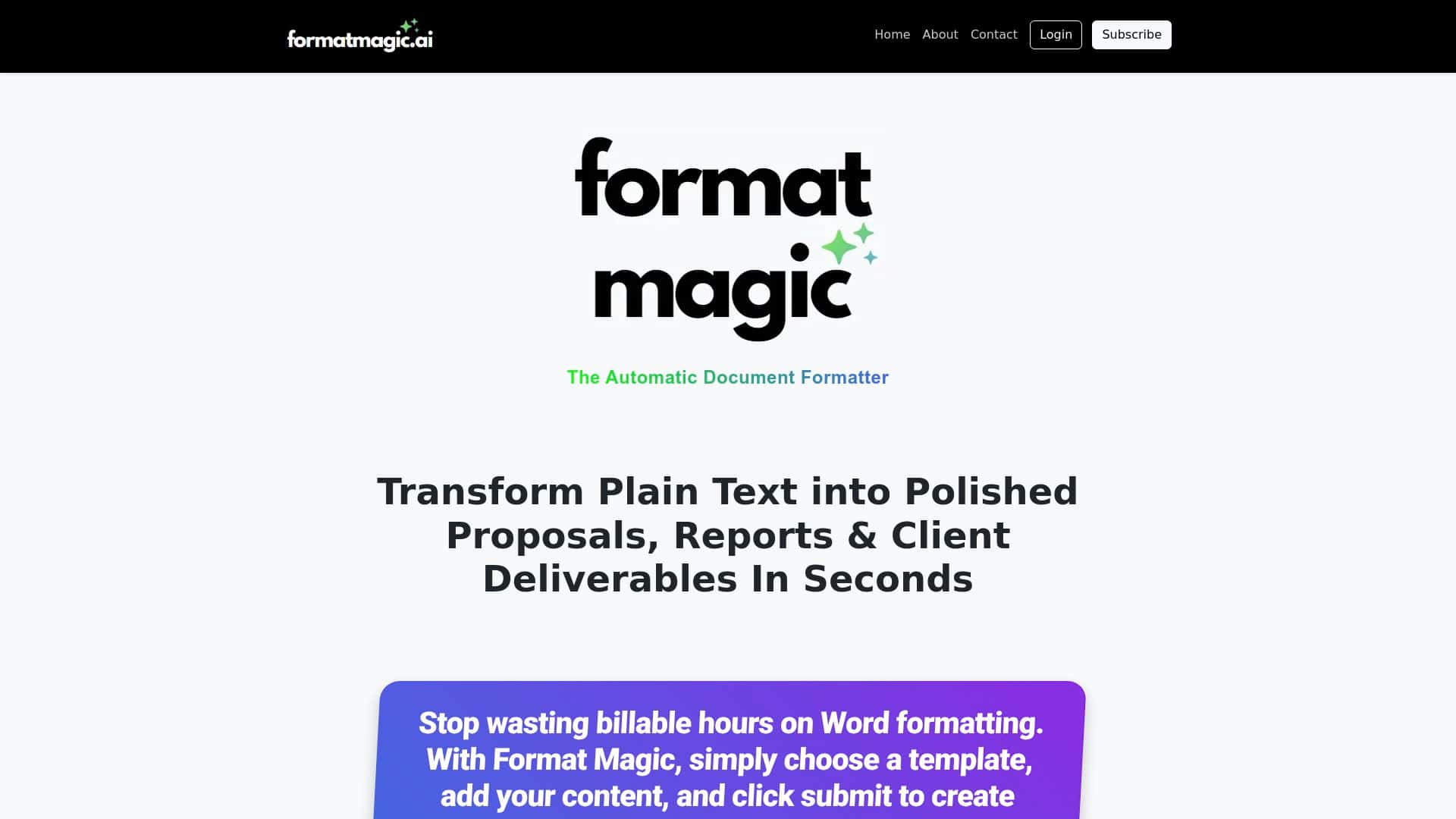
Here’s the honest version: Format Magic is genuinely quick, and it’s pretty good at turning messy plain text into something that looks like it came from a template—not a rushed copy/paste job.
In my test, the workflow was simple. I either pasted my plain text or uploaded a document (I tried both formats during the same session). I selected a template that matched a proposal layout, then I turned on options for a cover page, page numbers, and a table of contents. The whole “generate” step took only a couple minutes, including the time it took me to tweak options and regenerate once.
Before vs after (what I noticed):
- Headings: The tool correctly detected most of my headings and mapped them to the template’s heading styles. The typography looked consistent—no random font sizes or “why is this line bigger?” moments.
- Spacing: It cleaned up the extra blank lines I had in my source text. That alone usually saves me a surprising amount of time.
- Table of contents: The TOC was generated automatically, but it wasn’t perfect on the first run. One heading in my source text was formatted in a way that made it get treated like normal body text, so it didn’t show up in the TOC. After I adjusted that heading (basically, I made it more “heading-like” in the input), the TOC improved.
- Export quality: The output looked crisp and professional in the preview. I didn’t see weird character spacing or broken paragraphs. That said, if you’re expecting Word-level control over every style and margin, you’ll still want to double-check after export.
So is it “set it and forget it”? Not always. But for people who regularly format proposals, reports, or resumes, it’s a big time-saver—especially when you don’t want to spend 30 minutes manually applying styles.
Key Features (and how they actually show up)
- Plain text → formatted documents
You can paste text or upload a file. I used a plain-text proposal first, then re-ran the same content from a document upload to compare results. The formatting came out consistently, which is what I care about. - Templates for different document types
Instead of forcing everything into one look, you can pick a layout that matches what you’re writing. My proposal template produced a clean structure with a cover-style header and consistent section formatting. - File upload support (.txt, .docx, PDF)
This matters because not everyone writes in a clean text editor. I tested with a .docx version of the same proposal and didn’t run into “broken formatting” issues on import. - Automatic heading & style detection
This is the core feature. It tries to identify headings and apply the right styles automatically. When your input is clearly structured, it performs really well. When headings are ambiguous, it may treat them like body text—so your TOC can miss them. - Cover pages, page numbers, and table of contents
In my run, page numbers were placed correctly and the TOC populated based on the headings it recognized. If you don’t see a section in the TOC, that’s usually an input-structure issue, not a “bug.” - Predefined commands for customization
I liked that customization didn’t require me to learn a bunch of formatting rules. If you’ve ever tried to fix a document by hunting through style menus, you’ll appreciate this. - Original content integrity
The tool is designed not to rewrite your text. I didn’t see grammar changes or paraphrasing—just formatting. That’s a big deal if you’re using your own wording or client-approved copy.
Pros and Cons (based on real use)
Pros
- Time savings is real
For my proposal, formatting manually in Word usually takes me around 10–15 minutes (styles, TOC readiness, page numbers, spacing). With Format Magic, it was closer to 2–4 minutes including one quick regeneration to fix the TOC miss. That’s a pretty noticeable difference. - Simple interface
It’s not overcomplicated. Input → template → generate is basically the whole flow. - Free plan is enough to test
I was able to validate the formatting quality before committing to anything. - Looks professional fast
The output styling is consistent. It doesn’t feel like “AI output,” it feels like a clean template document.
Cons
- Free plan limitations (including watermarks)
If you need a client-ready document, you’ll likely outgrow the free output quickly because of watermark restrictions. - No image insertion (at least in my testing)
If your proposals require logos, charts, or custom visuals, this tool isn’t a full replacement for Word/Docs. - TOC accuracy depends on input structure
Ambiguous headings can end up treated as body text, which means they may not appear in the table of contents. It’s fixable, but you might need a second pass. - Token limits can matter for longer documents
If you’re formatting something like a long report with lots of sections, you’ll want to check limits so you don’t hit a wall mid-process.
Pricing Plans (what you get, not just the price)
Format Magic’s pricing is subscription-based. While the exact numbers can change over time, here’s what I saw referenced in the original plan breakdown:
- Free plan: includes 30,000 tokens/month. In practice, this is enough for a small number of documents, but it comes with restrictions like watermarked pages and less flexibility (for example, no template switching).
- Basic (starting around $4.95/month): higher limits and more ability to format beyond the free tier.
- Premium (around $19.95/month): the higher tier that’s positioned for more frequent use and fuller customization.
One thing I’d recommend: before you commit, think about your actual document size. If you’re mostly doing 1–3 page proposals and resumes, the free plan might be enough to test the workflow. If you’re formatting longer reports or doing this every week, you’ll probably want to move up quickly to avoid token-related interruptions.
Quick tip: If you’re trying to keep costs down, clean up your heading structure in the input first. It reduces the need for regenerations (and regenerations are basically wasted tokens).
Wrap up: Should you use Format Magic?
If you regularly produce documents like proposals, reports, or resumes—and you’re tired of manual formatting—Format Magic is worth trying. My experience was that it turns plain text into a polished, template-like document fast, and the automatic heading styling is the main reason it’s useful.
That said, it’s not a full Word replacement. If you need heavy layout control, image placement, or pixel-perfect design, you’ll still end up doing some manual editing afterward.
Who it’s best for: freelancers, small business owners, and anyone who wants professional formatting without spending their day in style menus.
Who should be cautious: people building image-heavy documents or those who need TOCs and formatting to be perfect on the first run no matter how messy the input is.
If you want, tell me what kind of document you’re formatting (resume, proposal, report, etc.) and roughly how long it is—I can suggest the best workflow to minimize TOC surprises and re-generations.